OpenAI Compatible AI Provider for Moodle
This plugin enables Moodle to connect with any AI service that adheres to the OpenAI API specification, such as LocalAI, vLLM, corporate AI gateways, or the official OpenAI API itself.
Features
- Universal Compatibility: Connect to any custom API endpoint (e.g.,
https://my-ai.com/api/v1).
- Flexible Model Strategy: Supports standard models (
gpt-4o, gpt-image-1) or any Custom Model name required by your backend.
- Full Action Support: Implements all core Moodle AI actions:
- Generate Text
- Generate Image
- Summarise Text
- Explain Text
- Detailed Configuration:
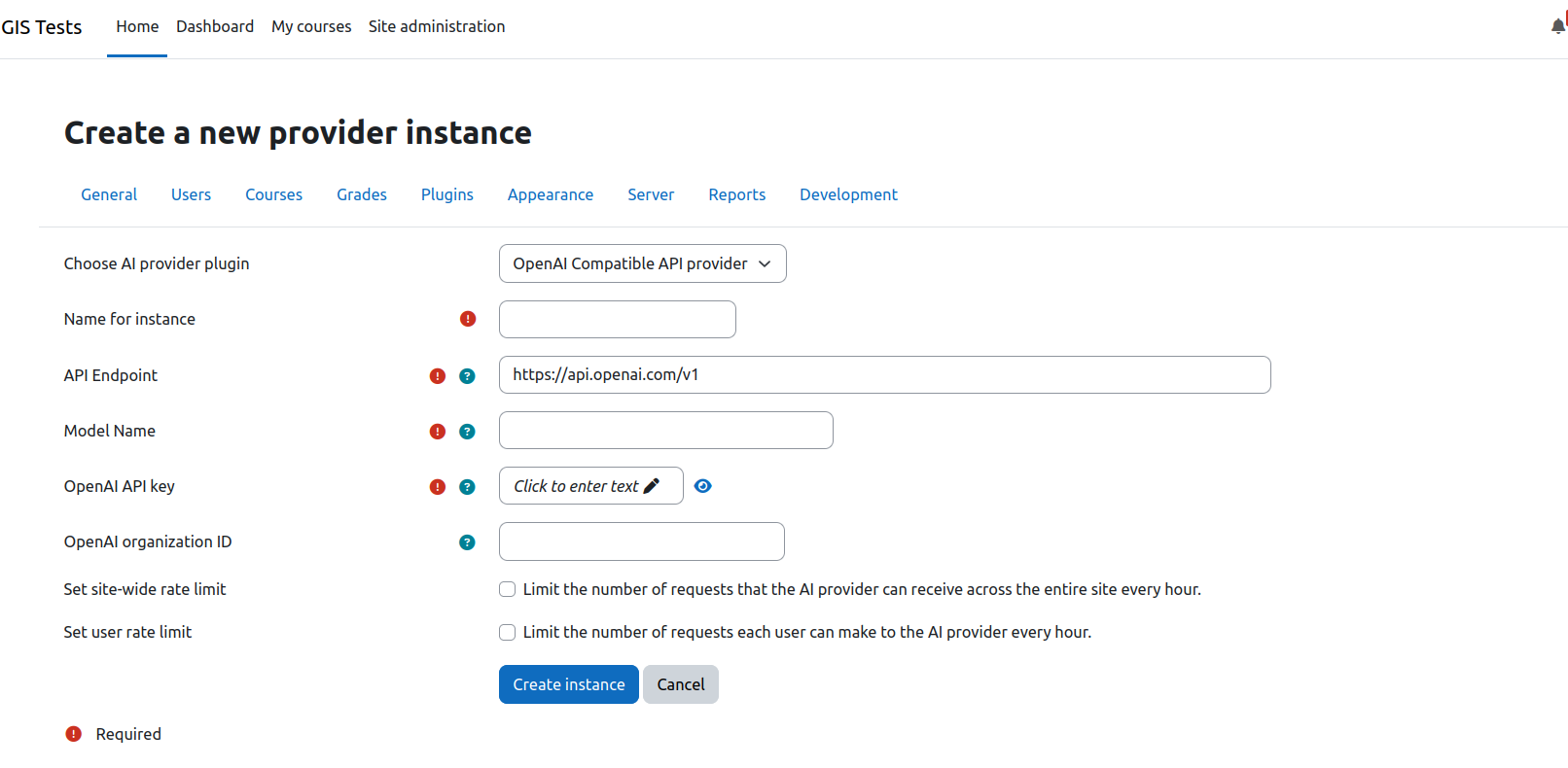
- Global settings for API Endpoint, API Key, and Organization ID.
- Action-specific overrides for Endpoints, System Instructions, and extra parameters.
Installation
Standard Installation
- Upload the
openaicompatible folder to [your_moodle_site]/ai/provider/.
- Log in as Administrator and visit Site Administration ' Notifications to complete the installation.
Enabling & Usage
Enable the Provider:
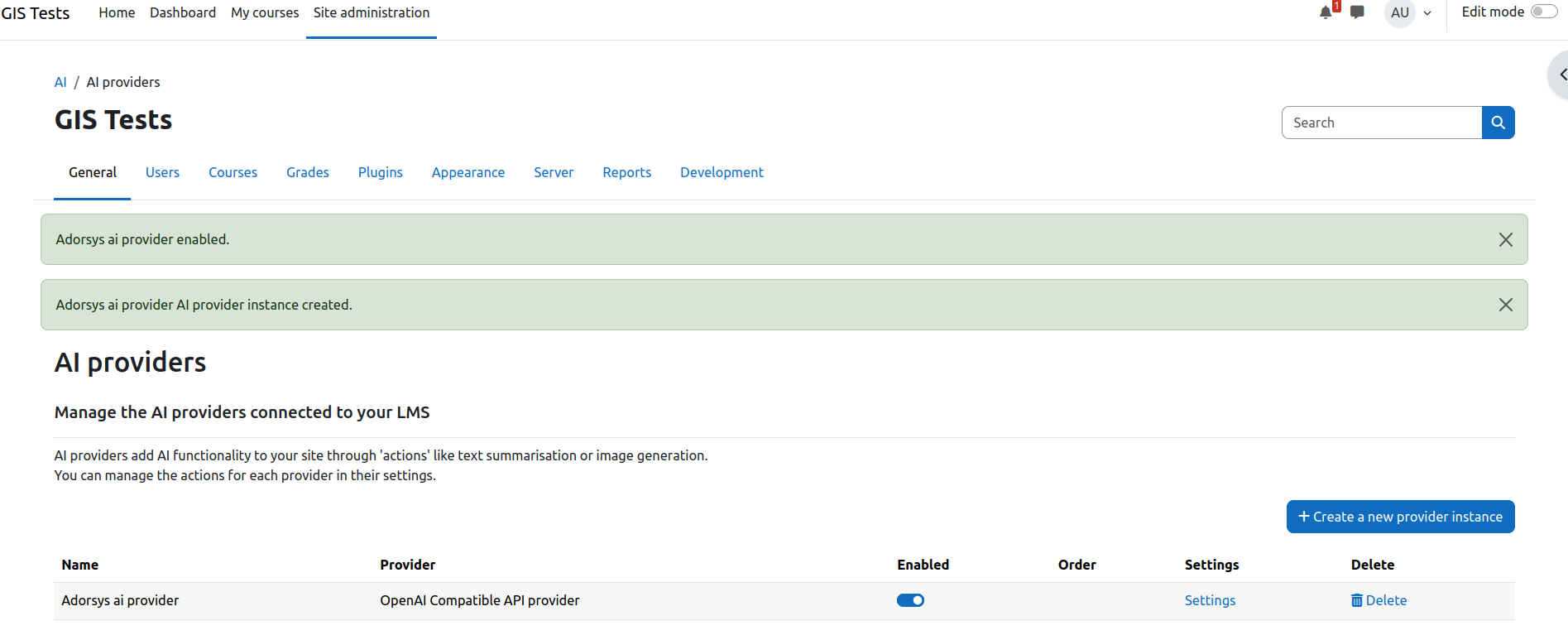
- Navigate to Site Administration ' AI ' AI Providers.
- Find the OpenAI Compatible row and toggle the Enabled switch to on.
- Click Save changes if prompted.
Verify Configuration:
- Ensure the API Endpoint and Key are correctly set in the provider settings.
Use with Placements:
- Once enabled, this provider becomes available to all AI Placement plugins.
- Navigate to Site Administration ' AI ' Placement Plugins.
- Configure plugins (e.g., Course Assist, HTML Editor AI) to use "OpenAI Compatible" for their specific actions.
Configuration
Navigate to Site Administration ' AI ' AI Providers ' OpenAI Compatible.
Global Settings
These settings configure the core authentication and routing for the provider.
- API Endpoint: The base URL of your AI service (e.g.,
https://api.openai.com/v1).
- OpenAI compatible API Key: Your service authentication key.
- OpenAI compatible organization ID: (Optional) For services that require an organization context.
Action-Specific Settings
Models must be explicitly configured at the action level. You can customize behavior for each action type.
- Go to the Actions configuration for the provider.
- Set the Model for the action, or override the API Endpoint if needed.
- System Instruction: Customize the system prompt sent to the LLM (for Text Generation, Summarization, etc.).
- Extra Parameters: Pass custom JSON parameters to the model (e.g.,
{"temperature": 0.7}).
Developer Guide
Architecture
openaicompatible/

"── classes/

│   "── abstract_processor.php    # Base class for API interactions

│   "── provider.php              # Main provider registration

│   "── process_*.php             # Action implementations (text, image, etc.)

│   └── form/                     # Admin setting forms

"── lang/en/                      # Language strings

└── db/hooks.php                  # Hook registration
Troubleshooting
- 404 Not Found: Ensure you are using the base URL (e.g.,
https://ai.example.com/api/v1). The plugin automatically appends /chat/completions or /images/generations to this path.
- 429 Too Many Requests: Check your Rate Limit settings in Moodle or your backend service quotas.
Maintainers
Adorsys GIS
📧 gis-udm@adorsys.com
License
GNU GPL v3 or later