Moodle Uptime Monitor
A Moodle admin tool plugin that integrates with the UptimeRobot monitoring service (free or paid) to monitor your Moodle site's availability, cron health, and maintenance mode status.
Features
- Site Availability Monitoring: Track your Moodle site's up time using UptimeRobot's reliable monitoring service
- Cron Health Checks: Checks if Moodle's cron hasn't run for a configurable period
- Maintenance Mode Detection: Checks if your site remains in maintenance mode longer than expected
- Flexible Monitoring Methods: Support for both heartbeat (push) and polling (pull) monitoring approaches
- Customizable Notifications: Configure email, in-app, or SMS alerts through UptimeRobot
Requirements
- Moodle 4.5 or higher
- UptimeRobot API key (free or paid)
Installation
- Download the release for your moodle version from the GitHub releases page
- Extract the contents to
{moodle}/admin/tool/upmon
- In your Moodle site (as admin) go to
Site administration > Notifications to complete the installation
See http://docs.moodle.org/en/Installing_plugins for additional details on installing Moodle plugins
Configuration
After installing the plugin, it will require a free or paid UptimeRobot API key to function.
Configure the plugin at: Site administration > Plugins > Admin tools > Uptime Monitor
Getting Your UptimeRobot API Key
- Sign up for UptimeRobot (This is an affiliate link - if you sign up for a paid plan using this link, it helps support the continued development of this plugin at no extra cost to you!)
- Log in and navigate to [Integrations & API]
- Click on API
- Click [Create] to generate a Main API key if one doesn't exist yet
- Copy the API key to this plugins settings at
Site administration > Plugins > Admin tools > Uptime Monitor
Basic Settings
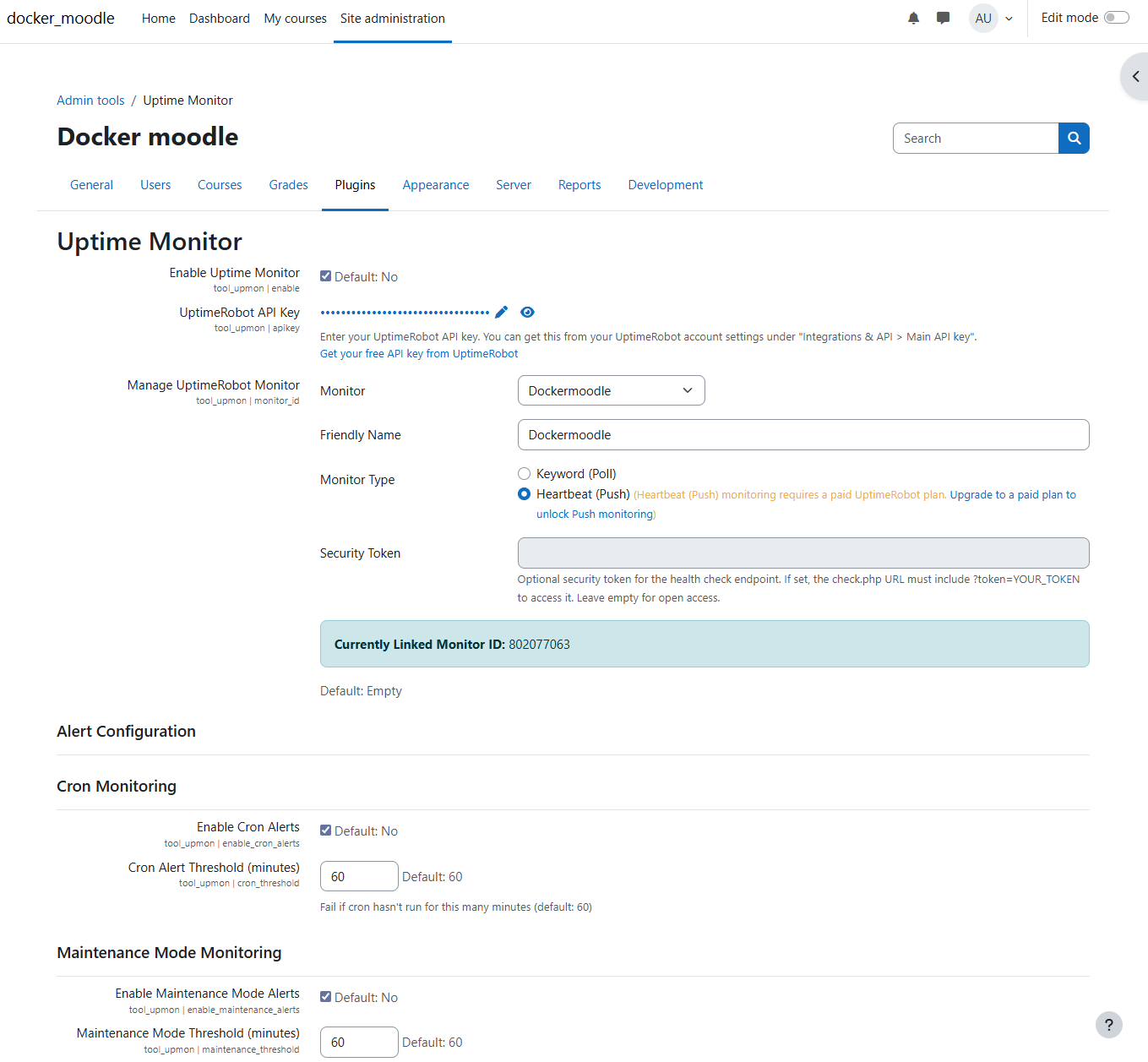
- Enable Uptime Monitor: Turn the integration on or off
- UptimeRobot API Key: Your unique API key from UptimeRobot
- Manage UptimeRobot Monitor: A dropdown to select an existing UptimeRobot monitor or create a new one. When you select an existing monitor, the Friendly Name and Monitor Type fields are automatically updated to show that monitor's current settings. When creating a new monitor:
- Friendly Name: The display name for the monitor in UptimeRobot
- Monitor Type: Choose between:
- Keyword (Poll): UptimeRobot checks your site's
/admin/tool/upmon/check.php endpoint for the keyword "upmon PASSES"
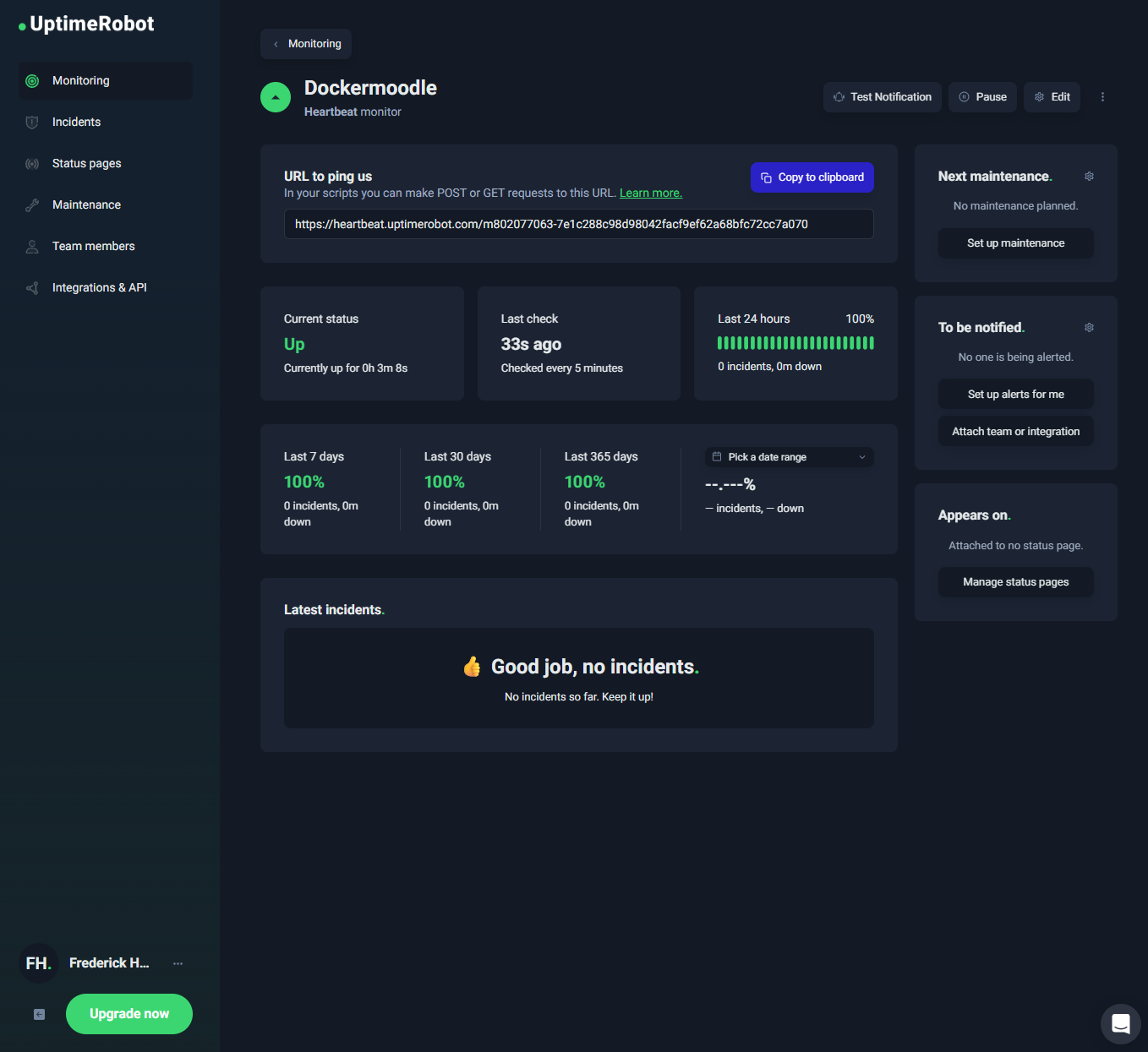
- Heartbeat (Push): This plugins scheduled task sends periodic pings to UptimeRobot (requires paid UptimeRobot plan)
- Security Token: Optional token to protect the health check endpoint
Scheduled Task (Heartbeat Mode)
When using Heartbeat (Push) monitoring, the plugin's scheduled task runs every 5 minutes by default. You can adjust this frequency at:
Site administration > Server > Tasks > Scheduled tasks > Send UptimeRobot Heartbeat
Alert Configuration
Cron Monitoring
- Enable Cron Alerts: Monitor Moodle's cron execution
- Cron Alert Threshold: Will fail the health check if cron hasn't run for this many minutes (default: 60)
Maintenance Mode Monitoring
- Enable Maintenance Mode Alerts: Detect extended maintenance mode
- Maintenance Mode Threshold: Will fail the health check if site remains in maintenance for this many minutes (default: 60)
Security Token (Optional)
You can optionally protect the health check endpoint (/admin/tool/upmon/check.php) with a security token to prevent unauthorized access.
- Security Token: An alphanumeric token that must be provided as a URL parameter to access the health check endpoint
When a token is configured, the endpoint URL becomes:
https://your-moodle-site.com/admin/tool/upmon/check.php?token=YOUR_SECURITY_TOKEN
If a token is set and the request doesn't include the correct token, the endpoint returns HTTP 403 Forbidden.
Note: Leave this field empty for open access
Notification Settings
Notifications are managed through your UptimeRobot dashboard:
- Email notifications
- SMS alerts (paid plans)
- Webhook integrations
- Mobile app push notifications