Questions Web Service Importer
Plugin Name: local_questions_importer_ws
Version: 1.1.1
Moodle Version Required: 4.5 (2024100700) or later
Description
This local plugin exposes a custom Moodle Web Service function that allows external applications to import Moodle XML format questions directly into a specific course. It handles the parsing of the XML file and the creation of questions and categories within the target course's question bank.
Installation
- Copy the
questions_importer_ws folder into the local/ directory of your Moodle installation.
- Log in to your Moodle site as an administrator.
- Go to Site administration > Notifications to trigger the plugin installation.
- Follow the on-screen instructions to complete the installation.
Web Service Configuration
To use the web service, you need to set up the external service in Moodle:
Enable Web Services:
- Go to Site administration > Server > Web services > Overview.
- Ensure "Enable web services" is checked in Manage protocols (e.g., REST).
Create/Enable the Service:
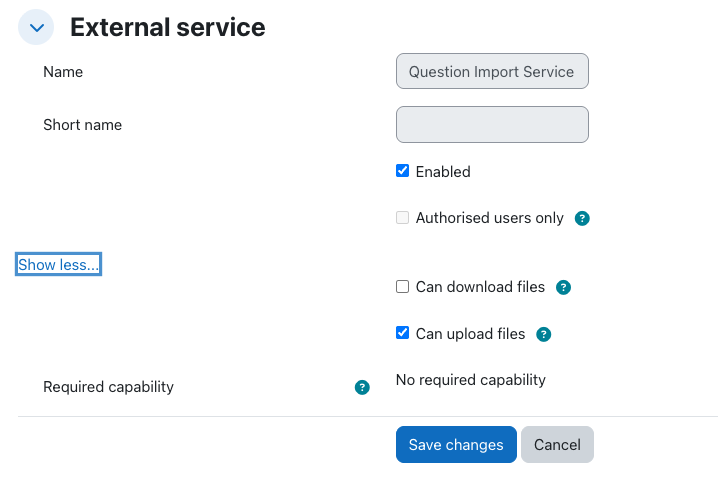
- The plugin pre-defines a service named Question Import Service.
- Go to Site administration > Server > Web services > External services.
- Ensure "Question Import Service" is enabled.
- Important: Ensure the "Can upload files" option is checked in the service settings.
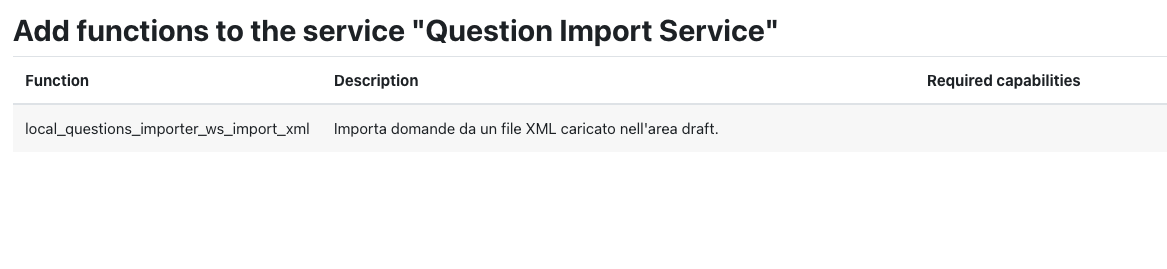
- If not using the pre-defined service, you can create a custom service and add the function
local_questions_importer_ws_import_xml.
Create a User and Token:
- Create a user (or use an existing one) with the capability
local/questions_importer_ws:import in the target course context.
- Generate a token for this user via Site administration > Server > Web services > Manage tokens.
API Usage
This web service generally requires a two-step process:
- Upload the XML file to the Moodle "Draft" file area.
- Call the import function referencing the draft file.
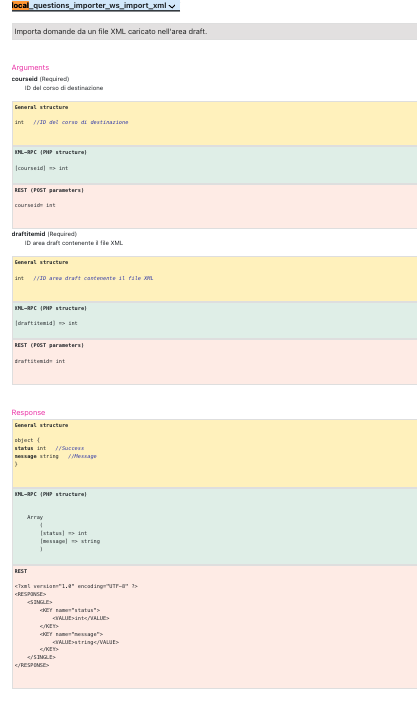
Function: local_questions_importer_ws_import_xml
Description: Imports questions from an XML file uploaded to the draft area.
Parameters
| Parameter | Type | Description |
| :--- | :--- | :--- |
| courseid | int | The ID of the course where questions will be imported. |
| draftitemid | int | The itemid of the file in the user's draft area containing the Moodle XML file. |
Return Value
{

    "status": true,

    "message": "Successfully imported X questions from XML."

}
Example Workflow (REST)
Step 1: Upload File to Draft Area
Use the standard Moodle core function core_files_upload (or simply upload via a separate HTTP POST to the upload endpoint if using standard file upload logic) to get a draftitemid.
Note: You may need to use core_files_get_unused_draft_itemid first to get a valid itemid.
Step 2: Call Import Function
Make a POST request to your Moodle web service endpoint (e.g., https://yourmoodle.com/webservice/rest/server.php).
Parameters:
wstoken: YOUR_TOKEN
wsfunction: local_questions_importer_ws_import_xml
moodlewsrestformat: json
courseid: 10 (Target Course ID)
draftitemid: 987654321 (The ID returned from the file upload step)
Request Example:
https://yourmoodle.com/webservice/rest/server.php?wstoken=12345abcde&wsfunction=local_questions_importer_ws_import_xml&moodlewsrestformat=json&courseid=10&draftitemid=987654321
Response Example:
{

    "status": true,

    "message": "Successfully imported 5 questions from XML."

}
Supported Format
The plugin currently supports the standard Moodle XML format. Categories defined in the XML will be created recursively within the course context.