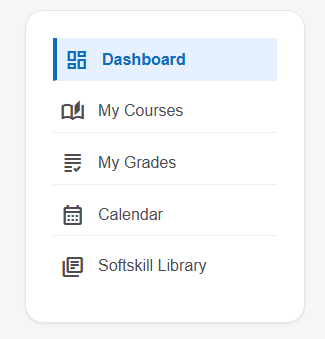
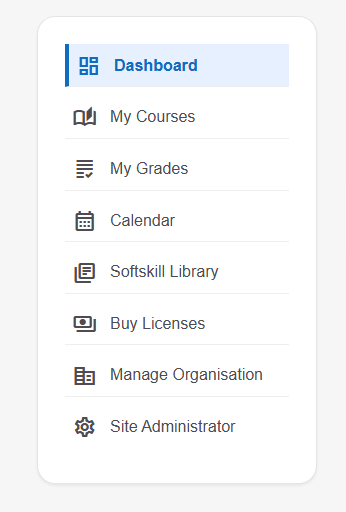
The Custom Menu Builder block allows administrators and teachers to create a fully customizable vertical menu with links, Material Design icons, and role-based visibility directly from the block configuration interface.
Perfect for:
- Creating quick-access side menus
- Building custom navigation for specific courses or the site front page
- Providing role-specific links (e.g., Student Resources, Staff Portal, Parent Links)
Features
- Add up to 20 menu items per block instance
- Set title, URL, and Material Design icon for each item
- Role-based visibility – show items only to selected roles (multiple roles supported)
- Automatic active state highlighting based on current page URL
- Special handling for the Moodle Dashboard (
/my) so "/my" links are highlighted correctly
- Clean, modern styling with hover effects and active indicator
- Uses Google Material Icons (Outlined) – just type the icon name (e.g.,
home, school, assignment)
Installation
- Download the plugin folder named
menubuilder
- Place it in your Moodle
/blocks/ directory
- Log in as administrator and visit Site administration > Notifications to complete installation
- The block will appear in the "Add a block" dropdown as Menu Builder
How to Use
- Add the Menu Builder block to a page (Dashboard, course page, or front page)
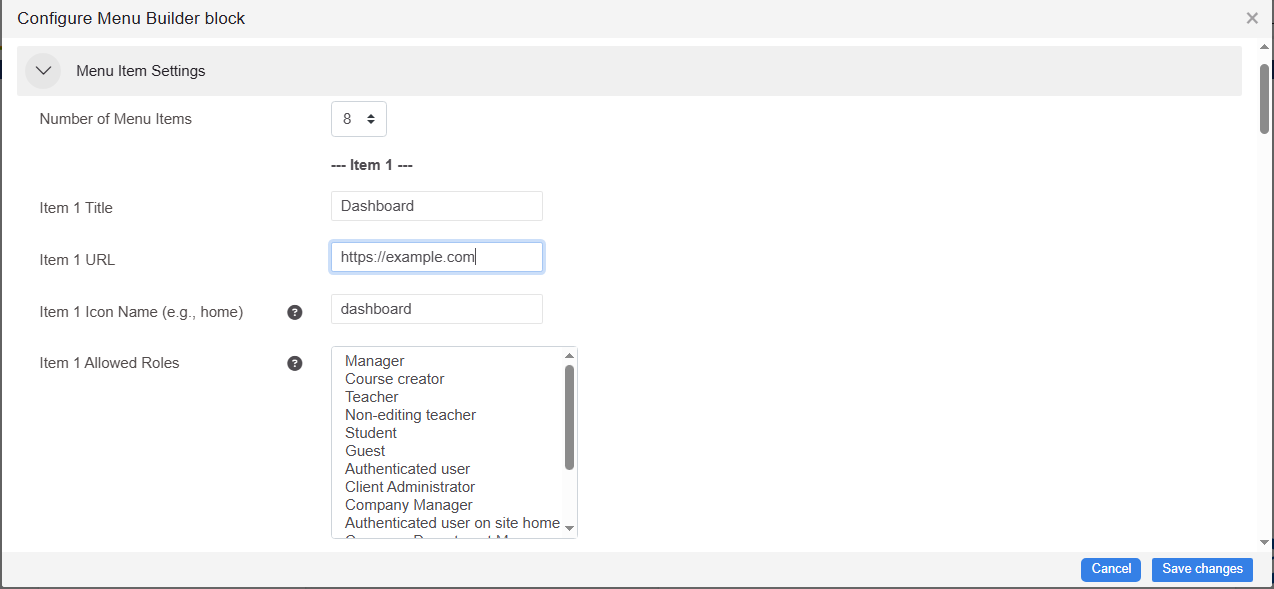
- Click the gear icon > Configure Menu Builder block
- Set Number of items (0–20)
- For each item configure:
- Item title – displayed text
- Item URL – full or relative URL (e.g.,
/my/, https://example.com, /course/view.php?id=5)
- Item icon (optional) – Material icon name, e.g.,
dashboard, forum, grade
(See all icons: https://fonts.google.com/icons)
- Allowed roles – leave empty to show to everyone, or select specific roles
- Save changes
Let's make Moodle more user friendly!
Made with "️ for the Moodle community
Dynamic Pixel Multimedia Solutions