ACE Dashboard Block for Moodle


Description
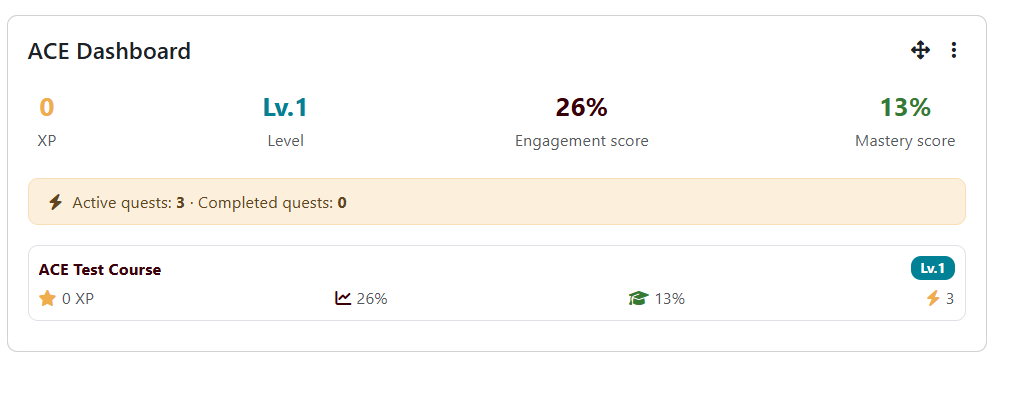
The ACE Dashboard block displays the ACE gamification overview for students within Moodle. It provides an at-a-glance summary of XP progress, current level, active quests, and course analytics directly on the dashboard or within individual course pages.
When placed on a course page, the block renders a detailed gamification dashboard for that specific course. When placed on the My (Dashboard) page, it aggregates data across all enrolled courses that have ACE enabled, giving students a comprehensive overview of their progress.
Features
- XP Progress Display - Shows the student's current experience points and progress towards the next level.
- Level Indicator - Displays the student's current gamification level.
- Active Quests Summary - Lists active and completed quests for each course.
- Course-wide Analytics - Engagement and mastery scores per course with averages across all enrolled courses.
- Works on Dashboard and Course Pages - Supports both the Moodle My page (site-wide summary) and individual course views (detailed dashboard).
Requirements
- Moodle 4.5 or later
- PHP 8.1 or later
- ACE Engine (
local_aceengine) plugin installed and configured
Installation
- Download or clone this repository into your Moodle installation:
cd /path/to/moodle/blocks

git clone https://gitlab.com/letstudygroup/moodle-block_aceengine.git ace
- Alternatively, download the latest release and extract it to
blocks/ace within your Moodle directory.
- Log in to Moodle as an administrator.
- Navigate to Site administration > Notifications to complete the installation.
Configuration
The ACE Dashboard block relies on the ACE Engine plugin (local_aceengine) for all data and configuration. Ensure that:
- The
local_aceengine plugin is installed and enabled globally via Site administration > Plugins > Local plugins > ACE Engine.
- ACE is enabled for the courses where you want the block to appear.
- Students have the
local/ace:viewdashboard capability in the relevant course contexts.
Once installed, add the block to any course page or the user dashboard through the standard Moodle block interface:
- On a course page: Turn editing on > Add a block > ACE Dashboard
- On the dashboard: Customise this page > Add a block > ACE Dashboard
Dependency
This plugin requires the ACE Engine (local_aceengine) to be installed and configured. The block will not display any content if the ACE Engine plugin is not active or if it is not enabled for the current course.
Developed by
Letstudy Group
https://plugins.letstudy.gr
License
This plugin is licensed under the GNU General Public License v3 or later.