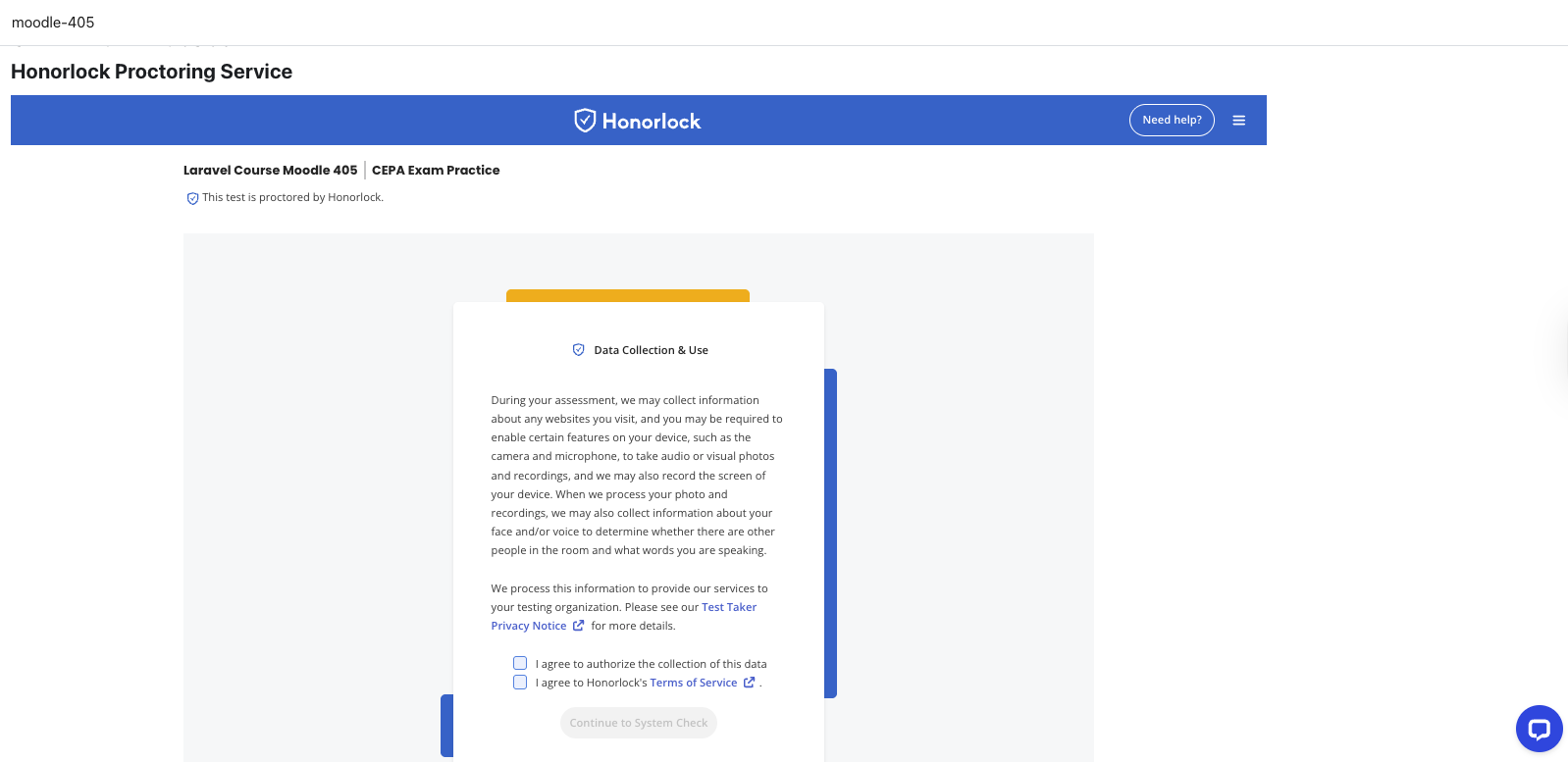
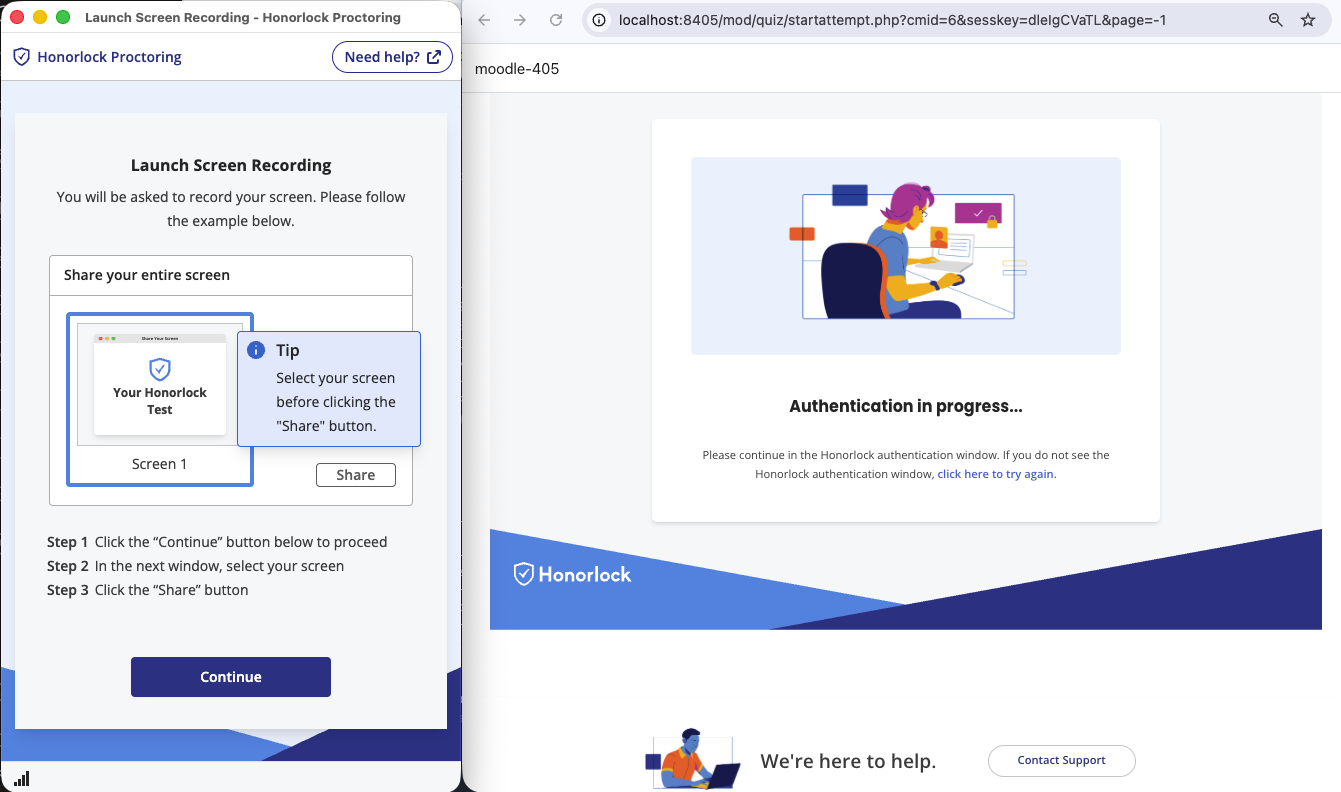
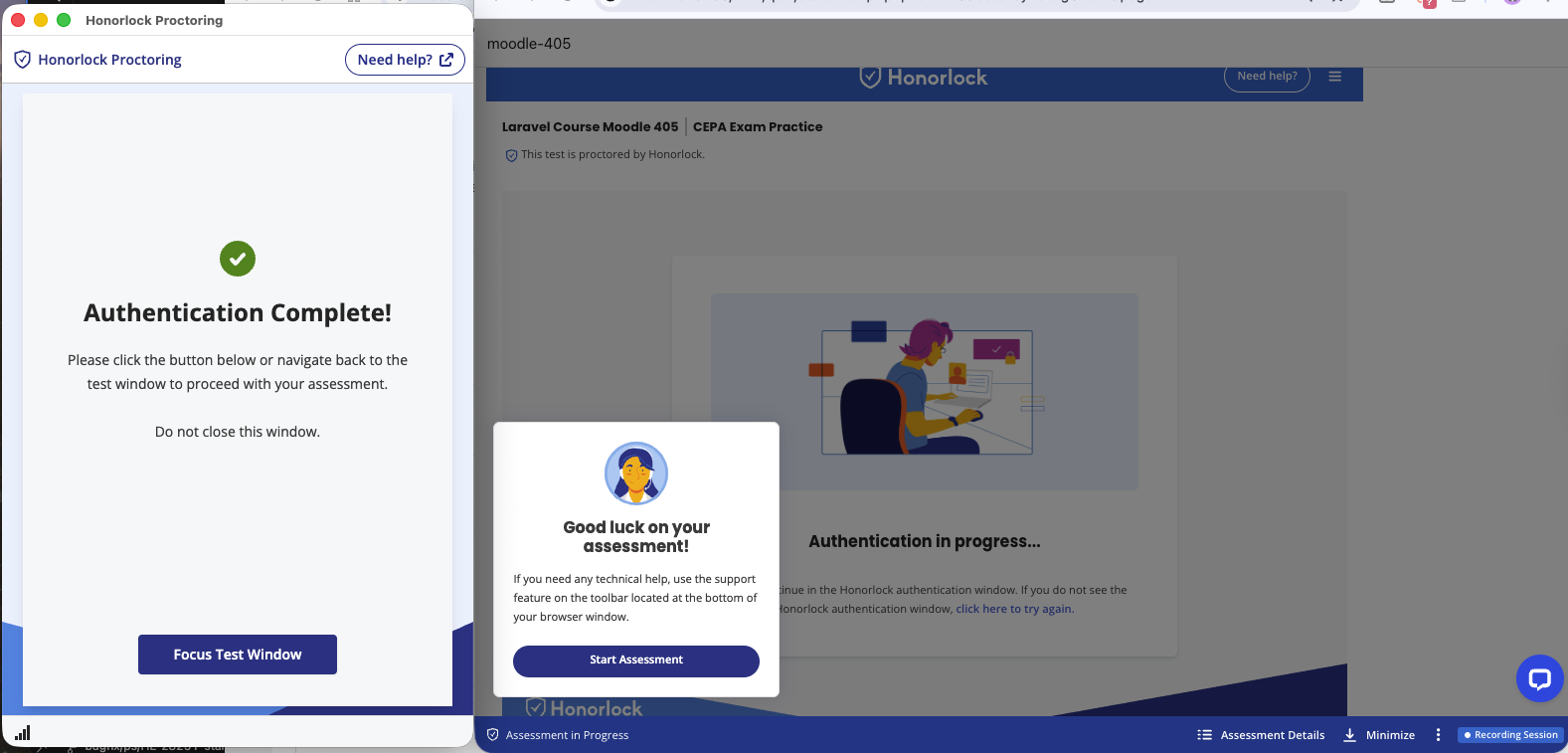
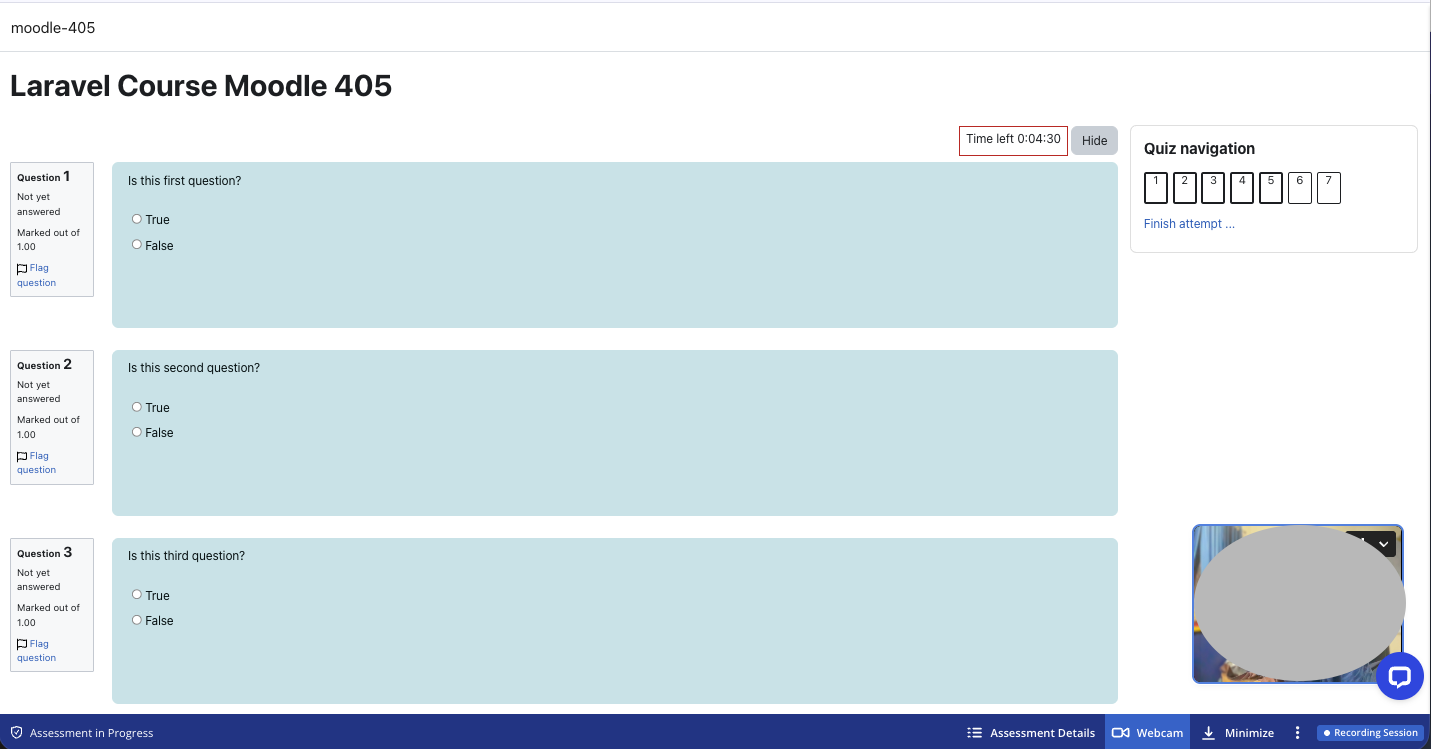
Honorlock Proctoring
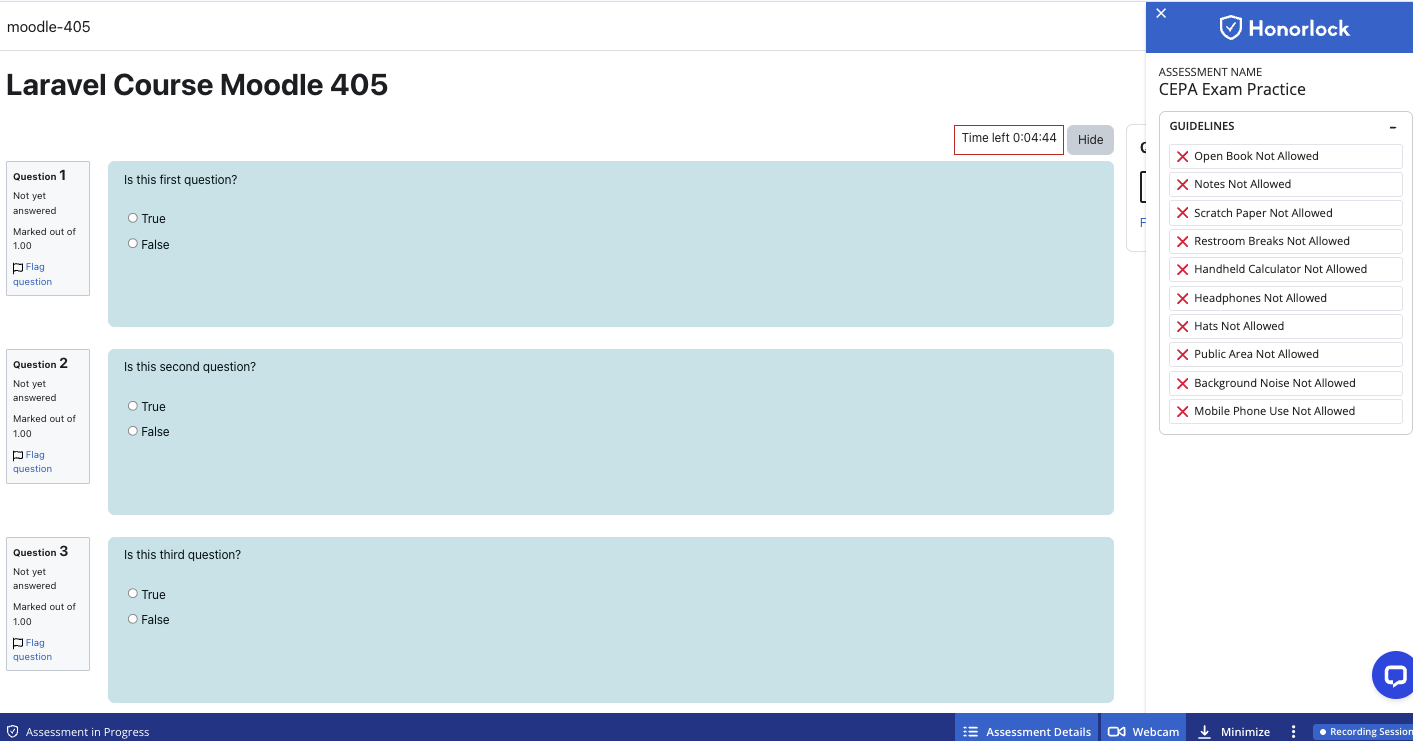
Welcome to the Moodle plugin for integrating with the Honorlock Proctoring! This plugin provides seamless integration between Moodle and Honorlock Proctoring, enabling online assessments to be proctored and monitored in real time. With this plugin, Moodle administrators can ensure the authenticity and validity of online exams, enhancing the reliability and trustworthiness of online education.
The Honorlock Proctoring Moodle plugin is easy to install and use, and requires minimal configuration. It provides a comprehensive solution for proctoring online exams, and is designed to be flexible and adaptable to the specific needs of each institution.
A commercial license with Honorlock is required for integration. Please reach out to Honorlock for more information here.
In this readme file, we will go through the key features of the Honorlock Proctoring Moodle plugin, and provide detailed instructions on how to install, configure and use it. This readme file will provide all the information you need to get started with the Honorlock Proctoring Moodle plugin.
Requirements
- This version Honorlock Proctoring plugin was tested with Moodle 4.5, Moodle 5.0 and Moodle 5.1
- Honorlock organization client id and client secret are required for setup, use Organization API Clients page.
- Honorlock Proctoring authenticates for instructors via LTI. Please, check the LTI configuration below.
Configuration
There are multiple parts to the Honorlock Proctoring integration process
- Plugin Installation
- Plugin Activation
- Honorlock API Access Role Configuration
- LTI Configuration
- Adding of LTI instances to courses
Plugin Configuration
The Honorlock Plugin will enable students to take Honorlock proctored exams. To accomplish this, the following steps are required:
- Plugin Installation
- Plugin Activation
- Honorlock API Access Role Configuration
Install the plugin
Use either built in plugin installation to install Honorlock Proctoring Service plugin
or download the plugin code directly from Github.
Plugin Activation
- Navigate to "Site administration / Plugins / Activity modules / Quiz / Honorlock Proctoring Service"
- Click "Activate" button
- Fill in client id and secret and presses "Activate"
- Copy installation configuration details
Honorlock API Access Role Configuration
- Navigate to "Site administration / Users / Define Roles / Honorlock API Access / Edit"
- Context types where this role may be assigned:
- Check system and leave others unchecked
- In the capability section at the bottom allow the following permissions (tip: do a find for each)
- moodle/course:update
- moodle/course:view
- moodle/course:viewhiddencourses
- moodle/question:viewall
- webservice/rest:use
- mod/quiz:view
- mod/quiz:viewreports
- moodle/course:ignoreavailabilityrestrictions
- quizaccess/honorlock:ws
Contact Honorlock to complete setup
- Provide Honorlock with the following information from the previous steps:
- Platform ID
- Client ID
- Deployment ID
- Public keyset URL
- Access token URL
- Authentication request URL
- Token
LTI Configuration
Add LTI to a course
- Select a course in Moodle
- Toggle the Edit mode option in the top right corner of the page
- Under any topic
- Click Add an activity or resource
- Click External tool
- Fill the following fields
- Activity name: Honorlock
- Preconfigured tool: Honorlock LTI
- Click Save and return to course
- Untoggle Edit mode
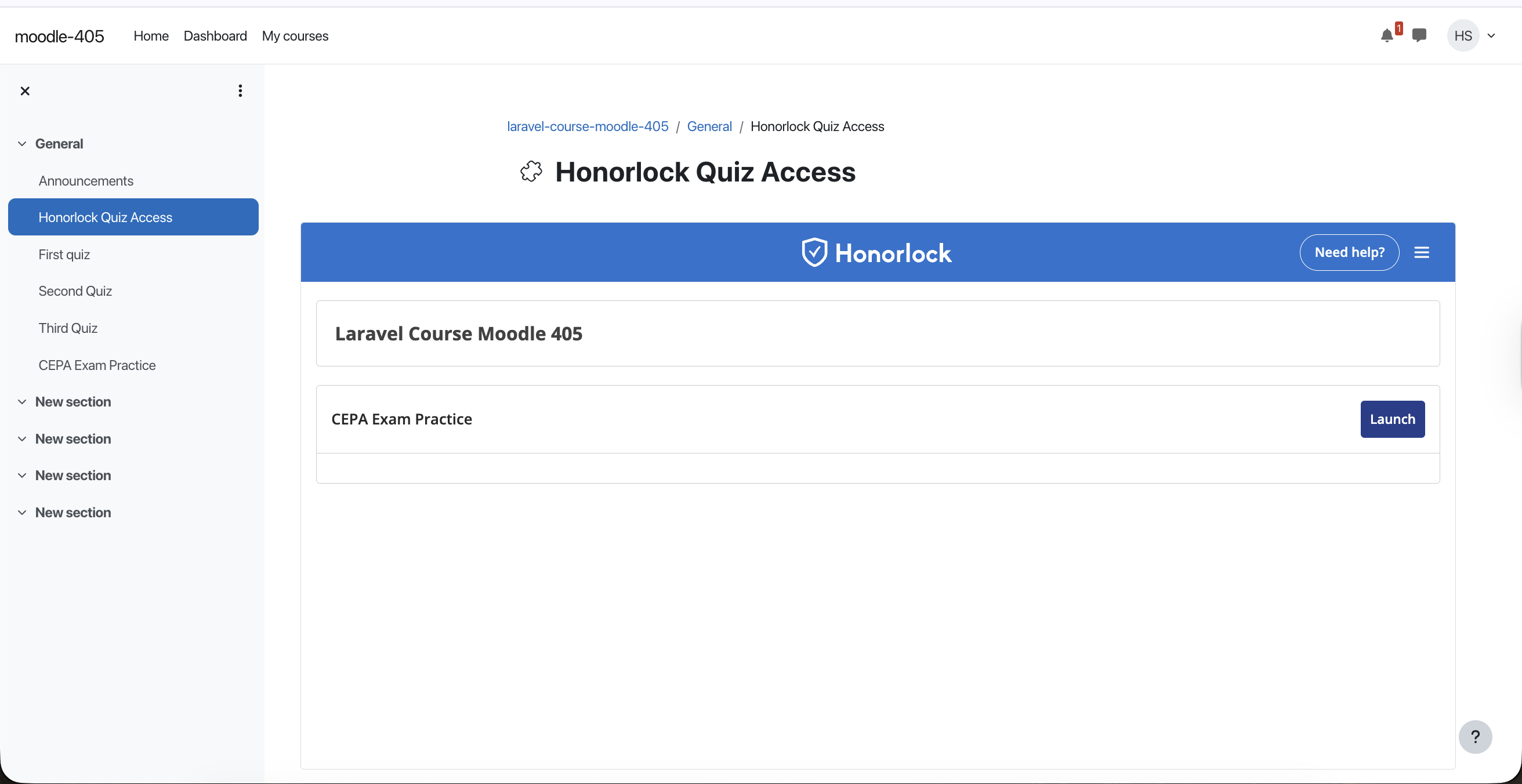
- Click the Honorlock LTI external Tool
Migration from pre-existing moodle-local_honorlockproctoring plugin
- Delete local/honorlockproctoring/ directory from web server
- Install new plugin into mod/quiz/accessrule/honorlock/ directory
- Activate the new plugin using the original client_id
- Pass new server access information to Honorlock
- Delete old web service account
- Uninstall old moodle-local_honorlockproctoring plugin
- Wait for Honorlock to activate the changes
- Manually remove the 'HL_NO_EDIT' password from quizzes and verify Honorlock was enabled
Issue Tracker for Honorlock's Moodle Plugin
This repository serves as the dedicated issue tracker for Honorlock's Moodle Plugin. We have created this separate repository to keep things organized and efficient as we work towards improving and maintaining our Moodle plugin.
Please note, at this time, we are only accepting reports of bugs or glitches. We are not taking feature requests through this issue tracker.
How to Submit an Issue
If you have found a bug or glitch related to our Moodle plugin, please follow these steps to create a new issue:
Check existing issues - Take a look at the existing issues to see if someone else has already reported the same problem.
Create a new issue - If your issue is unique, click on the "Issues" tab near the top of the page, and then click the "New issue" button.
Describe the issue - Provide as much detail as possible in the issue form:
- Choose a clear and concise title that summarises the problem.
- Describe the issue in detail, providing the necessary steps to reproduce the problem if it's a bug.
- If possible, include screenshots or screen recordings to help illustrate the issue.
- Include details about your system configuration such as operating system, browser version, and Moodle version.
Submit the issue - After you have filled out the form, click "Submit new issue" to create the issue. We will review it and respond as soon as possible.
What to Expect
Once an issue is submitted, our team will review it and potentially ask for further information to better understand the problem. If we're able to reproduce a reported bug, we'll classify the issue accordingly and add it to our development roadmap.
Please understand that we prioritize issues based on a variety of factors including but not limited to the impact of the issue, the number of users it affects, and our development resources. As such, we can't guarantee a specific timeline for when an issue will be resolved. We appreciate your patience and understanding.
Thank you for your contribution and support.