VideoTrack (mod_videotrack)
VideoTrack is a custom Moodle activity module designed to embed videos and accurately track students' viewing progress. It allows teachers to condition activity completion on students watching a minimum percentage of the video, ensuring complete engagement with the educational content.
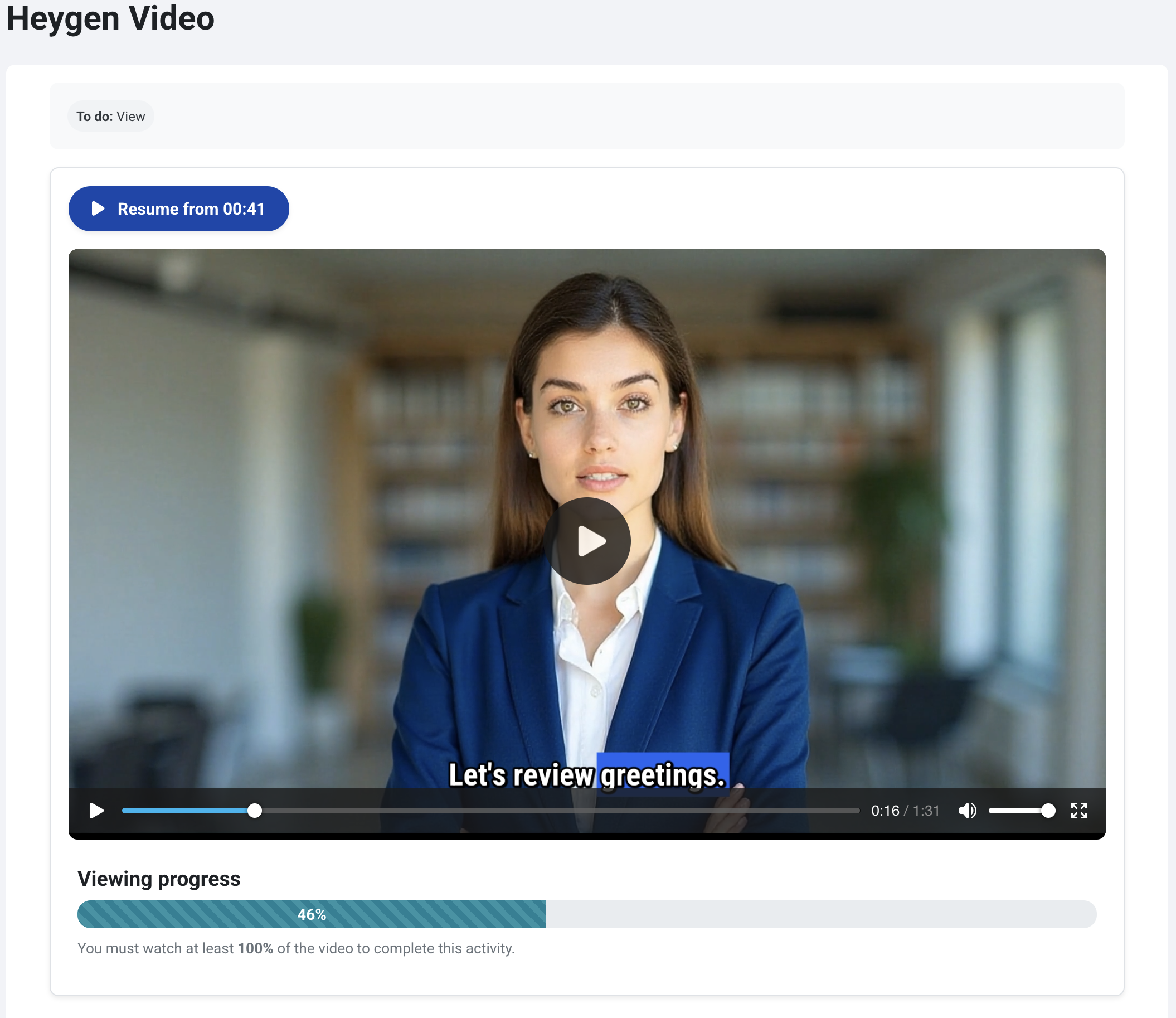
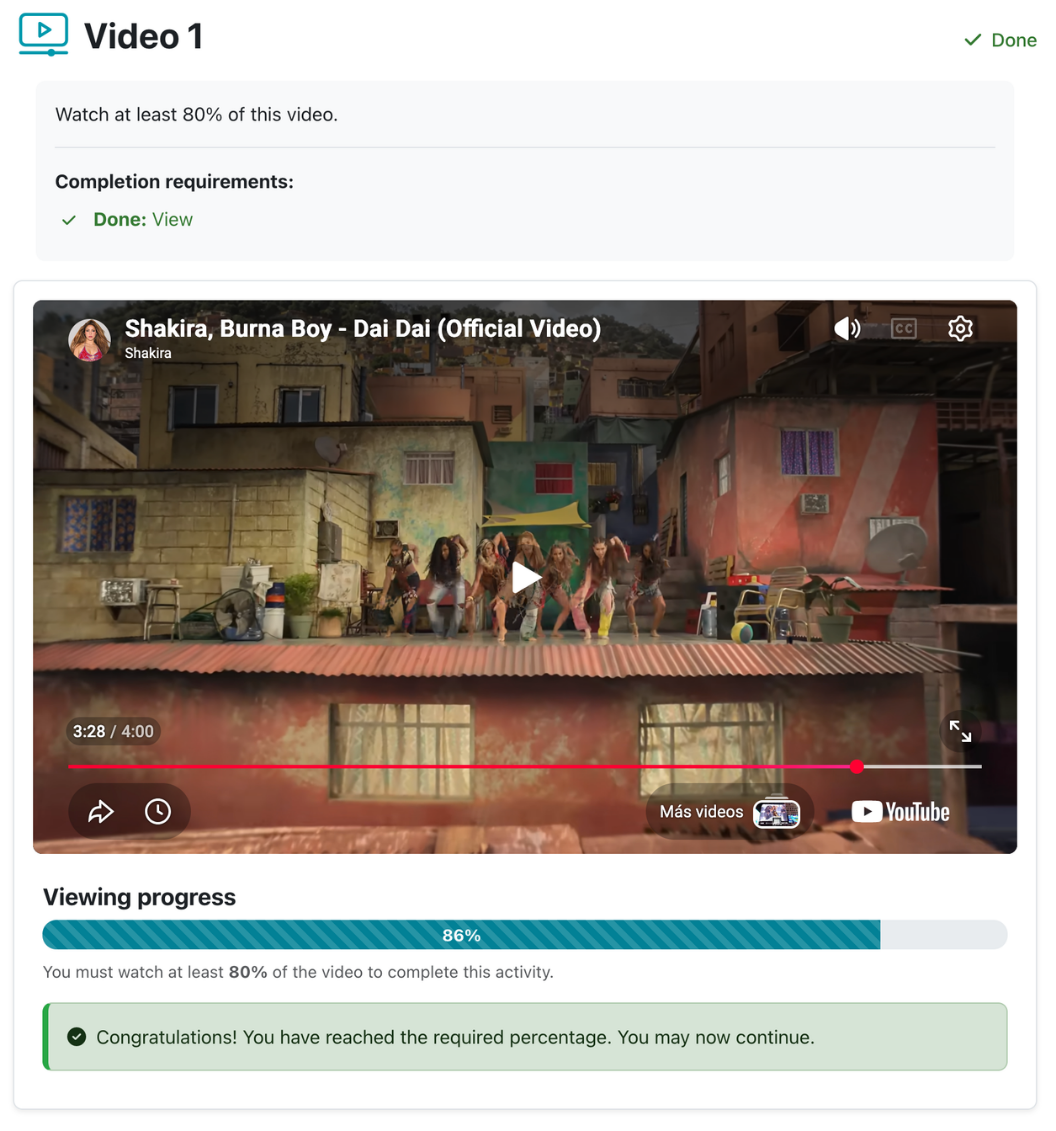
- Flexible Video Sources: Supports embedding videos via external links (including YouTube, YouTube Shorts, Heygen, and other direct URLs), as well as direct MP4 file uploads.
- Real-Time Progress Tracking: Automatically monitors and records the student's highest video playback position in real time.
- Resume Playback: A smart resume button allows students to return to the exact minute and second where they left off, ensuring a seamless learning experience across multiple sessions.
- Playback Control (No Forwarding): Prevents students from fast-forwarding or skipping ahead through parts of the video they have not yet watched.
- Target-Based Completion: Set a custom completion threshold (e.g., 80%) where the activity is automatically marked as completed once reached. Setting the target to
0 enables free viewing with unrestricted navigation.
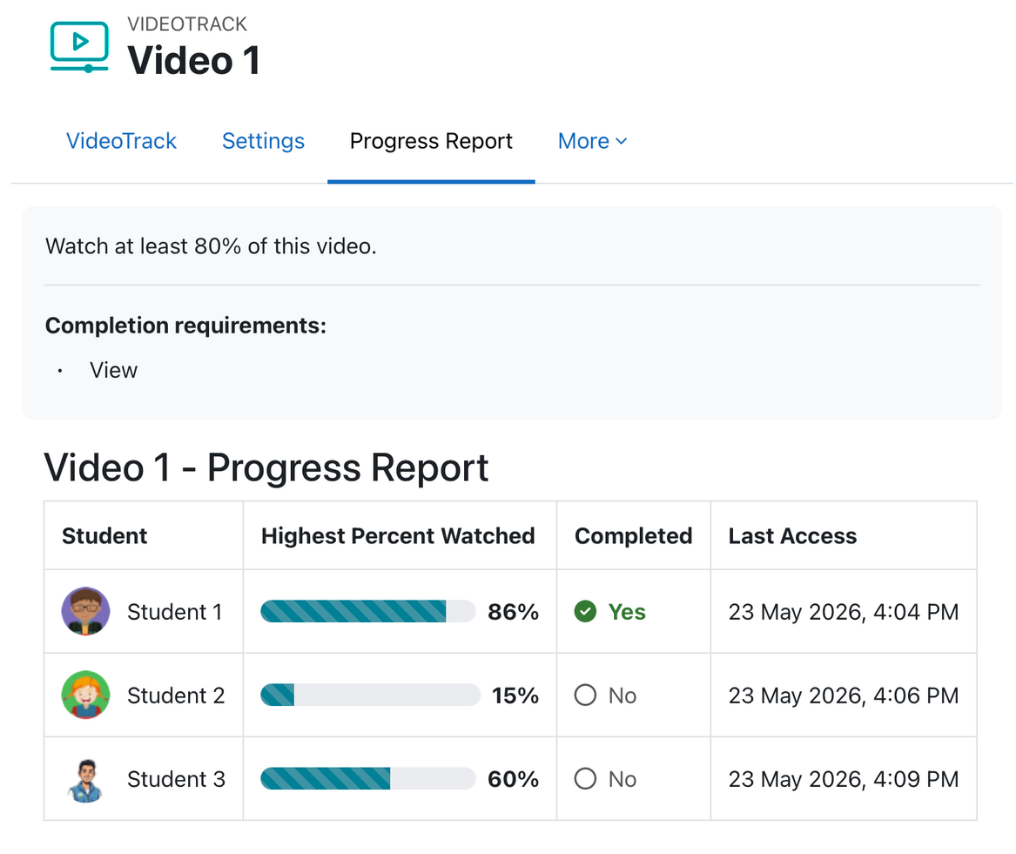
- Detailed Progress Reports: Provides teachers with a comprehensive dashboard showing each student's highest playback percentage and current activity completion status.
- In your Moodle course, turn on Edit mode.
- Click Add an activity or resource in the desired section and select VideoTrack.
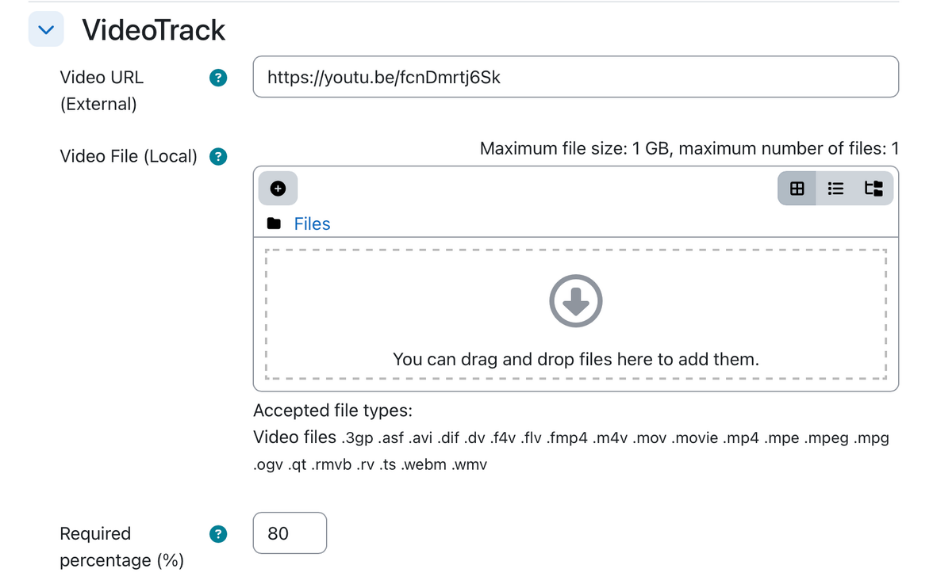
- Provide an Activity Name, and upload an MP4 file or enter a video link (YouTube, Shorts, or external URL).
2. Setting up the Completion Condition
- In the activity settings, locate the Target Percent field.
- Enter the minimum percentage of the video that students must watch (e.g.,
80).
- Go to the Activity completion section, set Completion tracking to Show activity as complete when conditions are met, and check the box View the activity.
- Save the changes. The activity will automatically mark itself as complete for each student once they reach the target percentage.
3. Accessing the Progress Report
- As a teacher or manager, open the VideoTrack activity.
- In the secondary navigation menu (tabs) of the activity, click on Progress report.
- You will see a detailed list showing each student's name, highest percentage watched, activity completion status, and last update time.