Luuk Verhoeven
Maintainer


Delayed answer display — qbank_delayedanswers

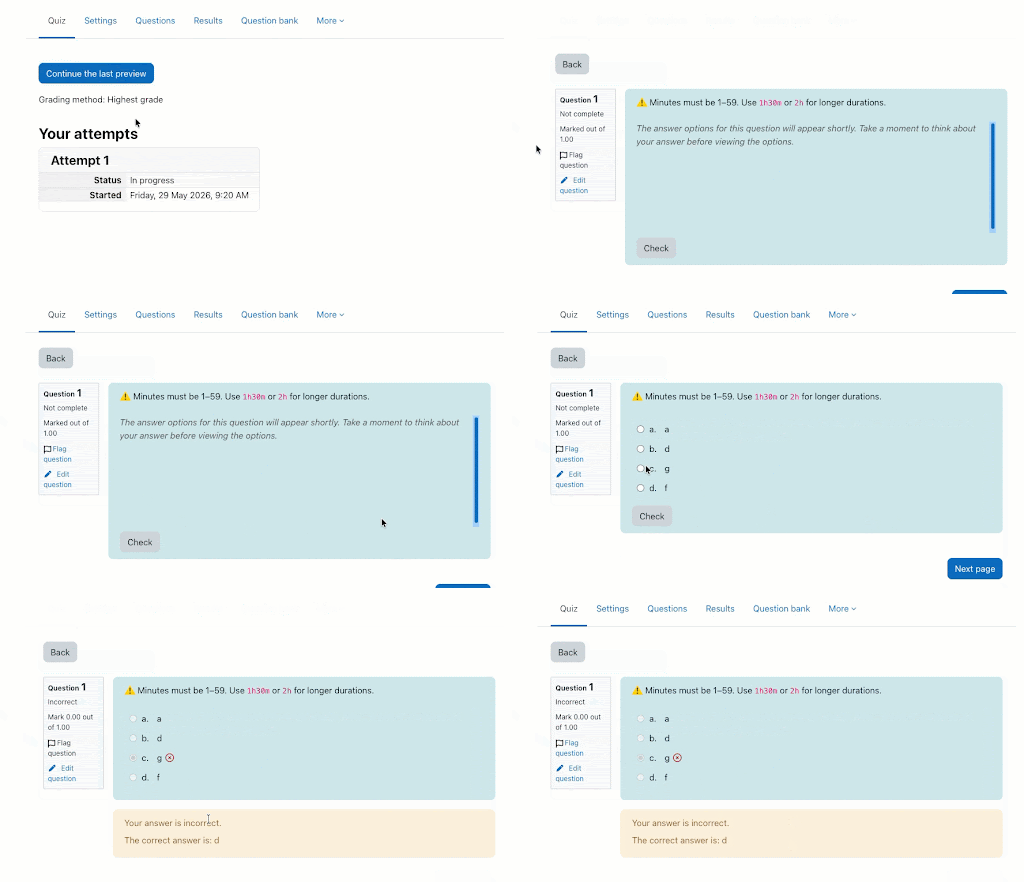
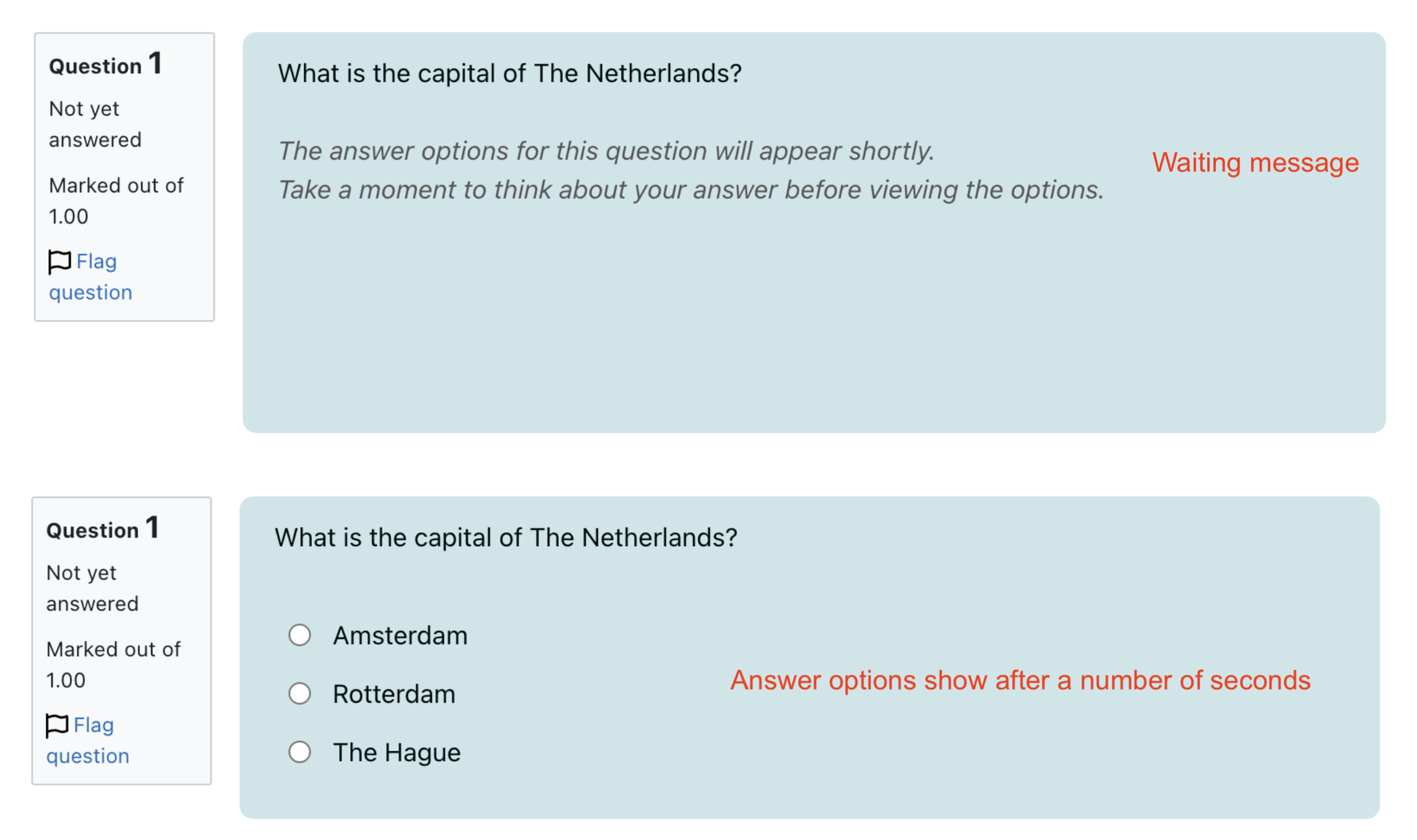
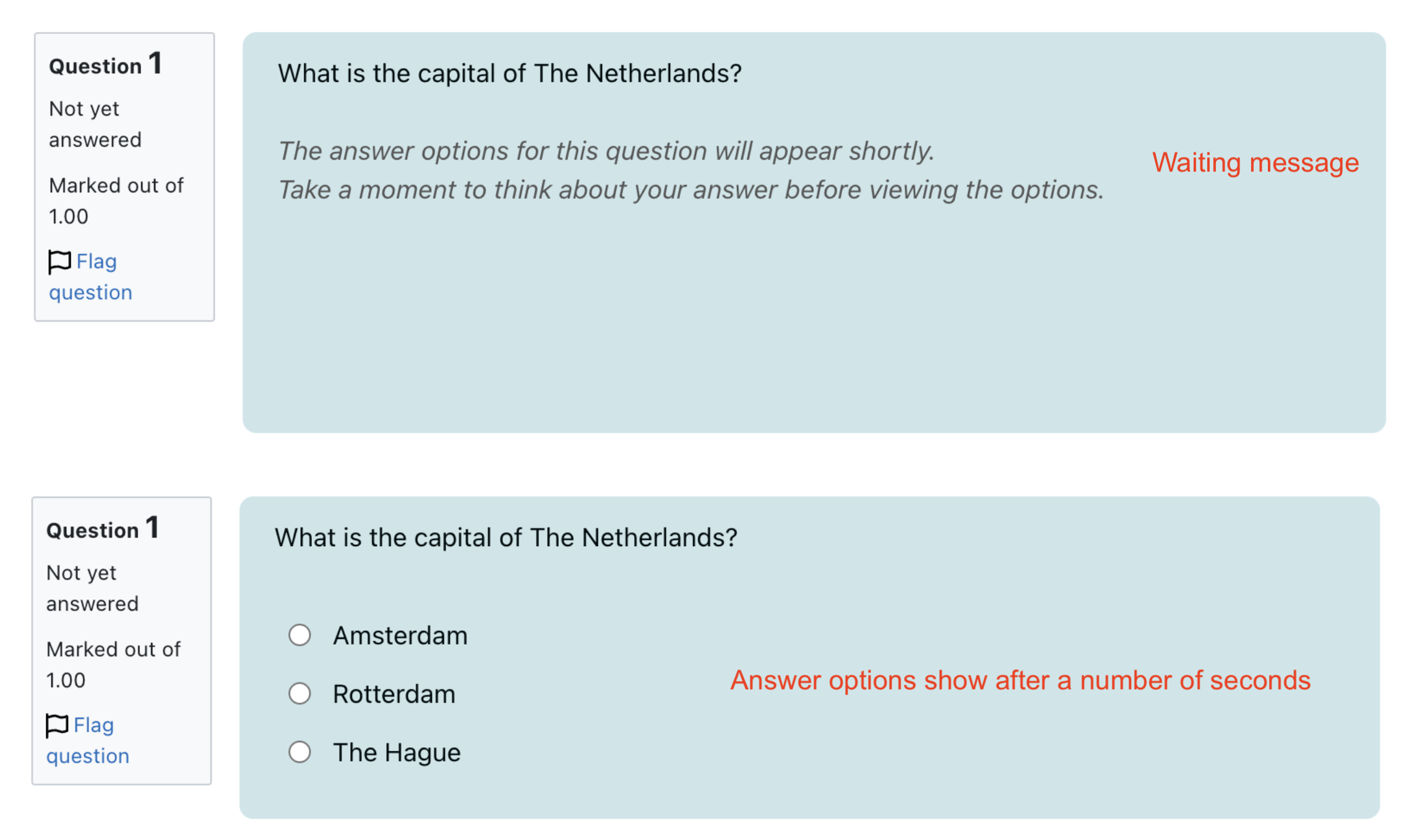
Delayed answer display is a Moodle question bank plugin that hides the answer options of multiple-choice questions for a short, configurable delay at the start of each quiz question.
Students first see only the question, encouraging active recall instead of recognition. The delay is a pedagogical nudge, not an anti-cheat mechanism, based on research carried out by Utrecht University: giving learners a moment to formulate their own answer before seeing the options improves retention.
Features
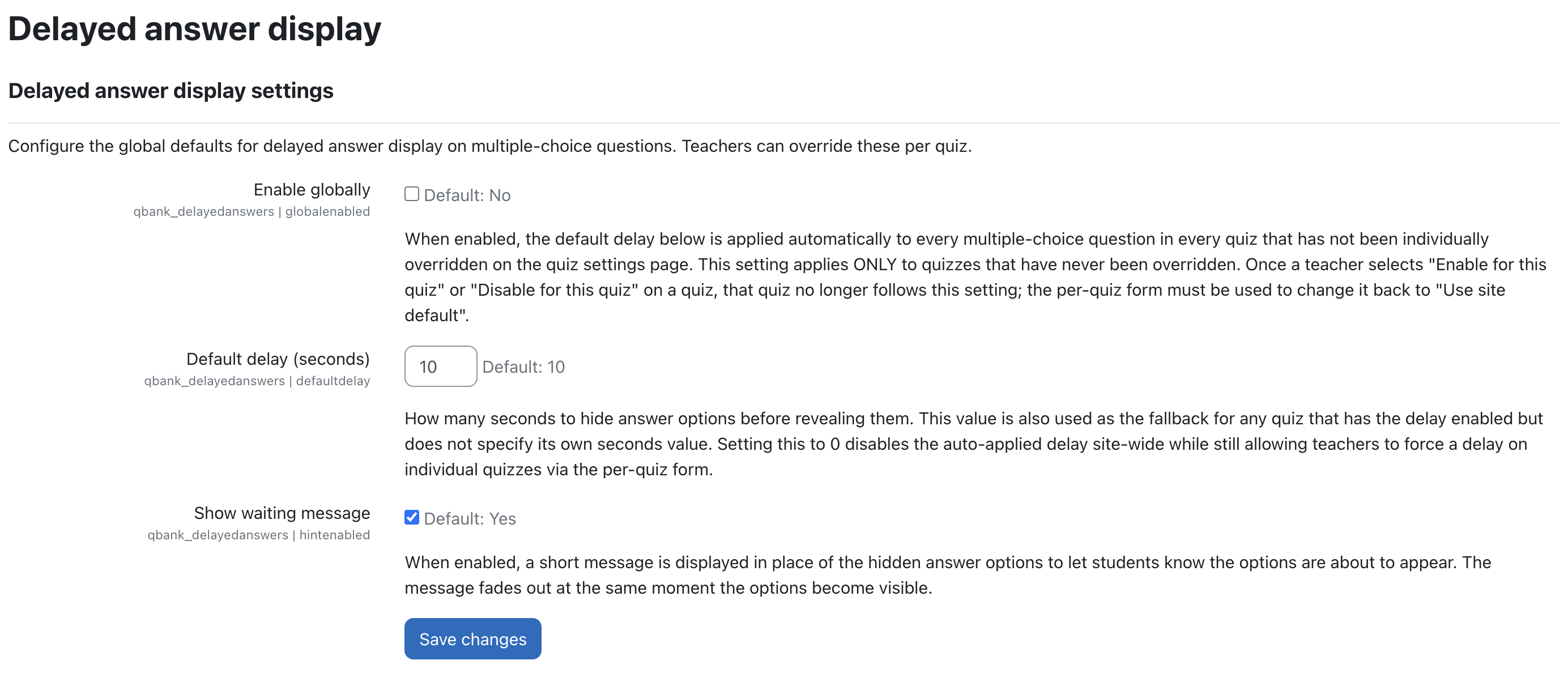
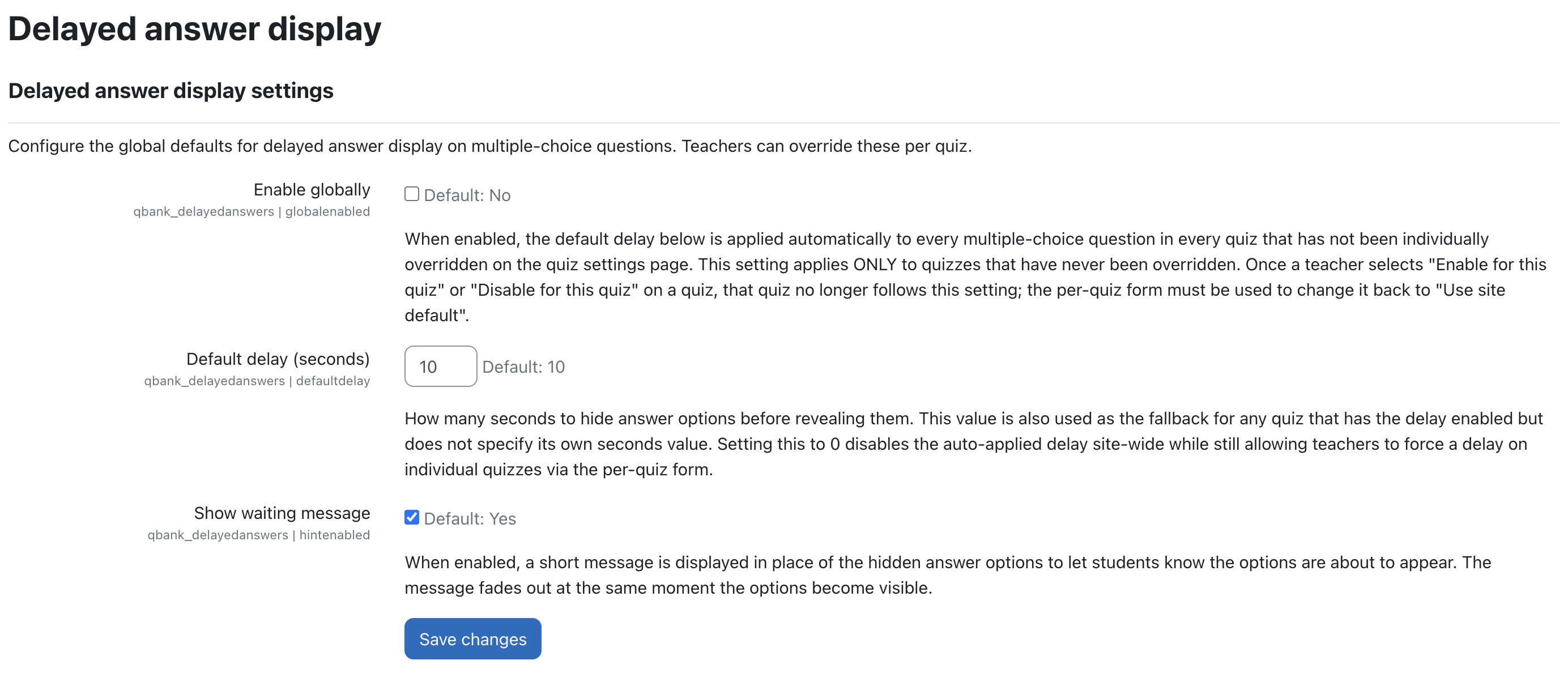
Site administration → Plugins → Question bank → Delayed answer display.Use site default, Enable for this quiz or Disable for this quiz, with an optional per-quiz delay of 1–60 seconds.@keyframes animation with animation-delay. No JavaScript runs on the student side.Screenshots Site-wide settings
Per-quiz settings
Documentation
Full user manuals, including step-by-step configuration instructions with screenshots:
Tip: The delay applies per quiz page. For the best effect, show one question per page using:
Quiz settings → Layout → New page → Every question.
How it works
The plugin only affects Multiple Choice questions provided by qtype_multichoice. Both single- and multiple-answer modes are supported.
The plugin has two configuration layers:
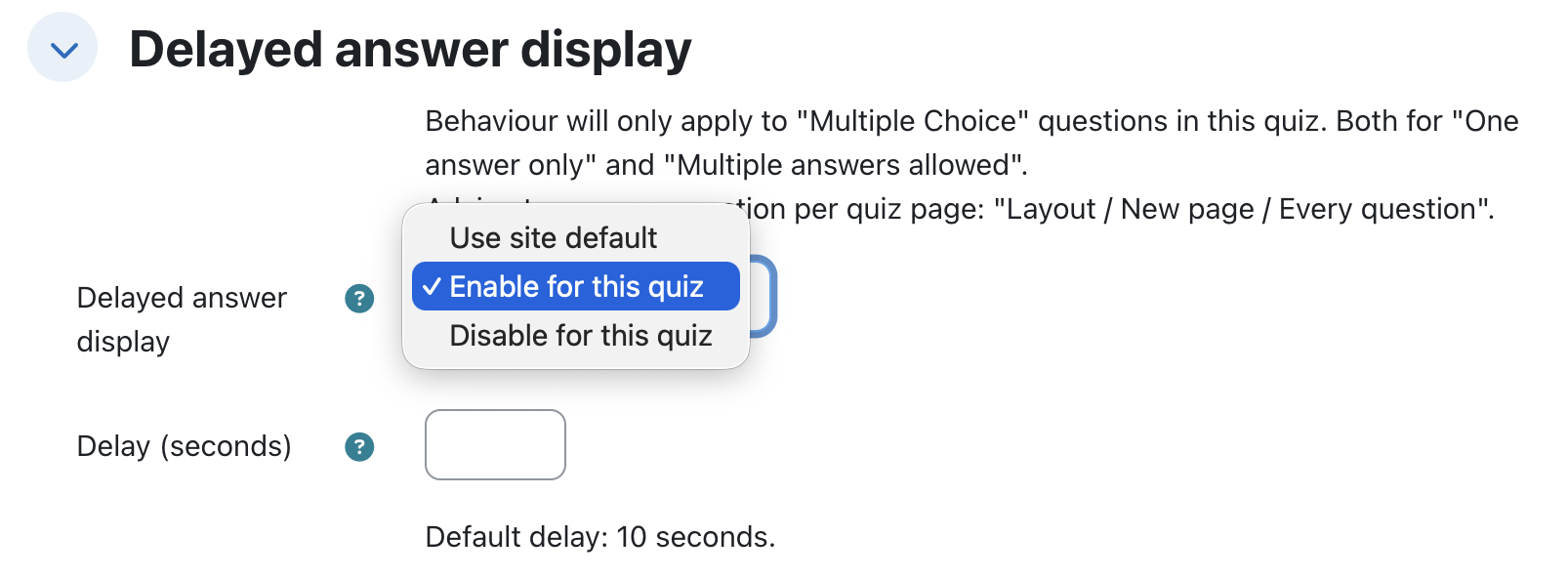
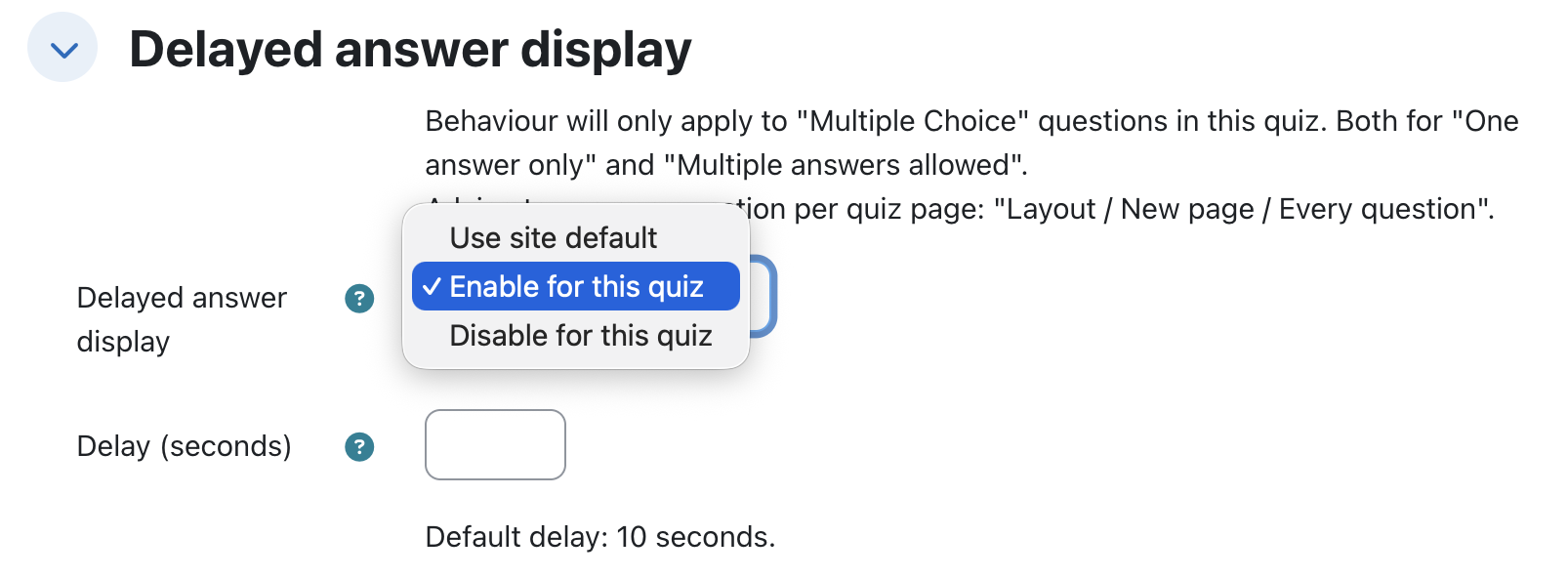
Enable globally checkbox and a Default delay (seconds) value.Delayed answer display dropdown on the quiz edit form.Per-quiz dropdown
Teachers can choose:
Delay (seconds) field accepts 1–60; if left empty, the site-wide default is used.The Enable globally setting only applies to quizzes without an override. Selecting Enable for this quiz or Disable for this quiz pins the choice and the global toggle no longer affects it; switch back to Use site default to restore global behaviour.
Resolution table
| Per-quiz dropdown | Per-quiz seconds | Effective delay |
|---|---|---|
| Use site default | — | Follows the site-wide Enable globally setting |
| Enable for this quiz | N, between 1 and 60 | N seconds |
| Enable for this quiz | Blank | Uses the site-wide Default delay (seconds) value |
| Disable for this quiz | — | No delay; the site-wide setting is ignored |
To disable the delay site-wide, the administrator can either clear the Enable globally checkbox or set Default delay (seconds) to 0. Disabling Enable globally removes the delay from quizzes that follow the site default. Setting the default delay to 0 disables it for site-default quizzes and for enabled quizzes without their own delay value. Quizzes configured with Enable for this quiz and an explicit number of seconds continue to use that value.
Waiting message
Administrators can enable or disable the message site-wide using the Show waiting message setting. The message itself can be changed through Moodle's language customisation functionality.
Copyright

Copyright © 2026 Avetica :: avetica.nl
