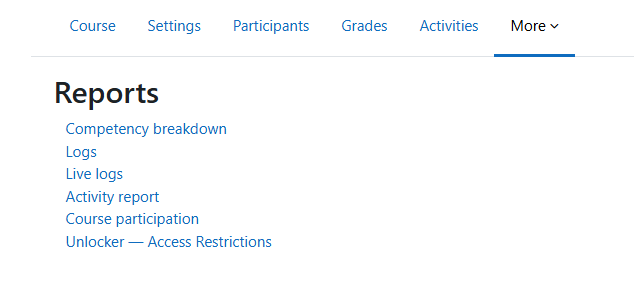
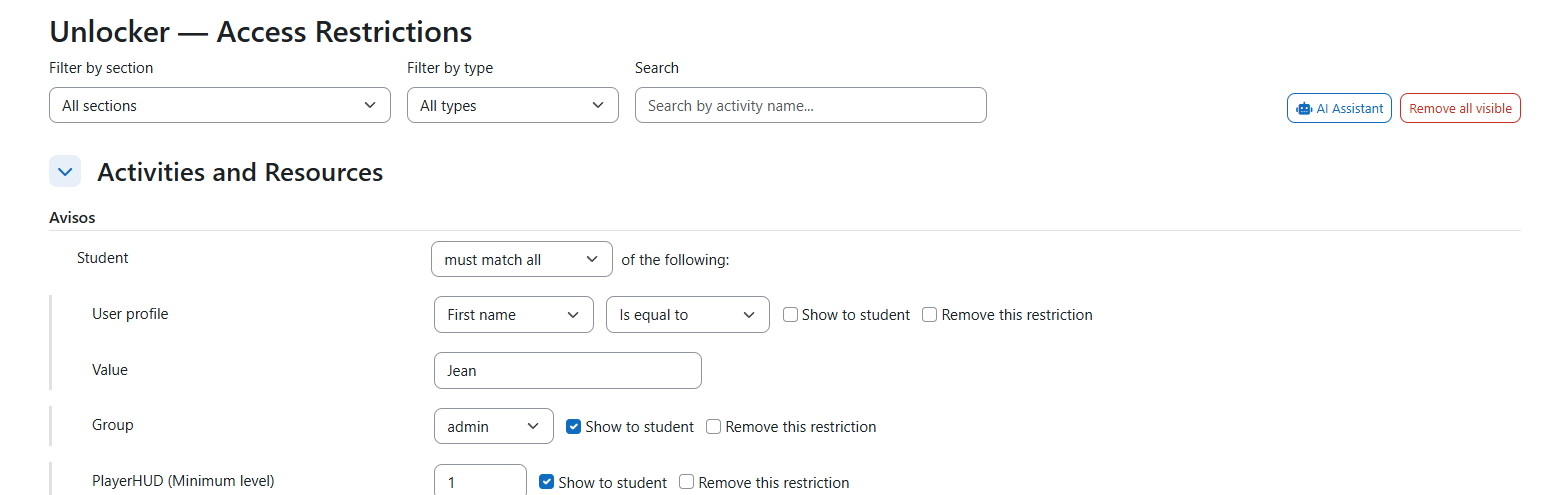
The Unlocker Report is a Moodle course report for administrators and teachers. It displays the access restrictions (availability conditions) applied to course activities and resources. All restriction types are listed — including those from third-party availability plugins — but only the native core types (date, group, grouping, grade, completion, and profile) and PlayerHUD conditions support inline editing. Unknown types are shown as read-only and can still be removed.
Instead of manually editing each activity's restriction settings one by one, Unlocker centralizes all restrictions in a single, searchable, filterable dashboard — reducing configuration time and improving visibility.
" Features
- 📋 Unified Dashboard: View all activity restrictions in one place.
- 🔍 Advanced Filtering:
- Filter by activity section
- Filter by restriction type (date, group, grade, completion, profile, PlayerHUD, etc.)
- Search by activity name
- Combine multiple filters at once
- 🎯 Supported Restriction Types (inline editing):
- 📅 Date-based — Activities unlock/lock on specific dates and times
- ' Group-based — Restrict by Moodle group membership
- ' Grouping-based — Restrict by grouping
- 📊 Grade-based — Restrict by activity grades (minimum, maximum, range)
- " Completion-based — Restrict by activity completion status
- 🆔 Profile-based — Restrict by user profile fields (standard and custom fields)
- 🎮 PlayerHUD-based — Restrict by player level, items, or character class (requires
availability_playerhud and block_playerhud)
- - Nested restriction groups — Groups of AND/OR conditions displayed as "Nested restriction group (N)" (where
N is the number of child conditions). You can hide them from students or open the native activity settings to edit the group directly.
- "️ Bulk Management:
- Edit restrictions directly from the report
- Delete individual restrictions
- Remove all restrictions matching the current filter in one action
- Operator selector per activity/section: choose whether the student must match all, any, not all, or not any of the listed conditions
- Visibility toggle per condition (operator all / not any): control whether a hidden condition is shown greyed-out or fully invisible to students
- Global visibility toggle (operator any / not all): single flag applied to all conditions in the group
- 🎨 Readable Descriptions: Each restriction displays a human-friendly summary (e.g., "Created after 2026-03-15 14:30")
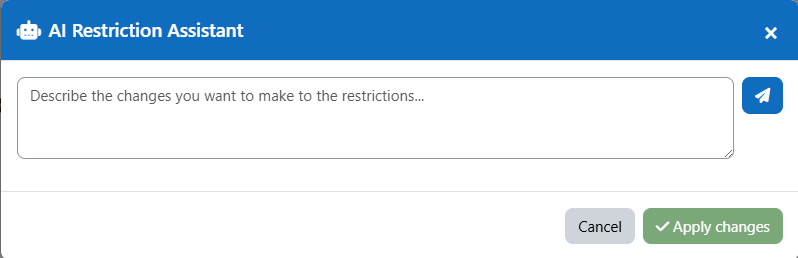
- - AI Assistant: Describe the desired changes in natural language; the assistant shows a preview and only applies them after confirmation. Requires
core_ai configured in Moodle (4.5+) or the local_playergames plugin.
- ' Safe Modifications: Session key verification protects against accidental bulk changes
- 📱 Responsive Design: Works on desktop and tablet views
🎓 Educational Use
Unlocker simplifies common pedagogical scenarios:
- Timed Module Releases: Ensure content unlocks on schedule; verify all dates are correct across the course.
- Group-Based Learning: Confirm group restrictions apply correctly to group work activities.
- Mastery-Based Progression: Set up grade thresholds to gate access to advanced content.
- Activity Sequencing: Ensure students complete prerequisites before advancing.
- Leveled Access: Use PlayerHUD integration to unlock content based on student progression.
- Accessibility Audits: Quickly verify that no unintended restrictions block access.
- Usage
Accessing the Report
- Navigate to a course (as a teacher or administrator).
- In the left-side navigation menu, under Course administration, click Unlocker. (The link appears only for users with the
report/unlocker:view capability.)
Understanding the Dashboard
- Activity List: All activities and resources in the course are listed with their current restrictions.
- Restriction Display: Each activity shows all applied conditions in a human-readable format.
- Filter Panel: At the top:
- Search box: Type to filter by activity name (real-time)
- Section dropdown: Show restrictions only in a specific section
- Restriction Type dropdown: Show only a specific type of condition
- Inline Editing: Each restriction is editable directly in the report — change dates, select groups, adjust grade thresholds, etc. without navigating away.
- Remove checkbox: Mark individual restrictions for removal; click Save all changes once to persist every edit and deletion together.
- Remove all visible: Marks all restrictions currently shown (respecting active filters) for removal and saves automatically after a confirmation dialog.
Common Workflows
Scenario 1: Find all date-based restrictions expiring soon
- Set Restriction Type filter to
Date.
- Review all date-based conditions across the course.
- Identify restrictions ending before your course deadline.
- Edit dates as needed.
Scenario 2: Remove all group-based restrictions for a section
- Select the target Section from the dropdown.
- Set Restriction Type filter to
Group.
- Click Delete All Visible (with confirmation).
Scenario 3: Audit player progression gating
- If PlayerHUD is installed, set Restriction Type filter to
PlayerHUD.
- Review all level-based, item-based, and character-class restrictions.
- Verify that the progression makes pedagogical sense.
🔐 Security & Compliance
- Capability-based access control: Only users with
report/unlocker:view can access the report.
- Session key verification: All modifications (edit, delete) require a valid session key.
- Server-side validation: Restriction changes are validated against the course context.
- Audit-friendly: No bulk deletions without explicit user confirmation.