Virtual Lab
Virtual Lab (local_virtuallab) is a Moodle local plugin for batch creation and lifecycle management of sandbox lab courses, organised into batches (one per class or discipline), with a self-service student panel so students can pick and join their workspace without any admin intervention each semester.
Each batch lives in its own course subcategory, and its responsible teachers manage only their own batch — creating, editing, resetting and deleting their labs, and entering the courses without being enrolled — while the administrator oversees everything. All write operations are scoped to courses registered in the plugin's own tables, so it never touches courses that belong to other teachers or disciplines.
- - Batch creation: Create N lab courses in one step, each with a unique short name, inside the batch's own subcategory.
- 🔓 Key-free enrolment: Students join straight from the panel — one click picks the role (editor or visitor) and enrols them through the course manual enrolment instance. There are no enrolment keys to share or manage.
- ' Multiple responsible teachers: A batch can have several responsible teachers; all of them manage the batch and receive its notifications.
- 🎓 Delegated management: Responsible teachers get a scoped role on their batch subcategory, giving them full control of their own lab courses (edit content, grades and enrolments, enter without enrolling) — but no access to the rest of the platform.
- - Self-service student panel: Authenticated students see every lab in the batch, its current status, and join with a single click; joining as editor asks for confirmation, and a student can leave a lab they already joined to free the slot and switch.
- 🚦 Lab status logic: Labs are automatically classified as Available, In use, or Full based on the number of enrolled editors.
- ' One-editor-anywhere rule: A student who is already an editor in one lab cannot take the editor slot in another lab in the same batch — they can still join as visitor.
- "️ Edit batch: Rename a batch, add or remove co-responsible teachers, change the lab name prefix, and override lifecycle settings per batch.
- ⚙️ Per-batch settings: Each batch can override the global defaults for editors-per-lab and the lifecycle policy (months, action, warning days); leaving a field empty inherits the site default.
- 📋 Shared checklist task list (optional): When the Teacher Checklist block is installed, a task list field appears in the batch edit form; tasks entered there are automatically provisioned into the Teacher Checklist block of every new lab and the block is added to each lab automatically. An Apply to existing labs button retroactively syncs the task list to labs already created. The feature degrades silently when the block is absent.
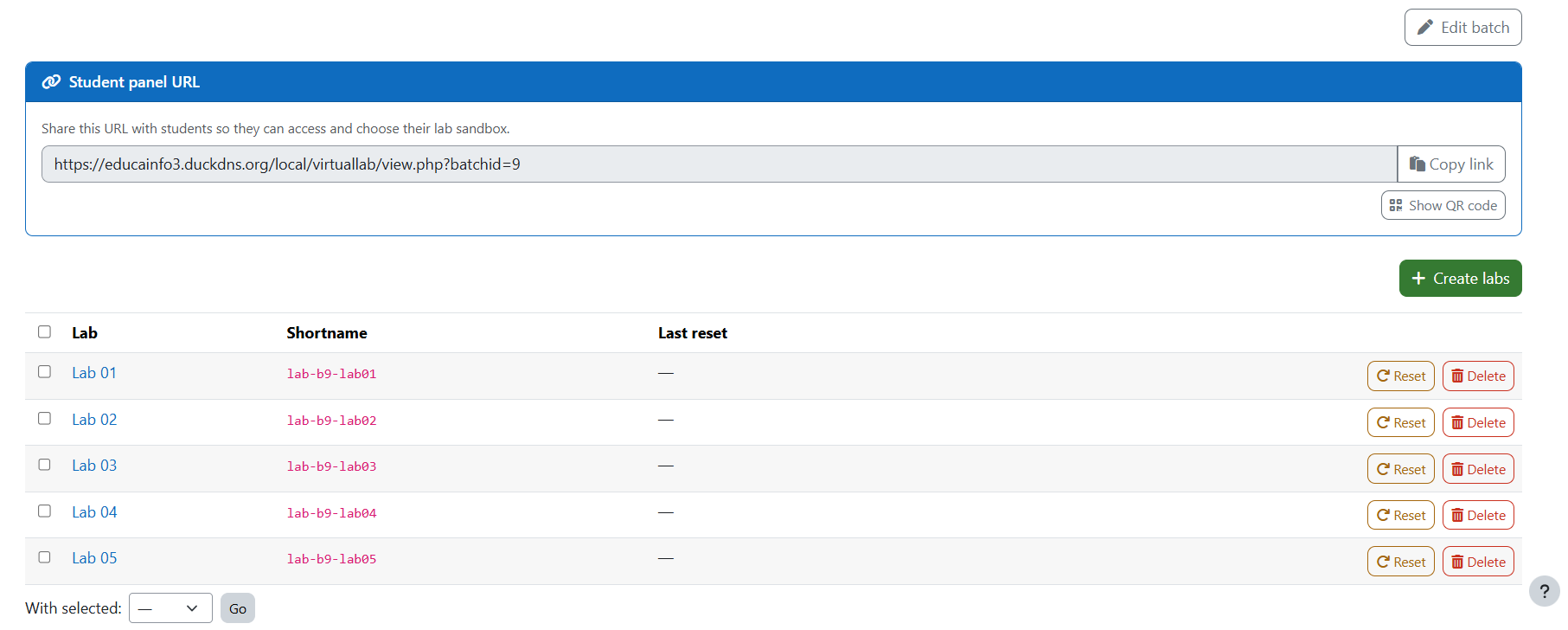
- - Shareable panel URL: Managers can copy and share a direct link to each batch's student panel.
- ♻️ Reset / -' delete / '️ bulk: Reset clears user data and enrolments, restores the course name to its original value, and keeps the course shell; delete removes the course and registry row; bulk actions reset or delete several labs at once.
- 🏭 Delete batch: Removes a whole batch, its labs and its subcategory.
- ⏰ Automatic lifecycle maintenance: A nightly scheduled task resets or deletes overdue labs, applying each batch's own settings, with advance warning emails.
- 📅 Visible lifecycle deadline: A single "Scheduled: reset/delete on DATE" notice sits above the manage list and the student panel; it expands to per-lab dates only when individual resets cause deadlines to diverge.
- 🛡 Safe recount on policy change: Enabling or tightening the lifecycle (globally or per batch) restarts the countdown from that moment for all existing labs, so no lab is ever processed without first going through the warning window.
- 📧 Lifecycle notifications: Warning and summary emails are sent to the responsible teachers and to each affected course's editors; the administrator copy is optional.
- 🙋 Helpful access notice: A logged-in visitor who reaches a lab course without access sees a notice naming the responsible teacher(s) to contact.
- 🔔 Batch assignment notification: When a teacher is added to a batch they receive a Moodle notification (bell) and an email containing the management link. The
batch_assigned message provider can be configured per-user under Preferences ' Message.
- - Teacher navigation shortcut: Responsible teachers see a Manage Virtual Lab link directly in the Moodle top bar (and mobile menu) without needing an admin-supplied URL.
- 🔐 Ownership guard & audit events: Every write operation validates that the lab belongs to the expected batch; events are emitted on course reset, course deletion and batch deletion.
- 📊 Usage report: Paginated batch overview plus a per-student event breakdown for each lab, with CSV and Excel export at both levels.
Virtual Lab is designed for courses where each student or group needs an isolated Moodle course to build prototypes, pages, or deliverables without interfering with the official class or with other students' work.
Typical scenarios:
- Interface Design, Web Development, and similar project-based disciplines
- Technical and vocational training where learners need a personal sandbox
- Any discipline where students require their own configurable Moodle space each semester
Moodle core can already create many courses at once (the Upload courses admin tool, via CSV). Virtual Lab is not about bulk creation itself — it adds everything around the recurring, self-service lifecycle of disposable sandboxes: grouping labs into a batch, a panel for students to pick and join one, automatic reset or deletion at the end of the term, and delegation so each teacher runs their own batch without admin access. If you only need to create courses in bulk once, the core tool is enough; if you run this cycle every semester, Virtual Lab automates it end to end.
-️ Deployment recommendation
We recommend installing the plugin on a dedicated Moodle instance for laboratories, separate from the formal LMS where students follow their regular courses. Keeping the two environments isolated prevents lab courses from appearing in students' regular course lists and concentrates the bulk creation, reset, and deletion workload on a controlled environment.
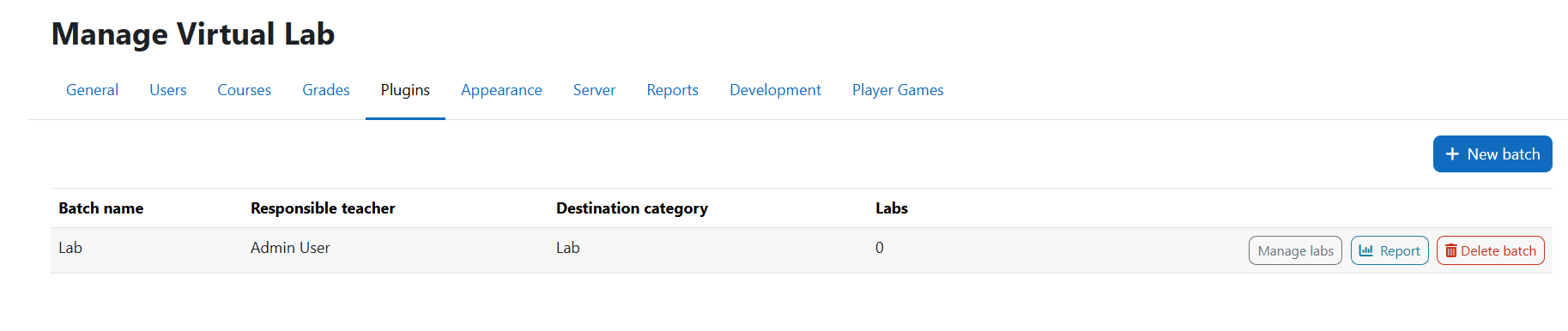
- Go to Site administration ' Plugins ' Local plugins ' Virtual Lab ' Manage Virtual Lab.
- Click New batch and fill in just the batch name and one or more responsible teachers. The batch gets its own subcategory automatically.
- Open the batch to manage it, or hand it over to the responsible teacher.
- When assigned to a batch the teacher receives a Moodle notification (bell icon) and an email with a direct link to the management page. The Manage Virtual Lab shortcut also appears in the top navigation bar on every page.
- The responsible teacher opens the management page and sees only their own batches.
- Create labs: choose the lab name prefix (remembered for next time) and how many labs to create (up to 50 at a time).
- From the batch page they can add more labs, reset/delete labs (individually or in bulk), open any lab course to edit content and grades, copy the student panel URL, and edit the batch (name, co-responsible teachers, prefix, and per-batch lifecycle settings).
- Open the student panel URL shared by the teacher.
- Browse the labs showing name, status and current editors.
- Click Editor or Visitor on an available lab to join and be taken into the course.
- One click enrols as
editingteacher (editor) or student (visitor) — no keys involved.
- Once enrolled, the row shows Enrolled; a student already editing one lab cannot take an editor slot in another lab of the same batch.
- To switch labs, unenrol from the current lab to free the editor slot, then join a different one.
The plugin ships a nightly scheduled task (maintenance_task) that runs at 02:00 by default. It processes each batch with its own effective settings (per-batch override, otherwise the global default).
For every lab it uses a reference date — lastreset when set, otherwise timecreated — and:
| Action |
Effect |
None |
Batch is skipped (safe default). |
Reset |
Clears all user data and enrolments; updates lastreset. The course shell is preserved. |
Delete |
Removes the course and its registry row permanently. |
Before acting, the task emails a warning the configured number of days in advance; after acting, it emails a summary. Both go to the batch's responsible teachers and to the editors of each affected course, plus an optional consolidated copy to the administrator. Setting the batch (or global) lifec