Aji Nursyamsi
Lead maintainer

What Server Terminal does
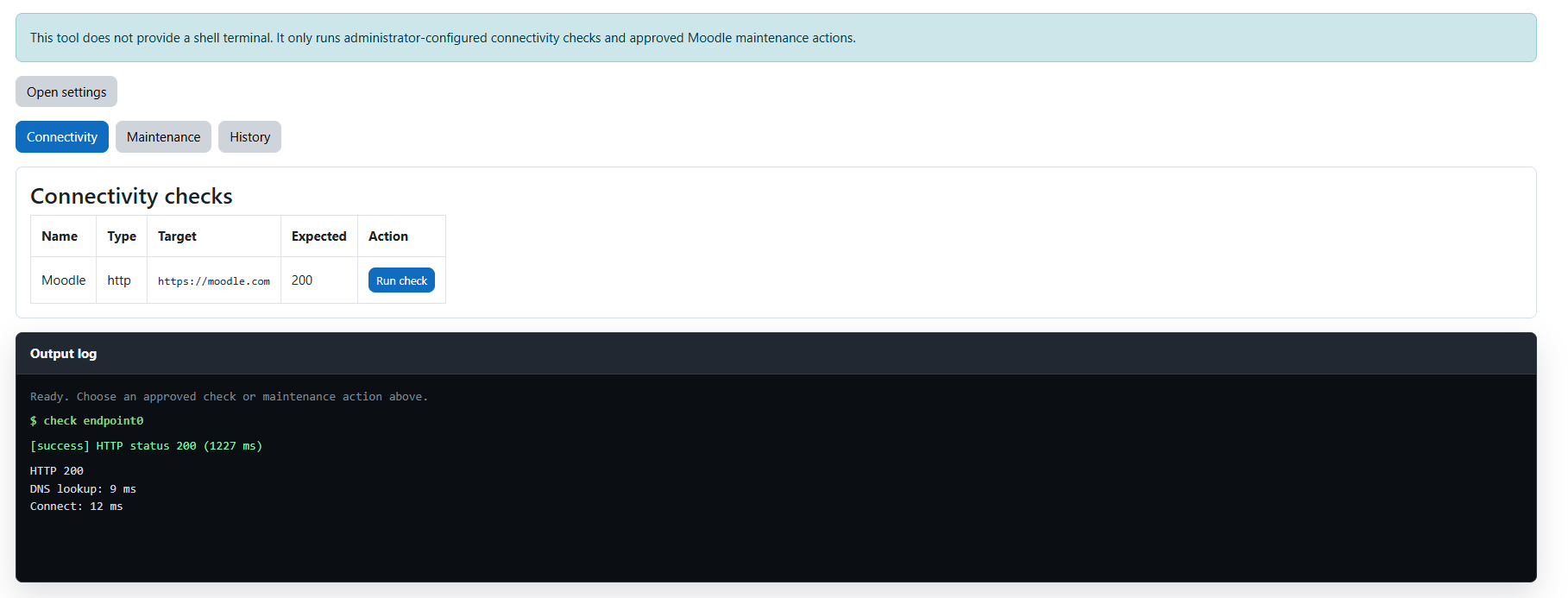
Server Terminal helps Moodle administrators check whether their Moodle server can reach the services it depends on. It provides a controlled diagnostics panel for running configured HTTP, TCP, and DNS connectivity checks directly from Moodle administration.
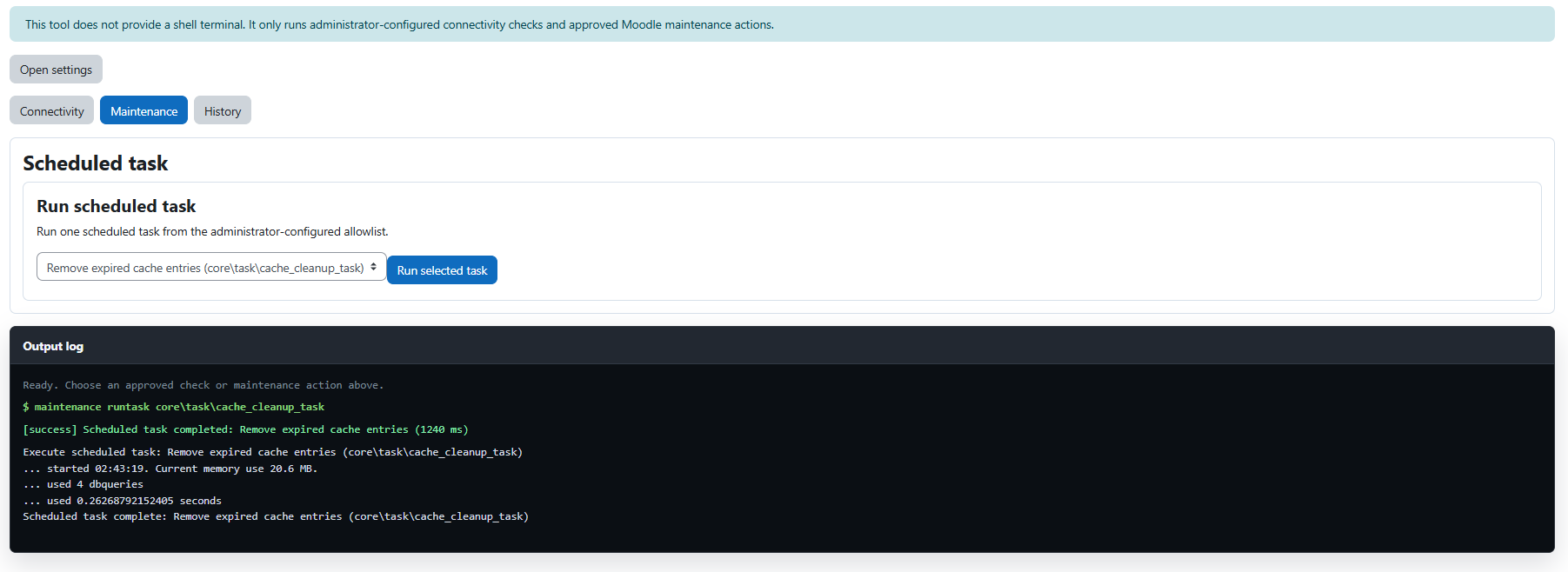
The plugin is also useful for safely running selected scheduled tasks manually. Administrators can allow specific Moodle scheduled task classes, then run them on demand without changing their normal schedule.
Main features
Installation
Install the plugin folder as:
admin/tool/serverterminalThen complete the Moodle upgrade from:
php admin/cli/upgrade.phpWhere to access it
After installation, the tool is available from:
Site administration > Server > Server terminalPlugin settings are available from:
Site administration > Server > Server terminal settingsBasic setup
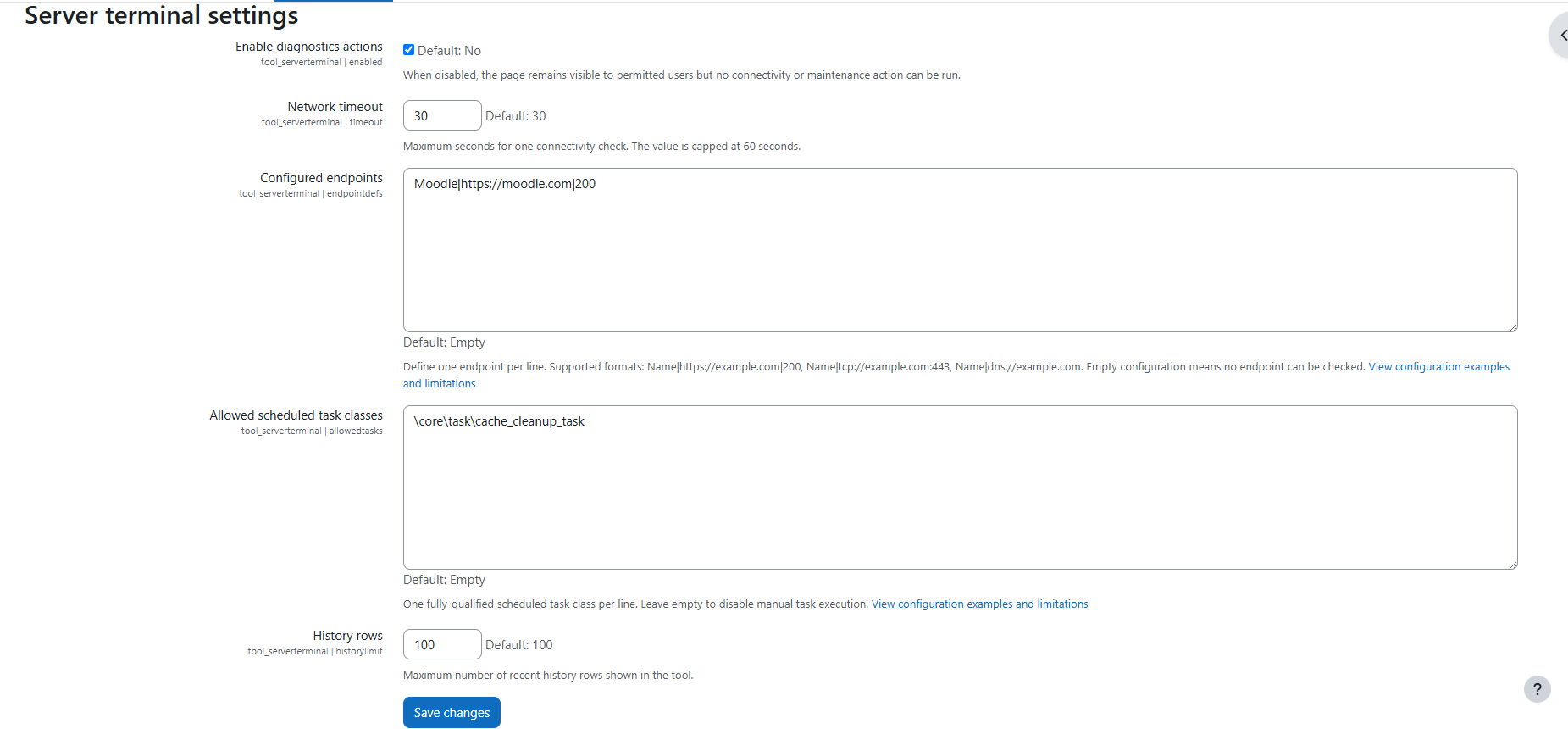
After installation, open the settings page and configure the approved endpoints or scheduled task classes you want to make available.
Example endpoint configuration:
Main website|https://example.com|200
API gateway|tcp://api.example.com:443
DNS lookup|dns://example.com
Example scheduled task allowlist:
\core\task\cache_cleanup_task
\core\task\file_temp_cleanup_task
Designed for safe administration
Server Terminal does not provide an interactive operating-system shell and does not accept arbitrary command input. It does not expose shell navigation, working directories, pipes, redirects, or free-form commands.
All operations are structured and controlled through plugin settings. Empty endpoint settings mean no connectivity checks can be run. Empty scheduled task settings mean no scheduled tasks can be run.
Requirements
Documentation and support
Documentation, configuration examples, and issue reporting are available in the plugin repository:
View Server Terminal documentation on GitHub
Icon attribution
The plugin icon uses an icon created by Royyan Wijaya from Flaticon.
