Justin Hunt
Lead maintainer

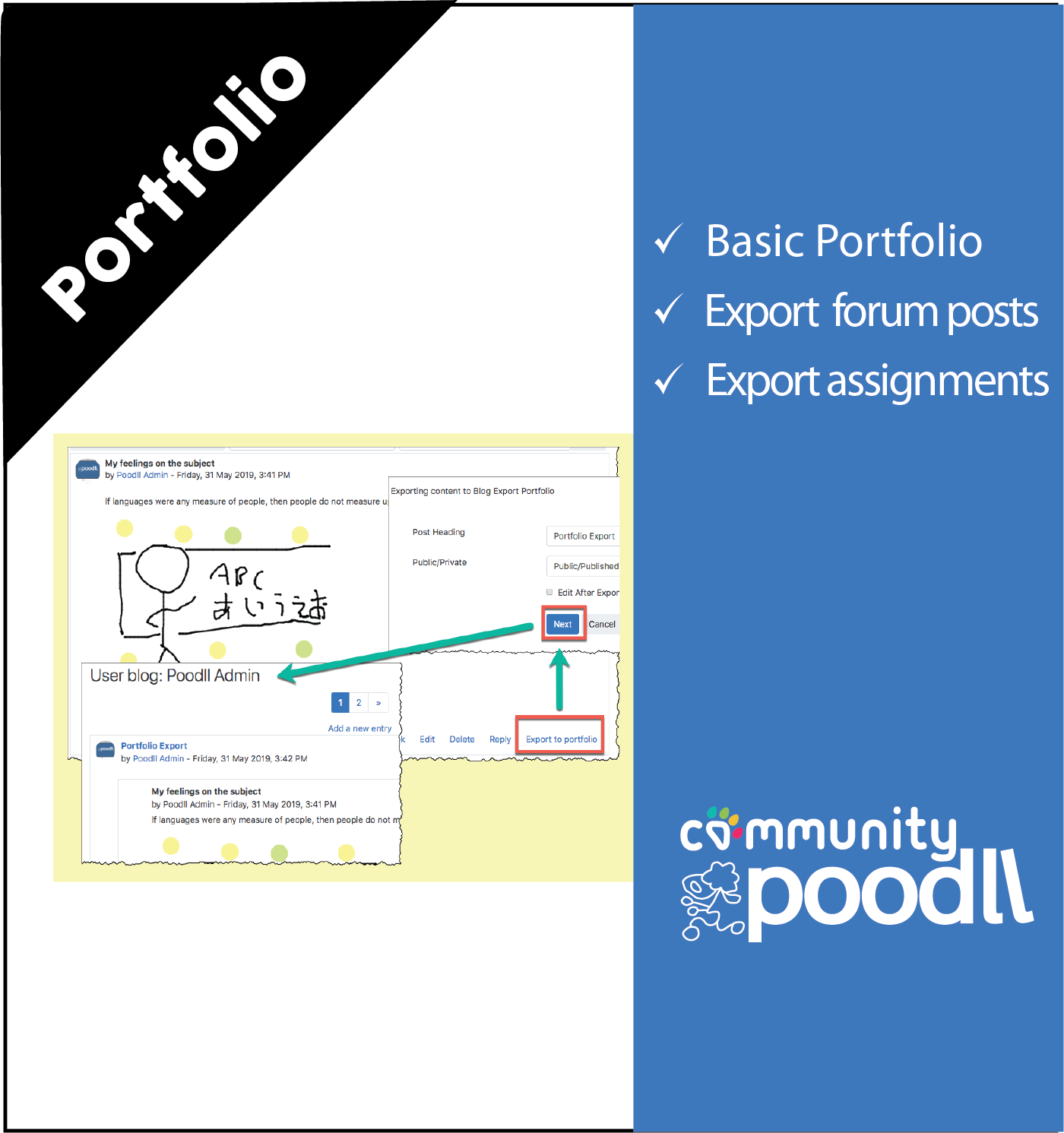
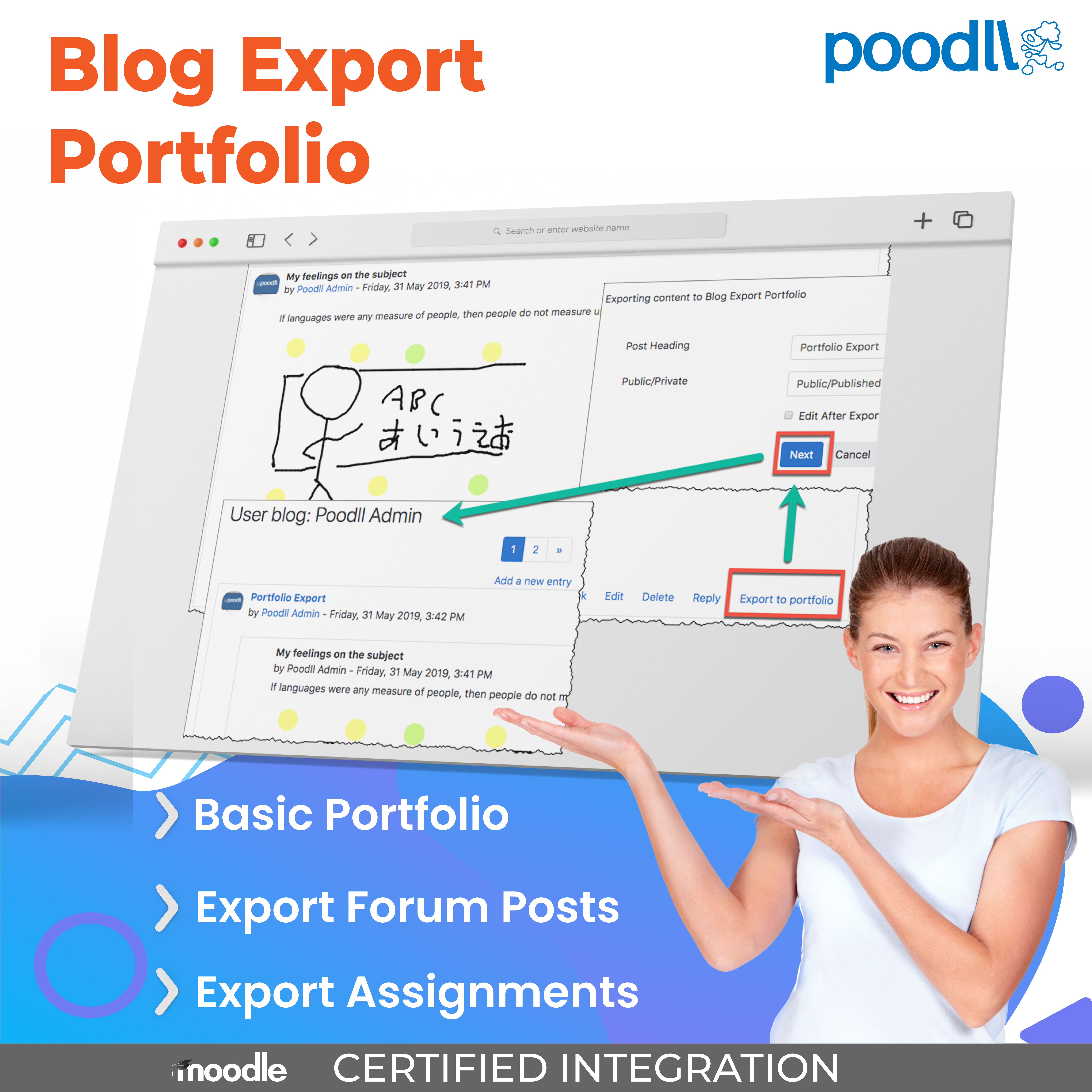
The Blog Export Portfolio allows students to export items from Moodle such as forum posts and assignment submissions, to their own Moodle blog. It was designed, funded and released to the Moodle community by British Council TeachingEnglish . Developed by Justin Hunt, from PoodLL.com
Installation
i) Ensure that both portfolios and blogs are enabled in:
Site Administration -> Advanced Features
ii) Put the blogexport folder into [MOODLE]/portfolio
Other folders in that directory will include: boxnet,download and flickr
iii) Visit the Moodle site's notifications page, and follow the prompts to install the Blog Export portfolio.
Site Administration -> Notifications
iv) Enable the Blog Export portfolio at:
Site Administration -> Plugins -> Portfolios -> Manage Portfolios
v) You will be taken to the Blog Export portfolio’s admin settings page.
Blog Export Settings
The Blog Export Portfolio admin settings are available at any time from:
Site Administration -> Plugins -> Portfolios -> Blog Export Portfolio
|
Setting |
Description |
|
Name |
The name of the Blog Export portfolio as it appears throughout the site in Moodle menus. |
|
Default Post Heading |
The default title of the blog post as it will appear in the blog after exporting. |
|
Default Post Privacy |
The default privacy setting for the blog post. |
The actual post heading and post privacy settings, can be edited by the user at the time of exporting.
Using the Blog Portolio
Moodle activities that can be exported to portfolios include
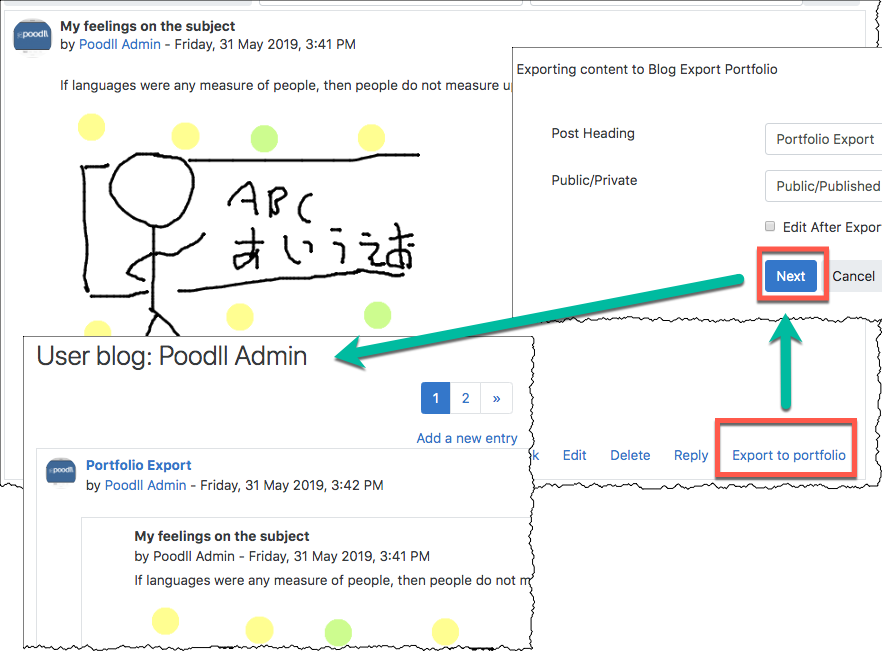
The activity itself determines whether it can be exported and in what format it can be exported. If it can be exported using any of the available Portfolio plugins then a text link, a button, or a small icon will appear beneath it. Clicking on "Export to Portfolio" in the case of the Blog Export portfolio, will take you to the export settings page.:
|
Setting |
Description |
|
Available Export Formats: |
If this appears you can leave it as "HTML." |
|
Post Heading |
The title of the post as it will appear in the blog after exporting. |
|
Post Privacy |
The public/private settings that will determine if other users can see the exported blog entry. |
|
Edit after Export |
If checked, when the user chooses "continue to your portfolio" later in the export process, they will be taken to the edit screen for that blog entry.
|
After the export settings have been altered or confirmed by pressing the "next" button, the user will arrive at the confirmation page.
If the settings are correct, and the user presses the "continue" button, the export will commence.
The final page of the export wizard is shown after the export has been completed. The user will have the option to return to the screen from which they instigated the export, or to proceed on the blog.

