Multiple Enrollments icon

Multiple Enrollments

Premium Certified Partner
Plugin that provides single screen to enrol/unenrol multiple users and courses in just a few clicks.
Price option: Free

Supports Moodle 2.2-5.2 See all versions
Latest release: 3 months ago
Installations: 244
Downloads (last 90 days): 164

Frankenstyle name: local_multiple_enrollments
Local plugins

Description

This plugin is provided by Moodle's Premium Partner E-Learning touch'

A local plugin that allows administrators to enrol multiple users into multiple courses.

It also allows enrolling or unenrolling multiple courses for a single user.


New filter behaviour (v2.1.0)

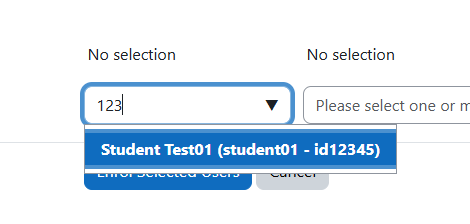
You can now search for a user by username or ID number, as well as by first name or surname.


Installation

For more information, see the official plugin installation guide.

Moodle Way

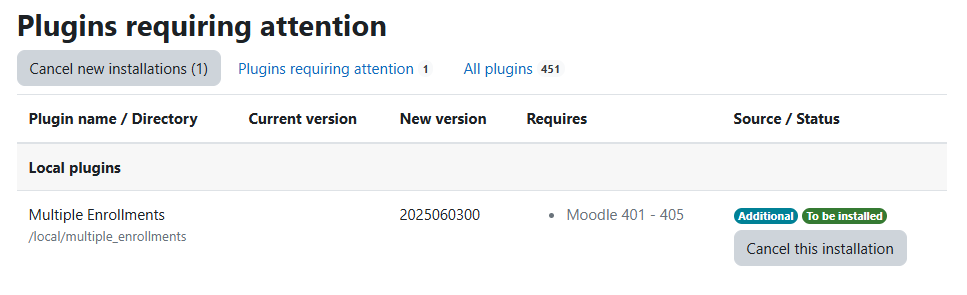
  1. Download the latest version or source code of the plugin compatible with your Moodle platform.
  2. Go to your platform's plugin installation page: Site administration > Plugins > Install plugins.
  3. Upload the plugin file and follow the installation process.

Manual

  1. Download the latest version or source code of the plugin compatible with your Moodle platform.
  2. Navigate to the moodle/local directory on your platform.
  3. Unzip the plugin into the directory and make sure that the folder containing the plugin files is named multiple_enrollments.

Using Git

  1. Open a terminal and navigate to the moodle/local directory on your platform.
  2. Clone the project using the following command:
    git clone https://github.com/E-learningTouch/moodle-local_multiple_enrollments multiple_enrollments


How it works

New Enrollment

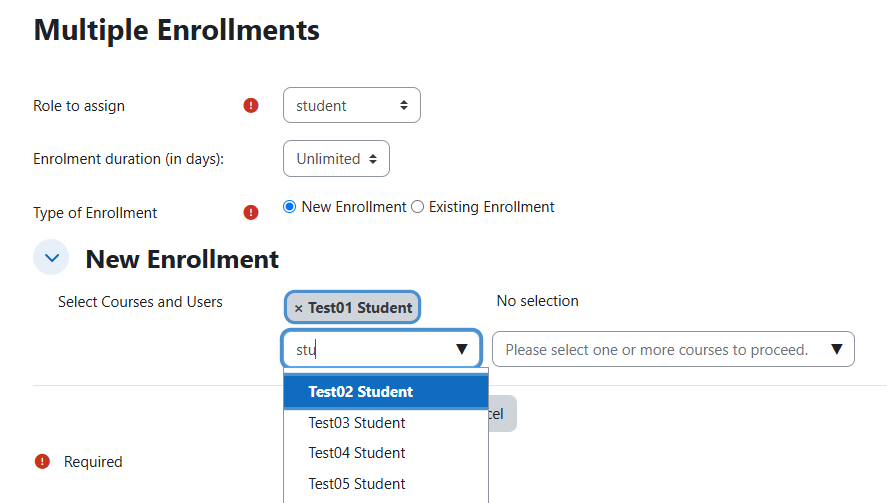
  1. Select user(s) to add into course(s). You can assign a role and set an enrolment duration in days.
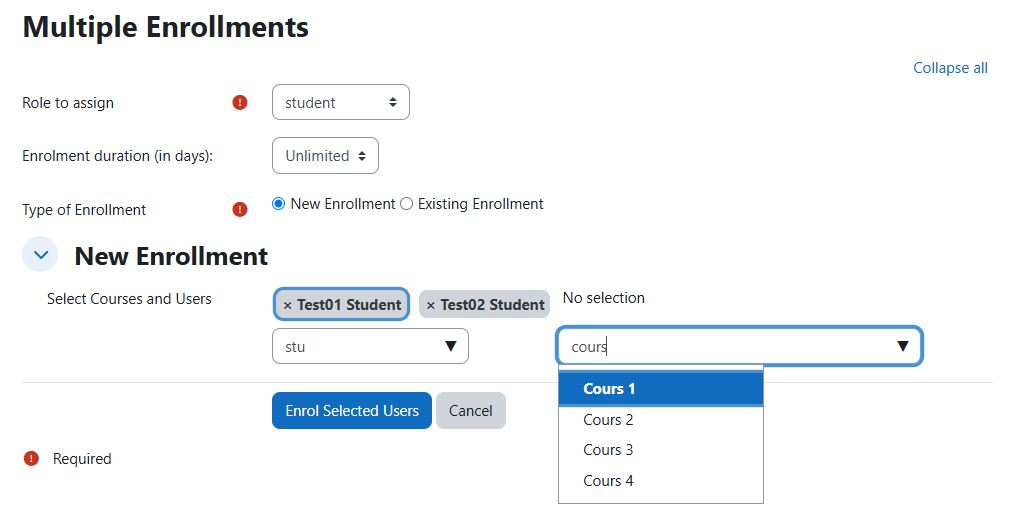
  2. Select course(s).
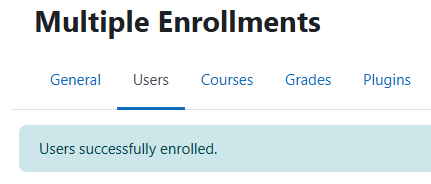
  3. Clic on button --> all users are enroled into specified courses with dedicated role.

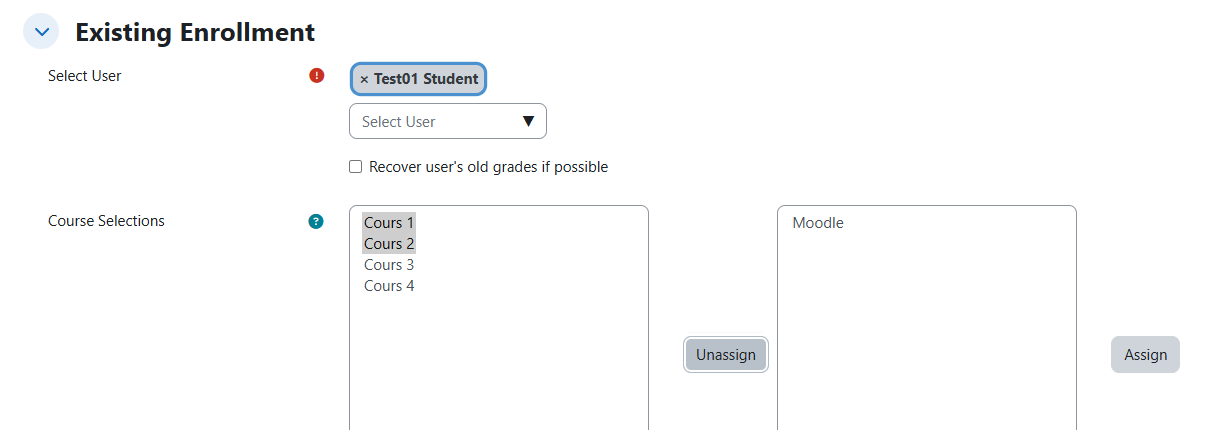
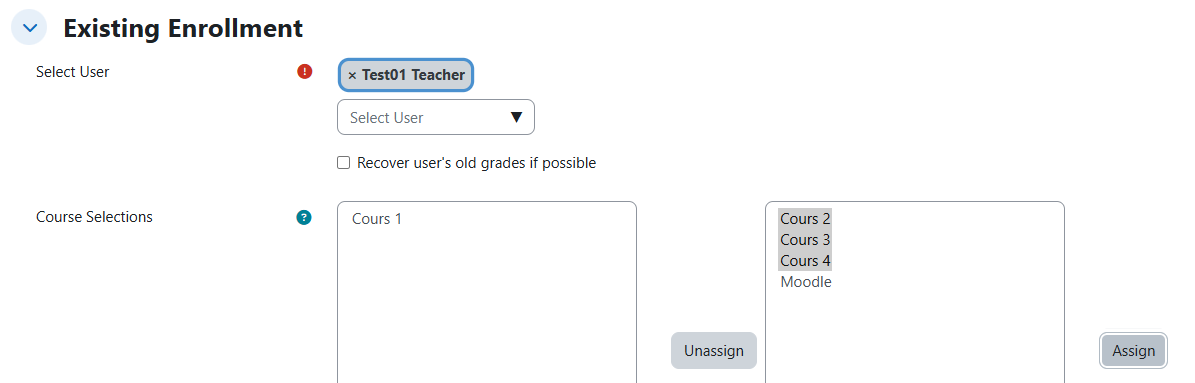
Existing Enrollment

  1. Select user
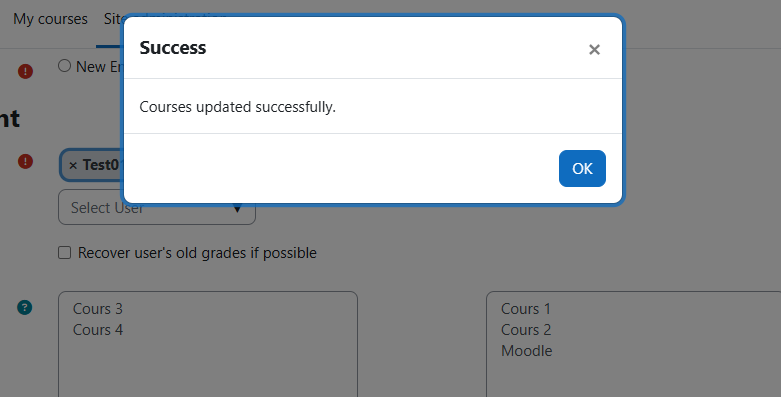
  2. Select course(s) to Assign or Unassign


If you want to bulk update a participant role (and/or enrolment duration) :

  1. Select user
  2. Select courses and click on Unassign
  3. Select an other role (and/or specify enrolment duration)
  4. Select same courses and click on Assign


Other plugins made by ELT

Contributors

Awards

Privacy friendly
Early bird 5.2