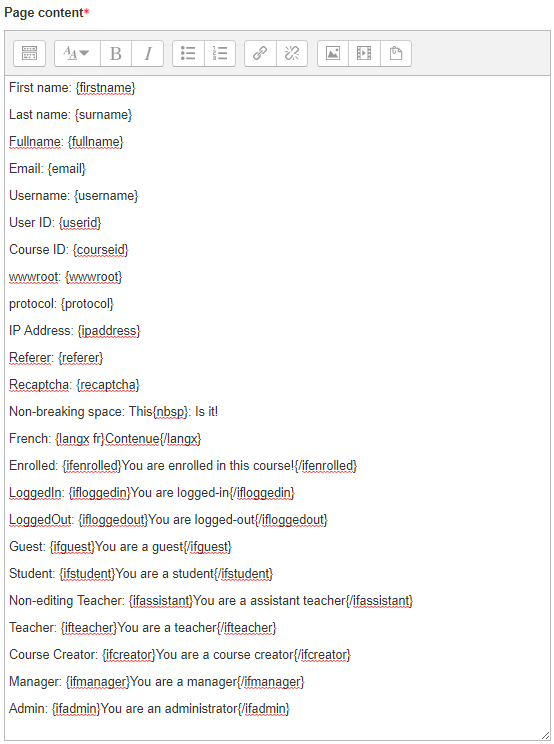
The FilterCodes plugin for Moodle enables you to insert plain text tags like {firstname} into your Moodle site or course content in order to personalize the site to individual students.
Here are just a few examples of the ways you could use this plugin include:
- Personalize your course content with the learner's name and even their photo.
- Display certain content depending on the user's role.
- Conditionally display content depending on whether the user is enrolled in the current course.
- Create links that normally require the user's ID as part of the URL.
- Insert default user information into Contact Form for Moodle forms.
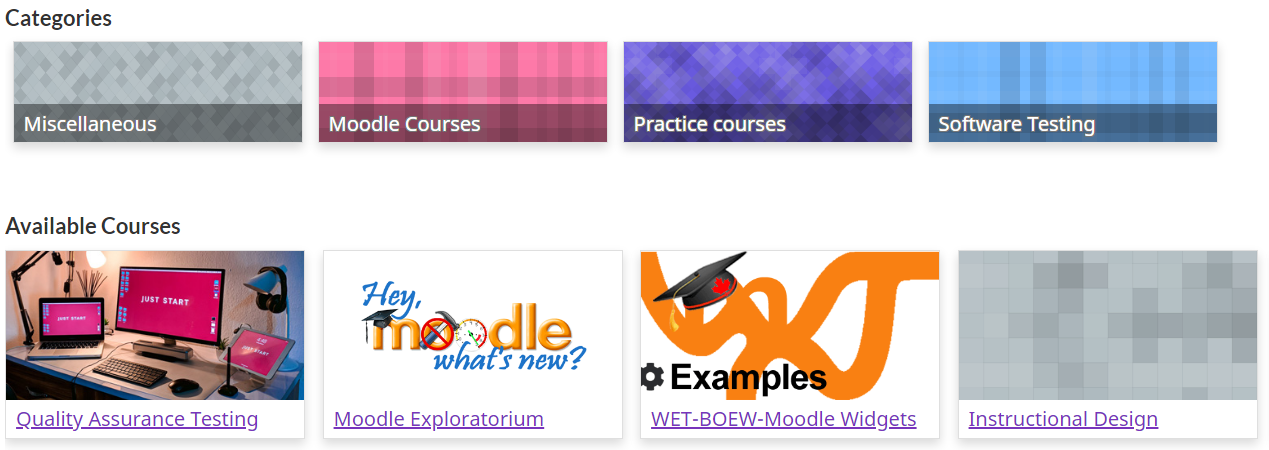
- Display your list of available courses and categories on the Front page (Home page) as cards.
- Display alert-type boxes.
- Create your own popup Help just like Moodle does (popup info icon also available)
- Display the amount of disk space available to Moodle, the number of courses, the number of active students and more.
- Display several pre-configured templates for use with the Contact Form plugin.
- Add notes or reminders within your course content - which is only visible when editing the content.
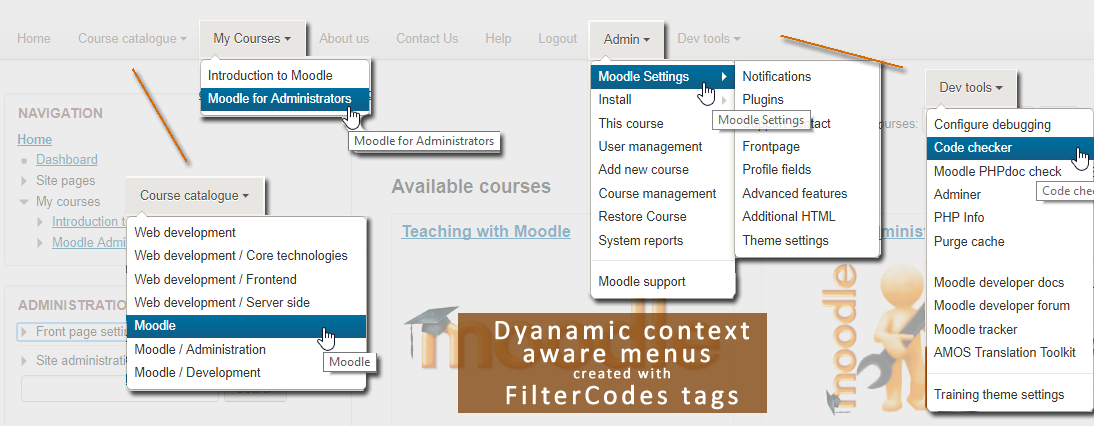
- Create dynamic and context-aware custom menus for students, teachers, managers and administrators (only supported by a few themes unless you apply a patch).
- Customize your dashboard with dynamic content.
- Display course progress bar and percentage.
- Easily display FontAwesome icons almost anywhere.
- Display content from the custom user and custom course fields on your course outline page. This can be useful for creating course templates for your organization.
- Conditionally display content depending on which cohort, group, role or Workplace tenant is looking at the content.
- Insert support information in every course and manage that information centrally.
- Easily list teachers, and non-editing teachers (assistants) in your course.
- Create buttons and charts.
Share with us how you use this plugin on your site.
Development efforts for this project are sponsored by the kind folks at TNG Consulting Inc.. Special thanks go out to several developers who have contributed to the development, documentation and testing of this release of FilterCodes, as well as to those who offered suggestions for many of the new tags. We appreciate your contributions!
Useful links
Once installed and enabled, the following plain-text tags (no HTML required) will become available to you anywhere that Moodle supports filtering.
List of FilterCode tags
Creating FilterCodes Documentation
- [{ }] : You can escape tags so they are not processed by adding [brackets] around the tag. Can be disabled in the plugin's settings if it causes you problems.
- [%7B %7D] : You can escape %7Bencoded%7D tags too so they are not processed by adding [brackets] around them.
Profile
- {firstname} : Displays the user's first name.
- {surname} or {lastname} : Displays the user's surname (family/last name).
- {fullname} : Displays the user's first name and surname.
- {alternatename} : Displays the user's alternate name. If blank, will display the user's first name instead.
- {firstnamephonetic} : Displays the user's first name phonetically, as set in their user profile.
- {lastnamephonetic} : Displays the user's last name phonetically, as set in their user profile.
- {middlename} : Displays the user's middle name, as set in their user profile.
- {city} : Displays the user's city.
- {country} : Displays the user's country.
- {timezone} : Displays the user's preferred time zone.
- {preferredlanguage} : Displays the user's preferred language in that language. Because of this, it will be encapsulated in an HTML span tag with an appropriately set lang attribute.
- {email} : Displays the user's email address.
- {userid} or %7Buserid%7D : Displays the user's Moodle ID.
- {idnumber} : Displays the user's id number from their profile.
- {username} : Displays the user's username.
- {userdescription} : Display the user's description.
- {webpage} : Displays the user's webpage as seen in their profile.
- {institution} : Displays the name of the institution from the user's profile.
- {department} : Displays the name of the department from the user's profile.
- {userpictureurl X} : Displays the user's profile picture URL. X indicates the size and can be sm (small), md (medium) or lg (large). If the user does not have a profile picture or is logged out, the default faceless profile photo URL will be shown instead.
- {userpictureimg X} : Generates an HTML tag containing the user's profile picture. X indicates the size and can be sm (small), md (medium) or lg (large). If the user does not have a profile picture or is logged out, the default faceless profile photo will be used instead.
- {profile_field_shortname} : Display the content of a custom profile field. Replace "shortname" with the shortname of a custom profile field all in lowercase. NOTE: Will not display if the custom profile field's settings are set to Not Visible.
- {profilefullname}: Similar to {fullname} except that it displays a profile owner's name when placed on the Profile page.
- {firstaccessdate dateTimeFormat} : Date that the user first accessed the site. For information on the optional dateTimeFormat format, see Supported dateTimeFormats Formats in the FAQ section of the documentation.
- {lastlogin dateTimeFormat} : Date/Time that you last logged into the site.
System Information
UI Elements
For use in courses
- {coursename} : Displays the full name of the current course or the site name if not in a course.
- {courseshortname} : Displays the short name of the current course or, if not in a course, the site's short name.
- {courseenrolmentdate dateTimeFormat} : Date and time at which the user was enrolled in the current course. For information on the optional dateTimeFormat format, see Supported dateTimeFormats Formats in the FAQ section of the documentation.
- {coursestartdate dateTimeFormat} : Course start date. Displays "Open event" if there is no start date. For information on the optional dateTimeFormat format, see Supported dateTimeFormats Formats in the FAQ section of the documentation.
- {courseenddate dateTimeFormat} : Course end date. Displays "Open event" if there is no end date. For information on the optional dateTimeFormat format, see Supported dateTimeFormats Formats in the FAQ section of the documentation.
- {coursecompletiondate dateTimeFormat} : Course completion date. If not completed, will display "Not completed". Will also detect if completion is not enabled. For information on the optional dateTimeFormat format, see Supported dateTimeFormats Formats in the FAQ section of the documentation.
- (ALPHA) {courseprogress} : Displays course progress status in words.
- (ALPHA) {courseprogressbar} : Displays course progress status as a status bar.
- {course_fields}: Displays the custom course fields. NOTE: Respects a custom course field's Visible To setting.
- {course_field_shortname} : Displays custom course field. Replace "shortname" with the short name of a custom course field all in lowercase. NOTE: Respects a custom course field's Visible To setting.
- {coursesummary} : Displays the course summary. If placed on a site page, displays the site summary.
- {courseimage} : Displays the course image.
- {courseimage-url} : URL of the course image.
- {courseparticipantcount} : Displays the number of students enrolled in the current course.
- {courseid} or %7Bcourseid%7D : Displays a course's ID.
- {coursecontextid}: Displays a course's context ID.
- %7Bcoursecontextid%7D : Displays a course's context ID - for use in URLs. Only for use in course activity modules.
- {courseidnumber} : Displays a course's ID number.
- {sectionid} or %7Bsectionid%7D : Displays the section ID (not to be confused with the section number).
- {sectionname} : Displays the section name in which the activity is located.
- {coursemoduleid} or %7Bcoursemoduleid%7D : Course module ID. Only works inside a course activity or resource module.
- (ALPHA) {coursecontacts} : List of the course teachers with optional links to their profile, email address or Moodle messaging.
- {mygroups} : Displays a list of groups to which you are a member.
- {courseunenrolurl} : The course unenrolment URL for you to place in a button or a link anywhere in the course.
- {coursecount students} : Displays the number of students enrolled in the course.
- {coursecount students:active} : Displays the number of users with the role of 'student' in a course who are not suspended in the course.
- {coursegradepercent} : Displays the current accumulated course grade of the student (no percentage symbol).
- {coursegrade} : Displays the student's current overall course grade (with percentage symbol).
Categories
- {categoryid} : If in a course, the ID of the course's parent category, the category ID of a course category page, otherwise 0.
- {categoryname} : If in a course, the name of the course's parent category, is otherwise blank.
- {categorynumber} : If in a course, the number of the course's parent category, is otherwise blank.
- {categorydescription} : If in a course, the number of the description of a course's parent category, is otherwise blank.
- {categories} : Displays an unordered list of links to all course categories.
- {categories0} : Displays an unordered list of just top-level links to all course categories.
- {categoriesx} : Displays an unordered list of other categories in the current category.
Custom menu
Note: Filtering must be supported in a custom menu by your theme. See README.md for more information.
- {categoriesmenu} : A second-level list of categories with links for use in custom menus.
- {categories0menu} : A second-level list of just top-level categories with links for use in custom menus.
- {categoriesxmenu} : A second-level list of other categories in the current category with links for use in custom menus.
- {toggleeditingmenu} : A Turn Editing On or Turn Editing Off custom menu item. Note that you need to add your own dash(es).
- {mycoursesmenu} : A second-level list of courses with links for use in custom menus (filtering must be supported by the theme).
- {courserequestmenu0} : Request a course / Course request in a top-level custom menu.
- {courserequestmenu} : Request a course / Course request in a submenu.
- {menudev} : Useful menu for Moodle developers.
- {menuadmin} : Userful dynamic menu for Moodle administrators, managers and teachers (is context sensitive).
- {menuthemes} : Theme switcher with link to Advanced Theme Settings and settings of active theme. Switching theme in URL must be enabled for this to work. Tip: If you only want the admin user to have access, wrap it like this: {ifadmin}{menuthemes}{/ifadmin}. There is no need for a separate theme switcher plugin anymore. This is especially useful for theme developers.
URL
- {pagepath} : Path of the current page without wwwroot.
- {thisurl} : The complete URL of the current page.
- {thisurl_enc} : The complete encoded URL of the current page.
- {urlencode}{/urlencode} : URL encodes any content between the tages.
- {referer} or {referrer} : Referring URL
- {protocol} : http or https
- {ipaddress} : User's IP Address.
- {sesskey} or %7Bsesskey%7D : Moodle session key.
- {wwwcontactform} : Action URL for Contact Form forms. (requires Contact Form plugin).
Content
- {global_...} : Use your own custom FilterCodes tags in the filter's settings. This is sometimes referred to as global blocks. An example of this might be if you wanted to define a standardized copyright or other text, email address, website URL, phone number, name, link, support information and more. Define and centrally manage up to 100 global block tags.
- {note}content{/note} : Enables you to include a note which will not be displayed.
- {help}content{/help} : Enables you to create popup help icons just like Moodle does.
- {info}content{/info} : Enables you to create popup help icons just like the popup Help icons but with an "i" information icon.
- {alert style}content{/alert}: (ALPHA) Creates an alert box containing the specified content. You can change the style by specifying an optional parameter. Example:
{alert primary} or {alert success}. See List of styles. In addition to the style name, you can also specify the keyword "border" to add a border around the alert box.
- {highlight}{/highlight} : Highlight text. NOTE: Must only be used within a paragraph.
- {scrape url="..." tag="..." class="..." id="..." code="..."} : Scrapes the content from another web page. Must be enabled in FilterCodes settings.
- {getstring:component_name}stringidentifier{/getstring} or {getstring}stringidentifier{/getstring}: Display a Moodle language string in the current language. If no component name (plugin) is specified, will defaul