Geoffrey Rowland
Lead maintainer

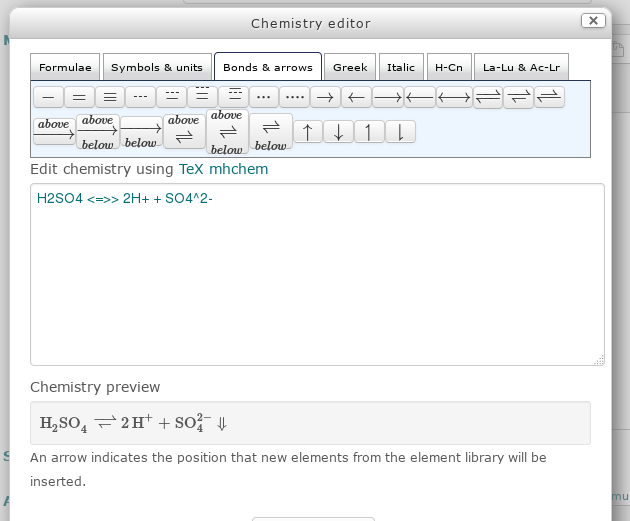
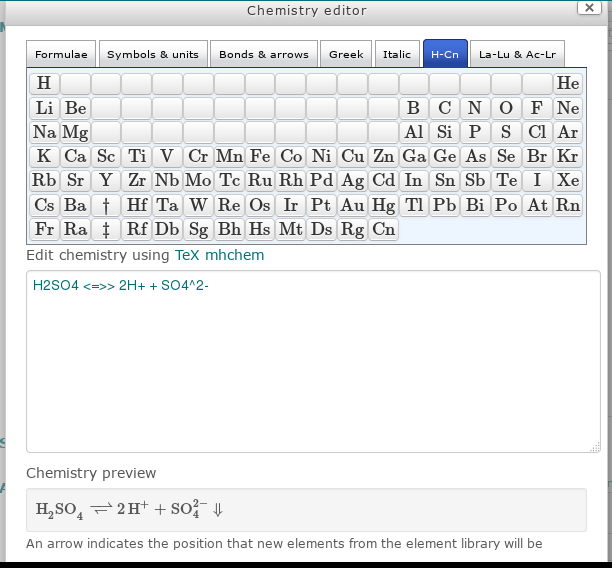
Edit chemistry equations in Moodle 2.7, or later, using the mhchem extension to the MathJax or TeX filter. Useful for full and ionic equations, isotopes, equilibrium reactions, thermochemistry and reaction kinetics. Includes a periodic table of element symbols.
Requirements:
1. The MathJax filter to be enabled (recommended) or the TeX filter enabled (or, in Moodle 2.8, both)
Administration > Site administration > Plugins > Filters > Manage filters
Don't forget to also enable the appropriate filter in the relevant course:
Administration > Course administration > Filters
2. The mhchem extension to be added to the MathJax configuration:
Edit Administration > Site administration > Plugins > Filters > MathJax > MathJax configuration to include:
TeX: {
  extensions: ["AMSmath.js","AMSsymbols.js","mhchem.js","noErrors.js","noUndefined.js"]
},
or to the TeX filter configuration:
Edit Administration > Site administration > Plugins > Filters > Tex notation > LaTeX renderer Settings to include:
\usepackage{mhchem}
At this stage you may wish to check the filters are working by, say, typing \(\ce{ H2SO4 }\) into Atto. This should be displayed as H2SO4 when saved.
3. The chemistry editor button (flask icon) to be added to the Atto editor toolbar:
Edit Administration > Site administration > Plugins > Text editors > Atto HTML editor > Atto toolbar settings > Toolbar config, to give, for example:
insert = chemistry, equation, charmap, table, clear
Immediately after installation and configuration you may need to clear your Moodle server caches:
Administration > Site administration > Development > Purge all caches
and local browser cache for correct display.
