Navigation buttons
Versions
Current version
4.1.0.3 (2026042400)
4.1.0.3
Plugin type: Blocks
Frankenstyle component name: block_navbuttons
Version build number: 2026042400
Version release name: 4.1.0.3
Maturity: Stable
Supported Moodle versions: 4.1, 4.2, 4.3, 4.4, 4.5, 5.0, 5.1, 5.2
Repository URL (Git): https://github.com/davosmith/moodle-navbuttons
Repository branch: MOODLE_500_STABLE
Repository tag: 4.1.0.3
Issue/bug tracker URL: https://tracker.moodle.org/issues/?jql=project%20%3D%20CONTRIB%20AND%20component%20%3D%20%22Block%3A+Navbuttons%22
Navigation buttons (for Moodle 2.x)
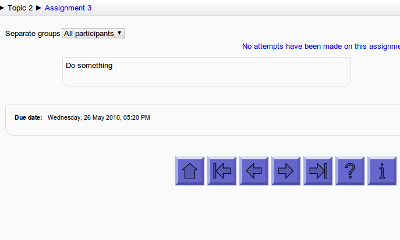
This block adds navigation buttons (first/previous/next/etc.) to the bottom of each activity/resource page in a course.
As an enhancement it also adds completion button ('Mark complete'/'Mark incomplete') to the bottom of each activity/resource page in a course.
It is based on an idea from Penny Mondani: http://pennymondani.com
Thanks also to the US company that sponsored the development, who wish to remain anonymous.
Thanks to NHS Leadership Academy's Ishani Vardhan for contributing the "Complete button" enhancement
Changes:
2026-04-24 - 4.1.0.3 - M5.2 compatibility fixes
2025-10-18 - 4.0.0.2 - M5.1 compatibility fixes
2025-04-19 - 4.0.0.1 - M5.0 compatibility fixes, dropping support for M3.11 and below
2024-10-19 - 3.4.2.2 - Minor M4.5 compatibility fixes
2024-04-05 - 3.4.2.1 - Minor M4.4 compatibility fixes
2023-10-02 - 3.4.2.0 - update GitHub actions ready for 4.3 release
2023-04-14 - 3.4.1.0 - Minor M4.2 compatibility fixes
2022-05-28 - Fix 'Mark complete' button in M4.0
2022-01-22 - Minor M4.0 compatibility fixes
2021-04-09 - Minor internal documentation updates, switch to GitHub actions (from Travis)
2020-11-07 - If running Moodle 3.10, or above, you no longer need core changes to make this work
2020-04-10 - Do not show navbuttons on embedded questions
2019-10-18 - Fix compatibility with latest version of mod_questionnaire
2018-04-21 - Add GDPR declaration (no personal data stored). This requires M3.4 to work.
2017-10-09 - Add 'simplified text' option (removes the word 'activity' and the name of the activity).
2017-05-17 - Fix problems with earlier versions of Moodle caused by M3.3 compatibility
2017-05-12 - Moodle 3.3 compatibility fix
2017-03-15 - Added enhancement to mark an Acitivity/Resource complete or incomplete from within the activity using text buttons or icons with relevant settings
2016-05-20 - Minor fix to hide on the new assign grading page (as it doesn't work well there)
2015-08-05 - Adding block outside of course is no longer a fatal error (but it does nothing useful).
2014-07-06 - Added 'text button' option, checked M2.7 compatibility, minor styling tweak
2013-11-19 - Moodle 2.6 compatibility fixes
2013-10-21 - Extra note in README about custom / 3rd-party themes
2013-05-22 - Minor Moodle 2.5 compatibility fixes
2013-03-15 - Fixed PHP 5.3 compatibility issue
2012-12-30 - Fixed settings page in Moodle 2.4
2012-12-07 - Now compatible with Moodle 2.4
2012-07-02 - Confirmed all working fine with Moodle 2.3
2012-02-28 - New global settings to control which activities have navbuttons on them and when they should be shown
Installation:
- Download the file and unzip it somewhere convenient.
- On your server, in the 'blocks' folder, create a subfolder called 'navbuttons'
- Upload all the files inside the 'davosmith-moodle-navbuttons-???????' folder to this new 'navbuttons' folder on your server.
- Log in to your Moodle site as an administrator and click on the 'Notifications' option in the Admin settings block.
- Add the block to a course (turn editing on, select 'Navigation Buttons' from the 'Blocks - Add' menu)
- Customise the button appearance by clicking on 'Edit the Navigation Button settings' in the newly created block.
- Check the message at the bottom of the screen (under the 'Save changes' button) - it should read "Navbuttons self-test: required core modifications have been completed successfully" (You don't actually need to make core modifications these days, but it confirms the code is working).
Note: The block is only visible to users who are able to edit courses modules. Deleting the block will remove the navigation buttons (they can also be disabled through the settings).
== Using with custom / 3rd-part themes ==
If the theme you are using overrides the page footer code (Essential theme is known to do this), then you will have to make some slightly different core changes in step 5.
Open up: theme/[theme name]/renderer.php
Look for a function called 'footer()'.
If you are lucky, you should be able to repeat the changes from step 5 within this function (I've had reports that this works with Essential theme).
If not, then you will have to try and figure out where best to put the code within the 'footer()' function.
== Any Problems ==
If you have a problem with the buttons not showing up as expected, then try the following:
Click on the 'Edit the Navigation Buttons settings' link in the block and scroll down to the bottom.
Check that the message reads 'Navbuttons self-test: required core modifications have been completed successfully'.
If not, go back up to step 5 of the installation instructions.
Visit 'Site admin > Plugins > Blocks > Navigation buttons' and check that the buttons are enabled for the activity
type you are viewing (the settings are 'Always show', 'Never show' or 'Show when complete', some activities have extra,
custom rules).
Visit a page that should have the navigation buttons on it, then use your browsers 'view source' menu option to see
the HTML code for the page. Search for '' (without quotes). Look to see what message is displayed
after this line (and before ''). It will be one of:
- Front page - navigation buttons are not displayed on the front page course
- No settings - the block has not been added to this course
- Not enabled - the block has been added, but the buttons are disabled in the settings
- No course module - this page is not part of a course module (activity/resource) within a course
- Activity not ready for navbuttons - the global settings mean that the buttons are not displayed for this activity (or
they will not be displayed until this activity is complete).
If you have any questions about this block, suggestions for improvement, drop me an email at:
moodle@davosmith.co.uk
4.0.0.2 (2025101800)
4.0.0.2
Plugin type: Blocks
Frankenstyle component name: block_navbuttons
Version build number: 2025101800
Version release name: 4.0.0.2
Maturity: Stable
Supported Moodle versions: 4.0, 4.1, 4.2, 4.3, 4.4, 4.5, 5.0, 5.1
Repository URL (Git): https://github.com/davosmith/moodle-navbuttons
Repository branch: MOODLE_500_STABLE
Repository tag: 4.0.0.2
Issue/bug tracker URL: https://tracker.moodle.org/issues/?jql=project%20%3D%20CONTRIB%20AND%20component%20%3D%20%22Block%3A+Navbuttons%22
Navigation buttons (for Moodle 2.x)
This block adds navigation buttons (first/previous/next/etc.) to the bottom of each activity/resource page in a course.
As an enhancement it also adds completion button ('Mark complete'/'Mark incomplete') to the bottom of each activity/resource page in a course.
It is based on an idea from Penny Mondani: http://pennymondani.com
Thanks also to the US company that sponsored the development, who wish to remain anonymous.
Thanks to NHS Leadership Academy's Ishani Vardhan for contributing the "Complete button" enhancement
Changes:
2025-10-18 - 4.0.0.2 - M5.1 compatibility fixes
2025-04-19 - 4.0.0.1 - M5.0 compatibility fixes, dropping support for M3.11 and below
2024-10-19 - 3.4.2.2 - Minor M4.5 compatibility fixes
2024-04-05 - 3.4.2.1 - Minor M4.4 compatibility fixes
2023-10-02 - 3.4.2.0 - update GitHub actions ready for 4.3 release
2023-04-14 - 3.4.1.0 - Minor M4.2 compatibility fixes
2022-05-28 - Fix 'Mark complete' button in M4.0
2022-01-22 - Minor M4.0 compatibility fixes
2021-04-09 - Minor internal documentation updates, switch to GitHub actions (from Travis)
2020-11-07 - If running Moodle 3.10, or above, you no longer need core changes to make this work
2020-04-10 - Do not show navbuttons on embedded questions
2019-10-18 - Fix compatibility with latest version of mod_questionnaire
2018-04-21 - Add GDPR declaration (no personal data stored). This requires M3.4 to work.
2017-10-09 - Add 'simplified text' option (removes the word 'activity' and the name of the activity).
2017-05-17 - Fix problems with earlier versions of Moodle caused by M3.3 compatibility
2017-05-12 - Moodle 3.3 compatibility fix
2017-03-15 - Added enhancement to mark an Acitivity/Resource complete or incomplete from within the activity using text buttons or icons with relevant settings
2016-05-20 - Minor fix to hide on the new assign grading page (as it doesn't work well there)
2015-08-05 - Adding block outside of course is no longer a fatal error (but it does nothing useful).
2014-07-06 - Added 'text button' option, checked M2.7 compatibility, minor styling tweak
2013-11-19 - Moodle 2.6 compatibility fixes
2013-10-21 - Extra note in README about custom / 3rd-party themes
2013-05-22 - Minor Moodle 2.5 compatibility fixes
2013-03-15 - Fixed PHP 5.3 compatibility issue
2012-12-30 - Fixed settings page in Moodle 2.4
2012-12-07 - Now compatible with Moodle 2.4
2012-07-02 - Confirmed all working fine with Moodle 2.3
2012-02-28 - New global settings to control which activities have navbuttons on them and when they should be shown
Installation:
- Download the file and unzip it somewhere convenient.
- On your server, in the 'blocks' folder, create a subfolder called 'navbuttons'
- Upload all the files inside the 'davosmith-moodle-navbuttons-???????' folder to this new 'navbuttons' folder on your server.
- Log in to your Moodle site as an administrator and click on the 'Notifications' option in the Admin settings block.
- Add the block to a course (turn editing on, select 'Navigation Buttons' from the 'Blocks - Add' menu)
- Customise the button appearance by clicking on 'Edit the Navigation Button settings' in the newly created block.
- Check the message at the bottom of the screen (under the 'Save changes' button) - it should read "Navbuttons self-test: required core modifications have been completed successfully" (You don't actually need to make core modifications these days, but it confirms the code is working).
Note: The block is only visible to users who are able to edit courses modules. Deleting the block will remove the navigation buttons (they can also be disabled through the settings).
== Using with custom / 3rd-part themes ==
If the theme you are using overrides the page footer code (Essential theme is known to do this), then you will have to make some slightly different core changes in step 5.
Open up: theme/[theme name]/renderer.php
Look for a function called 'footer()'.
If you are lucky, you should be able to repeat the changes from step 5 within this function (I've had reports that this works with Essential theme).
If not, then you will have to try and figure out where best to put the code within the 'footer()' function.
== Any Problems ==
If you have a problem with the buttons not showing up as expected, then try the following:
Click on the 'Edit the Navigation Buttons settings' link in the block and scroll down to the bottom.
Check that the message reads 'Navbuttons self-test: required core modifications have been completed successfully'.
If not, go back up to step 5 of the installation instructions.
Visit 'Site admin > Plugins > Blocks > Navigation buttons' and check that the buttons are enabled for the activity
type you are viewing (the settings are 'Always show', 'Never show' or 'Show when complete', some activities have extra,
custom rules).
Visit a page that should have the navigation buttons on it, then use your browsers 'view source' menu option to see
the HTML code for the page. Search for '' (without quotes). Look to see what message is displayed
after this line (and before ''). It will be one of:
- Front page - navigation buttons are not displayed on the front page course
- No settings - the block has not been added to this course
- Not enabled - the block has been added, but the buttons are disabled in the settings
- No course module - this page is not part of a course module (activity/resource) within a course
- Activity not ready for navbuttons - the global settings mean that the buttons are not displayed for this activity (or
they will not be displayed until this activity is complete).
If you have any questions about this block, suggestions for improvement, drop me an email at:
moodle@davosmith.co.uk
4.0.0.1 (2025041900)
4.0.0.1
Plugin type: Blocks
Frankenstyle component name: block_navbuttons
Version build number: 2025041900
Version release name: 4.0.0.1
Maturity: Stable
Supported Moodle versions: 4.0, 4.1, 4.2, 4.3, 4.4, 4.5, 5.0
Repository URL (Git): https://github.com/davosmith/moodle-navbuttons
Repository branch: MOODLE_500_STABLE
Repository tag: 4.0.0.1
Issue/bug tracker URL: https://tracker.moodle.org/issues/?jql=project%20%3D%20CONTRIB%20AND%20component%20%3D%20%22Block%3A+Navbuttons%22
Navigation buttons (for Moodle 2.x)
This block adds navigation buttons (first/previous/next/etc.) to the bottom of each activity/resource page in a course.
As an enhancement it also adds completion button ('Mark complete'/'Mark incomplete') to the bottom of each activity/resource page in a course.
It is based on an idea from Penny Mondani: http://pennymondani.com
Thanks also to the US company that sponsored the development, who wish to remain anonymous.
Thanks to NHS Leadership Academy's Ishani Vardhan for contributing the "Complete button" enhancement
Changes:
2025-04-19 - 4.0.0.1 - M5.0 compatibility fixes, dropping support for M3.11 and below
2024-10-19 - 3.4.2.2 - Minor M4.5 compatibility fixes
2024-04-05 - 3.4.2.1 - Minor M4.4 compatibility fixes
2023-10-02 - 3.4.2.0 - update GitHub actions ready for 4.3 release
2023-04-14 - 3.4.1.0 - Minor M4.2 compatibility fixes
2022-05-28 - Fix 'Mark complete' button in M4.0
2022-01-22 - Minor M4.0 compatibility fixes
2021-04-09 - Minor internal documentation updates, switch to GitHub actions (from Travis)
2020-11-07 - If running Moodle 3.10, or above, you no longer need core changes to make this work
2020-04-10 - Do not show navbuttons on embedded questions
2019-10-18 - Fix compatibility with latest version of mod_questionnaire
2018-04-21 - Add GDPR declaration (no personal data stored). This requires M3.4 to work.
2017-10-09 - Add 'simplified text' option (removes the word 'activity' and the name of the activity).
2017-05-17 - Fix problems with earlier versions of Moodle caused by M3.3 compatibility
2017-05-12 - Moodle 3.3 compatibility fix
2017-03-15 - Added enhancement to mark an Acitivity/Resource complete or incomplete from within the activity using text buttons or icons with relevant settings
2016-05-20 - Minor fix to hide on the new assign grading page (as it doesn't work well there)
2015-08-05 - Adding block outside of course is no longer a fatal error (but it does nothing useful).
2014-07-06 - Added 'text button' option, checked M2.7 compatibility, minor styling tweak
2013-11-19 - Moodle 2.6 compatibility fixes
2013-10-21 - Extra note in README about custom / 3rd-party themes
2013-05-22 - Minor Moodle 2.5 compatibility fixes
2013-03-15 - Fixed PHP 5.3 compatibility issue
2012-12-30 - Fixed settings page in Moodle 2.4
2012-12-07 - Now compatible with Moodle 2.4
2012-07-02 - Confirmed all working fine with Moodle 2.3
2012-02-28 - New global settings to control which activities have navbuttons on them and when they should be shown
Installation:
- Download the file and unzip it somewhere convenient.
- On your server, in the 'blocks' folder, create a subfolder called 'navbuttons'
- Upload all the files inside the 'davosmith-moodle-navbuttons-???????' folder to this new 'navbuttons' folder on your server.
- Log in to your Moodle site as an administrator and click on the 'Notifications' option in the Admin settings block.
- Add the block to a course (turn editing on, select 'Navigation Buttons' from the 'Blocks - Add' menu)
- Customise the button appearance by clicking on 'Edit the Navigation Button settings' in the newly created block.
- Check the message at the bottom of the screen (under the 'Save changes' button) - it should read "Navbuttons self-test: required core modifications have been completed successfully" (You don't actually need to make core modifications these days, but it confirms the code is working).
Note: The block is only visible to users who are able to edit courses modules. Deleting the block will remove the navigation buttons (they can also be disabled through the settings).
== Using with custom / 3rd-part themes ==
If the theme you are using overrides the page footer code (Essential theme is known to do this), then you will have to make some slightly different core changes in step 5.
Open up: theme/[theme name]/renderer.php
Look for a function called 'footer()'.
If you are lucky, you should be able to repeat the changes from step 5 within this function (I've had reports that this works with Essential theme).
If not, then you will have to try and figure out where best to put the code within the 'footer()' function.
== Any Problems ==
If you have a problem with the buttons not showing up as expected, then try the following:
Click on the 'Edit the Navigation Buttons settings' link in the block and scroll down to the bottom.
Check that the message reads 'Navbuttons self-test: required core modifications have been completed successfully'.
If not, go back up to step 5 of the installation instructions.
Visit 'Site admin > Plugins > Blocks > Navigation buttons' and check that the buttons are enabled for the activity
type you are viewing (the settings are 'Always show', 'Never show' or 'Show when complete', some activities have extra,
custom rules).
Visit a page that should have the navigation buttons on it, then use your browsers 'view source' menu option to see
the HTML code for the page. Search for '' (without quotes). Look to see what message is displayed
after this line (and before ''). It will be one of:
- Front page - navigation buttons are not displayed on the front page course
- No settings - the block has not been added to this course
- Not enabled - the block has been added, but the buttons are disabled in the settings
- No course module - this page is not part of a course module (activity/resource) within a course
- Activity not ready for navbuttons - the global settings mean that the buttons are not displayed for this activity (or
they will not be displayed until this activity is complete).
If you have any questions about this block, suggestions for improvement, drop me an email at:
moodle@davosmith.co.uk
3.4.2.2 (2024101900)
3.4.2.2
Plugin type: Blocks
Frankenstyle component name: block_navbuttons
Version build number: 2024101900
Version release name: 3.4.2.2
Maturity: Stable
Supported Moodle versions: 3.10, 3.11, 3.4, 3.5, 3.6, 3.7, 3.8, 3.9, 4.0, 4.1, 4.2, 4.3, 4.4, 4.5
Repository URL (Git): https://github.com/davosmith/moodle-navbuttons
Repository branch: master
Repository tag: 3.4.2.2
Issue/bug tracker URL: https://tracker.moodle.org/issues/?jql=project%20%3D%20CONTRIB%20AND%20component%20%3D%20%22Block%3A+Navbuttons%22
Navigation buttons (for Moodle 2.x)
This block adds navigation buttons (first/previous/next/etc.) to the bottom of each activity/resource page in a course.
As an enhancement it also adds completion button ('Mark complete'/'Mark incomplete') to the bottom of each activity/resource page in a course.
It is based on an idea from Penny Mondani: http://pennymondani.com
Thanks also to the US company that sponsored the development, who wish to remain anonymous.
Thanks to NHS Leadership Academy's Ishani Vardhan for contributing the "Complete button" enhancement
Changes:
2024-10-19 - 3.4.2.2 - Minor M4.5 compatibility fixes
2024-04-05 - 3.4.2.1 - Minor M4.4 compatibility fixes
2023-10-02 - 3.4.2.0 - update GitHub actions ready for 4.3 release
2023-04-14 - 3.4.1.0 - Minor M4.2 compatibility fixes
2022-05-28 - Fix 'Mark complete' button in M4.0
2022-01-22 - Minor M4.0 compatibility fixes
2021-04-09 - Minor internal documentation updates, switch to GitHub actions (from Travis)
2020-11-07 - If running Moodle 3.10, or above, you no longer need core changes to make this work
2020-04-10 - Do not show navbuttons on embedded questions
2019-10-18 - Fix compatibility with latest version of mod_questionnaire
2018-04-21 - Add GDPR declaration (no personal data stored). This requires M3.4 to work.
2017-10-09 - Add 'simplified text' option (removes the word 'activity' and the name of the activity).
2017-05-17 - Fix problems with earlier versions of Moodle caused by M3.3 compatibility
2017-05-12 - Moodle 3.3 compatibility fix
2017-03-15 - Added enhancement to mark an Acitivity/Resource complete or incomplete from within the activity using text buttons or icons with relevant settings
2016-05-20 - Minor fix to hide on the new assign grading page (as it doesn't work well there)
2015-08-05 - Adding block outside of course is no longer a fatal error (but it does nothing useful).
2014-07-06 - Added 'text button' option, checked M2.7 compatibility, minor styling tweak
2013-11-19 - Moodle 2.6 compatibility fixes
2013-10-21 - Extra note in README about custom / 3rd-party themes
2013-05-22 - Minor Moodle 2.5 compatibility fixes
2013-03-15 - Fixed PHP 5.3 compatibility issue
2012-12-30 - Fixed settings page in Moodle 2.4
2012-12-07 - Now compatible with Moodle 2.4
2012-07-02 - Confirmed all working fine with Moodle 2.3
2012-02-28 - New global settings to control which activities have navbuttons on them and when they should be shown
Installation:
- Download the file and unzip it somewhere convenient.
- On your server, in the 'blocks' folder, create a subfolder called 'navbuttons'
- Upload all the files inside the 'davosmith-moodle-navbuttons-???????' folder to this new 'navbuttons' folder on your server.
- Log in to your Moodle site as an administrator and click on the 'Notifications' option in the Admin settings block.
- If you are running a version of Moodle earlier than 3.10, then you need to edit one Moodle core file to make this work:
Find the file 'moodle/lib/outputrenderers.php'.
Find the line:
$output = $this->container_end_all(true);
(It should only be there once, shortly after the line 'public function footer() {')
REPLACE the line you found with this code:
require_once($CFG->dirroot.'/blocks/navbuttons/footer.php'); // Add this line to enable the navigation buttons
$output = draw_navbuttons().$this->container_end_all(true); // Change this line to enable the navigation buttons
** DO NOT MAKE THE ABOVE CHANGE IF YOU ARE RUNNING MOODLE 3.10 (or higher) - it is no longer needed **
- Add the block to a course (turn editing on, select 'Navigation Buttons' from the 'Blocks - Add' menu)
- Customise the button appearance by clicking on 'Edit the Navigation Button settings' in the newly created block.
- Check the message at the bottom of the screen (under the 'Save changes' button) - it should read "Navbuttons self-test: required core modifications have been completed successfully". If not, then go back to step 5 above and check carefully.
Note: The block is only visible to users who are able to edit courses modules. Deleting the block will remove the navigation buttons (they can also be disabled through the settings).
== Using with custom / 3rd-part themes ==
If the theme you are using overrides the page footer code (Essential theme is known to do this), then you will have to make some slightly different core changes in step 5.
Open up: theme/[theme name]/renderer.php
Look for a function called 'footer()'.
If you are lucky, you should be able to repeat the changes from step 5 within this function (I've had reports that this works with Essential theme).
If not, then you will have to try and figure out where best to put the code within the 'footer()' function.
== Any Problems ==
If you have a problem with the buttons not showing up as expected, then try the following:
Click on the 'Edit the Navigation Buttons settings' link in the block and scroll down to the bottom.
Check that the message reads 'Navbuttons self-test: required core modifications have been completed successfully'.
If not, go back up to step 5 of the installation instructions.
Visit 'Site admin > Plugins > Blocks > Navigation buttons' and check that the buttons are enabled for the activity
type you are viewing (the settings are 'Always show', 'Never show' or 'Show when complete', some activities have extra,
custom rules).
Visit a page that should have the navigation buttons on it, then use your browsers 'view source' menu option to see
the HTML code for the page. Search for '' (without quotes). Look to see what message is displayed
after this line (and before ''). It will be one of:
- Front page - navigation buttons are not displayed on the front page course
- No settings - the block has not been added to this course
- Not enabled - the block has been added, but the buttons are disabled in the settings
- No course module - this page is not part of a course module (activity/resource) within a course
- Activity not ready for navbuttons - the global settings mean that the buttons are not displayed for this activity (or
they will not be displayed until this activity is complete).
If you have any questions about this block, suggestions for improvement, drop me an email at:
moodle@davosmith.co.uk
3.4.2.1 (2024040500)
3.4.2.1
Plugin type: Blocks
Frankenstyle component name: block_navbuttons
Version build number: 2024040500
Version release name: 3.4.2.1
Maturity: Stable
Supported Moodle versions: 3.10, 3.11, 3.4, 3.5, 3.6, 3.7, 3.8, 3.9, 4.0, 4.1, 4.2, 4.3, 4.4
Repository URL (Git): https://github.com/davosmith/moodle-navbuttons
Repository branch:
Repository tag: 3.4.2.1
Issue/bug tracker URL: https://tracker.moodle.org/issues/?jql=project%20%3D%20CONTRIB%20AND%20component%20%3D%20%22Block%3A+Navbuttons%22
Navigation buttons (for Moodle 2.x)
This block adds navigation buttons (first/previous/next/etc.) to the bottom of each activity/resource page in a course.
As an enhancement it also adds completion button ('Mark complete'/'Mark incomplete') to the bottom of each activity/resource page in a course.
It is based on an idea from Penny Mondani: http://pennymondani.com
Thanks also to the US company that sponsored the development, who wish to remain anonymous.
Thanks to NHS Leadership Academy's Ishani Vardhan for contributing the "Complete button" enhancement
Changes:
2024-04-05 - 3.4.2.1 - Minor M4.4 compatibility fixes
2023-10-02 - 3.4.2.0 - update GitHub actions ready for 4.3 release
2023-04-14 - 3.4.1.0 - Minor M4.2 compatibility fixes
2022-05-28 - Fix 'Mark complete' button in M4.0
2022-01-22 - Minor M4.0 compatibility fixes
2021-04-09 - Minor internal documentation updates, switch to GitHub actions (from Travis)
2020-11-07 - If running Moodle 3.10, or above, you no longer need core changes to make this work
2020-04-10 - Do not show navbuttons on embedded questions
2019-10-18 - Fix compatibility with latest version of mod_questionnaire
2018-04-21 - Add GDPR declaration (no personal data stored). This requires M3.4 to work.
2017-10-09 - Add 'simplified text' option (removes the word 'activity' and the name of the activity).
2017-05-17 - Fix problems with earlier versions of Moodle caused by M3.3 compatibility
2017-05-12 - Moodle 3.3 compatibility fix
2017-03-15 - Added enhancement to mark an Acitivity/Resource complete or incomplete from within the activity using text buttons or icons with relevant settings
2016-05-20 - Minor fix to hide on the new assign grading page (as it doesn't work well there)
2015-08-05 - Adding block outside of course is no longer a fatal error (but it does nothing useful).
2014-07-06 - Added 'text button' option, checked M2.7 compatibility, minor styling tweak
2013-11-19 - Moodle 2.6 compatibility fixes
2013-10-21 - Extra note in README about custom / 3rd-party themes
2013-05-22 - Minor Moodle 2.5 compatibility fixes
2013-03-15 - Fixed PHP 5.3 compatibility issue
2012-12-30 - Fixed settings page in Moodle 2.4
2012-12-07 - Now compatible with Moodle 2.4
2012-07-02 - Confirmed all working fine with Moodle 2.3
2012-02-28 - New global settings to control which activities have navbuttons on them and when they should be shown
Installation:
- Download the file and unzip it somewhere convenient.
- On your server, in the 'blocks' folder, create a subfolder called 'navbuttons'
- Upload all the files inside the 'davosmith-moodle-navbuttons-???????' folder to this new 'navbuttons' folder on your server.
- Log in to your Moodle site as an administrator and click on the 'Notifications' option in the Admin settings block.
- If you are running a version of Moodle earlier than 3.10, then you need to edit one Moodle core file to make this work:
Find the file 'moodle/lib/outputrenderers.php'.
Find the line:
$output = $this->container_end_all(true);
(It should only be there once, shortly after the line 'public function footer() {')
REPLACE the line you found with this code:
require_once($CFG->dirroot.'/blocks/navbuttons/footer.php'); // Add this line to enable the navigation buttons
$output = draw_navbuttons().$this->container_end_all(true); // Change this line to enable the navigation buttons
** DO NOT MAKE THE ABOVE CHANGE IF YOU ARE RUNNING MOODLE 3.10 (or higher) - it is no longer needed **
- Add the block to a course (turn editing on, select 'Navigation Buttons' from the 'Blocks - Add' menu)
- Customise the button appearance by clicking on 'Edit the Navigation Button settings' in the newly created block.
- Check the message at the bottom of the screen (under the 'Save changes' button) - it should read "Navbuttons self-test: required core modifications have been completed successfully". If not, then go back to step 5 above and check carefully.
Note: The block is only visible to users who are able to edit courses modules. Deleting the block will remove the navigation buttons (they can also be disabled through the settings).
== Using with custom / 3rd-part themes ==
If the theme you are using overrides the page footer code (Essential theme is known to do this), then you will have to make some slightly different core changes in step 5.
Open up: theme/[theme name]/renderer.php
Look for a function called 'footer()'.
If you are lucky, you should be able to repeat the changes from step 5 within this function (I've had reports that this works with Essential theme).
If not, then you will have to try and figure out where best to put the code within the 'footer()' function.
== Any Problems ==
If you have a problem with the buttons not showing up as expected, then try the following:
Click on the 'Edit the Navigation Buttons settings' link in the block and scroll down to the bottom.
Check that the message reads 'Navbuttons self-test: required core modifications have been completed successfully'.
If not, go back up to step 5 of the installation instructions.
Visit 'Site admin > Plugins > Blocks > Navigation buttons' and check that the buttons are enabled for the activity
type you are viewing (the settings are 'Always show', 'Never show' or 'Show when complete', some activities have extra,
custom rules).
Visit a page that should have the navigation buttons on it, then use your browsers 'view source' menu option to see
the HTML code for the page. Search for '' (without quotes). Look to see what message is displayed
after this line (and before ''). It will be one of:
- Front page - navigation buttons are not displayed on the front page course
- No settings - the block has not been added to this course
- Not enabled - the block has been added, but the buttons are disabled in the settings
- No course module - this page is not part of a course module (activity/resource) within a course
- Activity not ready for navbuttons - the global settings mean that the buttons are not displayed for this activity (or
they will not be displayed until this activity is complete).
If you have any questions about this block, suggestions for improvement, drop me an email at:
moodle@davosmith.co.uk
3.4.2.0 (2023100200)
3.4.2.0
Plugin type: Blocks
Frankenstyle component name: block_navbuttons
Version build number: 2023100200
Version release name: 3.4.2.0
Maturity: Stable
Supported Moodle versions: 3.10, 3.11, 3.4, 3.5, 3.6, 3.7, 3.8, 3.9, 4.0, 4.1, 4.2, 4.3
Repository URL (Git): https://github.com/davosmith/moodle-navbuttons
Repository branch:
Repository tag: 3.4.2.0
Issue/bug tracker URL: https://tracker.moodle.org/issues/?jql=project%20%3D%20CONTRIB%20AND%20component%20%3D%20%22Block%3A+Navbuttons%22
Navigation buttons (for Moodle 2.x)
This block adds navigation buttons (first/previous/next/etc.) to the bottom of each activity/resource page in a course.
As an enhancement it also adds completion button ('Mark complete'/'Mark incomplete') to the bottom of each activity/resource page in a course.
It is based on an idea from Penny Mondani: http://pennymondani.com
Thanks also to the US company that sponsored the development, who wish to remain anonymous.
Thanks to NHS Leadership Academy's Ishani Vardhan for contributing the "Complete button" enhancement
Changes:
2023-10-02 - 3.4.2.0 - update GitHub actions ready for 4.3 release
2023-04-14 - 3.4.1.0 - Minor M4.2 compatibility fixes
2022-05-28 - Fix 'Mark complete' button in M4.0
2022-01-22 - Minor M4.0 compatibility fixes
2021-04-09 - Minor internal documentation updates, switch to Github actions (from Travis)
2020-11-07 - If running Moodle 3.10, or above, you no longer need core changes to make this work
2020-04-10 - Do not show navbuttons on embedded questions
2019-10-18 - Fix compatibility with latest version of mod_questionnaire
2018-04-21 - Add GDPR declaration (no personal data stored). This requires M3.4 to work.
2017-10-09 - Add 'simplified text' option (removes the word 'activity' and the name of the activity).
2017-05-17 - Fix problems with earlier versions of Moodle caused by M3.3 compatibility
2017-05-12 - Moodle 3.3 compatibility fix
2017-03-15 - Added enhancement to mark an Acitivity/Resource complete or incomplete from within the activity using text buttons or icons with relevant settings
2016-05-20 - Minor fix to hide on the new assign grading page (as it doesn't work well there)
2015-08-05 - Adding block outside of course is no longer a fatal error (but it does nothing useful).
2014-07-06 - Added 'text button' option, checked M2.7 compatibility, minor styling tweak
2013-11-19 - Moodle 2.6 compatibility fixes
2013-10-21 - Extra note in README about custom / 3rd-party themes
2013-05-22 - Minor Moodle 2.5 compatibility fixes
2013-03-15 - Fixed PHP 5.3 compatibility issue
2012-12-30 - Fixed settings page in Moodle 2.4
2012-12-07 - Now compatible with Moodle 2.4
2012-07-02 - Confirmed all working fine with Moodle 2.3
2012-02-28 - New global settings to control which activities have navbuttons on them and when they should be shown
Installation:
- Download the file and unzip it somewhere convenient.
- On your server, in the 'blocks' folder, create a subfolder called 'navbuttons'
- Upload all the files inside the 'davosmith-moodle-navbuttons-???????' folder to this new 'navbuttons' folder on your server.
- Log in to your Moodle site as an administrator and click on the 'Notifications' option in the Admin settings block.
- If you are running a version of Moodle earlier than 3.10, then you need to edit one Moodle core file to make this work:
Find the file 'moodle/lib/outputrenderers.php'.
Find the line:
$output = $this->container_end_all(true);
(It should only be there once, shortly after the line 'public function footer() {')
REPLACE the line you found with this code:
require_once($CFG->dirroot.'/blocks/navbuttons/footer.php'); // Add this line to enable the navigation buttons
$output = draw_navbuttons().$this->container_end_all(true); // Change this line to enable the navigation buttons
** DO NOT MAKE THE ABOVE CHANGE IF YOU ARE RUNNING MOODLE 3.10 (or higher) - it is no longer needed **
- Add the block to a course (turn editing on, select 'Navigation Buttons' from the 'Blocks - Add' menu)
- Customise the button appearance by clicking on 'Edit the Navigation Button settings' in the newly created block.
- Check the message at the bottom of the screen (under the 'Save changes' button) - it should read "Navbuttons self-test: required core modifications have been completed successfully". If not, then go back to step 5 above and check carefully.
Note: The block is only visible to users who are able to edit courses modules. Deleting the block will remove the navigation buttons (they can also be disabled through the settings).
== Using with custom / 3rd-part themes ==
If the theme you are using overrides the page footer code (Essential theme is known to do this), then you will have to make some slightly different core changes in step 5.
Open up: theme/[theme name]/renderer.php
Look for a function called 'footer()'.
If you are lucky, you should be able to repeat the changes from step 5 within this function (I've had reports that this works with Essential theme).
If not, then you will have to try and figure out where best to put the code within the 'footer()' function.
== Any Problems ==
If you have a problem with the buttons not showing up as expected, then try the following:
Click on the 'Edit the Navigation Buttons settings' link in the block and scroll down to the bottom.
Check that the message reads 'Navbuttons self-test: required core modifications have been completed successfully'.
If not, go back up to step 5 of the installation instructions.
Visit 'Site admin > Plugins > Blocks > Navigation buttons' and check that the buttons are enabled for the activity
type you are viewing (the settings are 'Always show', 'Never show' or 'Show when complete', some activities have extra,
custom rules).
Visit a page that should have the navigation buttons on it, then use your browsers 'view source' menu option to see
the HTML code for the page. Search for '' (without quotes). Look to see what message is displayed
after this line (and before ''). It will be one of:
- Front page - navigation buttons are not displayed on the front page course
- No settings - the block has not been added to this course
- Not enabled - the block has been added, but the buttons are disabled in the settings
- No course module - this page is not part of a course module (activity/resource) within a course
- Activity not ready for navbuttons - the global settings mean that the buttons are not displayed for this activity (or
they will not be displayed until this activity is complete).
If you have any questions about this block, suggestions for improvement, drop me an email at:
moodle@davosmith.co.uk
3.4.1.0 (2023041400)
3.4.1.0
Plugin type: Blocks
Frankenstyle component name: block_navbuttons
Version build number: 2023041400
Version release name: 3.4.1.0
Maturity: Stable
Supported Moodle versions: 3.10, 3.11, 3.4, 3.5, 3.6, 3.7, 3.8, 3.9, 4.0, 4.1, 4.2
Repository URL (Git): https://github.com/davosmith/moodle-navbuttons
Repository branch: master
Repository tag: 3.4.1.0
Issue/bug tracker URL: https://tracker.moodle.org/issues/?jql=project%20%3D%20CONTRIB%20AND%20component%20%3D%20%22Block%3A+Navbuttons%22
Navigation buttons (for Moodle 2.x)
This block adds navigation buttons (first/previous/next/etc.) to the bottom of each activity/resource page in a course.
As an enhancement it also adds completion button ('Mark complete'/'Mark incomplete') to the bottom of each activity/resource page in a course.
It is based on an idea from Penny Mondani: http://pennymondani.com
Thanks also to the US company that sponsored the development, who wish to remain anonymous.
Thanks to NHS Leadership Academy's Ishani Vardhan for contributing the "Complete button" enhancement
Changes:
2023-04-14 - 3.4.1.0 - Minor M4.2 compatibility fixes
2022-05-28 - Fix 'Mark complete' button in M4.0
2022-01-22 - Minor M4.0 compatibility fixes
2021-04-09 - Minor internal documentation updates, switch to Github actions (from Travis)
2020-11-07 - If running Moodle 3.10, or above, you no longer need core changes to make this work
2020-04-10 - Do not show navbuttons on embedded questions
2019-10-18 - Fix compatibility with latest version of mod_questionnaire
2018-04-21 - Add GDPR declaration (no personal data stored). This requires M3.4 to work.
2017-10-09 - Add 'simplified text' option (removes the word 'activity' and the name of the activity).
2017-05-17 - Fix problems with earlier versions of Moodle caused by M3.3 compatibility
2017-05-12 - Moodle 3.3 compatibility fix
2017-03-15 - Added enhancement to mark an Acitivity/Resource complete or incomplete from within the activity using text buttons or icons with relevant settings
2016-05-20 - Minor fix to hide on the new assign grading page (as it doesn't work well there)
2015-08-05 - Adding block outside of course is no longer a fatal error (but it does nothing useful).
2014-07-06 - Added 'text button' option, checked M2.7 compatibility, minor styling tweak
2013-11-19 - Moodle 2.6 compatibility fixes
2013-10-21 - Extra note in README about custom / 3rd-party themes
2013-05-22 - Minor Moodle 2.5 compatibility fixes
2013-03-15 - Fixed PHP 5.3 compatibility issue
2012-12-30 - Fixed settings page in Moodle 2.4
2012-12-07 - Now compatible with Moodle 2.4
2012-07-02 - Confirmed all working fine with Moodle 2.3
2012-02-28 - New global settings to control which activities have navbuttons on them and when they should be shown
Installation:
- Download the file and unzip it somewhere convenient.
- On your server, in the 'blocks' folder, create a subfolder called 'navbuttons'
- Upload all the files inside the 'davosmith-moodle-navbuttons-???????' folder to this new 'navbuttons' folder on your server.
- Log in to your Moodle site as an administrator and click on the 'Notifications' option in the Admin settings block.
- If you are running a version of Moodle earlier than 3.10, then you need to edit one Moodle core file to make this work:
Find the file 'moodle/lib/outputrenderers.php'.
Find the line:
$output = $this->container_end_all(true);
(It should only be there once, shortly after the line 'public function footer() {')
REPLACE the line you found with this code:
require_once($CFG->dirroot.'/blocks/navbuttons/footer.php'); // Add this line to enable the navigation buttons
$output = draw_navbuttons().$this->container_end_all(true); // Change this line to enable the navigation buttons
** DO NOT MAKE THE ABOVE CHANGE IF YOU ARE RUNNING MOODLE 3.10 (or higher) - it is no longer needed **
- Add the block to a course (turn editing on, select 'Navigation Buttons' from the 'Blocks - Add' menu)
- Customise the button appearance by clicking on 'Edit the Navigation Button settings' in the newly created block.
- Check the message at the bottom of the screen (under the 'Save changes' button) - it should read "Navbuttons self-test: required core modifications have been completed successfully". If not, then go back to step 5 above and check carefully.
Note: The block is only visible to users who are able to edit courses modules. Deleting the block will remove the navigation buttons (they can also be disabled through the settings).
== Using with custom / 3rd-part themes ==
If the theme you are using overrides the page footer code (Essential theme is known to do this), then you will have to make some slightly different core changes in step 5.
Open up: theme/[theme name]/renderer.php
Look for a function called 'footer()'.
If you are lucky, you should be able to repeat the changes from step 5 within this function (I've had reports that this works with Essential theme).
If not, then you will have to try and figure out where best to put the code within the 'footer()' function.
== Any Problems ==
If you have a problem with the buttons not showing up as expected, then try the following:
Click on the 'Edit the Navigation Buttons settings' link in the block and scroll down to the bottom.
Check that the message reads 'Navbuttons self-test: required core modifications have been completed successfully'.
If not, go back up to step 5 of the installation instructions.
Visit 'Site admin > Plugins > Blocks > Navigation buttons' and check that the buttons are enabled for the activity
type you are viewing (the settings are 'Always show', 'Never show' or 'Show when complete', some activities have extra,
custom rules).
Visit a page that should have the navigation buttons on it, then use your browsers 'view source' menu option to see
the HTML code for the page. Search for '' (without quotes). Look to see what message is displayed
after this line (and before ''). It will be one of:
- Front page - navigation buttons are not displayed on the front page course
- No settings - the block has not been added to this course
- Not enabled - the block has been added, but the buttons are disabled in the settings
- No course module - this page is not part of a course module (activity/resource) within a course
- Activity not ready for navbuttons - the global settings mean that the buttons are not displayed for this activity (or
they will not be displayed until this activity is complete).
If you have any questions about this block, suggestions for improvement, drop me an email at:
moodle@davosmith.co.uk
3.4+ (Build: 2022111900) (2022111900)
3.4+ (Build: 2022111900)
Plugin type: Blocks
Frankenstyle component name: block_navbuttons
Version build number: 2022111900
Version release name: 3.4+ (Build: 2022111900)
Maturity: Stable
Supported Moodle versions: 3.10, 3.11, 3.4, 3.5, 3.6, 3.7, 3.8, 3.9, 4.0, 4.1
Repository URL (Git): https://github.com/davosmith/moodle-navbuttons
Repository branch: master
Repository tag:
Issue/bug tracker URL: https://tracker.moodle.org/issues/?jql=project%20%3D%20CONTRIB%20AND%20component%20%3D%20%22Block%3A+Navbuttons%22
Navigation buttons (for Moodle 2.x)
This block adds navigation buttons (first/previous/next/etc.) to the bottom of each activity/resource page in a course.
As an enhancement it also adds completion button ('Mark complete'/'Mark incomplete') to the bottom of each activity/resource page in a course.
It is based on an idea from Penny Mondani: http://pennymondani.com
Thanks also to the US company that sponsored the development, who wish to remain anonymous.
Thanks to NHS Leadership Academy's Ishani Vardhan for contributing the "Complete button" enhancement
Changes:
2022-05-28 - Fix 'Mark complete' button in M4.0
2022-01-22 - Minor M4.0 compatibility fixes
2021-04-09 - Minor internal documentation updates, switch to Github actions (from Travis)
2020-11-07 - If running Moodle 3.10, or above, you no longer need core changes to make this work
2020-04-10 - Do not show navbuttons on embedded questions
2019-10-18 - Fix compatibility with latest version of mod_questionnaire
2018-04-21 - Add GDPR declaration (no personal data stored). This requires M3.4 to work.
2017-10-09 - Add 'simplified text' option (removes the word 'activity' and the name of the activity).
2017-05-17 - Fix problems with earlier versions of Moodle caused by M3.3 compatibility
2017-05-12 - Moodle 3.3 compatibility fix
2017-03-15 - Added enhancement to mark an Acitivity/Resource complete or incomplete from within the activity using text buttons or icons with relevant settings
2016-05-20 - Minor fix to hide on the new assign grading page (as it doesn't work well there)
2015-08-05 - Adding block outside of course is no longer a fatal error (but it does nothing useful).
2014-07-06 - Added 'text button' option, checked M2.7 compatibility, minor styling tweak
2013-11-19 - Moodle 2.6 compatibility fixes
2013-10-21 - Extra note in README about custom / 3rd-party themes
2013-05-22 - Minor Moodle 2.5 compatibility fixes
2013-03-15 - Fixed PHP 5.3 compatibility issue
2012-12-30 - Fixed settings page in Moodle 2.4
2012-12-07 - Now compatible with Moodle 2.4
2012-07-02 - Confirmed all working fine with Moodle 2.3
2012-02-28 - New global settings to control which activities have navbuttons on them and when they should be shown
Installation:
- Download the file and unzip it somewhere convenient.
- On your server, in the 'blocks' folder, create a subfolder called 'navbuttons'
- Upload all the files inside the 'davosmith-moodle-navbuttons-???????' folder to this new 'navbuttons' folder on your server.
- Log in to your Moodle site as an administrator and click on the 'Notifications' option in the Admin settings block.
- If you are running a version of Moodle earlier than 3.10, then you need to edit one Moodle core file to make this work:
Find the file 'moodle/lib/outputrenderers.php'.
Find the line:
$output = $this->container_end_all(true);
(It should only be there once, shortly after the line 'public function footer() {')
REPLACE the line you found with this code:
require_once($CFG->dirroot.'/blocks/navbuttons/footer.php'); // Add this line to enable the navigation buttons
$output = draw_navbuttons().$this->container_end_all(true); // Change this line to enable the navigation buttons
** DO NOT MAKE THE ABOVE CHANGE IF YOU ARE RUNNING MOODLE 3.10 (or higher) - it is no longer needed **
- Add the block to a course (turn editing on, select 'Navigation Buttons' from the 'Blocks - Add' menu)
- Customise the button appearance by clicking on 'Edit the Navigation Button settings' in the newly created block.
- Check the message at the bottom of the screen (under the 'Save changes' button) - it should read "Navbuttons self-test: required core modifications have been completed successfully". If not, then go back to step 5 above and check carefully.
Note: The block is only visible to users who are able to edit courses modules. Deleting the block will remove the navigation buttons (they can also be disabled through the settings).
== Using with custom / 3rd-part themes ==
If the theme you are using overrides the page footer code (Essential theme is known to do this), then you will have to make some slightly different core changes in step 5.
Open up: theme/[theme name]/renderer.php
Look for a function called 'footer()'.
If you are lucky, you should be able to repeat the changes from step 5 within this function (I've had reports that this works with Essential theme).
If not, then you will have to try and figure out where best to put the code within the 'footer()' function.
== Any Problems ==
If you have a problem with the buttons not showing up as expected, then try the following:
Click on the 'Edit the Navigation Buttons settings' link in the block and scroll down to the bottom.
Check that the message reads 'Navbuttons self-test: required core modifications have been completed successfully'.
If not, go back up to step 5 of the installation instructions.
Visit 'Site admin > Plugins > Blocks > Navigation buttons' and check that the buttons are enabled for the activity
type you are viewing (the settings are 'Always show', 'Never show' or 'Show when complete', some activities have extra,
custom rules).
Visit a page that should have the navigation buttons on it, then use your browsers 'view source' menu option to see
the HTML code for the page. Search for '' (without quotes). Look to see what message is displayed
after this line (and before ''). It will be one of:
- Front page - navigation buttons are not displayed on the front page course
- No settings - the block has not been added to this course
- Not enabled - the block has been added, but the buttons are disabled in the settings
- No course module - this page is not part of a course module (activity/resource) within a course
- Activity not ready for navbuttons - the global settings mean that the buttons are not displayed for this activity (or
they will not be displayed until this activity is complete).
If you have any questions about this block, suggestions for improvement, drop me an email at:
moodle@davosmith.co.uk
3.4+ (Build: 2022052800) (2022052800)
3.4+ (Build: 2022052800)
Plugin type: Blocks
Frankenstyle component name: block_navbuttons
Version build number: 2022052800
Version release name: 3.4+ (Build: 2022052800)
Maturity: Stable
Supported Moodle versions: 3.10, 3.11, 3.4, 3.5, 3.6, 3.7, 3.8, 3.9, 4.0
Repository URL (Git): https://github.com/davosmith/moodle-navbuttons
Repository branch: master
Repository tag:
Issue/bug tracker URL: https://tracker.moodle.org/issues/?jql=project%20%3D%20CONTRIB%20AND%20component%20%3D%20%22Block%3A+Navbuttons%22
Navigation buttons (for Moodle 2.x)
This block adds navigation buttons (first/previous/next/etc.) to the bottom of each activity/resource page in a course.
As an enhancement it also adds completion button ('Mark complete'/'Mark incomplete') to the bottom of each activity/resource page in a course.
It is based on an idea from Penny Mondani: http://pennymondani.com
Thanks also to the US company that sponsored the development, who wish to remain anonymous.
Thanks to NHS Leadership Academy's Ishani Vardhan for contributing the "Complete button" enhancement
Changes:
2022-05-28 - Fix 'Mark complete' button in M4.0
2022-01-22 - Minor M4.0 compatibility fixes
2021-04-09 - Minor internal documentation updates, switch to Github actions (from Travis)
2020-11-07 - If running Moodle 3.10, or above, you no longer need core changes to make this work
2020-04-10 - Do not show navbuttons on embedded questions
2019-10-18 - Fix compatibility with latest version of mod_questionnaire
2018-04-21 - Add GDPR declaration (no personal data stored). This requires M3.4 to work.
2017-10-09 - Add 'simplified text' option (removes the word 'activity' and the name of the activity).
2017-05-17 - Fix problems with earlier versions of Moodle caused by M3.3 compatibility
2017-05-12 - Moodle 3.3 compatibility fix
2017-03-15 - Added enhancement to mark an Acitivity/Resource complete or incomplete from within the activity using text buttons or icons with relevant settings
2016-05-20 - Minor fix to hide on the new assign grading page (as it doesn't work well there)
2015-08-05 - Adding block outside of course is no longer a fatal error (but it does nothing useful).
2014-07-06 - Added 'text button' option, checked M2.7 compatibility, minor styling tweak
2013-11-19 - Moodle 2.6 compatibility fixes
2013-10-21 - Extra note in README about custom / 3rd-party themes
2013-05-22 - Minor Moodle 2.5 compatibility fixes
2013-03-15 - Fixed PHP 5.3 compatibility issue
2012-12-30 - Fixed settings page in Moodle 2.4
2012-12-07 - Now compatible with Moodle 2.4
2012-07-02 - Confirmed all working fine with Moodle 2.3
2012-02-28 - New global settings to control which activities have navbuttons on them and when they should be shown
Installation:
- Download the file and unzip it somewhere convenient.
- On your server, in the 'blocks' folder, create a subfolder called 'navbuttons'
- Upload all the files inside the 'davosmith-moodle-navbuttons-???????' folder to this new 'navbuttons' folder on your server.
- Log in to your Moodle site as an administrator and click on the 'Notifications' option in the Admin settings block.
- If you are running a version of Moodle earlier than 3.10, then you need to edit one Moodle core file to make this work:
Find the file 'moodle/lib/outputrenderers.php'.
Find the line:
$output = $this->container_end_all(true);
(It should only be there once, shortly after the line 'public function footer() {')
REPLACE the line you found with this code:
require_once($CFG->dirroot.'/blocks/navbuttons/footer.php'); // Add this line to enable the navigation buttons
$output = draw_navbuttons().$this->container_end_all(true); // Change this line to enable the navigation buttons
** DO NOT MAKE THE ABOVE CHANGE IF YOU ARE RUNNING MOODLE 3.10 (or higher) - it is no longer needed **
- Add the block to a course (turn editing on, select 'Navigation Buttons' from the 'Blocks - Add' menu)
- Customise the button appearance by clicking on 'Edit the Navigation Button settings' in the newly created block.
- Check the message at the bottom of the screen (under the 'Save changes' button) - it should read "Navbuttons self-test: required core modifications have been completed successfully". If not, then go back to step 5 above and check carefully.
Note: The block is only visible to users who are able to edit courses modules. Deleting the block will remove the navigation buttons (they can also be disabled through the settings).
== Using with custom / 3rd-part themes ==
If the theme you are using overrides the page footer code (Essential theme is known to do this), then you will have to make some slightly different core changes in step 5.
Open up: theme/[theme name]/renderer.php
Look for a function called 'footer()'.
If you are lucky, you should be able to repeat the changes from step 5 within this function (I've had reports that this works with Essential theme).
If not, then you will have to try and figure out where best to put the code within the 'footer()' function.
== Any Problems ==
If you have a problem with the buttons not showing up as expected, then try the following:
Click on the 'Edit the Navigation Buttons settings' link in the block and scroll down to the bottom.
Check that the message reads 'Navbuttons self-test: required core modifications have been completed successfully'.
If not, go back up to step 5 of the installation instructions.
Visit 'Site admin > Plugins > Blocks > Navigation buttons' and check that the buttons are enabled for the activity
type you are viewing (the settings are 'Always show', 'Never show' or 'Show when complete', some activities have extra,
custom rules).
Visit a page that should have the navigation buttons on it, then use your browsers 'view source' menu option to see
the HTML code for the page. Search for '' (without quotes). Look to see what message is displayed
after this line (and before ''). It will be one of:
- Front page - navigation buttons are not displayed on the front page course
- No settings - the block has not been added to this course
- Not enabled - the block has been added, but the buttons are disabled in the settings
- No course module - this page is not part of a course module (activity/resource) within a course
- Activity not ready for navbuttons - the global settings mean that the buttons are not displayed for this activity (or
they will not be displayed until this activity is complete).
If you have any questions about this block, suggestions for improvement, drop me an email at:
moodle@davosmith.co.uk
3.4+ (Build: 2022012200) (2022012200)
3.4+ (Build: 2022012200)
Plugin type: Blocks
Frankenstyle component name: block_navbuttons
Version build number: 2022012200
Version release name: 3.4+ (Build: 2022012200)
Maturity: Stable
Supported Moodle versions: 3.10, 3.11, 3.4, 3.5, 3.6, 3.7, 3.8, 3.9, 4.0
Repository URL (Git): https://github.com/davosmith/moodle-navbuttons
Repository branch: master
Repository tag:
Issue/bug tracker URL: https://tracker.moodle.org/issues/?jql=project%20%3D%20CONTRIB%20AND%20component%20%3D%20%22Block%3A+Navbuttons%22
Navigation buttons (for Moodle 2.x)
This block adds navigation buttons (first/previous/next/etc.) to the bottom of each activity/resource page in a course.
As an enhancement it also adds completion button ('Mark complete'/'Mark incomplete') to the bottom of each activity/resource page in a course.
It is based on an idea from Penny Mondani: http://pennymondani.com
Thanks also to the US company that sponsored the development, who wish to remain anonymous.
Thanks to NHS Leadership Academy's Ishani Vardhan for contributing the "Complete button" enhancement
Changes:
2022-01-22 - Minor M4.0 compatibility fixes
2021-04-09 - Minor internal documentation updates, switch to Github actions (from Travis)
2020-11-07 - If running Moodle 3.10, or above, you no longer need core changes to make this work
2020-04-10 - Do not show navbuttons on embedded questions
2019-10-18 - Fix compatibility with latest version of mod_questionnaire
2018-04-21 - Add GDPR declaration (no personal data stored). This requires M3.4 to work.
2017-10-09 - Add 'simplified text' option (removes the word 'activity' and the name of the activity).
2017-05-17 - Fix problems with earlier versions of Moodle caused by M3.3 compatibility
2017-05-12 - Moodle 3.3 compatibility fix
2017-03-15 - Added enhancement to mark an Acitivity/Resource complete or incomplete from within the activity using text buttons or icons with relevant settings
2016-05-20 - Minor fix to hide on the new assign grading page (as it doesn't work well there)
2015-08-05 - Adding block outside of course is no longer a fatal error (but it does nothing useful).
2014-07-06 - Added 'text button' option, checked M2.7 compatibility, minor styling tweak
2013-11-19 - Moodle 2.6 compatibility fixes
2013-10-21 - Extra note in README about custom / 3rd-party themes
2013-05-22 - Minor Moodle 2.5 compatibility fixes
2013-03-15 - Fixed PHP 5.3 compatibility issue
2012-12-30 - Fixed settings page in Moodle 2.4
2012-12-07 - Now compatible with Moodle 2.4
2012-07-02 - Confirmed all working fine with Moodle 2.3
2012-02-28 - New global settings to control which activities have navbuttons on them and when they should be shown
Installation:
- Download the file and unzip it somewhere convenient.
- On your server, in the 'blocks' folder, create a subfolder called 'navbuttons'
- Upload all the files inside the 'davosmith-moodle-navbuttons-???????' folder to this new 'navbuttons' folder on your server.
- Log in to your Moodle site as an administrator and click on the 'Notifications' option in the Admin settings block.
- If you are running a version of Moodle earlier than 3.10, then you need to edit one Moodle core file to make this work:
Find the file 'moodle/lib/outputrenderers.php'.
Find the line:
$output = $this->container_end_all(true);
(It should only be there once, shortly after the line 'public function footer() {')
REPLACE the line you found with this code:
require_once($CFG->dirroot.'/blocks/navbuttons/footer.php'); // Add this line to enable the navigation buttons
$output = draw_navbuttons().$this->container_end_all(true); // Change this line to enable the navigation buttons
** DO NOT MAKE THE ABOVE CHANGE IF YOU ARE RUNNING MOODLE 3.10 (or higher) - it is no longer needed **
- Add the block to a course (turn editing on, select 'Navigation Buttons' from the 'Blocks - Add' menu)
- Customise the button appearance by clicking on 'Edit the Navigation Button settings' in the newly created block.
- Check the message at the bottom of the screen (under the 'Save changes' button) - it should read "Navbuttons self-test: required core modifications have been completed successfully". If not, then go back to step 5 above and check carefully.
Note: The block is only visible to users who are able to edit courses modules. Deleting the block will remove the navigation buttons (they can also be disabled through the settings).
== Using with custom / 3rd-part themes ==
If the theme you are using overrides the page footer code (Essential theme is known to do this), then you will have to make some slightly different core changes in step 5.
Open up: theme/[theme name]/renderer.php
Look for a function called 'footer()'.
If you are lucky, you should be able to repeat the changes from step 5 within this function (I've had reports that this works with Essential theme).
If not, then you will have to try and figure out where best to put the code within the 'footer()' function.
== Any Problems ==
If you have a problem with the buttons not showing up as expected, then try the following:
Click on the 'Edit the Navigation Buttons settings' link in the block and scroll down to the bottom.
Check that the message reads 'Navbuttons self-test: required core modifications have been completed successfully'.
If not, go back up to step 5 of the installation instructions.
Visit 'Site admin > Plugins > Blocks > Navigation buttons' and check that the buttons are enabled for the activity
type you are viewing (the settings are 'Always show', 'Never show' or 'Show when complete', some activities have extra,
custom rules).
Visit a page that should have the navigation buttons on it, then use your browsers 'view source' menu option to see
the HTML code for the page. Search for '' (without quotes). Look to see what message is displayed
after this line (and before ''). It will be one of:
- Front page - navigation buttons are not displayed on the front page course
- No settings - the block has not been added to this course
- Not enabled - the block has been added, but the buttons are disabled in the settings
- No course module - this page is not part of a course module (activity/resource) within a course
- Activity not ready for navbuttons - the global settings mean that the buttons are not displayed for this activity (or
they will not be displayed until this activity is complete).
If you have any questions about this block, suggestions for improvement, drop me an email at:
moodle@davosmith.co.uk
3.4+ (Build: 2021040900) (2021040900)
3.4+ (Build: 2021040900)
Plugin type: Blocks
Frankenstyle component name: block_navbuttons
Version build number: 2021040900
Version release name: 3.4+ (Build: 2021040900)
Maturity: Stable
Supported Moodle versions: 3.10, 3.11, 3.4, 3.5, 3.6, 3.7, 3.8, 3.9
Repository URL (Git): https://github.com/davosmith/moodle-navbuttons
Repository branch: master
Repository tag:
Issue/bug tracker URL: https://tracker.moodle.org/issues/?jql=project%20%3D%20CONTRIB%20AND%20component%20%3D%20%22Block%3A+Navbuttons%22
Navigation buttons (for Moodle 2.x)
This block adds navigation buttons (first/previous/next/etc.) to the bottom of each activity/resource page in a course.
As an enhancement it also adds completion button ('Mark complete'/'Mark incomplete') to the bottom of each activity/resource page in a course.
It is based on an idea from Penny Mondani: http://pennymondani.com
Thanks also to the US company that sponsored the development, who wish to remain anonymous.
Thanks to NHS Leadership Academy's Ishani Vardhan for contributing the "Complete button" enhancement
Changes:
2021-04-09 - Minor internal documentation updates, switch to Github actions (from Travis)
2020-11-07 - If running Moodle 3.10, or above, you no longer need core changes to make this work
2020-04-10 - Do not show navbuttons on embedded questions
2019-10-18 - Fix compatibility with latest version of mod_questionnaire
2018-04-21 - Add GDPR declaration (no personal data stored). This requires M3.4 to work.
2017-10-09 - Add 'simplified text' option (removes the word 'activity' and the name of the activity).
2017-05-17 - Fix problems with earlier versions of Moodle caused by M3.3 compatibility
2017-05-12 - Moodle 3.3 compatibility fix
2017-03-15 - Added enhancement to mark an Acitivity/Resource complete or incomplete from within the activity using text buttons or icons with relevant settings
2016-05-20 - Minor fix to hide on the new assign grading page (as it doesn't work well there)
2015-08-05 - Adding block outside of course is no longer a fatal error (but it does nothing useful).
2014-07-06 - Added 'text button' option, checked M2.7 compatibility, minor styling tweak
2013-11-19 - Moodle 2.6 compatibility fixes
2013-10-21 - Extra note in README about custom / 3rd-party themes
2013-05-22 - Minor Moodle 2.5 compatibility fixes
2013-03-15 - Fixed PHP 5.3 compatibility issue
2012-12-30 - Fixed settings page in Moodle 2.4
2012-12-07 - Now compatible with Moodle 2.4
2012-07-02 - Confirmed all working fine with Moodle 2.3
2012-02-28 - New global settings to control which activities have navbuttons on them and when they should be shown
Installation:
- Download the file and unzip it somewhere convenient.
- On your server, in the 'blocks' folder, create a subfolder called 'navbuttons'
- Upload all the files inside the 'davosmith-moodle-navbuttons-???????' folder to this new 'navbuttons' folder on your server.
- Log in to your Moodle site as an administrator and click on the 'Notifications' option in the Admin settings block.
- If you are running a version of Moodle earlier than 3.10, then you need to edit one Moodle core file to make this work:
Find the file 'moodle/lib/outputrenderers.php'.
Find the line:
$output = $this->container_end_all(true);
(It should only be there once, shortly after the line 'public function footer() {')
REPLACE the line you found with this code:
require_once($CFG->dirroot.'/blocks/navbuttons/footer.php'); // Add this line to enable the navigation buttons
$output = draw_navbuttons().$this->container_end_all(true); // Change this line to enable the navigation buttons
** DO NOT MAKE THE ABOVE CHANGE IF YOU ARE RUNNING MOODLE 3.10 (or higher) - it is no longer needed **
- Add the block to a course (turn editing on, select 'Navigation Buttons' from the 'Blocks - Add' menu)
- Customise the button appearance by clicking on 'Edit the Navigation Button settings' in the newly created block.
- Check the message at the bottom of the screen (under the 'Save changes' button) - it should read "Navbuttons self-test: required core modifications have been completed successfully". If not, then go back to step 5 above and check carefully.
Note: The block is only visible to users who are able to edit courses modules. Deleting the block will remove the navigation buttons (they can also be disabled through the settings).
== Using with custom / 3rd-part themes ==
If the theme you are using overrides the page footer code (Essential theme is known to do this), then you will have to make some slightly different core changes in step 5.
Open up: theme/[theme name]/renderer.php
Look for a function called 'footer()'.
If you are lucky, you should be able to repeat the changes from step 5 within this function (I've had reports that this works with Essential theme).
If not, then you will have to try and figure out where best to put the code within the 'footer()' function.
== Any Problems ==
If you have a problem with the buttons not showing up as expected, then try the following:
Click on the 'Edit the Navigation Buttons settings' link in the block and scroll down to the bottom.
Check that the message reads 'Navbuttons self-test: required core modifications have been completed successfully'.
If not, go back up to step 5 of the installation instructions.
Visit 'Site admin > Plugins > Blocks > Navigation buttons' and check that the buttons are enabled for the activity
type you are viewing (the settings are 'Always show', 'Never show' or 'Show when complete', some activities have extra,
custom rules).
Visit a page that should have the navigation buttons on it, then use your browsers 'view source' menu option to see
the HTML code for the page. Search for '' (without quotes). Look to see what message is displayed
after this line (and before ''). It will be one of:
- Front page - navigation buttons are not displayed on the front page course
- No settings - the block has not been added to this course
- Not enabled - the block has been added, but the buttons are disabled in the settings
- No course module - this page is not part of a course module (activity/resource) within a course
- Activity not ready for navbuttons - the global settings mean that the buttons are not displayed for this activity (or
they will not be displayed until this activity is complete).
If you have any questions about this block, suggestions for improvement, drop me an email at:
moodle@davosmith.co.uk
3.4+ (Build: 2020110700) (2020110700)
3.4+ (Build: 2020110700)
Plugin type: Blocks
Frankenstyle component name: block_navbuttons
Version build number: 2020110700
Version release name: 3.4+ (Build: 2020110700)
Maturity: Stable
Supported Moodle versions: 3.10, 3.4, 3.5, 3.6, 3.7, 3.8, 3.9
Repository URL (Git): https://github.com/davosmith/moodle-navbuttons
Repository branch: master
Repository tag:
Issue/bug tracker URL: https://tracker.moodle.org/issues/?jql=project%20%3D%20CONTRIB%20AND%20component%20%3D%20%22Block%3A+Navbuttons%22
Navigation buttons (for Moodle 2.x)
This block adds navigation buttons (first/previous/next/etc.) to the bottom of each activity/resource page in a course.
As an enhancement it also adds completion button ('Mark complete'/'Mark incomplete') to the bottom of each activity/resource page in a course.
It is based on an idea from Penny Mondani: http://pennymondani.com
Thanks also to the US company that sponsored the development, who wish to remain anonymous.
Thanks to NHS Leadership Academy's Ishani Vardhan for contributing the "Complete button" enhancement
Changes:
2020-11-07 - If running Moodle 3.10, or above, you no longer need core changes to make this work
2020-04-10 - Do not show navbuttons on embedded questions
2019-10-18 - Fix compatibility with latest version of mod_questionnaire
2018-04-21 - Add GDPR declaration (no personal data stored). This requires M3.4 to work.
2017-10-09 - Add 'simplified text' option (removes the word 'activity' and the name of the activity).
2017-05-17 - Fix problems with earlier versions of Moodle caused by M3.3 compatibility
2017-05-12 - Moodle 3.3 compatibility fix
2017-03-15 - Added enhancement to mark an Acitivity/Resource complete or incomplete from within the activity using text buttons or icons with relevant settings
2016-05-20 - Minor fix to hide on the new assign grading page (as it doesn't work well there)
2015-08-05 - Adding block outside of course is no longer a fatal error (but it does nothing useful).
2014-07-06 - Added 'text button' option, checked M2.7 compatibility, minor styling tweak
2013-11-19 - Moodle 2.6 compatibility fixes
2013-10-21 - Extra note in README about custom / 3rd-party themes
2013-05-22 - Minor Moodle 2.5 compatibility fixes
2013-03-15 - Fixed PHP 5.3 compatibility issue
2012-12-30 - Fixed settings page in Moodle 2.4
2012-12-07 - Now compatible with Moodle 2.4
2012-07-02 - Confirmed all working fine with Moodle 2.3
2012-02-28 - New global settings to control which activities have navbuttons on them and when they should be shown
Installation:
1. Download the file and unzip it somewhere convenient.
2. On your server, in the 'blocks' folder, create a subfolder called 'navbuttons'
3. Upload all the files inside the 'davosmith-moodle-navbuttons-???????' folder to this new 'navbuttons' folder on your server.
4. Log in to your Moodle site as an administrator and click on the 'Notifications' option in the Admin settings block.
5. If you are running a version of Moodle earlier than *3.10*, then you need to edit one Moodle core file to make this work:
Find the file 'moodle/lib/outputrenderers.php'.
Find the line:
$output = $this->container_end_all(true);
(It should only be there once, shortly after the line 'public function footer() {')
REPLACE the line you found with this code:
require_once($CFG->dirroot.'/blocks/navbuttons/footer.php'); // Add this line to enable the navigation buttons
$output = draw_navbuttons().$this->container_end_all(true); // Change this line to enable the navigation buttons
** DO NOT MAKE THE ABOVE CHANGE IF YOU ARE RUNNING MOODLE 3.10 (or higher) - it is no longer needed **
6. Add the block to a course (turn editing on, select 'Navigation Buttons' from the 'Blocks - Add' menu)
7. Customise the button appearance by clicking on 'Edit the Navigation Button settings' in the newly created block.
8. Check the message at the bottom of the screen (under the 'Save changes' button) - it should read "Navbuttons self-test: required core modifications have been completed successfully". If not, then go back to step 5 above and check carefully.
Note: The block is only visible to users who are able to edit courses modules. Deleting the block will remove the navigation buttons (they can also be disabled through the settings).
== Using with custom / 3rd-part themes ==
If the theme you are using overrides the page footer code (Essential theme is known to do this), then you will have to make some slightly different core changes in step 5.
Open up: theme/[theme name]/renderer.php
Look for a function called 'footer()'.
If you are lucky, you should be able to repeat the changes from step 5 within this function (I've had reports that this works with Essential theme).
If not, then you will have to try and figure out where best to put the code within the 'footer()' function.
== Any Problems ==
If you have a problem with the buttons not showing up as expected, then try the following:
1. Click on the 'Edit the Navigation Buttons settings' link in the block and scroll down to the bottom.
Check that the message reads 'Navbuttons self-test: required core modifications have been completed successfully'.
If not, go back up to step 5 of the installation instructions.
2. Visit 'Site admin > Plugins > Blocks > Navigation buttons' and check that the buttons are enabled for the activity
type you are viewing (the settings are 'Always show', 'Never show' or 'Show when complete', some activities have extra,
custom rules).
3. Visit a page that should have the navigation buttons on it, then use your browsers 'view source' menu option to see
the HTML code for the page. Search for '<!-- Navbuttons start -->' (without quotes). Look to see what message is displayed
after this line (and before '<!-- Navbuttons end -->'). It will be one of:
* Front page - navigation buttons are not displayed on the front page course
* No settings - the block has not been added to this course
* Not enabled - the block has been added, but the buttons are disabled in the settings
* No course module - this page is not part of a course module (activity/resource) within a course
* Activity not ready for navbuttons - the global settings mean that the buttons are not displayed for this activity (or
they will not be displayed until this activity is complete).
If you have any questions about this block, suggestions for improvement, drop me an email at:
moodle@davosmith.co.uk
(2019101800)
Plugin type: Blocks
Frankenstyle component name: block_navbuttons
Version build number: 2019101800
Version release name:
Maturity: Stable
Supported Moodle versions: 3.4, 3.5, 3.6, 3.7, 3.8, 3.9
Repository URL (Git): https://github.com/davosmith/moodle-navbuttons
Repository branch: master
Repository tag:
Issue/bug tracker URL: https://tracker.moodle.org/issues/?jql=project%20%3D%20CONTRIB%20AND%20component%20%3D%20%22Block%3A+Navbuttons%22
Navigation buttons (for Moodle 2.x)
This block adds navigation buttons (first/previous/next/etc.) to the bottom of each activity/resource page in a course.
As an enhancement it also adds completion button ('Mark complete'/'Mark incomplete') to the bottom of each activity/resource page in a course.
It is based on an idea from Penny Mondani: http://pennymondani.com
Thanks also to the US company that sponsored the development, who wish to remain anonymous.
Thanks to NHS Leadership Academy's Ishani Vardhan for contributing the "Complete button" enhancement
Changes:
2019-10-18 - Fix compatibility with latest version of mod_questionnaire
2018-04-21 - Add GDPR declaration (no personal data stored). This requires M3.4 to work.
2017-10-09 - Add 'simplified text' option (removes the word 'activity' and the name of the activity).
2017-05-17 - Fix problems with earlier versions of Moodle caused by M3.3 compatibility
2017-05-12 - Moodle 3.3 compatibility fix
2017-03-15 - Added enhancement to mark an Acitivity/Resource complete or incomplete from within the activity using text buttons or icons with relevant settings
2016-05-20 - Minor fix to hide on the new assign grading page (as it doesn't work well there)
2015-08-05 - Adding block outside of course is no longer a fatal error (but it does nothing useful).
2014-07-06 - Added 'text button' option, checked M2.7 compatibility, minor styling tweak
2013-11-19 - Moodle 2.6 compatibility fixes
2013-10-21 - Extra note in README about custom / 3rd-party themes
2013-05-22 - Minor Moodle 2.5 compatibility fixes
2013-03-15 - Fixed PHP 5.3 compatibility issue
2012-12-30 - Fixed settings page in Moodle 2.4
2012-12-07 - Now compatible with Moodle 2.4
2012-07-02 - Confirmed all working fine with Moodle 2.3
2012-02-28 - New global settings to control which activities have navbuttons on them and when they should be shown
Installation:
1. Download the file and unzip it somewhere convenient.
2. On your server, in the 'blocks' folder, create a subfolder called 'navbuttons'
3. Upload all the files inside the 'davosmith-moodle-navbuttons-???????' folder to this new 'navbuttons' folder on your server.
4. Log in to your Moodle site as an administrator and click on the 'Notifications' option in the Admin settings block.
5. You need to edit one Moodle core file to make this work:
Find the file 'moodle/lib/outputrenderers.php'.
Find the line:
$output = $this->container_end_all(true);
(It should only be there once, shortly after the line 'public function footer() {')
REPLACE the line you found with this code:
require_once($CFG->dirroot.'/blocks/navbuttons/footer.php'); // Add this line to enable the navigation buttons
$output = draw_navbuttons().$this->container_end_all(true); // Change this line to enable the navigation buttons
6. Add the block to a course (turn editing on, select 'Navigation Buttons' from the 'Blocks - Add' menu)
7. Customise the button appearance by clicking on 'Edit the Navigation Button settings' in the newly created block.
8. Check the message at the bottom of the screen (under the 'Save changes' button) - it should read "Navbuttons self-test: required core modifications have been completed successfully". If not, then go back to step 5 above and check carefully.
Note: The block is only visible to users who are able to edit courses modules. Deleting the block will remove the navigation buttons (they can also be disabled through the settings).
== Using with custom / 3rd-part themes ==
If the theme you are using overrides the page footer code (Essential theme is known to do this), then you will have to make some slightly different core changes in step 5.
Open up: theme/[theme name]/renderer.php
Look for a function called 'footer()'.
If you are lucky, you should be able to repeat the changes from step 5 within this function (I've had reports that this works with Essential theme).
If not, then you will have to try and figure out where best to put the code within the 'footer()' function.
== Any Problems ==
If you have a problem with the buttons not showing up as expected, then try the following:
1. Click on the 'Edit the Navigation Buttons settings' link in the block and scroll down to the bottom.
Check that the message reads 'Navbuttons self-test: required core modifications have been completed successfully'.
If not, go back up to step 5 of the installation instructions.
2. Visit 'Site admin > Plugins > Blocks > Navigation buttons' and check that the buttons are enabled for the activity
type you are viewing (the settings are 'Always show', 'Never show' or 'Show when complete', some activities have extra,
custom rules).
3. Visit a page that should have the navigation buttons on it, then use your browsers 'view source' menu option to see
the HTML code for the page. Search for '<!-- Navbuttons start -->' (without quotes). Look to see what message is displayed
after this line (and before '<!-- Navbuttons end -->'). It will be one of:
* Front page - navigation buttons are not displayed on the front page course
* No settings - the block has not been added to this course
* Not enabled - the block has been added, but the buttons are disabled in the settings
* No course module - this page is not part of a course module (activity/resource) within a course
* Activity not ready for navbuttons - the global settings mean that the buttons are not displayed for this activity (or
they will not be displayed until this activity is complete).
If you have any questions about this block, suggestions for improvement, drop me an email at:
moodle@davosmith.co.uk
3.4+ (Build: 2018042100) (2018042100)
3.4+ (Build: 2018042100)
Plugin type: Blocks
Frankenstyle component name: block_navbuttons
Version build number: 2018042100
Version release name: 3.4+ (Build: 2018042100)
Maturity: Stable
Supported Moodle versions: 3.4, 3.5, 3.6, 3.7
Repository URL (Git): https://github.com/davosmith/moodle-navbuttons
Repository branch: master
Repository tag:
Issue/bug tracker URL: https://tracker.moodle.org/issues/?jql=project%20%3D%20CONTRIB%20AND%20component%20%3D%20%22Block%3A+Navbuttons%22
Navigation buttons (for Moodle 2.x)
This block adds navigation buttons (first/previous/next/etc.) to the bottom of each activity/resource page in a course.
As an enhancement it also adds completion button ('Mark complete'/'Mark incomplete') to the bottom of each activity/resource page in a course.
It is based on an idea from Penny Mondani: http://pennymondani.com
Thanks also to the US company that sponsored the development, who wish to remain anonymous.
Thanks to NHS Leadership Academy's Ishani Vardhan for contributing the "Complete button" enhancement
Changes:
2018-04-21 - Add GDPR declaration (no personal data stored). This requires M3.4 to work.
2017-10-09 - Add 'simplified text' option (removes the word 'activity' and the name of the activity).
2017-05-17 - Fix problems with earlier versions of Moodle caused by M3.3 compatibility
2017-05-12 - Moodle 3.3 compatibility fix
2017-03-15 - Added enhancement to mark an Acitivity/Resource complete or incomplete from within the activity using text buttons or icons with relevant settings
2016-05-20 - Minor fix to hide on the new assign grading page (as it doesn't work well there)
2015-08-05 - Adding block outside of course is no longer a fatal error (but it does nothing useful).
2014-07-06 - Added 'text button' option, checked M2.7 compatibility, minor styling tweak
2013-11-19 - Moodle 2.6 compatibility fixes
2013-10-21 - Extra note in README about custom / 3rd-party themes
2013-05-22 - Minor Moodle 2.5 compatibility fixes
2013-03-15 - Fixed PHP 5.3 compatibility issue
2012-12-30 - Fixed settings page in Moodle 2.4
2012-12-07 - Now compatible with Moodle 2.4
2012-07-02 - Confirmed all working fine with Moodle 2.3
2012-02-28 - New global settings to control which activities have navbuttons on them and when they should be shown
Installation:
1. Download the file and unzip it somewhere convenient.
2. On your server, in the 'blocks' folder, create a subfolder called 'navbuttons'
3. Upload all the files inside the 'davosmith-moodle-navbuttons-???????' folder to this new 'navbuttons' folder on your server.
4. Log in to your Moodle site as an administrator and click on the 'Notifications' option in the Admin settings block.
5. You need to edit one Moodle core file to make this work:
Find the file 'moodle/lib/outputrenderers.php'.
Find the line:
$output = $this->container_end_all(true);
(It should only be there once, shortly after the line 'public function footer() {')
REPLACE the line you found with this code:
require_once($CFG->dirroot.'/blocks/navbuttons/footer.php'); // Add this line to enable the navigation buttons
$output = draw_navbuttons().$this->container_end_all(true); // Change this line to enable the navigation buttons
6. Add the block to a course (turn editing on, select 'Navigation Buttons' from the 'Blocks - Add' menu)
7. Customise the button appearance by clicking on 'Edit the Navigation Button settings' in the newly created block.
8. Check the message at the bottom of the screen (under the 'Save changes' button) - it should read "Navbuttons self-test: required core modifications have been completed successfully". If not, then go back to step 5 above and check carefully.
Note: The block is only visible to users who are able to edit courses modules. Deleting the block will remove the navigation buttons (they can also be disabled through the settings).
== Using with custom / 3rd-part themes ==
If the theme you are using overrides the page footer code (Essential theme is known to do this), then you will have to make some slightly different core changes in step 5.
Open up: theme/[theme name]/renderer.php
Look for a function called 'footer()'.
If you are lucky, you should be able to repeat the changes from step 5 within this function (I've had reports that this works with Essential theme).
If not, then you will have to try and figure out where best to put the code within the 'footer()' function.
== Any Problems ==
If you have a problem with the buttons not showing up as expected, then try the following:
1. Click on the 'Edit the Navigation Buttons settings' link in the block and scroll down to the bottom.
Check that the message reads 'Navbuttons self-test: required core modifications have been completed successfully'.
If not, go back up to step 5 of the installation instructions.
2. Visit 'Site admin > Plugins > Blocks > Navigation buttons' and check that the buttons are enabled for the activity
type you are viewing (the settings are 'Always show', 'Never show' or 'Show when complete', some activities have extra,
custom rules).
3. Visit a page that should have the navigation buttons on it, then use your browsers 'view source' menu option to see
the HTML code for the page. Search for '<!-- Navbuttons start -->' (without quotes). Look to see what message is displayed
after this line (and before '<!-- Navbuttons end -->'). It will be one of:
* Front page - navigation buttons are not displayed on the front page course
* No settings - the block has not been added to this course
* Not enabled - the block has been added, but the buttons are disabled in the settings
* No course module - this page is not part of a course module (activity/resource) within a course
* Activity not ready for navbuttons - the global settings mean that the buttons are not displayed for this activity (or
they will not be displayed until this activity is complete).
If you have any questions about this block, suggestions for improvement, drop me an email at:
moodle@davosmith.co.uk
2.2+ (Build: 2017100900) (2017100900)
2.2+ (Build: 2017100900)
Plugin type: Blocks
Frankenstyle component name: block_navbuttons
Version build number: 2017100900
Version release name: 2.2+ (Build: 2017100900)
Maturity: Stable
Supported Moodle versions: 2.2, 2.3, 2.4, 2.5, 2.6, 2.7, 2.8, 2.9, 3.0, 3.1, 3.2, 3.3, 3.4
Repository URL (Git): https://github.com/davosmith/moodle-navbuttons
Repository branch: master
Repository tag:
Issue/bug tracker URL: https://tracker.moodle.org/issues/?jql=project%20%3D%20CONTRIB%20AND%20component%20%3D%20%22Block%3A+Navbuttons%22
Navigation buttons (for Moodle 2.x)

This block adds navigation buttons (first/previous/next/etc.) to the bottom of each activity/resource page in a course.
As an enhancement it also adds completion button ('Mark complete'/'Mark incomplete') to the bottom of each activity/resource page in a course.
It is based on an idea from Penny Mondani: http://pennymondani.com
Thanks also to the US company that sponsored the development, who wish to remain anonymous.
Thanks to NHS Leadership Academy's Ishani Vardhan for contributing the "Complete button" enhancement

Changes:

2017-10-09 - Add 'simplified text' option (removes the word 'activity' and the name of the activity).
2017-05-17 - Fix problems with earlier versions of Moodle caused by M3.3 compatibility
2017-05-12 - Moodle 3.3 compatibility fix
2017-03-15 - Added enhancement to mark an Acitivity/Resource complete or incomplete from within the activity using text buttons or icons with relevant settings
2016-05-20 - Minor fix to hide on the new assign grading page (as it doesn't work well there)
2015-08-05 - Adding block outside of course is no longer a fatal error (but it does nothing useful).
2014-07-06 - Added 'text button' option, checked M2.7 compatibility, minor styling tweak
2013-11-19 - Moodle 2.6 compatibility fixes
2013-10-21 - Extra note in README about custom / 3rd-party themes
2013-05-22 - Minor Moodle 2.5 compatibility fixes
2013-03-15 - Fixed PHP 5.3 compatibility issue
2012-12-30 - Fixed settings page in Moodle 2.4
2012-12-07 - Now compatible with Moodle 2.4
2012-07-02 - Confirmed all working fine with Moodle 2.3
2012-02-28 - New global settings to control which activities have navbuttons on them and when they should be shown

Installation:

1. Download the file and unzip it somewhere convenient.
2. On your server, in the 'blocks' folder, create a subfolder called 'navbuttons'
3. Upload all the files inside the 'davosmith-moodle-navbuttons-???????' folder to this new 'navbuttons' folder on your server.
4. Log in to your Moodle site as an administrator and click on the 'Notifications' option in the Admin settings block.
5. You need to edit one Moodle core file to make this work:

Find the file 'moodle/lib/outputrenderers.php'.
Find the line:

$output = $this->container_end_all(true);

(It should only be there once, shortly after the line 'public function footer() {')
REPLACE the line you found with this code:

require_once($CFG->dirroot.'/blocks/navbuttons/footer.php');  // Add this line to enable the navigation buttons
$output = draw_navbuttons().$this->container_end_all(true);   // Change this line to enable the navigation buttons

6. Add the block to a course (turn editing on, select 'Navigation Buttons' from the 'Blocks - Add' menu)
7. Customise the button appearance by clicking on 'Edit the Navigation Button settings' in the newly created block.
8. Check the message at the bottom of the screen (under the 'Save changes' button) - it should read "Navbuttons self-test: required core modifications have been completed successfully". If not, then go back to step 5 above and check carefully.

Note: The block is only visible to users who are able to edit courses modules. Deleting the block will remove the navigation buttons (they can also be disabled through the settings).

== Using with custom / 3rd-part themes ==

If the theme you are using overrides the page footer code (Essential theme is known to do this), then you will have to make some slightly different core changes in step 5.

Open up: theme/[theme name]/renderer.php
Look for a function called 'footer()'.
If you are lucky, you should be able to repeat the changes from step 5 within this function (I've had reports that this works with Essential theme).
If not, then you will have to try and figure out where best to put the code within the 'footer()' function.

== Any Problems ==

If you have a problem with the buttons not showing up as expected, then try the following:

1. Click on the 'Edit the Navigation Buttons settings' link in the block and scroll down to the bottom.
Check that the message reads 'Navbuttons self-test: required core modifications have been completed successfully'.
If not, go back up to step 5 of the installation instructions.

2. Visit 'Site admin > Plugins > Blocks > Navigation buttons' and check that the buttons are enabled for the activity
type you are viewing (the settings are 'Always show', 'Never show' or 'Show when complete', some activities have extra,
custom rules).

3. Visit a page that should have the navigation buttons on it, then use your browsers 'view source' menu option to see
the HTML code for the page. Search for '<!-- Navbuttons start -->' (without quotes). Look to see what message is displayed
after this line (and before '<!-- Navbuttons end -->'). It will be one of:
* Front page - navigation buttons are not displayed on the front page course
* No settings - the block has not been added to this course
* Not enabled - the block has been added, but the buttons are disabled in the settings
* No course module - this page is not part of a course module (activity/resource) within a course
* Activity not ready for navbuttons - the global settings mean that the buttons are not displayed for this activity (or
they will not be displayed until this activity is complete).

If you have any questions about this block, suggestions for improvement, drop me an email at:
moodle@davosmith.co.uk
2.2+ (Build: 2017051700) (2017051700)
2.2+ (Build: 2017051700)
Plugin type: Blocks
Frankenstyle component name: block_navbuttons
Version build number: 2017051700
Version release name: 2.2+ (Build: 2017051700)
Maturity: Stable
Supported Moodle versions: 2.2, 2.3, 2.4, 2.5, 2.6, 2.7, 2.8, 2.9, 3.0, 3.1, 3.2, 3.3, 3.4
Repository URL (Git): https://github.com/davosmith/moodle-navbuttons
Repository branch: master
Repository tag:
Issue/bug tracker URL: https://tracker.moodle.org/issues/?jql=project%20%3D%20CONTRIB%20AND%20component%20%3D%20%22Block%3A+Navbuttons%22
(2017051200)
Plugin type: Blocks
Frankenstyle component name: block_navbuttons
Version build number: 2017051200
Version release name:
Maturity: Stable
Supported Moodle versions: 2.2, 2.3, 2.4, 2.5, 2.6, 2.7, 2.8, 2.9, 3.0, 3.1, 3.2, 3.3
Repository URL (Git): https://github.com/davosmith/moodle-navbuttons
Repository branch: master
Repository tag:
Issue/bug tracker URL: https://tracker.moodle.org/issues/?jql=project%20%3D%20CONTRIB%20AND%20component%20%3D%20%22Block%3A+Navbuttons%22
2.2+ (Build: 2016052000) (2016052000)
2.2+ (Build: 2016052000)
Plugin type: Blocks
Frankenstyle component name: block_navbuttons
Version build number: 2016052000
Version release name: 2.2+ (Build: 2016052000)
Maturity: Stable
Supported Moodle versions: 2.2, 2.3, 2.4, 2.5, 2.6, 2.7, 2.8, 2.9, 3.0, 3.1
Repository URL (Git): https://github.com/davosmith/moodle-navbuttons
Repository branch: master
Repository tag:
Issue/bug tracker URL: https://tracker.moodle.org/issues/?jql=project%20%3D%20CONTRIB%20AND%20component%20%3D%20%22Block%3A+Navbuttons%22
Navigation buttons (for Moodle 2.x)
This block adds navigation buttons (first/previous/next/etc.) to the bottom of each activity/resource page in a course.
It is based on an idea from Penny Mondani: http://pennymondani.com
Thanks also to the US company that sponsored the development, who wish to remain anonymous.
Changes:
2016-05-20 - Minor fix to hide on the new assign grading page (as it doesn't work well there)
2015-08-05 - Adding block outside of course is no longer a fatal error (but it does nothing useful).
2014-07-06 - Added 'text button' option, checked M2.7 compatibility, minor styling tweak
2013-11-19 - Moodle 2.6 compatibility fixes
2013-10-21 - Extra note in README about custom / 3rd-party themes
2013-05-22 - Minor Moodle 2.5 compatibility fixes
2013-03-15 - Fixed PHP 5.3 compatibility issue
2012-12-30 - Fixed settings page in Moodle 2.4
2012-12-07 - Now compatible with Moodle 2.4
2012-07-02 - Confirmed all working fine with Moodle 2.3
2012-02-28 - New global settings to control which activities have navbuttons on them and when they should be shown
Installation:
1. Download the file and unzip it somewhere convenient.
2. On your server, in the 'blocks' folder, create a subfolder called 'navbuttons'
3. Upload all the files inside the 'davosmith-moodle-navbuttons-???????' folder to this new 'navbuttons' folder on your server.
4. Log in to your Moodle site as an administrator and click on the 'Notifications' option in the Admin settings block.
5. You need to edit one Moodle core file to make this work:
Find the file 'moodle/lib/outputrenderers.php'.
Find the line:
$output = $this->container_end_all(true);
(It should only be there once, shortly after the line 'public function footer() {')
REPLACE the line you found with this code:
require_once($CFG->dirroot.'/blocks/navbuttons/footer.php'); // Add this line to enable the navigation buttons
$output = draw_navbuttons().$this->container_end_all(true); // Change this line to enable the navigation buttons
6. Add the block to a course (turn editing on, select 'Navigation Buttons' from the 'Blocks - Add' menu)
7. Customise the button appearance by clicking on 'Edit the Navigation Button settings' in the newly created block.
8. Check the message at the bottom of the screen (under the 'Save changes' button) - it should read "Navbuttons self-test: required core modifications have been completed successfully". If not, then go back to step 5 above and check carefully.
Note: The block is only visible to users who are able to edit courses modules. Deleting the block will remove the navigation buttons (they can also be disabled through the settings).
== Using with custom / 3rd-part themes ==
If the theme you are using overrides the page footer code (Essential theme is known to do this), then you will have to make some slightly different core changes in step 5.
Open up: theme/[theme name]/renderer.php
Look for a function called 'footer()'.
If you are lucky, you should be able to repeat the changes from step 5 within this function (I've had reports that this works with Essential theme).
If not, then you will have to try and figure out where best to put the code within the 'footer()' function.
== Any Problems ==
If you have a problem with the buttons not showing up as expected, then try the following:
1. Click on the 'Edit the Navigation Buttons settings' link in the block and scroll down to the bottom.
Check that the message reads 'Navbuttons self-test: required core modifications have been completed successfully'.
If not, go back up to step 5 of the installation instructions.
2. Visit 'Site admin > Plugins > Blocks > Navigation buttons' and check that the buttons are enabled for the activity
type you are viewing (the settings are 'Always show', 'Never show' or 'Show when complete', some activities have extra,
custom rules).
3. Visit a page that should have the navigation buttons on it, then use your browsers 'view source' menu option to see
the HTML code for the page. Search for '<!-- Navbuttons start -->' (without quotes). Look to see what message is displayed
after this line (and before '<!-- Navbuttons end -->'). It will be one of:
* Front page - navigation buttons are not displayed on the front page course
* No settings - the block has not been added to this course
* Not enabled - the block has been added, but the buttons are disabled in the settings
* No course module - this page is not part of a course module (activity/resource) within a course
* Activity not ready for navbuttons - the global settings mean that the buttons are not displayed for this activity (or
they will not be displayed until this activity is complete).
If you have any questions about this block, suggestions for improvement, drop me an email at:
moodle@davosmith.co.uk
2.2+ (Build: 2014070601) (2014070601)
2.2+ (Build: 2014070601)
Plugin type: Blocks
Frankenstyle component name: block_navbuttons
Version build number: 2014070601
Version release name: 2.2+ (Build: 2014070601)
Maturity: Stable
Supported Moodle versions: 2.2, 2.3, 2.4, 2.5, 2.6, 2.7
Repository URL (Git): https://github.com/davosmith/moodle-navbuttons
Repository branch: master
Repository tag:
Issue/bug tracker URL: https://tracker.moodle.org/issues/?jql=project%20%3D%20CONTRIB%20AND%20component%20%3D%20%22Block%3A+Navbuttons%22
Navigation buttons (for Moodle 2.x)
This block adds navigation buttons (first/previous/next/etc.) to the bottom of each activity/resource page in a course.
It is based on an idea from Penny Mondani: http://pennymondani.com
Thanks also to the US company that sponsored the development, who wish to remain anonymous.
Changes:
2014-07-06 - Added 'text button' option, checked M2.7 compatibility, minor styling tweak
2013-11-19 - Moodle 2.6 compatibility fixes
2013-10-21 - Extra note in README about custom / 3rd-party themes
2013-05-22 - Minor Moodle 2.5 compatibility fixes
2013-03-15 - Fixed PHP 5.3 compatibility issue
2012-12-30 - Fixed settings page in Moodle 2.4
2012-12-07 - Now compatible with Moodle 2.4
2012-07-02 - Confirmed all working fine with Moodle 2.3
2012-02-28 - New global settings to control which activities have navbuttons on them and when they should be shown
Installation:
1. Download the file and unzip it somewhere convenient.
2. On your server, in the 'blocks' folder, create a subfolder called 'navbuttons'
3. Upload all the files inside the 'davosmith-moodle-navbuttons-???????' folder to this new 'navbuttons' folder on your server.
4. Log in to your Moodle site as an administrator and click on the 'Notifications' option in the Admin settings block.
5. You need to edit one Moodle core file to make this work:
Find the file 'moodle/lib/outputrenderers.php'.
Find the line:
$output = $this->container_end_all(true);
(It should only be there once, shortly after the line 'public function footer() {')
REPLACE the line you found with this code:
require_once($CFG->dirroot.'/blocks/navbuttons/footer.php'); // Add this line to enable the navigation buttons
$output = draw_navbuttons().$this->container_end_all(true); // Change this line to enable the navigation buttons
6. Add the block to a course (turn editing on, select 'Navigation Buttons' from the 'Blocks - Add' menu)
7. Customise the button appearance by clicking on 'Edit the Navigation Button settings' in the newly created block.
8. Check the message at the bottom of the screen (under the 'Save changes' button) - it should read "Navbuttons self-test: required core modifications have been completed successfully". If not, then go back to step 5 above and check carefully.
Note: The block is only visible to users who are able to edit courses modules. Deleting the block will remove the navigation buttons (they can also be disabled through the settings).
== Using with custom / 3rd-part themes ==
If the theme you are using overrides the page footer code (Essential theme is known to do this), then you will have to make some slightly different core changes in step 5.
Open up: theme/[theme name]/renderer.php
Look for a function called 'footer()'.
If you are lucky, you should be able to repeat the changes from step 5 within this function (I've had reports that this works with Essential theme).
If not, then you will have to try and figure out where best to put the code within the 'footer()' function.
== Any Problems ==
If you have a problem with the buttons not showing up as expected, then try the following:
1. Click on the 'Edit the Navigation Buttons settings' link in the block and scroll down to the bottom.
Check that the message reads 'Navbuttons self-test: required core modifications have been completed successfully'.
If not, go back up to step 5 of the installation instructions.
2. Visit 'Site admin > Plugins > Blocks > Navigation buttons' and check that the buttons are enabled for the activity
type you are viewing (the settings are 'Always show', 'Never show' or 'Show when complete', some activities have extra,
custom rules).
3. Visit a page that should have the navigation buttons on it, then use your browsers 'view source' menu option to see
the HTML code for the page. Search for '<!-- Navbuttons start -->' (without quotes). Look to see what message is displayed
after this line (and before '<!-- Navbuttons end -->'). It will be one of:
* Front page - navigation buttons are not displayed on the front page course
* No settings - the block has not been added to this course
* Not enabled - the block has been added, but the buttons are disabled in the settings
* No course module - this page is not part of a course module (activity/resource) within a course
* Activity not ready for navbuttons - the global settings mean that the buttons are not displayed for this activity (or
they will not be displayed until this activity is complete).
If you have any questions about this block, suggestions for improvement, drop me an email at:
moodle@davosmith.co.uk
2.2+ (Build: 2013111900) (2013111900)
2.2+ (Build: 2013111900)
Plugin type: Blocks
Frankenstyle component name: block_navbuttons
Version build number: 2013111900
Version release name: 2.2+ (Build: 2013111900)
Maturity: Stable
Supported Moodle versions: 2.2, 2.3, 2.4, 2.5, 2.6
Repository URL (Git): https://github.com/davosmith/moodle-navbuttons
Repository branch: master
Repository tag:
Issue/bug tracker URL: https://tracker.moodle.org/issues/?jql=project%20%3D%20CONTRIB%20AND%20component%20%3D%20%22Block%3A+Navbuttons%22
2.2+ (Build: 2013052200) (2013052200)
2.2+ (Build: 2013052200)
Plugin type: Blocks
Frankenstyle component name: block_navbuttons
Version build number: 2013052200
Version release name: 2.2+ (Build: 2013052200)
Maturity: Stable
Supported Moodle versions: 2.2, 2.3, 2.4, 2.5
Repository URL (Git): https://github.com/davosmith/moodle-navbuttons
Repository branch: master
Repository tag:
Issue/bug tracker URL: https://tracker.moodle.org/issues/?jql=project%20%3D%20CONTRIB%20AND%20component%20%3D%20%22Block%3A+Navbuttons%22
Navigation buttons (for Moodle 2.x)
This block adds navigation buttons (first/previous/next/etc.) to the bottom of each activity/resource page in a course.
It is based on an idea from Penny Mondani: http://pennymondani.com
Thanks also to the US company that sponsored the development, who wish to remain anonymous.
Changes:
2013-05-22 - Minor Moodle 2.5 compatibility fixes
2013-03-15 - Fixed PHP 5.3 compatibility issue
2012-12-30 - Fixed settings page in Moodle 2.4
2012-12-07 - Now compatible with Moodle 2.4
2012-07-02 - Confirmed all working fine with Moodle 2.3
2012-02-28 - New global settings to control which activities have navbuttons on them and when they should be shown
Installation:
1. Download the file and unzip it somewhere convenient.
2. On your server, in the 'blocks' folder, create a subfolder called 'navbuttons'
3. Upload all the files inside the 'davosmith-moodle-navbuttons-???????' folder to this new 'navbuttons' folder on your server.
4. Log in to your Moodle site as an administrator and click on the 'Notifications' option in the Admin settings block.
5. You need to edit one Moodle core file to make this work:
Find the file 'moodle/lib/outputrenderers.php'.
Find the line:
$output = $this->container_end_all(true);
(It should only be there once, shortly after the line 'public function footer() {')
REPLACE the line you found with this code:
require_once($CFG->dirroot.'/blocks/navbuttons/footer.php'); // Add this line to enable the navigation buttons
$output = draw_navbuttons().$this->container_end_all(true); // Change this line to enable the navigation buttons
6. Add the block to a course (turn editing on, select 'Navigation Buttons' from the 'Blocks - Add' menu)
7. Customise the button appearance by clicking on 'Edit the Navigation Button settings' in the newly created block.
8. Check the message at the bottom of the screen (under the 'Save changes' button) - it should read "Navbuttons self-test: required core modifications have been completed successfully". If not, then go back to step 5 above and check carefully.
Note: The block is only visible to users who are able to edit courses modules. Deleting the block will remove the navigation buttons (they can also be disabled through the settings).
== Any Problems ==
If you have a problem with the buttons not showing up as expected, then try the following:
1. Click on the 'Edit the Navigation Buttons settings' link in the block and scroll down to the bottom.
Check that the message reads 'Navbuttons self-test: required core modifications have been completed successfully'.
If not, go back up to step 5 of the installation instructions.
2. Visit 'Site admin > Plugins > Blocks > Navigation buttons' and check that the buttons are enabled for the activity
type you are viewing (the settings are 'Always show', 'Never show' or 'Show when complete', some activities have extra,
custom rules).
3. Visit a page that should have the navigation buttons on it, then use your browsers 'view source' menu option to see
the HTML code for the page. Search for '<!-- Navbuttons start -->' (without quotes). Look to see what message is displayed
after this line (and before '<!-- Navbuttons end -->'). It will be one of:
* Front page - navigation buttons are not displayed on the front page course
* No settings - the block has not been added to this course
* Not enabled - the block has been added, but the buttons are disabled in the settings
* No course module - this page is not part of a course module (activity/resource) within a course
* Activity not ready for navbuttons - the global settings mean that the buttons are not displayed for this activity (or
they will not be displayed until this activity is complete).
If you have any questions about this block, suggestions for improvement, drop me an email at:
moodle@davosmith.co.uk
2.2+ (Build: 2013031500) (2013031500)
2.2+ (Build: 2013031500)
Plugin type: Blocks
Frankenstyle component name: block_navbuttons
Version build number: 2013031500
Version release name: 2.2+ (Build: 2013031500)
Maturity: Stable
Supported Moodle versions: 2.2, 2.3, 2.4
Repository URL (Git): https://github.com/davosmith/moodle-navbuttons
Repository branch:
Repository tag:
Issue/bug tracker URL: https://tracker.moodle.org/issues/?jql=project%20%3D%20CONTRIB%20AND%20component%20%3D%20%22Block%3A+Navbuttons%22
Navigation buttons (for Moodle 2.x)
This block adds navigation buttons (first/previous/next/etc.) to the bottom of each activity/resource page in a course.
It is based on an idea from Penny Mondani: http://pennymondani.com
Thanks also to the US company that sponsored the development, who wish to remain anonymous.
Changes:
2013-03-15 - Fixed PHP 5.3 compatibility issue
2012-12-30 - Fixed settings page in Moodle 2.4
2012-12-07 - Now compatible with Moodle 2.4
2012-07-02 - Confirmed all working fine with Moodle 2.3
2012-02-28 - New global settings to control which activities have navbuttons on them and when they should be shown
Installation:
1. Download the file and unzip it somewhere convenient.
2. On your server, in the 'blocks' folder, create a subfolder called 'navbuttons'
3. Upload all the files inside the 'davosmith-moodle-navbuttons-???????' folder to this new 'navbuttons' folder on your server.
4. Log in to your Moodle site as an administrator and click on the 'Notifications' option in the Admin settings block.
5. You need to edit one Moodle core file to make this work:
Find the file 'moodle/lib/outputrenderers.php'.
Find the line:
$output = $this->container_end_all(true);
(It should only be there once, shortly after the line 'public function footer() {')
REPLACE the line you found with this code:
require_once($CFG->dirroot.'/blocks/navbuttons/footer.php'); // Add this line to enable the navigation buttons
$output = draw_navbuttons().$this->container_end_all(true); // Change this line to enable the navigation buttons
6. Add the block to a course (turn editing on, select 'Navigation Buttons' from the 'Blocks - Add' menu)
7. Customise the button appearance by clicking on 'Edit the Navigation Button settings' in the newly created block.
8. Check the message at the bottom of the screen (under the 'Save changes' button) - it should read "Navbuttons self-test: required core modifications have been completed successfully". If not, then go back to step 5 above and check carefully.
Note: The block is only visible to users who are able to edit courses modules. Deleting the block will remove the navigation buttons (they can also be disabled through the settings).
If you have any questions about this block, suggestions for improvement, drop me an email at:
moodle@davosmith.co.uk
2.2+ (Build: 2012123000) (2012123000)
2.2+ (Build: 2012123000)
Plugin type: Blocks
Frankenstyle component name: block_navbuttons
Version build number: 2012123000
Version release name: 2.2+ (Build: 2012123000)
Maturity: Stable
Supported Moodle versions: 2.2, 2.3, 2.4
Repository URL (Git): https://github.com/davosmith/moodle-navbuttons
Repository branch: master
Repository tag:
Issue/bug tracker URL: https://tracker.moodle.org/issues/?jql=project%20%3D%20CONTRIB%20AND%20component%20%3D%20%22Block%3A+Navbuttons%22
Navigation buttons (for Moodle 2.x)
This block adds navigation buttons (first/previous/next/etc.) to the bottom of each activity/resource page in a course.
It is based on an idea from Penny Mondani: http://pennymondani.com
Thanks also to the US company that sponsored the development, who wish to remain anonymous.
Changes:
2012-12-30 - Fixed settings page in Moodle 2.4
2012-12-07 - Now compatible with Moodle 2.4
2012-07-02 - Confirmed all working fine with Moodle 2.3
2012-02-28 - New global settings to control which activities have navbuttons on them and when they should be shown
Installation:
1. Download the file and unzip it somewhere convenient.
2. On your server, in the 'blocks' folder, create a subfolder called 'navbuttons'
3. Upload all the files inside the 'davosmith-moodle-navbuttons-???????' folder to this new 'navbuttons' folder on your server.
4. Log in to your Moodle site as an administrator and click on the 'Notifications' option in the Admin settings block.
5. You need to edit one Moodle core file to make this work:
Find the file 'moodle/lib/outputrenderers.php'.
Find the line:
$output = $this->container_end_all(true);
(It should only be there once, shortly after the line 'public function footer() {')
REPLACE the line you found with this code:
require_once($CFG->dirroot.'/blocks/navbuttons/footer.php'); // Add this line to enable the navigation buttons
$output = draw_navbuttons().$this->container_end_all(true); // Change this line to enable the navigation buttons
6. Add the block to a course (turn editing on, select 'Navigation Buttons' from the 'Blocks - Add' menu)
7. Customise the button appearance by clicking on 'Edit the Navigation Button settings' in the newly created block.
8. Check the message at the bottom of the screen (under the 'Save changes' button) - it should read "Navbuttons self-test: required core modifications have been completed successfully". If not, then go back to step 5 above and check carefully.
Note: The block is only visible to users who are able to edit courses modules. Deleting the block will remove the navigation buttons (they can also be disabled through the settings).
If you have any questions about this block, suggestions for improvement, drop me an email at:
moodle@davosmith.co.uk
2.2+ (Build: 2012120700) (2012120700)
2.2+ (Build: 2012120700)
Plugin type: Blocks
Frankenstyle component name: block_navbuttons
Version build number: 2012120700
Version release name: 2.2+ (Build: 2012120700)
Maturity: Stable
Supported Moodle versions: 2.2, 2.3, 2.4
Repository URL (Git): https://github.com/davosmith/moodle-navbuttons
Repository branch: master
Repository tag:
Issue/bug tracker URL: https://tracker.moodle.org/issues/?jql=project%20%3D%20CONTRIB%20AND%20component%20%3D%20%22Block%3A+Navbuttons%22
Navigation buttons (for Moodle 2.x)
This block adds navigation buttons (first/previous/next/etc.) to the bottom of each activity/resource page in a course.
It is based on an idea from Penny Mondani: http://pennymondani.com
Thanks also to the US company that sponsored the development, who wish to remain anonymous.
Changes:
2012-12-07 - Now compatible with Moodle 2.4
2012-07-02 - Confirmed all working fine with Moodle 2.3
2012-02-28 - New global settings to control which activities have navbuttons on them and when they should be shown
Installation:
1. Download the file and unzip it somewhere convenient.
2. On your server, in the 'blocks' folder, create a subfolder called 'navbuttons'
3. Upload all the files inside the 'davosmith-moodle-navbuttons-???????' folder to this new 'navbuttons' folder on your server.
4. Log in to your Moodle site as an administrator and click on the 'Notifications' option in the Admin settings block.
5. You need to edit one Moodle core file to make this work:
Find the file 'moodle/lib/outputrenderers.php'.
Find the line:
$output = $this->container_end_all(true);
(It should only be there once, shortly after the line 'public function footer() {')
REPLACE the line you found with this code:
require_once($CFG->dirroot.'/blocks/navbuttons/footer.php'); // Add this line to enable the navigation buttons
$output = draw_navbuttons().$this->container_end_all(true); // Change this line to enable the navigation buttons
6. Add the block to a course (turn editing on, select 'Navigation Buttons' from the 'Blocks - Add' menu)
7. Customise the button appearance by clicking on 'Edit the Navigation Button settings' in the newly created block.
8. Check the message at the bottom of the screen (under the 'Save changes' button) - it should read "Navbuttons self-test: required core modifications have been completed successfully". If not, then go back to step 5 above and check carefully.
Note: The block is only visible to users who are able to edit courses modules. Deleting the block will remove the navigation buttons (they can also be disabled through the settings).
If you have any questions about this block, suggestions for improvement, drop me an email at:
moodle@davosmith.co.uk
2.2+ (Build: 2012070200) (2012070200)
2.2+ (Build: 2012070200)
Plugin type: Blocks
Frankenstyle component name: block_navbuttons
Version build number: 2012070200
Version release name: 2.2+ (Build: 2012070200)
Maturity: Stable
Supported Moodle versions: 2.2, 2.3
Repository URL (Git): https://github.com/davosmith/moodle-navbuttons
Repository branch:
Repository tag:
Issue/bug tracker URL: https://tracker.moodle.org/issues/?jql=project%20%3D%20CONTRIB%20AND%20component%20%3D%20%22Block%3A+Navbuttons%22
Navigation buttons (for Moodle 2.0)
This block adds navigation buttons (first/previous/next/etc.) to the bottom of each activity/resource page in a course.
It is based on an idea from Penny Mondani: http://pennymondani.com
Thanks also to the US company that sponsored the development, who wish to remain anonymous.
Changes:
2012-07-02 - Confirmed all working fine with Moodle 2.3
2012-02-28 - New global settings to control which activities have navbuttons on them and when they should be shown
Installation:
1. Download the file and unzip it somewhere convenient.
2. On your server, in the 'blocks' folder, create a subfolder called 'navbuttons'
3. Upload all the files inside the 'davosmith-moodle-navbuttons-???????' folder to this new 'navbuttons' folder on your server.
4. Log in to your Moodle site as an administrator and click on the 'Notifications' option in the Admin settings block.
5. You need to edit one Moodle core file to make this work:
Find the file 'moodle/lib/outputrenderers.php'.
Find the line:
$output = $this->container_end_all(true);
(It should only be there once, shortly after the line 'public function footer() {')
REPLACE the line you found with this code:
require_once($CFG->dirroot.'/blocks/navbuttons/footer.php'); // Add this line to enable the navigation buttons
$output = draw_navbuttons().$this->container_end_all(true); // Change this line to enable the navigation buttons
6. Add the block to a course (turn editing on, select 'Navigation Buttons' from the 'Blocks - Add' menu)
7. Customise the button appearance by clicking on 'Edit the Navigation Button settings' in the newly created block.
8. Check the message at the bottom of the screen (under the 'Save changes' button) - it should read "Navbuttons self-test: required core modifications have been completed successfully". If not, then go back to step 5 above and check carefully.
Note: The block is only visible to users who are able to edit courses modules. Deleting the block will remove the navigation buttons (they can also be disabled through the settings).
If you have any questions about this block, suggestions for improvement, drop me an email at:
moodle@davosmith.co.uk
2.2+ (Build: 2012031600) (2012031600)
2.2+ (Build: 2012031600)
Plugin type: Blocks
Frankenstyle component name: block_navbuttons
Version build number: 2012031600
Version release name: 2.2+ (Build: 2012031600)
Maturity: Stable
Supported Moodle versions: 2.2
Repository URL (Git): https://github.com/davosmith/moodle-navbuttons
Repository branch: master
Repository tag:
Issue/bug tracker URL: https://tracker.moodle.org/issues/?jql=project%20%3D%20CONTRIB%20AND%20component%20%3D%20%22Block%3A+Navbuttons%22
Navigation buttons (for Moodle 2.2)
This block adds navigation buttons (first/previous/next/etc.) to the bottom of each activity/resource page in a course.
It is based on an idea from Penny Mondani: http://pennymondani.com
Thanks also to the US company that sponsored the development, who wish to remain anonymous.
Changes:
2012-02-28 - New global settings to control which activities have navbuttons on them and when they should be shown
Installation:
1. Download the file and unzip it somewhere convenient.
2. On your server, in the 'blocks' folder, create a subfolder called 'navbuttons'
3. Upload all the files inside the 'davosmith-moodle-navbuttons-???????' folder to this new 'navbuttons' folder on your server.
4. Log in to your Moodle site as an administrator and click on the 'Notifications' option in the Admin settings block.
5. You need to edit one Moodle core file to make this work:
Find the file 'moodle/lib/outputrenderers.php'.
Find the line:
$output = $this->container_end_all(true);
(It should only be there once, shortly after the line 'public function footer() {')
REPLACE the line you found with this code:
require_once($CFG->dirroot.'/blocks/navbuttons/footer.php'); // Add this line to enable the navigation buttons
$output = draw_navbuttons().$this->container_end_all(true); // Change this line to enable the navigation buttonsgit
6. Add the block to a course (turn editing on, select 'Navigation Buttons' from the 'Blocks - Add' menu)
7. Customise the button appearance by clicking on 'Edit the Navigation Button settings' in the newly created block.
8. Check the message at the bottom of the screen (under the 'Save changes' button) - it should read "Navbuttons self-test: required core modifications have been completed successfully". If not, then go back to step 5 above and check carefully.
Note: The block is only visible to users who are able to edit courses modules. Deleting the block will remove the navigation buttons (they can also be disabled through the settings).
If you have any questions about this block, suggestions for improvement, drop me an email at:
moodle@davosmith.co.uk
(2011012900)
Plugin type: Blocks
Frankenstyle component name: block_navbuttons
Version build number: 2011012900
Version release name:
Maturity: Stable
Supported Moodle versions: 1.9
Repository URL (Git): https://github.com/davosmith/moodle-navbuttons
Repository branch: MOODLE_19_STABLE
Repository tag:
Issue/bug tracker URL: https://tracker.moodle.org/issues/?jql=project%20%3D%20CONTRIB%20AND%20component%20%3D%20%22Block%3A+Navbuttons%22
Navigation buttons (for Moodle 1.9)
This block adds navigation buttons (first/previous/next/etc.) to the bottom of each activity/resource page in a course.
It is based on an idea from Penny Mondani: http://pennymondani.com
Thanks also to the US company that sponsored the development, who wish to remain anonymous.
Installation:
- Download the file and unzip it somewhere convenient.
- On your server, in the 'blocks' folder, create a subfolder called 'navbuttons'
- Upload all the files inside the 'davosmith-moodle-navbuttons-???????' folder to this new 'navbuttons' folder on your server.
- Log in to your Moodle site as an administrator and click on the 'Notifications' option in the Admin settings block.
- You need to edit one Moodle core file to make this work:
Find the file 'moodle/lib/weblib.php'.
Find the lines:
ob_start();

include($CFG->footer);

$output = ob_get_contents();
(These should only be there once, several lines below the line starting 'function print_footer('...)
You need to add one line of code into this, so it now reads:
ob_start();

include($CFG->dirroot.'/blocks/navbuttons/footer.php'); // Add this line to enable the navigation buttons

include($CFG->footer);

$output = ob_get_contents();
Now find the lines:
function navmenu($course, $cm=NULL, $targetwindow='self') {
global $CFG, $THEME, $USER;
And add this extra line immediately after:
function navmenu($course, $cm=NULL, $targetwindow='self') {
global $CFG, $THEME, $USER;

$THEME->cm = $cm;  // Add this line to enable the navigation buttons
- Add the block to a course (turn editing on, select 'Navigation Buttons' from the 'Blocks - Add' menu)
- Customise the button appearance by clicking on 'Edit the Navigation Button settings' in the newly created block.
- Check the message at the bottom of the screen (under the 'Save changes' button) - it should read "Navbuttons self-test: required core modifications have been completed successfully". If not, then go back to step 5 above and check carefully.
Note: The block is only visible to users who are able to edit courses modules. Deleting the block will remove the navigation buttons (they can also be disabled through the settings).
If you have any questions about this block, suggestions for improvement (or you want to employ me for any custom Moodle plugin development), drop me an email at:
davo@davodev.co.uk
(2011021500)
Plugin type: Blocks
Frankenstyle component name: block_navbuttons
Version build number: 2011021500
Version release name:
Maturity: Stable
Supported Moodle versions: 2.0, 2.1
Repository URL (Git): git://github.com/davosmith/moodle-navbuttons.git
Repository branch: master
Repository tag:
Issue/bug tracker URL: https://tracker.moodle.org/issues/?jql=project%20%3D%20CONTRIB%20AND%20component%20%3D%20%22Block%3A+Navbuttons%22
Navigation buttons (for Moodle 2.0)
This block adds navigation buttons (first/previous/next/etc.) to the bottom of each activity/resource page in a course.
It is based on an idea from Penny Mondani: http://pennymondani.com
Thanks also to the US company that sponsored the development, who wish to remain anonymous.
Installation:
- Download the file and unzip it somewhere convenient.
- On your server, in the 'blocks' folder, create a subfolder called 'navbuttons'
- Upload all the files inside the 'davosmith-moodle-navbuttons-???????' folder to this new 'navbuttons' folder on your server.
- Log in to your Moodle site as an administrator and click on the 'Notifications' option in the Admin settings block.
- You need to edit one Moodle core file to make this work:
Find the file 'moodle/lib/outputrenderers.php'.
Find the line:
$output = $this->container_end_all(true);
(It should only be there once, shortly after the line 'public function footer() {')
REPLACE the line you found with this code:
require_once($CFG->dirroot.'/blocks/navbuttons/footer.php'); // Add this line to enable the navigation buttons
$output = draw_navbuttons().$this->container_end_all(true); // Change this line to enable the navigation buttonsgit
- Add the block to a course (turn editing on, select 'Navigation Buttons' from the 'Blocks - Add' menu)
- Customise the button appearance by clicking on 'Edit the Navigation Button settings' in the newly created block.
- Check the message at the bottom of the screen (under the 'Save changes' button) - it should read "Navbuttons self-test: required core modifications have been completed successfully". If not, then go back to step 5 above and check carefully.
Note: The block is only visible to users who are able to edit courses modules. Deleting the block will remove the navigation buttons (they can also be disabled through the settings).
If you have any questions about this block, suggestions for improvement (or you want to employ me for any custom Moodle plugin development), drop me an email at:
davo@davodev.co.uk