Bulk Activity Creation (block_bulkactivity)
A Moodle block plugin that lets teachers and managers copy any course activity or resource to multiple courses in a single operation — eliminating the need to recreate or manually duplicate the same content across courses one at a time.
Overview
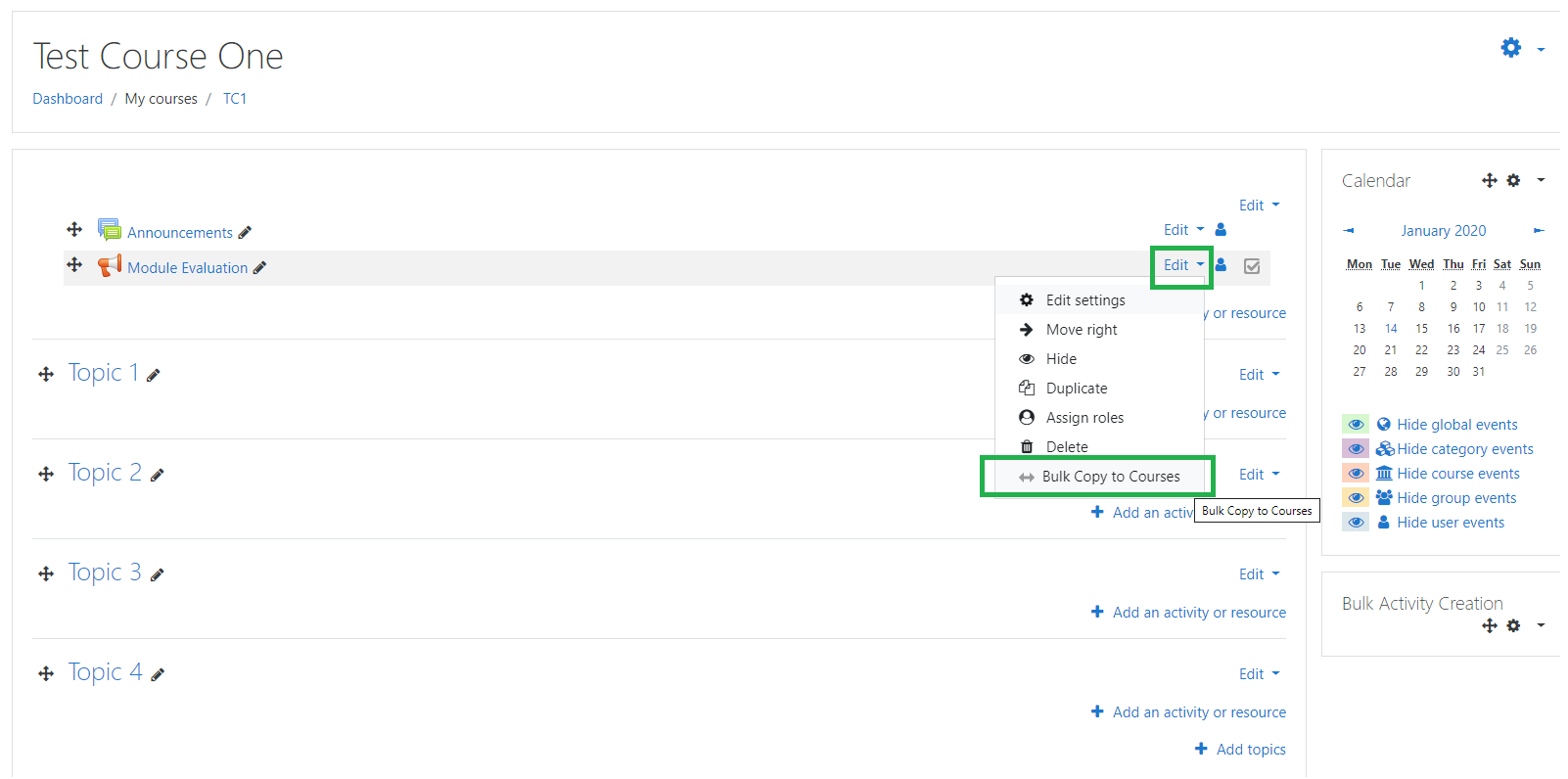
When a teacher needs the same quiz, assignment, resource, or any other activity in many courses, Moodle's default workflow requires opening each course individually and duplicating content manually. This block adds a "Bulk Copy to Courses" option directly into the activity's three-dot context menu (alongside Edit settings, Move, Duplicate, Delete, etc.), so the user can select any combination of categories and courses and push the activity to all of them at once.
The block appears in the course right sidebar as "Bulk activity creation" and is only active when the course is in editing mode.
Features
- Context menu integration — "Bulk Copy to Courses" appears in every activity's three-dot menu when editing mode is on.
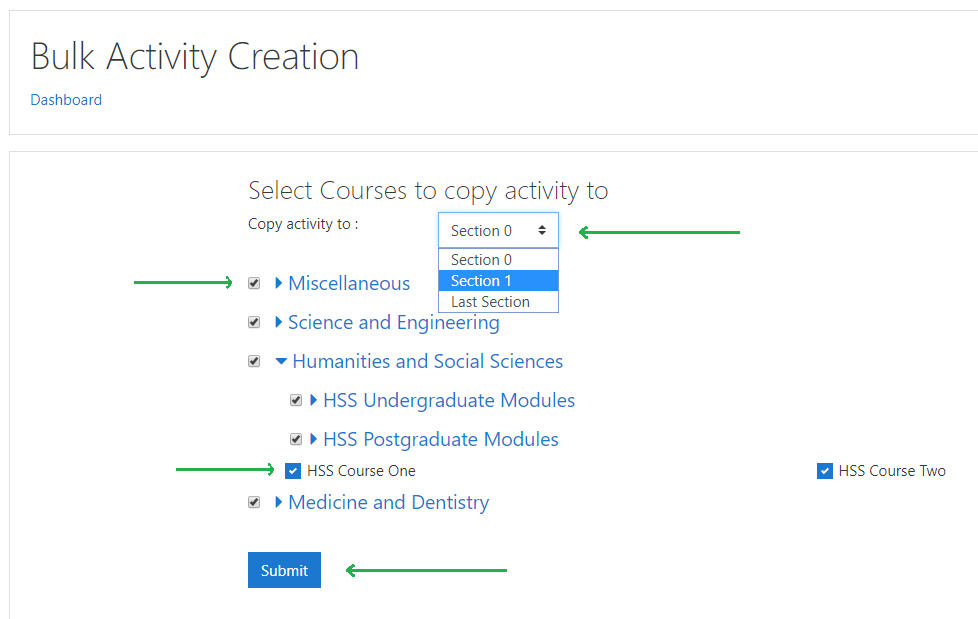
- Category tree browser — destination courses are grouped by category with collapsible sub-categories.
- Category-level select all — tick the category checkbox to instantly select every course within it.
- Per-course section picker — when a course is checked, a section dropdown appears immediately, listing all available sections (General, Topic 1, Topic 2, …) so you can control exactly where the activity lands.
- After copying, the user is automatically redirected back to the original course.
Compatibility
| Moodle Version | Supported |
|----------------|-----------|
| Moodle 3.3+ | Yes |
| Moodle 4.x | Yes |
| Moodle 5.x | Yes |
Requires a Boost-based theme (Classic/legacy themes are not supported).
Installation
Via Moodle Plugin Installer
- Download the plugin ZIP package.
- Log in as a Moodle administrator.
- Navigate to Site administration ' Plugins ' Install plugins.
- Upload the ZIP file and follow the on-screen steps.
- Complete the upgrade process.
Manual Installation
- Download and extract the plugin source code.
- Copy the folder into your Moodle installation:
/blocks/bulkactivity
- Navigate to Site administration ' Notifications and complete the installation.
Usage
- Open a course and turn on editing mode (toggle at the top right).
- The Bulk activity creation block will appear in the right sidebar.
- Hover over any activity or resource and click its three-dot menu (⋮).
- Select Bulk Copy to Courses from the menu.
- On the "Select Courses to copy activity to" page:
- Categories are listed with a collapsible tree — click a category name to expand it.
- Tick the category checkbox to select all courses within that category at once.
- Or tick individual course checkboxes to select specific courses.
- Once a course is checked, a section dropdown appears next to it — choose the section (e.g. General, Topic 1, Topic 2) where the activity should be placed.
- Click Submit to copy the activity to all selected courses.
- After completion, you are redirected back to the original course view.
Visibility rules: Only categories containing at least one visible course are shown. Site administrators see all categories; other users see only categories where they have moodle/course:update access.
Capabilities
| Capability | Editing Teacher | Manager |
|----------------------------------|-----------------|---------|
| block/bulkactivity:addinstance | Allow | Allow |
| block/bulkactivity:create | Allow | Allow |
The Bulk Copy to Courses action additionally requires moodle/backup:backupactivity on the source activity and moodle/course:update on each destination course.
Demo
https://youtu.be/h0gzTyNh2iY
Author
Shubhendra R Doiphode — doiphode.sunny@gmail.com