
eTask topics format



Versions
Current version
2.4 (2024100900)
2.4
Plugin type: Course formats
Frankenstyle component name: format_etask
Version build number: 2024100900
Version release name: 2.4
Maturity: Stable
Supported Moodle versions: 4.4, 4.5
Repository URL (Git): https://gitlab.com/drlikm/format_etask
Repository branch: https://gitlab.com/drlikm/format_etask/-/tree/FORMAT_ETASK_24_STABLE?ref_type=heads
Repository tag: https://gitlab.com/drlikm/format_etask/-/tags/v2.4
Issue/bug tracker URL: https://gitlab.com/drlikm/format_etask/-/issues
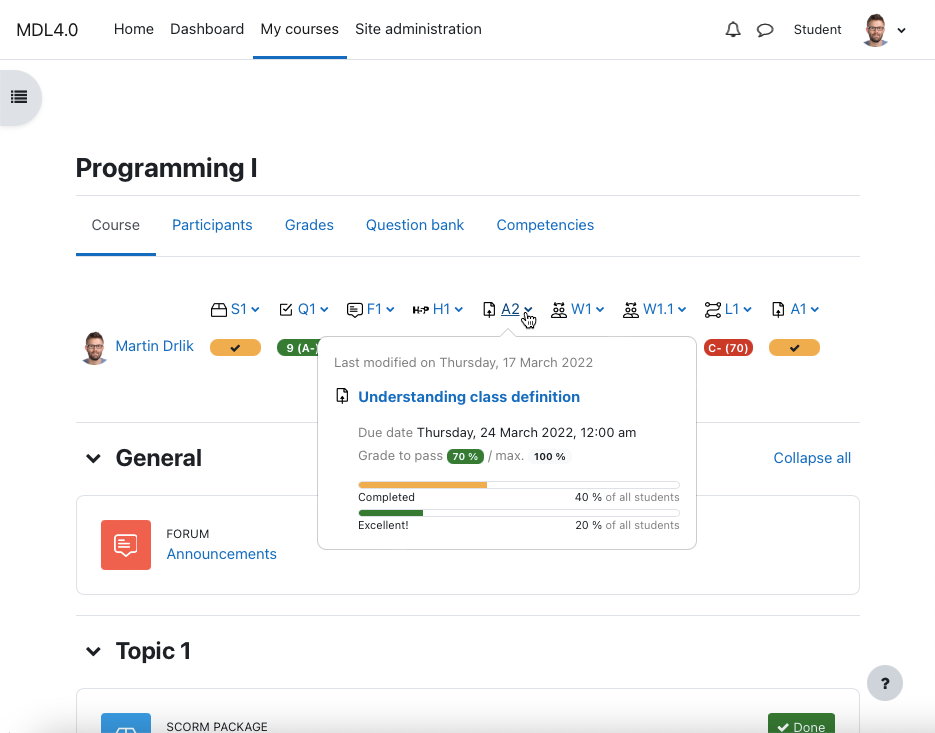
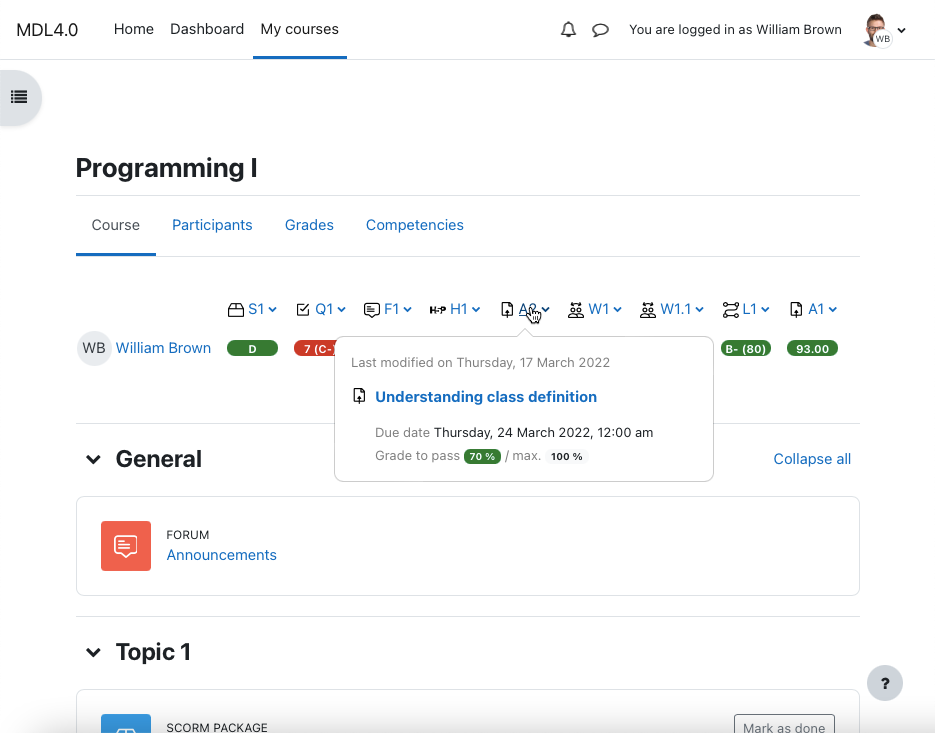
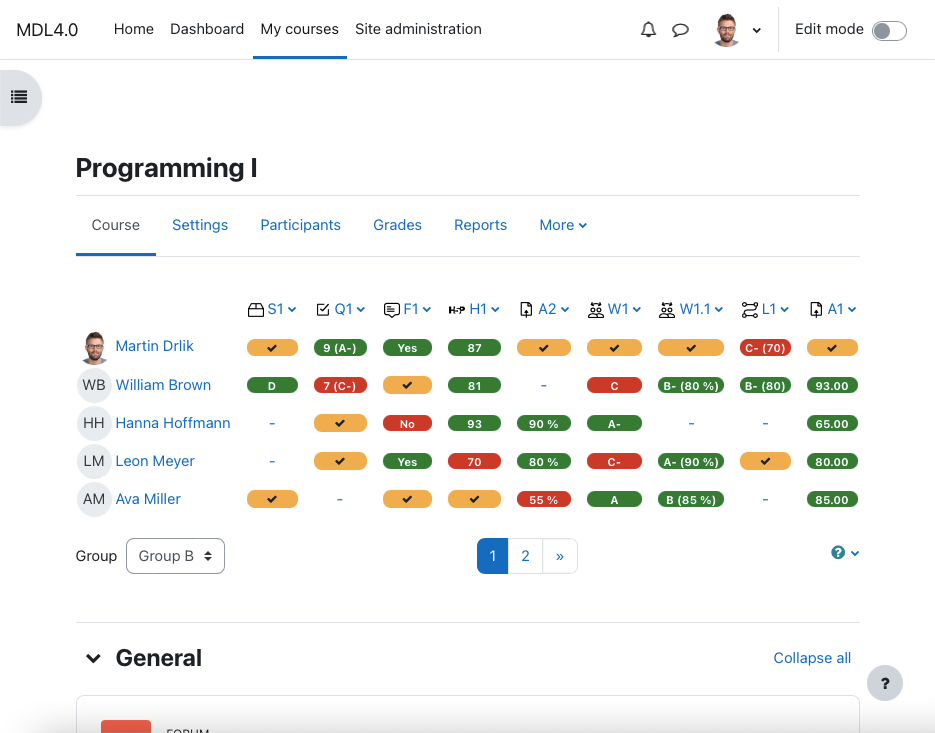
eTask format extends Custom sections format and provides the shortest way to manage activities and their comfortable grading. In
addition to its clarity, it creates a motivating and competitive environment supporting a positive educational experience.
Links
Awards


2.3 (2023101002)
2.3
Plugin type: Course formats
Frankenstyle component name: format_etask
Version build number: 2023101002
Version release name: 2.3
Maturity: Stable
Supported Moodle versions: 4.2, 4.3
Repository URL (Git): https://gitlab.com/drlikm/format_etask
Repository branch: https://gitlab.com/drlikm/format_etask/-/tree/FORMAT_ETASK_23_STABLE?ref_type=heads
Repository tag: https://gitlab.com/drlikm/format_etask/-/tags/v2.3
Issue/bug tracker URL: https://gitlab.com/drlikm/format_etask/-/issues
eTask topics format extends Topics format and provides the shortest way to manage activities and their comfortable grading. In
addition to its clarity, it creates a motivating and competitive environment supporting a positive educational experience.
Links
Awards
Thanks to
We are using JetBrains to develop this plugin.
2.2 (2022113000)
2.2
Plugin type: Course formats
Frankenstyle component name: format_etask
Version build number: 2022113000
Version release name: 2.2
Maturity: Stable
Supported Moodle versions: 4.0, 4.1
Repository URL (Git): https://gitlab.com/drlikm/format_etask
Repository branch: https://gitlab.com/drlikm/format_etask/-/tree/FORMAT_ETASK_22_STABLE
Repository tag: https://gitlab.com/drlikm/format_etask/-/tags/v2.2
Issue/bug tracker URL: https://gitlab.com/drlikm/format_etask/-/issues
eTask topics format extends Topics format and provides the shortest way to manage activities and their comfortable grading. In
addition to its clarity, it creates a motivating and competitive environment supporting a positive educational experience.
Links
Awards
Thanks to
We are using JetBrains to develop this plugin.
2.1 (2021071901)
2.1
Plugin type: Course formats
Frankenstyle component name: format_etask
Version build number: 2021071901
Version release name: 2.1
Maturity: Stable
Supported Moodle versions: 3.10, 3.11, 3.8, 3.9
Repository URL (Git): https://gitlab.com/drlikm/format_etask
Repository branch: https://gitlab.com/drlikm/format_etask/-/tree/FORMAT_ETASK_21_STABLE
Repository tag: https://gitlab.com/drlikm/format_etask/-/tags/v2.1
Issue/bug tracker URL: https://gitlab.com/drlikm/format_etask/-/issues
eTask topics format extends Topics format and provides the shortest way to manage activities and their comfortable grading. In
addition to its clarity, it creates a motivating and competitive environment supporting a positive educational experience.
Links
Awards
Thanks to
We are using JetBrains to develop this plugin.
2.0 (2021071900)
2.0
Plugin type: Course formats
Frankenstyle component name: format_etask
Version build number: 2021071900
Version release name: 2.0
Maturity: Stable
Supported Moodle versions: 3.7
Repository URL (Git): https://gitlab.com/drlikm/format_etask
Repository branch: https://gitlab.com/drlikm/format_etask/-/tree/FORMAT_ETASK_20_STABLE
Repository tag: https://gitlab.com/drlikm/format_etask/-/tags/v2.0
Issue/bug tracker URL: https://gitlab.com/drlikm/format_etask/-/issues
eTask topics format extends Topics format and provides the shortest way to manage activities and their comfortable grading. In
addition to its clarity, it creates a motivating and competitive environment supporting a positive educational experience.
Links
Awards
Thanks to
We are using JetBrains to develop this plugin.
1.7 (2020082713)
1.7
Plugin type: Course formats
Frankenstyle component name: format_etask
Version build number: 2020082713
Version release name: 1.7
Maturity: Stable
Supported Moodle versions: 3.6
Repository URL (Git): https://gitlab.com/drlikm/format_etask
Repository branch: https://gitlab.com/drlikm/format_etask/-/tree/FORMAT_ETASK_17_STABLE
Repository tag: https://gitlab.com/drlikm/format_etask/-/tags/v1.7
Issue/bug tracker URL: https://gitlab.com/drlikm/format_etask/-/issues
eTask topics format 1.7
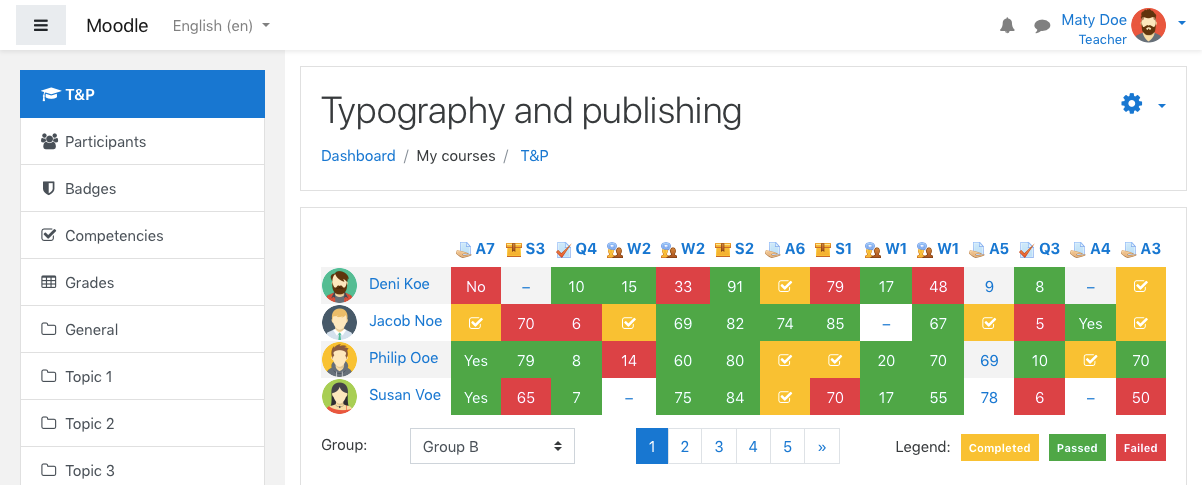
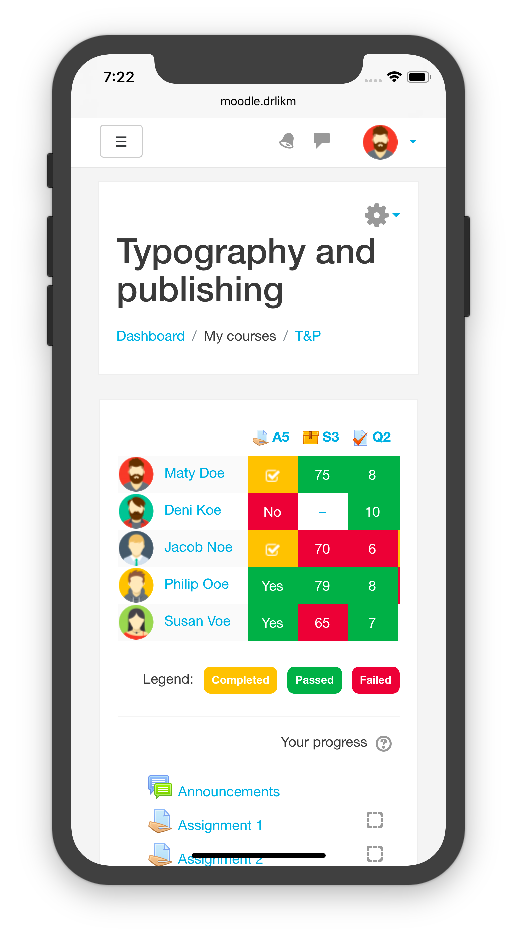
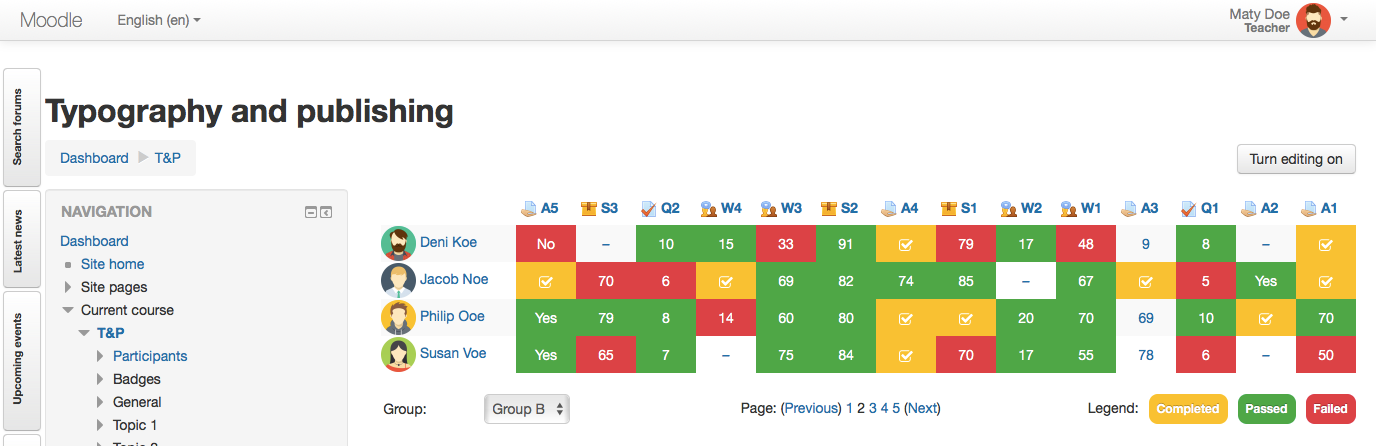
eTask topics format is based on the topics format and includes grading table (above or below the course sections) with aditional functionality such as a highlighting of grading values, grade to pass settings, motivational progress bars and much more.
Changelog
- Old configuration compatibility removed (no longer needed).
Installation
- Download files as a ZIP archive,
- extract files to the folder named
etask, - copy the
etaskfolder tocourse/format/in your Moodle installation, - login to the administration and run the installation,
- optionally update the settings of this module,
- set course format to
eTask topics format.
Settings
Activity completion
Activity completion is enabled by default in Moodle 3.6. You can manage Activity completion in each of the course activity.
Plugin settings
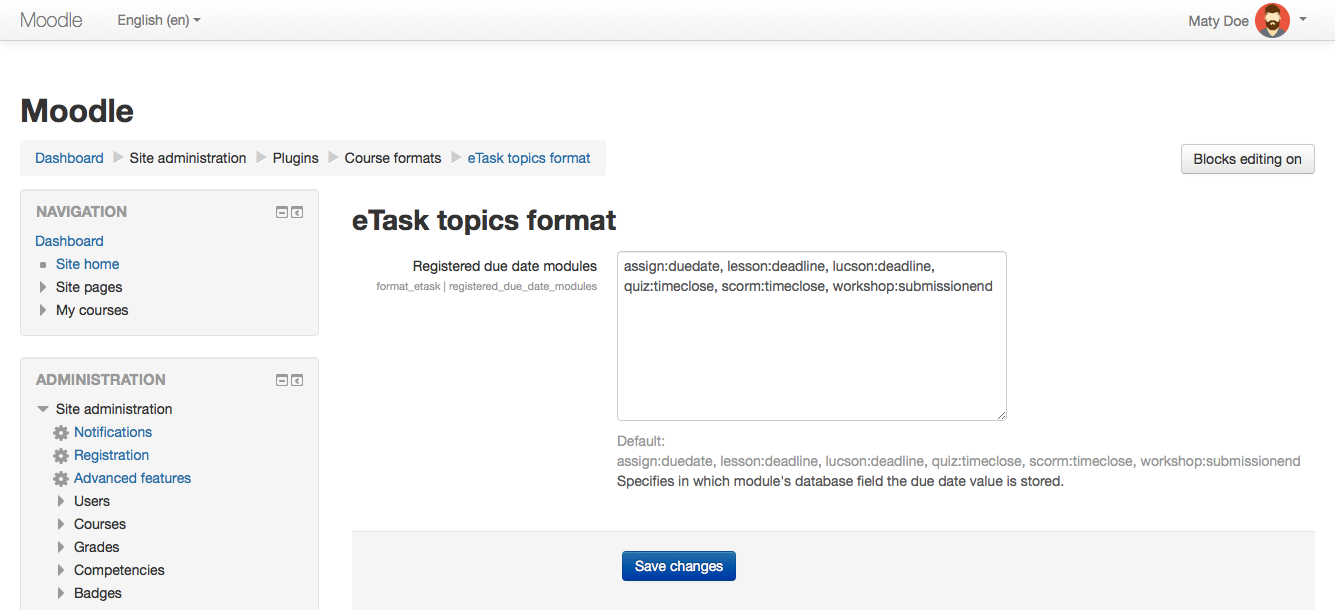
You can edit plugin setting by visiting Site administration -> Plugins -> Course formats -> eTask topics format. There is one configurable field.
Registered due date modules
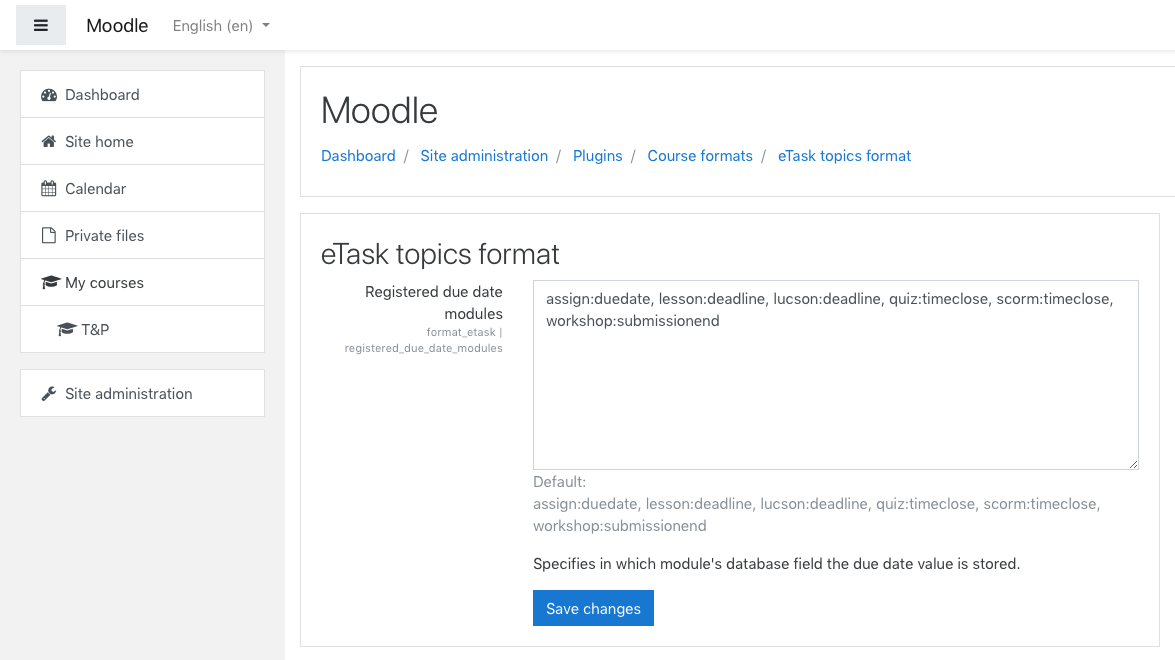
Registered due date modules provide a list of activity modules and specifies in which module's database field is the due date value stored. It helps you to menage modules with due date information used in activity popover.
Course format settings
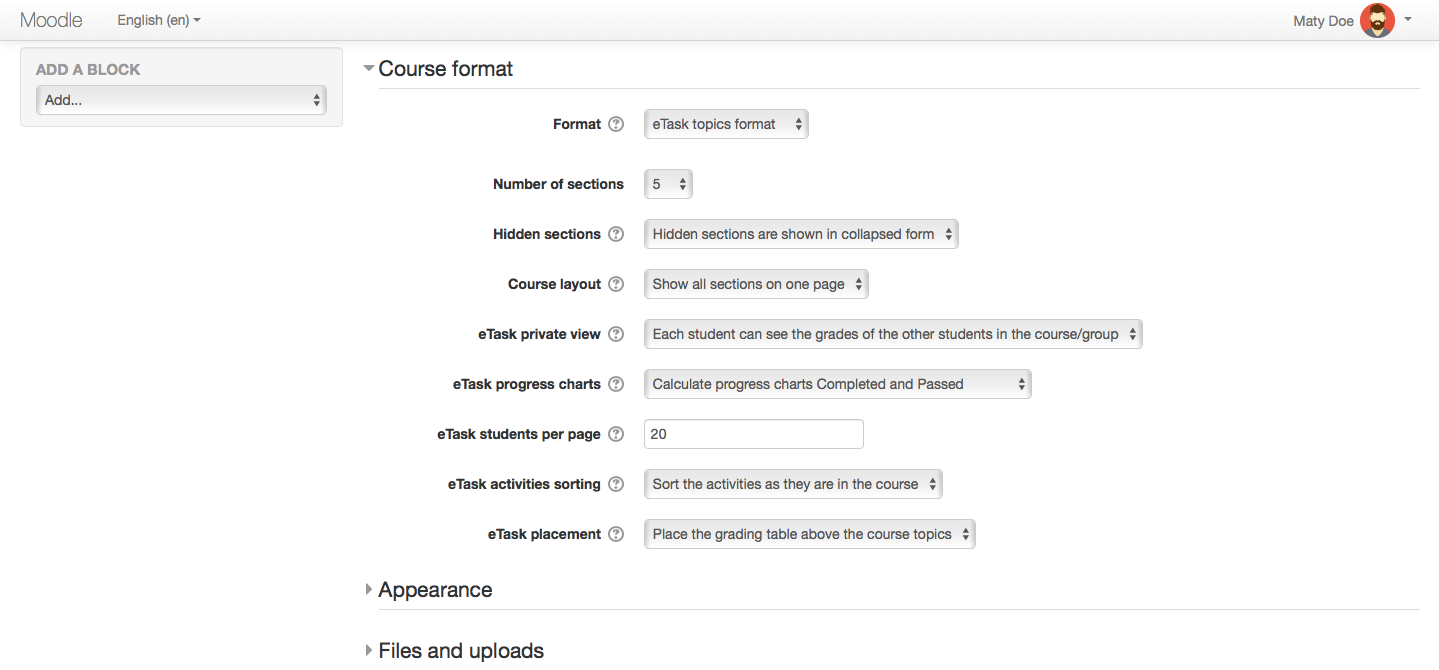
You can edit course format settings by Edit settings in the course. There are five configurable fields.
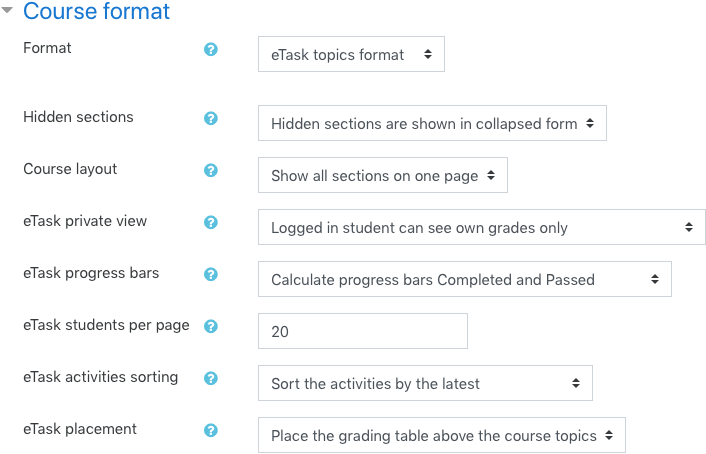
eTask private view
By default, private view is active -- students can see only their own grades. Othervise they see grades of all the students.
eTask progress bars
Motivates your students even more with progress bars Completed and Passed placed in the activity popover. Students can see progress of completed activities as well as passed activities. Private view is back in a play! No private data like grades of the other students -- motivational progress bars only. Progress bars are calculated by default. Because of the activity popover consistency, progress bars are visible all the time -- if progress bars are not allowed, they are not calculated but still visible with zero values.
eTask students per page
Number of students per page allows to change the number of students visible on each page of eTask grading table (default value is 10). Pagination is displayed below the eTask grading table.
eTask activities sorting
Customize the course settings by your preferences and sort activities by the latest, by the oldest or as they are in the course.
eTask placement
Above or below the course sections? Choose your ideal grading table placement.
Features
Grading table of many activities
Provides grading table of many activity types such as assign, quiz, scorm, worksop etc.
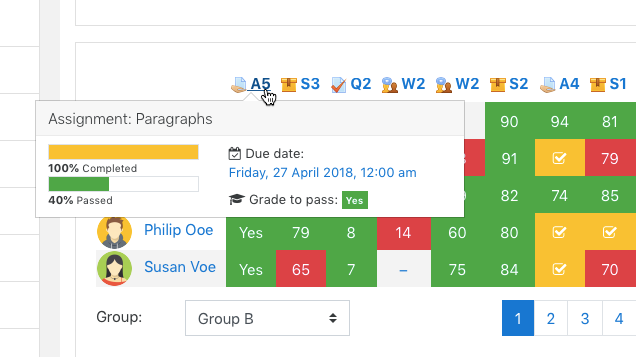
Activity popover
Shows activity popover with due date (expected completion date if due date is missing), grade to pass and optionally calculated completed and passed progress bars (see course format settings for eTask progress bars).
Grade to pass settings
Allows set up grade to pass in a course editing mode. It includes scales as well!
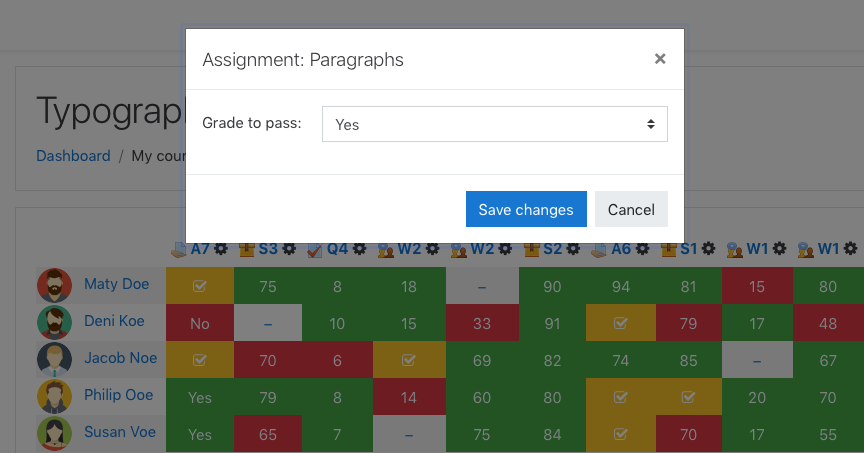
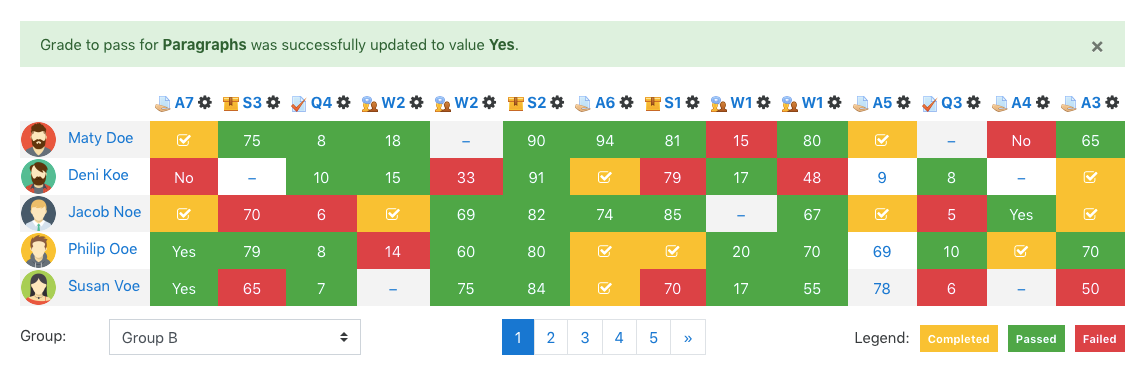
Highlighting of grading values
Highlights grading value by different statuses (completed, passed, failed or without highlighting if grade to pass is not defined). Completed status is applied through the activity completion in the activity settings. The status completed is displayed until a grade is entered, then 'passed' or 'failed' status is shown according to the grade to pass. Otherwise no status if grade to pass is not set.
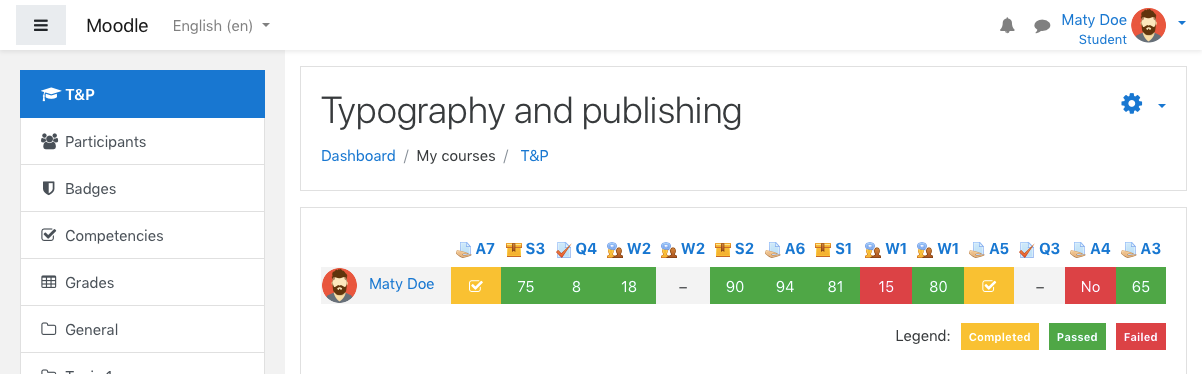
Private view
Private view allows students to see only own grades (see course format settings for eTask private view).
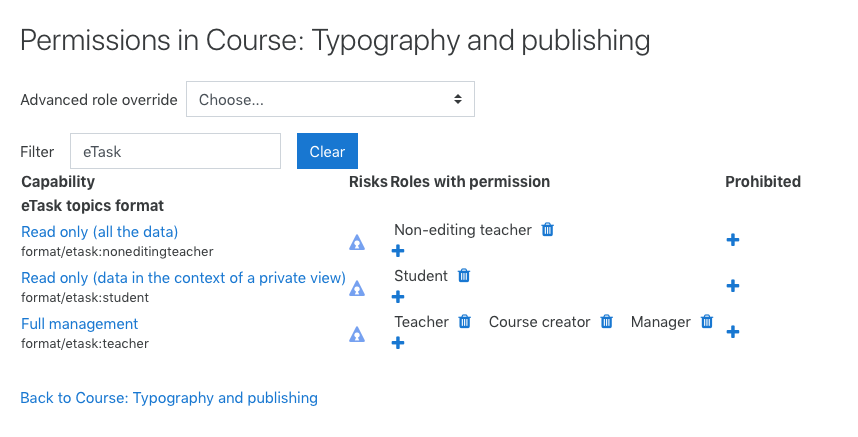
Permissions
Strictly defined access permissions for all versions of eTask. GDPR ready plugin. It is possible to manage permissions in course. There are three access levels:
- teacher (full management; includes manager, course creator and teacher roles),
- non-editing teacher (read only for all the data) and
- student (read only for the data in the context of a private view).
Switching the user roles provide real view on grading table in permissions context.
Scales
It is possible to use user defined scales in the grading activities. It is necessary to define scales ascending (from the worst to the best value), e.g. No, Yes or F, D, C, B, A!
Other features
- Support for groups mode in a course, it means student can see only students from the same group and teacher can filter eTask by all groups,
- table pagination; eTask students per page can be defined in the eTask course format settings,
- all activities in an eTask grading table are sorted from the newest by default because of the information value of the latest activities -- you can change it by your preferences in the course format settings and sort activities by the latest, by the oldest or as they are in the course, see eTask activities sorting,
- you can change grading table placement -- above or below the course topics, see eTask placement,
- logged in student is always at the first row of the grading table,
- activity completion support (completed status in the table, completed progress bar, expected completion date as due date if due date is not set),
- there three types of access permissions:
- teacher can edit activities by clicking on activity headers; grade to pass setting is available; links from activity headers goes to activity editation; links from grade table cells goes to activity grading; filtering by groups is available as well as pagination,
- non-editing teacher can click only on activity header; links goes to activity detail; filtering by groups is available as well as pagination and
- student can click only on activity headers; links goes to activity detail; pagination is available; if student is part of defined group, only students from the same group are shown in the eTask table.
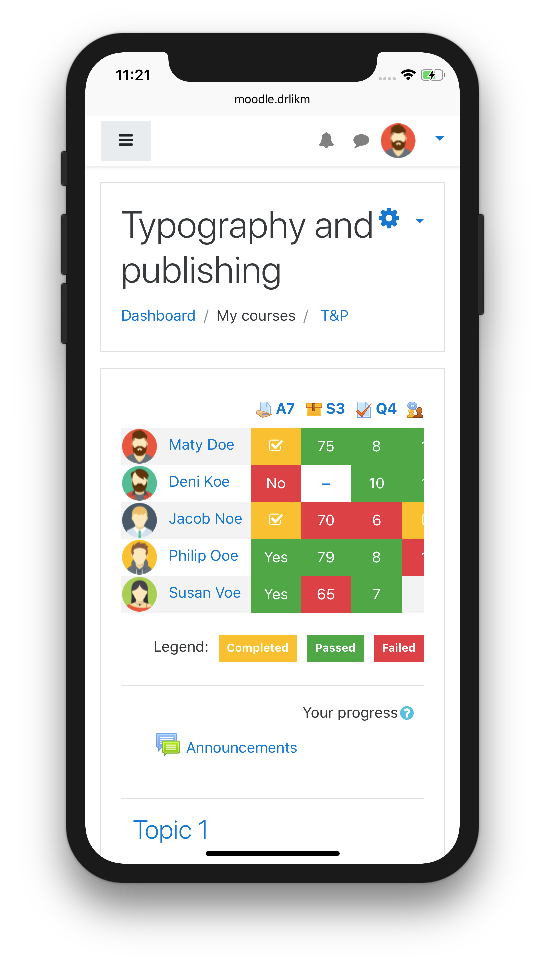
Mobile ready
One more thing. We are mobile ready! You can simply swipe the eTask grading table or set up grade to pass.
1.6 (2020082712)
1.6
Plugin type: Course formats
Frankenstyle component name: format_etask
Version build number: 2020082712
Version release name: 1.6
Maturity: Stable
Supported Moodle versions: 3.5
Repository URL (Git): https://gitlab.com/drlikm/format_etask
Repository branch: https://gitlab.com/drlikm/format_etask/-/tree/FORMAT_ETASK_16_STABLE
Repository tag: https://gitlab.com/drlikm/format_etask/-/tags/v1.6
Issue/bug tracker URL: https://gitlab.com/drlikm/format_etask/-/issues
eTask topics format 1.6
eTask topics format is based on the topics format and includes grading table (above or below the course sections) with aditional functionality such as a highlighting of grading values, grade to pass settings, motivational progress charts and much more.
Changelog
- Old configuration compatibility removed (no longer needed).
Installation
- Download files as a ZIP archive,
- extract files to the folder named
etask, - copy the
etaskfolder tocourse/format/in your Moodle installation, - login to the administration and run the installation,
- optionally update the settings of this module,
- set course format to
eTask topics format.
Settings
Activity completion
Activity completion is enabled by default in Moodle 3.5. You can manage Activity completion in each of the course activity.
Plugin settings
You can edit plugin setting by visiting Site administration -> Plugins -> Course formats -> eTask topics format. There is one configurable field.
Registered due date modules
Registered due date modules provide a list of activity modules and specifies in which module's database field is the due date value stored. It helps you to menage modules with due date information used in activity popover.
Course format settings
You can edit course format settings by Edit settings in the course. There are five configurable fields.
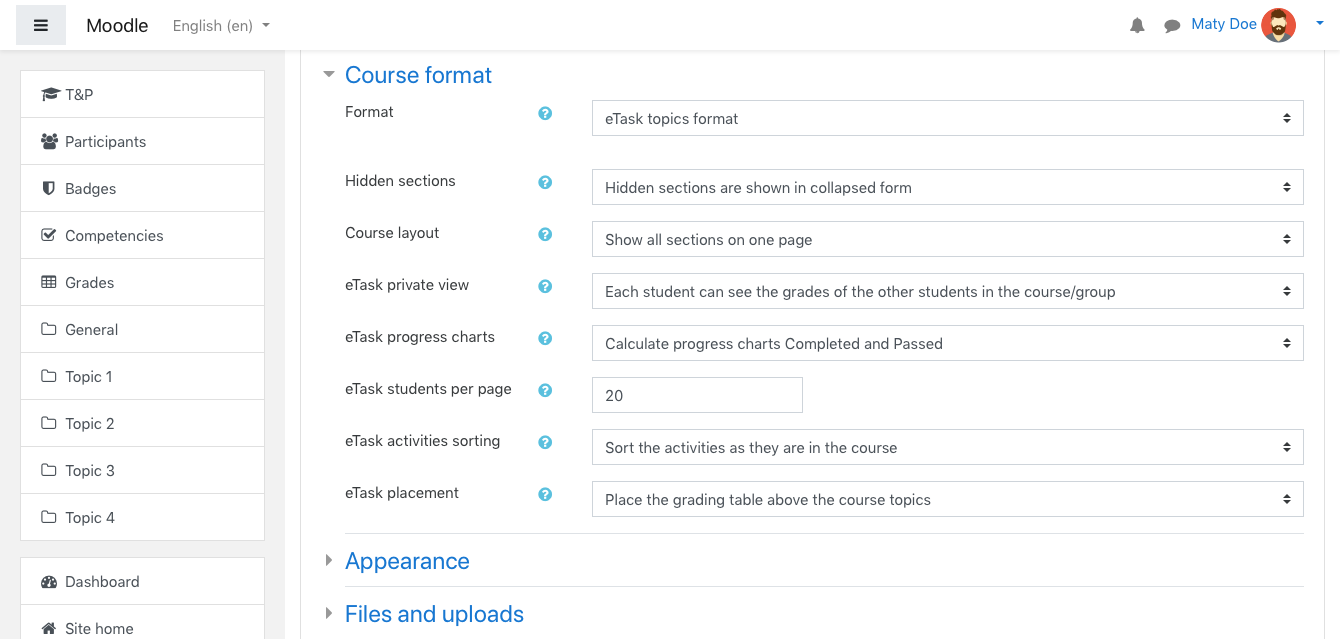
eTask private view
By default, private view is active -- students can see only their own grades. Othervise they see grades of all the students.
eTask progress charts
Motivates your students even more with progress charts Completed and Passed placed in the activity popover. Students can see progress of completed activities as well as passed activities. Private view is back in a play! No private data like grades of the other students -- motivational progress charts only. Progress charts are calculated by default. Because of the activity popover consistency, progress charts are visible all the time -- if progress charts are not allowed, they are not calculated but still visible with zero values.
eTask students per page
Number of students per page allows to change the number of students visible on each page of eTask grading table (default value is 10). Pagination is displayed below the eTask grading table.
eTask activities sorting
Customize the course settings by your preferences and sort activities by the latest, by the oldest or as they are in the course.
eTask placement
Above or below the course sections? Choose your ideal grading table placement.
Features
Grading table of many activities
Provides grading table of many activity types such as assign, quiz, scorm, worksop etc.
Activity popover
Shows activity popover with due date (expected completion date if due date is missing), grade to pass and optionally calculated completed and passed progress charts (see course format settings for eTask progress charts).
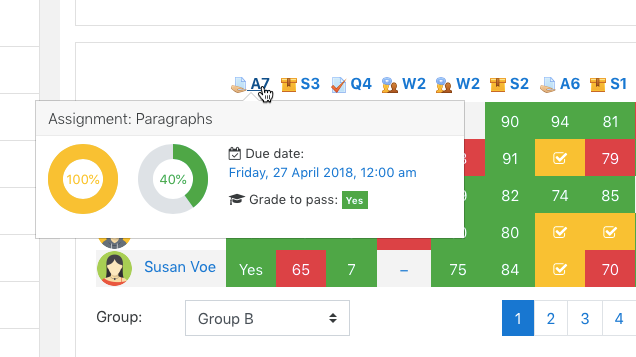
Grade to pass settings
Allows set up grade to pass in a course editing mode. It includes scales as well!
Highlighting of grading values
Highlights grading value by different statuses (completed, passed, failed or without highlighting if grade to pass is not defined). Completed status is applied through the activity completion in the activity settings. The status completed is displayed until a grade is entered, then 'passed' or 'failed' status is shown according to the grade to pass. Otherwise no status if grade to pass is not set.
Private view
Private view allows students to see only own grades (see course format settings for eTask private view).
Permissions
Strictly defined access permissions for all versions of eTask. GDPR ready plugin. It is possible to manage permissions in course. There are three access levels:
- teacher (full management; includes manager, course creator and teacher roles),
- non-editing teacher (read only for all the data) and
- student (read only for the data in the context of a private view).
Switching the user roles provide real view on grading table in permissions context.
Scales
It is possible to use user defined scales in the grading activities. It is necessary to define scales ascending (from the worst to the best value), e.g. No, Yes or F, D, C, B, A!
Other features
- Support for groups mode in a course, it means student can see only students from the same group and teacher can filter eTask by all groups,
- table pagination; eTask students per page can be defined in the eTask course format settings,
- all activities in an eTask grading table are sorted from the newest by default because of the information value of the latest activities -- you can change it by your preferences in the course format settings and sort activities by the latest, by the oldest or as they are in the course, see eTask activities sorting,
- you can change grading table placement -- above or below the course topics, see eTask placement,
- logged in student is always at the first row of the grading table,
- activity completion support (completed status in the table, completed progress chart, expected completion date as due date if due date is not set),
- there three types of access permissions:
- teacher can edit activities by clicking on activity headers; grade to pass setting is available; links from activity headers goes to activity editation; links from grade table cells goes to activity grading; filtering by groups is available as well as pagination,
- non-editing teacher can click only on activity header; links goes to activity detail; filtering by groups is available as well as pagination and
- student can click only on activity headers; links goes to activity detail; pagination is available; if student is part of defined group, only students from the same group are shown in the eTask table.
Mobile ready
One more thing. We are mobile ready! You can simply swipe the eTask grading table or set up grade to pass.
1.5 (2020082711)
1.5
Plugin type: Course formats
Frankenstyle component name: format_etask
Version build number: 2020082711
Version release name: 1.5
Maturity: Stable
Supported Moodle versions: 3.4
Repository URL (Git): https://gitlab.com/drlikm/format_etask
Repository branch: https://gitlab.com/drlikm/format_etask/-/tree/FORMAT_ETASK_15_STABLE
Repository tag: https://gitlab.com/drlikm/format_etask/-/tags/v1.5
Issue/bug tracker URL: https://gitlab.com/drlikm/format_etask/-/issues
eTask topics format 1.5
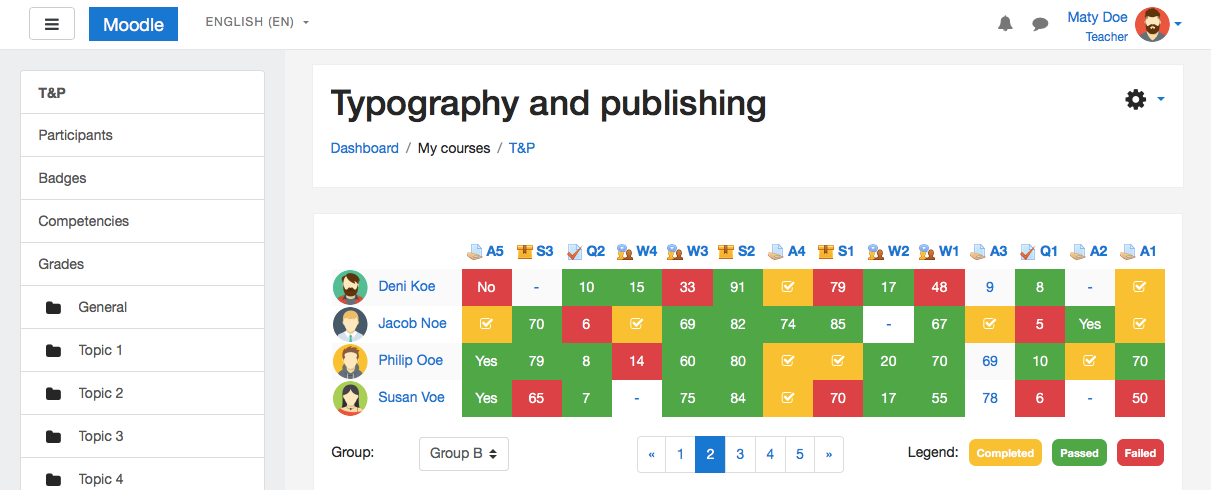
eTask topics format is based on the topics format and includes grading table (above or below the course sections) with aditional functionality such as a highlighting of grading values, grade to pass settings, motivational progress charts and much more.
Changelog
- Old configuration compatibility removed (no longer needed).
Installation
- Download files as a ZIP archive,
- extract files to the folder named
etask, - copy the
etaskfolder tocourse/format/in your Moodle installation, - login to the administration and run the installation,
- optionally update the settings of this module,
- set course format to
eTask topics format.
Settings
Activity completion
Activity completion is enabled by default in Moodle 3.4. You can manage Activity completion in each of the course activity.
Plugin settings
You can edit plugin setting by visiting Site administration -> Plugins -> Course formats -> eTask topics format. There is one configurable field.
Registered due date modules
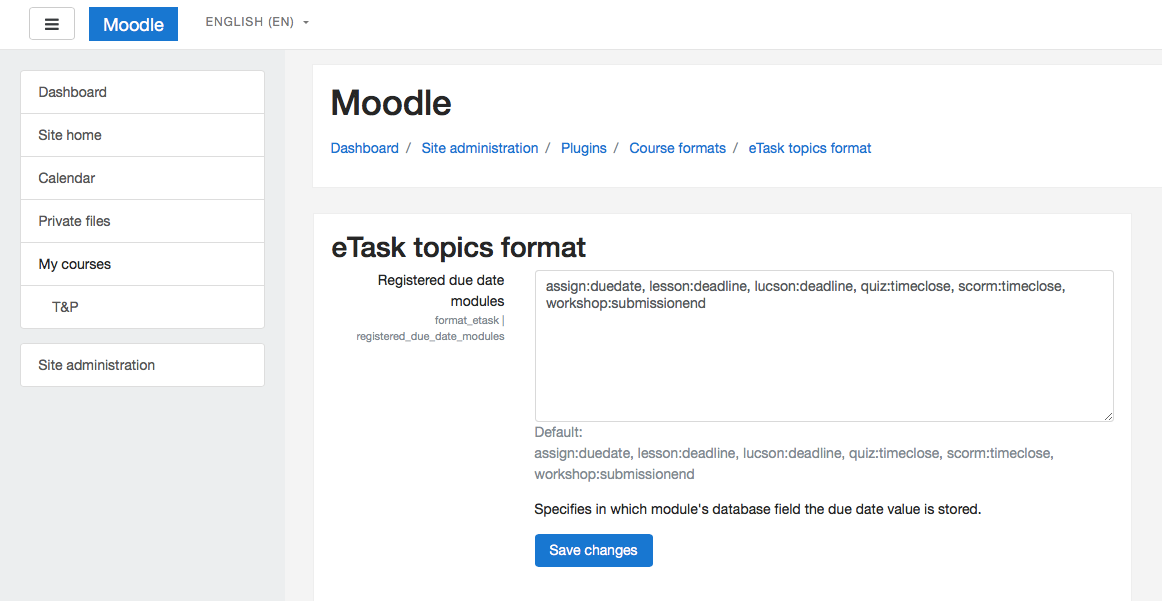
Registered due date modules provide a list of activity modules and specifies in which module's database field is the due date value stored. It helps you to menage modules with due date information used in activity popover.
Course format settings
You can edit course format settings by Edit settings in the course. There are five configurable fields.
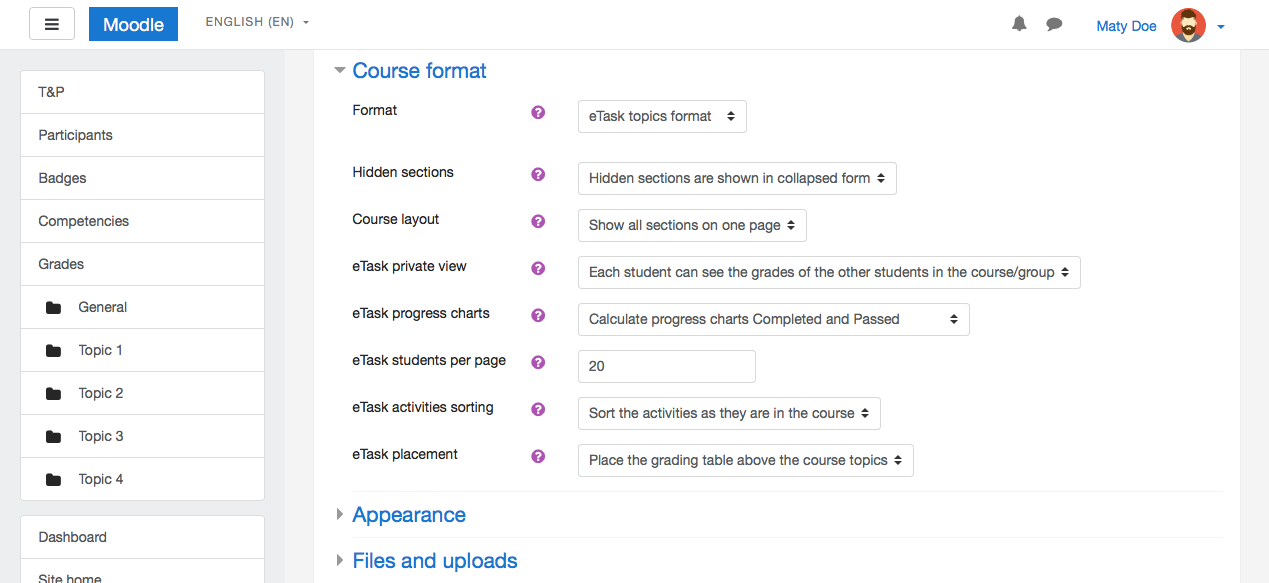
eTask private view
By default, private view is active -- students can see only their own grades. Othervise they see grades of all the students.
eTask progress charts
Motivates your students even more with progress charts Completed and Passed placed in the activity popover. Students can see progress of completed activities as well as passed activities. Private view is back in a play! No private data like grades of the other students -- motivational progress charts only. Progress charts are calculated by default. Because of the activity popover consistency, progress charts are visible all the time -- if progress charts are not allowed, they are not calculated but still visible with zero values.
eTask students per page
Number of students per page allows to change the number of students visible on each page of eTask grading table (default value is 10). Pagination is displayed below the eTask grading table.
eTask activities sorting
Customize the course settings by your preferences and sort activities by the latest, by the oldest or as they are in the course.
eTask placement
Above or below the course sections? Choose your ideal grading table placement.
Features
Grading table of many activities
Provides grading table of many activity types such as assign, quiz, scorm, worksop etc.
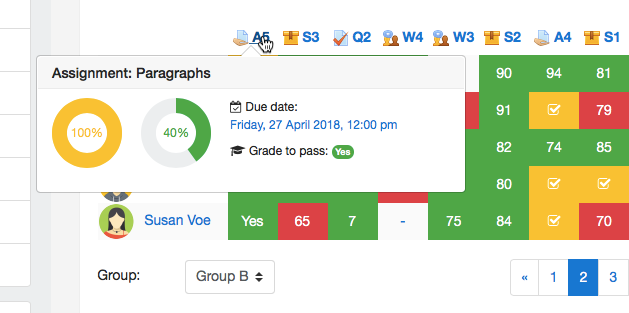
Activity popover
Shows activity popover with due date (expected completion date if due date is missing), grade to pass and optionally calculated completed and passed progress charts (see course format settings for eTask progress charts).
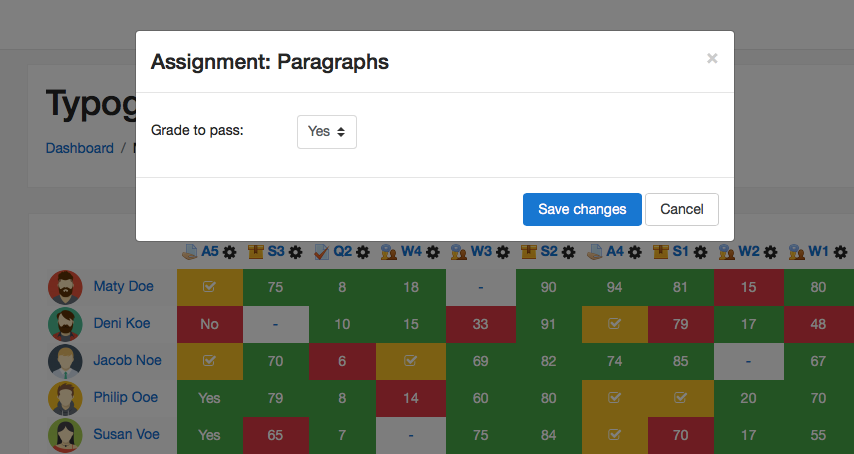
Grade to pass settings
Allows set up grade to pass in a course editing mode. It includes scales as well!
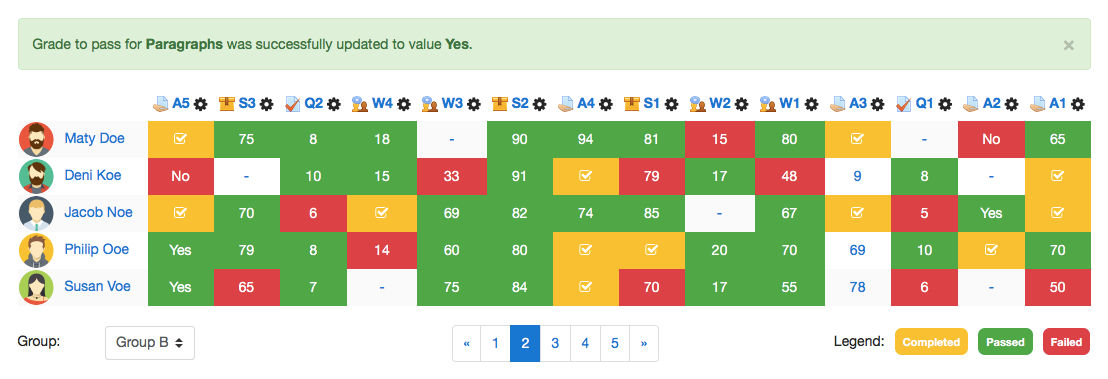
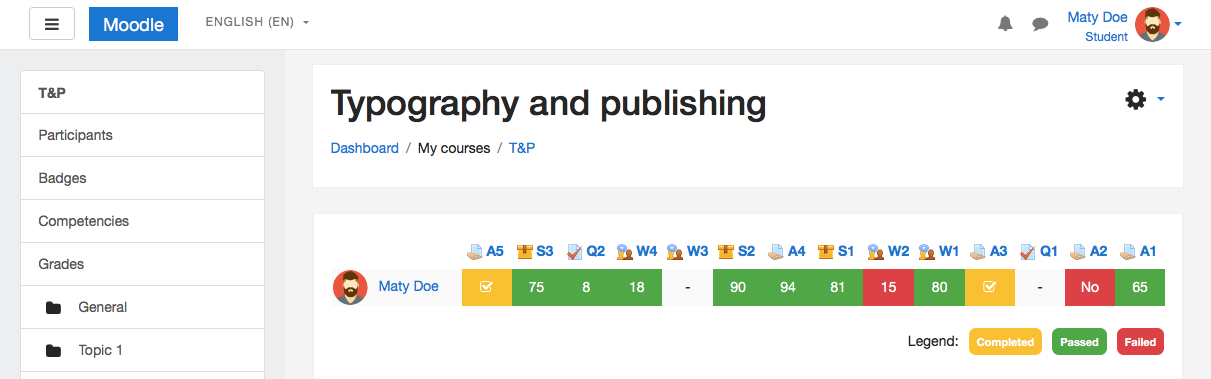
Highlighting of grading values
Highlights grading value by different statuses (completed, passed, failed or without highlighting if grade to pass is not defined). Completed status is applied through the activity completion in the activity settings. The status completed is displayed until a grade is entered, then 'passed' or 'failed' status is shown according to the grade to pass. Otherwise no status if grade to pass is not set.
Private view
Private view allows students to see only own grades (see course format settings for eTask private view).
Permissions
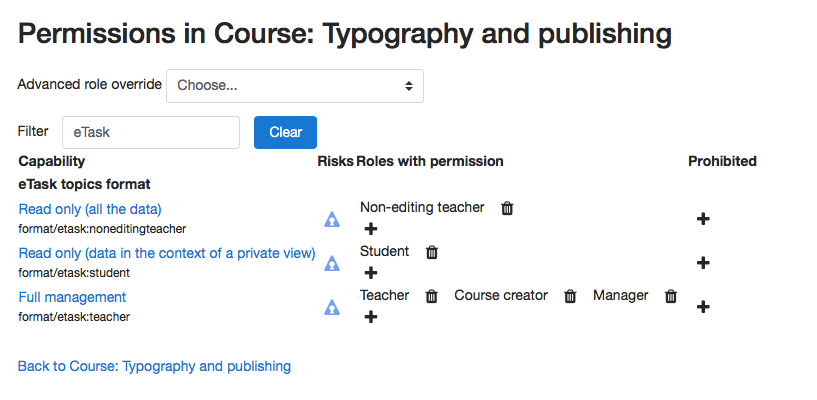
Strictly defined access permissions for all versions of eTask. GDPR ready plugin. It is possible to manage permissions in course. There are three access levels:
- teacher (full management; includes manager, course creator and teacher roles),
- non-editing teacher (read only for all the data) and
- student (read only for the data in the context of a private view).
Switching the user roles provide real view on grading table in permissions context.
Scales
It is possible to use user defined scales in the grading activities. It is necessary to define scales ascending (from the worst to the best value), e.g. No, Yes or F, D, C, B, A!
Other features
- Support for groups mode in a course, it means student can see only students from the same group and teacher can filter eTask by all groups,
- table pagination; eTask students per page can be defined in the eTask course format settings,
- all activities in an eTask grading table are sorted from the newest by default because of the information value of the latest activities -- you can change it by your preferences in the course format settings and sort activities by the latest, by the oldest or as they are in the course, see eTask activities sorting,
- you can change grading table placement -- above or below the course topics, see eTask placement,
- logged in student is always at the first row of the grading table,
- activity completion support (completed status in the table, completed progress chart, expected completion date as due date if due date is not set),
- there three types of access permissions:
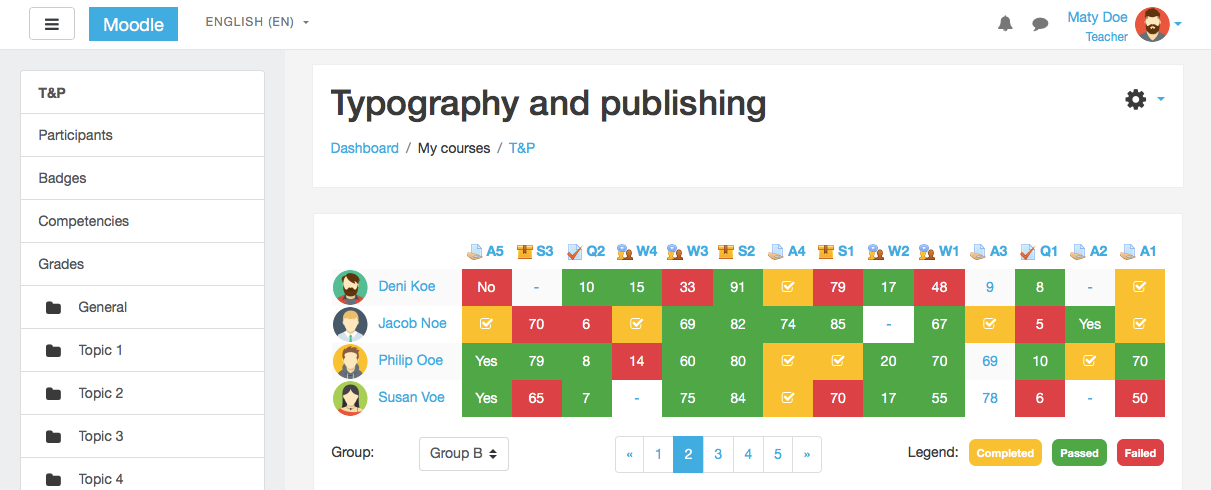
- teacher can edit activities by clicking on activity headers; grade to pass setting is available; links from activity headers goes to activity editation; links from grade table cells goes to activity grading; filtering by groups is available as well as pagination,
- non-editing teacher can click only on activity header; links goes to activity detail; filtering by groups is available as well as pagination and
- student can click only on activity headers; links goes to activity detail; pagination is available; if student is part of defined group, only students from the same group are shown in the eTask table.
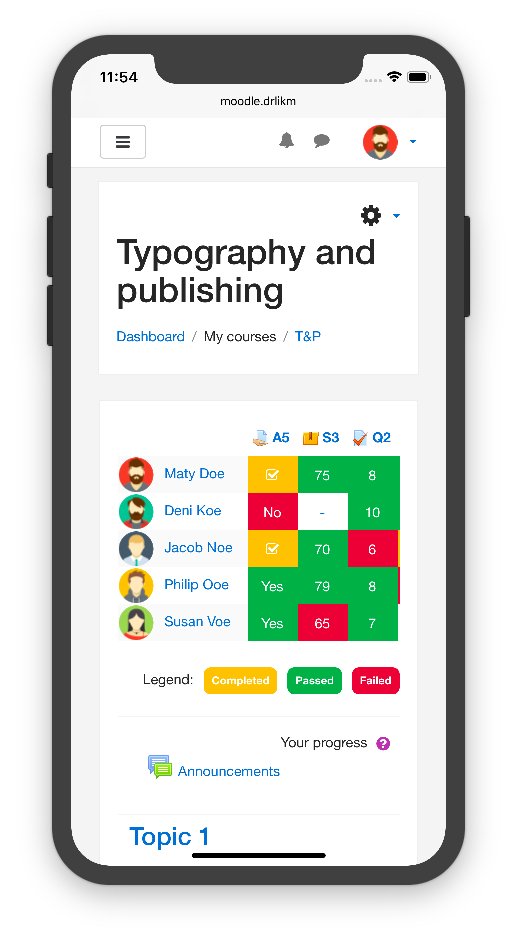
Mobile ready
One more thing. We are mobile ready! You can simply swipe the eTask grading table or set up grade to pass.
1.4 (2020082710)
1.4
Plugin type: Course formats
Frankenstyle component name: format_etask
Version build number: 2020082710
Version release name: 1.4
Maturity: Stable
Supported Moodle versions: 3.3
Repository URL (Git): https://gitlab.com/drlikm/format_etask
Repository branch: https://gitlab.com/drlikm/format_etask/-/tree/FORMAT_ETASK_14_STABLE
Repository tag: https://gitlab.com/drlikm/format_etask/-/tags/v1.4
Issue/bug tracker URL: https://gitlab.com/drlikm/format_etask/-/issues
eTask topics format 1.4
eTask topics format is based on the topics format and includes grading table (above or below the course sections) with aditional functionality such as a highlighting of grading values, grade to pass settings, motivational progress charts and much more.
Changelog
- Old configuration compatibility removed (no longer needed).
Installation
- Download files as a ZIP archive,
- extract files to the folder named
etask, - copy the
etaskfolder tocourse/format/in your Moodle installation, - login to the administration and run the installation,
- optionally update the settings of this module,
- set course format to
eTask topics format.
Settings
Activity completion
Activity completion is enabled by default in Moodle 3.3. You can manage Activity completion in each of the course activity.
Plugin settings
You can edit plugin setting by visiting Site administration -> Plugins -> Course formats -> eTask topics format. There is one configurable field.
Registered due date modules
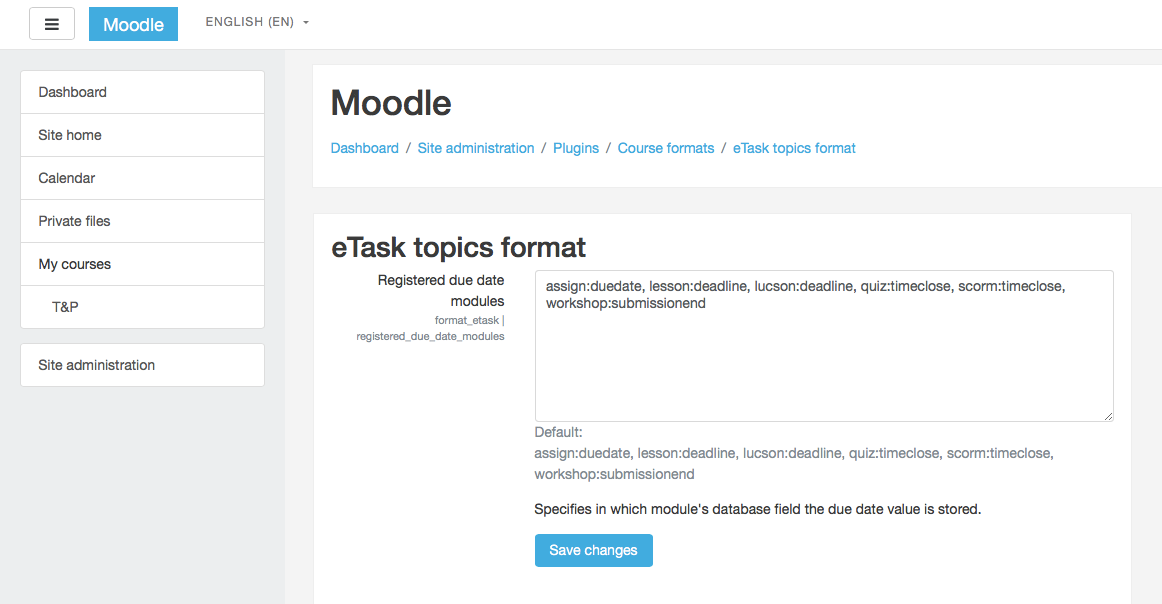
Registered due date modules provide a list of activity modules and specifies in which module's database field is the due date value stored. It helps you to menage modules with due date information used in activity popover.
Course format settings
You can edit course format settings by Edit settings in the course. There are five configurable fields.
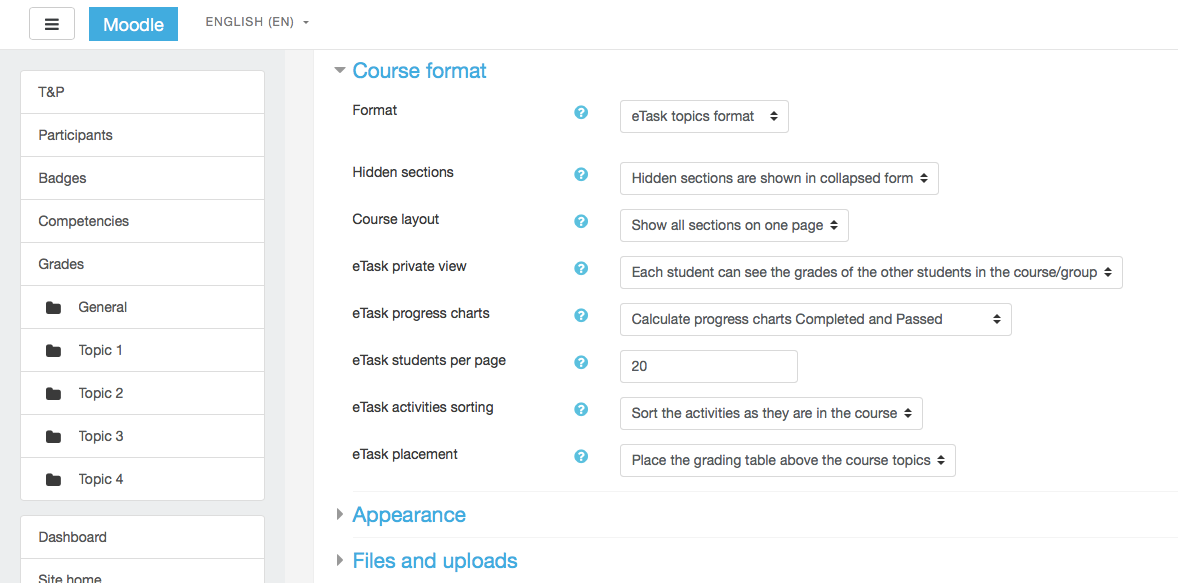
eTask private view
By default, private view is active -- students can see only their own grades. Othervise they see grades of all the students.
eTask progress charts
Motivates your students even more with progress charts Completed and Passed placed in the activity popover. Students can see progress of completed activities as well as passed activities. Private view is back in a play! No private data like grades of the other students -- motivational progress charts only. Progress charts are calculated by default. Because of the activity popover consistency, progress charts are visible all the time -- if progress charts are not allowed, they are not calculated but still visible with zero values.
eTask students per page
Number of students per page allows to change the number of students visible on each page of eTask grading table (default value is 10). Pagination is displayed below the eTask grading table.
eTask activities sorting
Customize the course settings by your preferences and sort activities by the latest, by the oldest or as they are in the course.
eTask placement
Above or below the course sections? Choose your ideal grading table placement.
Features
Grading table of many activities
Provides grading table of many activity types such as assign, quiz, scorm, worksop etc.
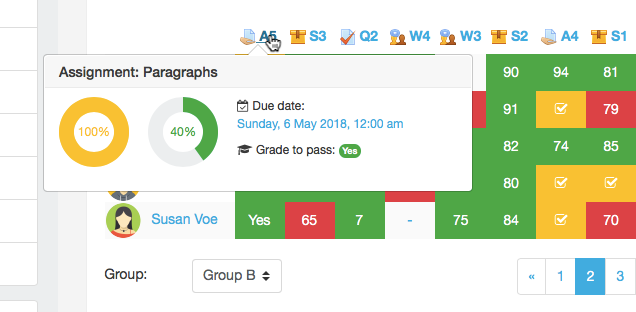
Activity popover
Shows activity popover with due date (expected completion date if due date is missing), grade to pass and optionally calculated completed and passed progress charts (see course format settings for eTask progress charts).
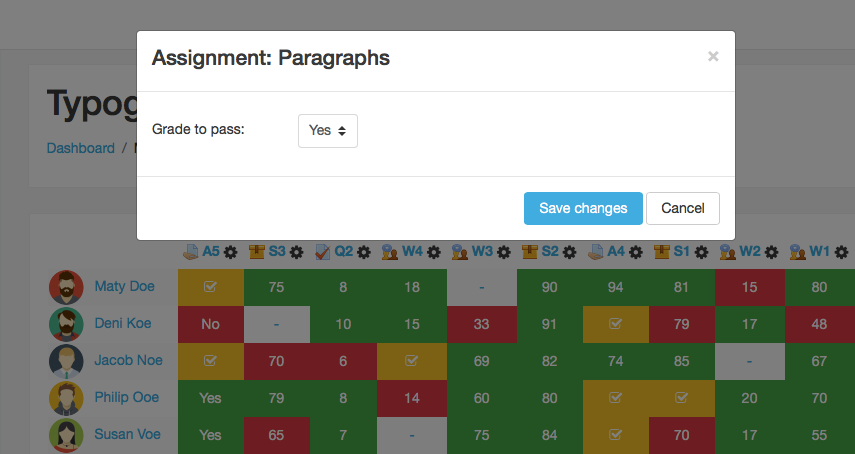
Grade to pass settings
Allows set up grade to pass in a course editing mode. It includes scales as well!
Highlighting of grading values
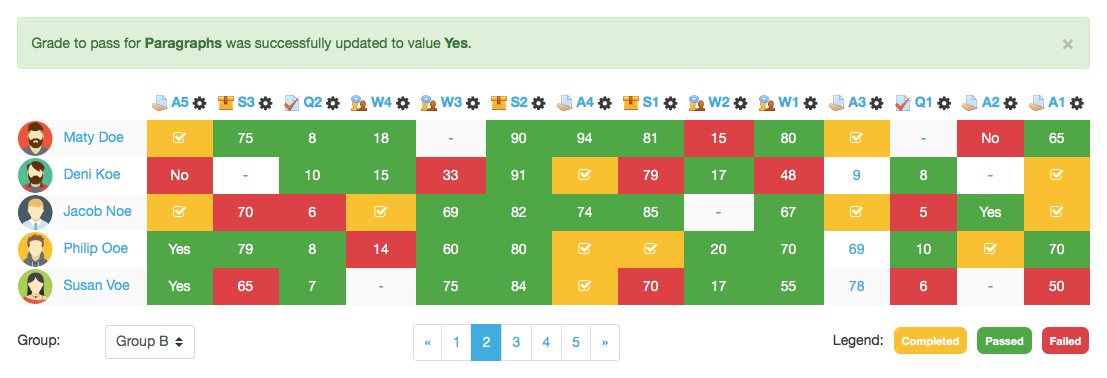
Highlights grading value by different statuses (completed, passed, failed or without highlighting if grade to pass is not defined). Completed status is applied through the activity completion in the activity settings. The status completed is displayed until a grade is entered, then 'passed' or 'failed' status is shown according to the grade to pass. Otherwise no status if grade to pass is not set.
Private view
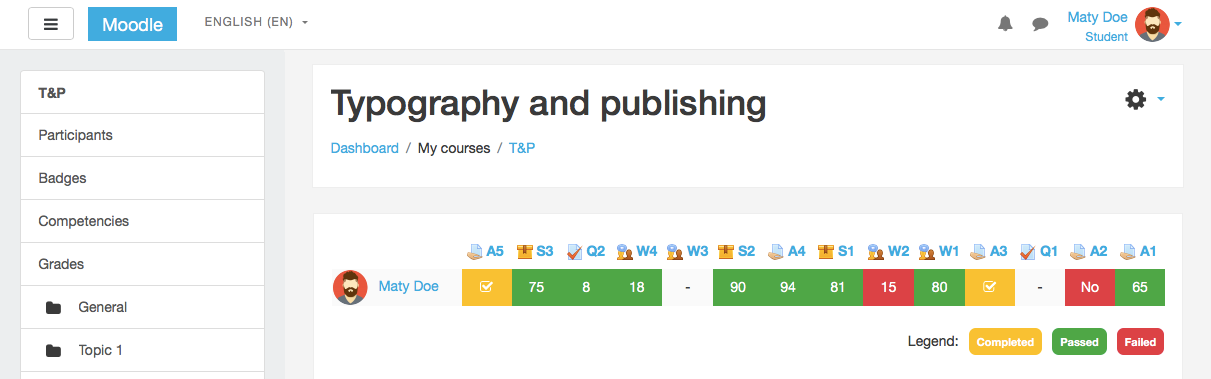
Private view allows students to see only own grades (see course format settings for eTask private view).
Permissions
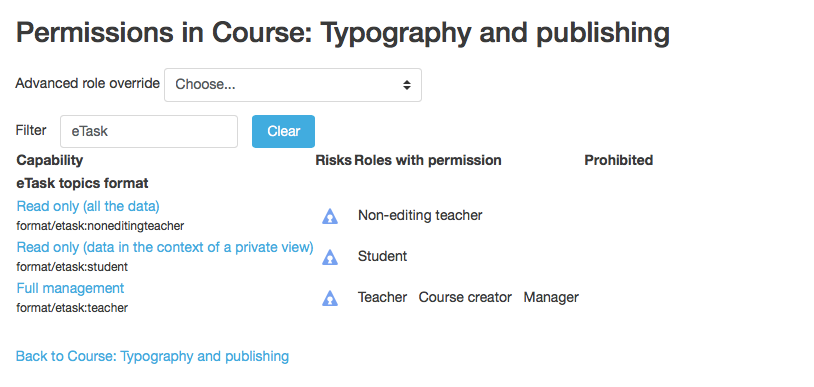
Strictly defined access permissions for all versions of eTask. GDPR ready plugin. It is possible to manage permissions in course. There are three access levels:
- teacher (full management; includes manager, course creator and teacher roles),
- non-editing teacher (read only for all the data) and
- student (read only for the data in the context of a private view).
Switching the user roles provide real view on grading table in permissions context.
Scales
It is possible to use user defined scales in the grading activities. It is necessary to define scales ascending (from the worst to the best value), e.g. No, Yes or F, D, C, B, A!
Other features
- Support for groups mode in a course, it means student can see only students from the same group and teacher can filter eTask by all groups,
- table pagination; eTask students per page can be defined in the eTask course format settings,
- all activities in an eTask grading table are sorted from the newest by default because of the information value of the latest activities -- you can change it by your preferences in the course format settings and sort activities by the latest, by the oldest or as they are in the course, see eTask activities sorting,
- you can change grading table placement -- above or below the course topics, see eTask placement,
- logged in student is always at the first row of the grading table,
- activity completion support (completed status in the table, completed progress chart, expected completion date as due date if due date is not set),
- there three types of access permissions:
- teacher can edit activities by clicking on activity headers; grade to pass setting is available; links from activity headers goes to activity editation; links from grade table cells goes to activity grading; filtering by groups is available as well as pagination,
- non-editing teacher can click only on activity header; links goes to activity detail; filtering by groups is available as well as pagination and
- student can click only on activity headers; links goes to activity detail; pagination is available; if student is part of defined group, only students from the same group are shown in the eTask table.
Mobile ready
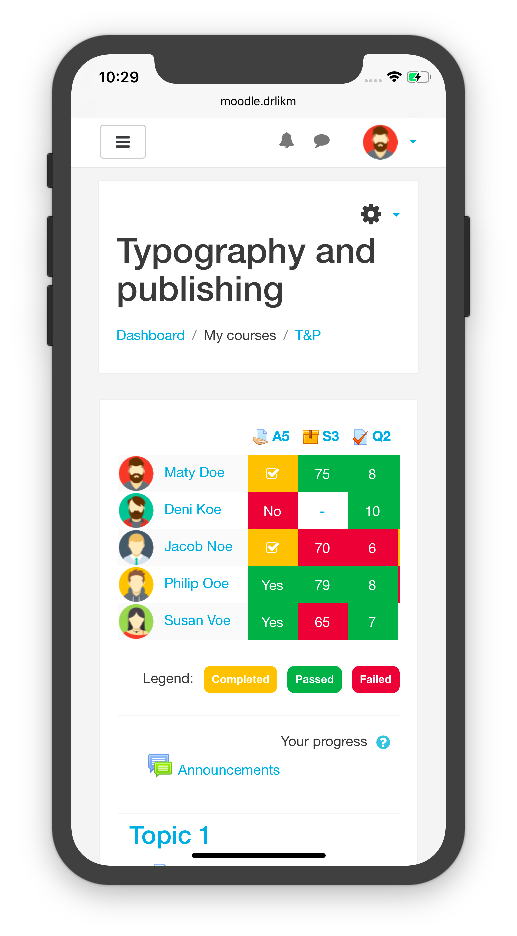
One more thing. We are mobile ready! You can simply swipe the eTask grading table or set up grade to pass.
1.3 (2020082709)
1.3
Plugin type: Course formats
Frankenstyle component name: format_etask
Version build number: 2020082709
Version release name: 1.3
Maturity: Stable
Supported Moodle versions: 3.2
Repository URL (Git): https://gitlab.com/drlikm/format_etask
Repository branch: https://gitlab.com/drlikm/format_etask/-/tree/FORMAT_ETASK_13_STABLE
Repository tag: https://gitlab.com/drlikm/format_etask/-/tags/v1.3
Issue/bug tracker URL: https://gitlab.com/drlikm/format_etask/-/issues
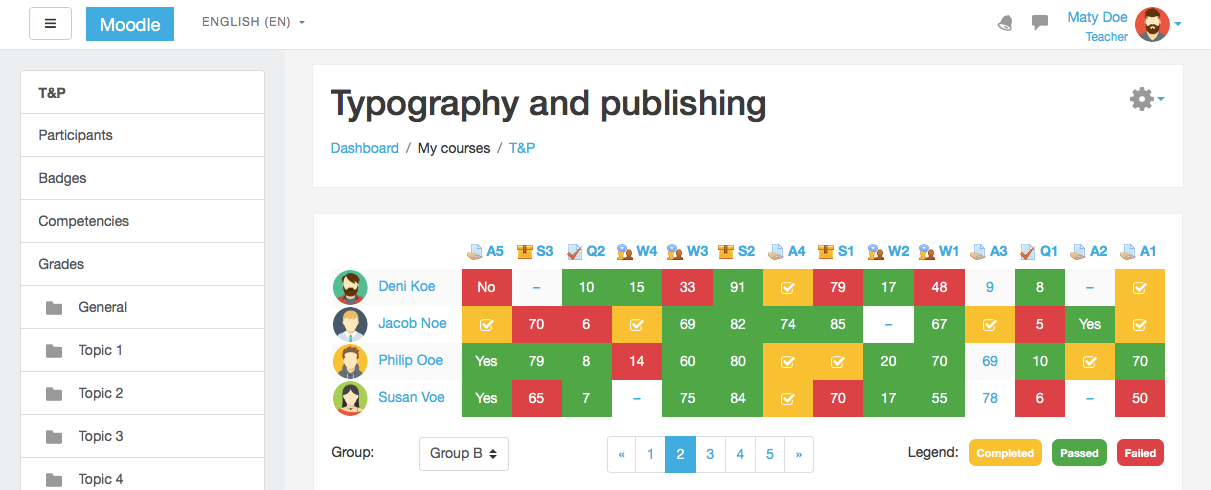
eTask topics format 1.3
eTask topics format is based on the topics format and includes grading table (above or below the course sections) with aditional functionality such as a highlighting of grading values, grade to pass settings, motivational progress charts and much more.
Changelog
- Old configuration compatibility removed (no longer needed).
Installation
- Download files as a ZIP archive,
- extract files to the folder named
etask, - copy the
etaskfolder tocourse/format/in your Moodle installation, - login to the administration and run the installation,
- optionally update the settings of this module,
- set course format to
eTask topics format.
Settings
Activity completion
Activity completion is enabled by default in Moodle 3.2. If you want to enable activity completion and use Completed activity status in eTask topics format, enable Enable completion tracking in Course setting as well -- Completion tracking is disabled by default in each of the course. Now you can manage Activity completion in each of the course activity.
Plugin settings
You can edit plugin setting by visiting Site administration -> Plugins -> Course formats -> eTask topics format. There is one configurable field.
Registered due date modules
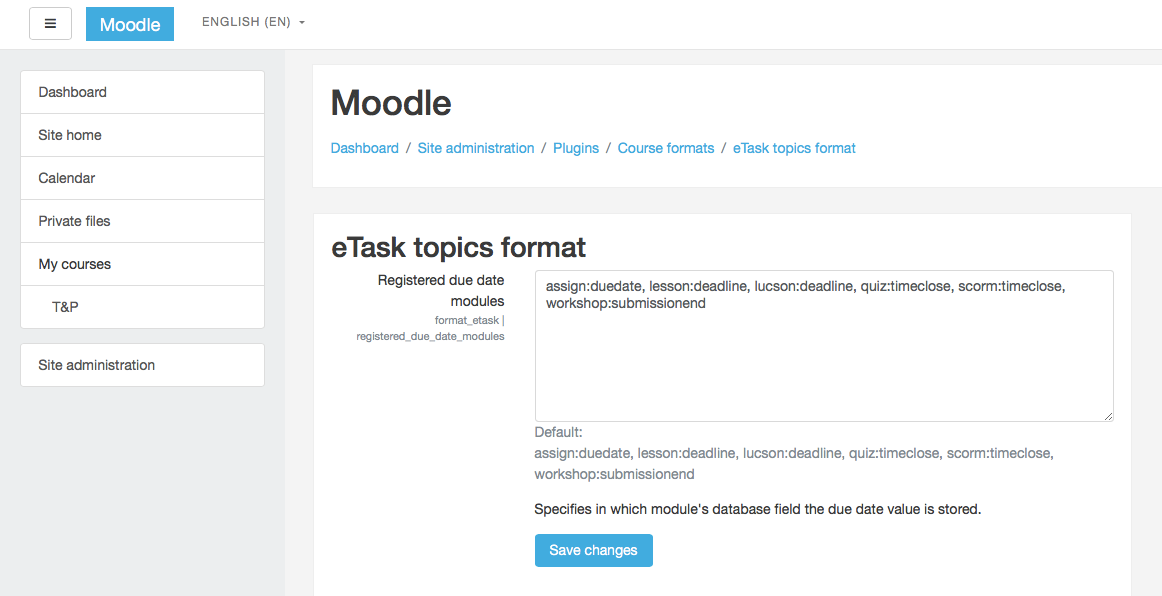
Registered due date modules provide a list of activity modules and specifies in which module's database field is the due date value stored. It helps you to menage modules with due date information used in activity popover.
Course format settings
You can edit course format settings by Edit settings in the course. There are five configurable fields.
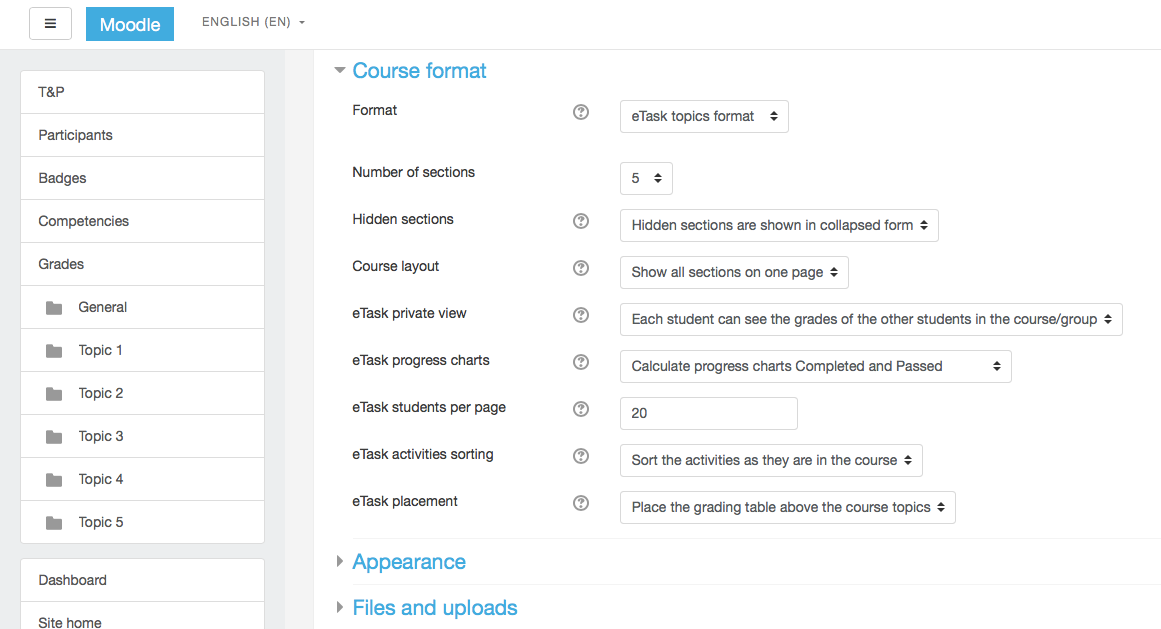
eTask private view
By default, private view is active -- students can see only their own grades. Othervise they see grades of all the students.
eTask progress charts
Motivates your students even more with progress charts Completed and Passed placed in the activity popover. Students can see progress of completed activities as well as passed activities. Private view is back in a play! No private data like grades of the other students -- motivational progress charts only. Progress charts are calculated by default. Because of the activity popover consistency, progress charts are visible all the time -- if progress charts are not allowed, they are not calculated but still visible with zero values.
eTask students per page
Number of students per page allows to change the number of students visible on each page of eTask grading table (default value is 10). Pagination is displayed below the eTask grading table.
eTask activities sorting
Customize the course settings by your preferences and sort activities by the latest, by the oldest or as they are in the course.
eTask placement
Above or below the course sections? Choose your ideal grading table placement.
Features
Grading table of many activities
Provides grading table of many activity types such as assign, quiz, scorm, worksop etc.
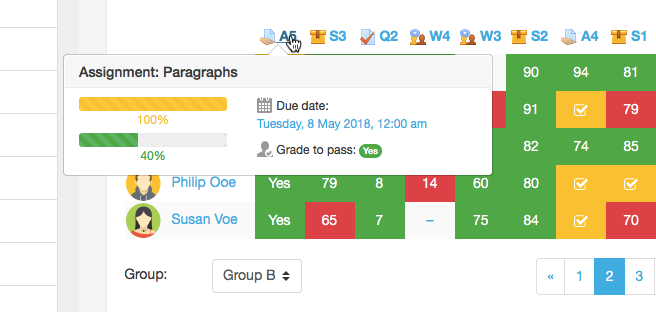
Activity popover
Shows activity popover with due date (expected completion date if due date is missing), grade to pass and optionally calculated completed and passed progress charts (see course format settings for eTask progress charts).
Grade to pass settings
Allows set up grade to pass in a course editing mode. It includes scales as well!
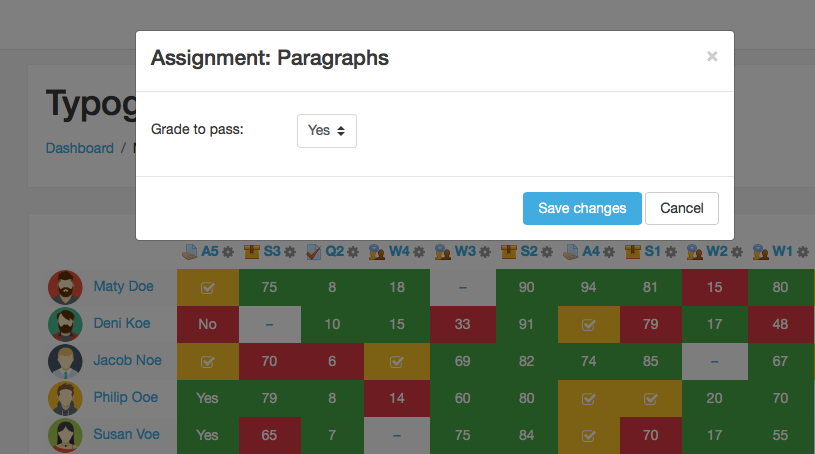
Highlighting of grading values
Highlights grading value by different statuses (completed, passed, failed or without highlighting if grade to pass is not defined). Completed status is applied through the activity completion in the activity settings. The status completed is displayed until a grade is entered, then 'passed' or 'failed' status is shown according to the grade to pass. Otherwise no status if grade to pass is not set.
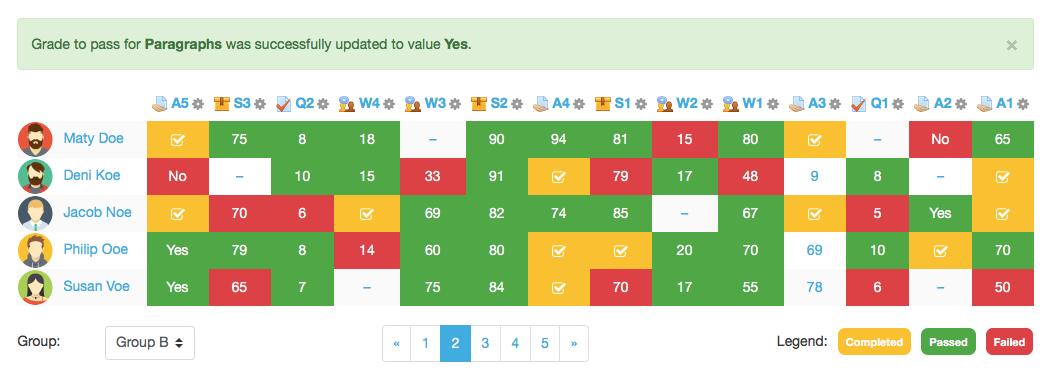
Private view
Private view allows students to see only own grades (see course format settings for eTask private view).
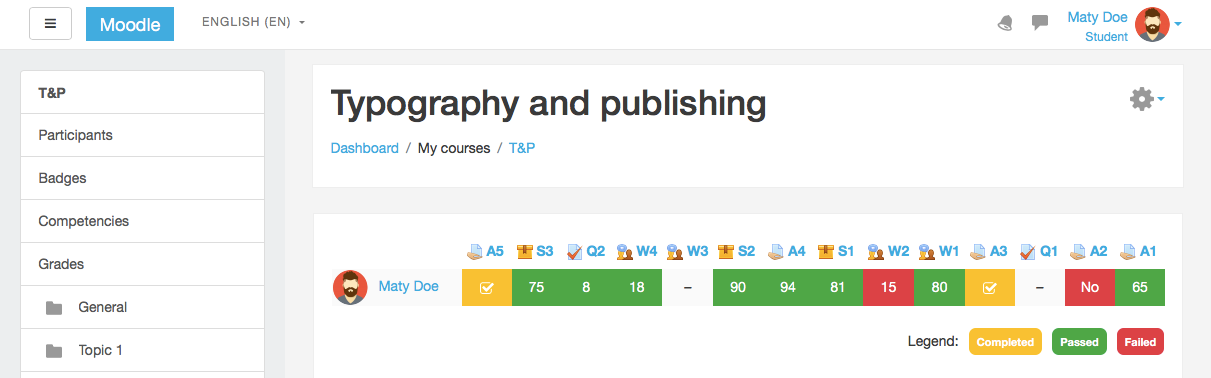
Permissions
Strictly defined access permissions for all versions of eTask. GDPR ready plugin. It is possible to manage permissions in course. There are three access levels:
- teacher (full management; includes manager, course creator and teacher roles),
- non-editing teacher (read only for all the data) and
- student (read only for the data in the context of a private view).
Switching the user roles provide real view on grading table in permissions context.
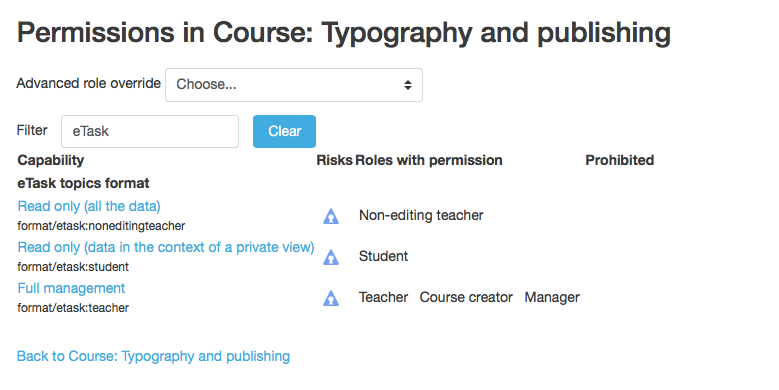
Scales
It is possible to use user defined scales in the grading activities. It is necessary to define scales ascending (from the worst to the best value), e.g. No, Yes or F, D, C, B, A!
Other features
- Support for groups mode in a course, it means student can see only students from the same group and teacher can filter eTask by all groups,
- table pagination; eTask students per page can be defined in the eTask course format settings,
- all activities in an eTask grading table are sorted from the newest by default because of the information value of the latest activities -- you can change it by your preferences in the course format settings and sort activities by the latest, by the oldest or as they are in the course, see eTask activities sorting,
- you can change grading table placement -- above or below the course topics, see eTask placement,
- logged in student is always at the first row of the grading table,
- activity completion support (completed status in the table, completed progress chart, expected completion date as due date if due date is not set),
- there three types of access permissions:
- teacher can edit activities by clicking on activity headers; grade to pass setting is available; links from activity headers goes to activity editation; links from grade table cells goes to activity grading; filtering by groups is available as well as pagination,
- non-editing teacher can click only on activity header; links goes to activity detail; filtering by groups is available as well as pagination and
- student can click only on activity headers; links goes to activity detail; pagination is available; if student is part of defined group, only students from the same group are shown in the eTask table.
Mobile ready
One more thing. We are mobile ready! You can simply swipe the eTask grading table or set up grade to pass.
1.2 (2020082708)
1.2
Plugin type: Course formats
Frankenstyle component name: format_etask
Version build number: 2020082708
Version release name: 1.2
Maturity: Stable
Supported Moodle versions: 3.1
Repository URL (Git): https://gitlab.com/drlikm/format_etask
Repository branch: https://gitlab.com/drlikm/format_etask/-/tree/FORMAT_ETASK_12_STABLE
Repository tag: https://gitlab.com/drlikm/format_etask/-/tags/v1.2
Issue/bug tracker URL: https://gitlab.com/drlikm/format_etask/-/issues
eTask topics format 1.2
eTask topics format is based on the topics format and includes grading table (above or below the course sections) with aditional functionality such as a highlighting of grading values, grade to pass settings, motivational progress charts and much more.
Changelog
- Old configuration compatibility removed (no longer needed).
Installation
- Download files as a ZIP archive,
- extract files to the folder named
etask, - copy the
etaskfolder tocourse/format/in your Moodle installation, - login to the administration and run the installation,
- optionally update the settings of this module,
- set course format to
eTask topics format.
Settings
Activity completion
Activity completion is enabled by default in Moodle 3.1. If you want to enable activity completion and use Completed activity status in eTask topics format, enable Enable completion tracking in Course setting as well -- Completion tracking is disabled by default in each of the course. Now you can manage Activity completion in each of the course activity.
Plugin settings
You can edit plugin setting by visiting Site administration -> Plugins -> Course formats -> eTask topics format. There is one configurable field.
Registered due date modules
Registered due date modules provide a list of activity modules and specifies in which module's database field is the due date value stored. It helps you to menage modules with due date information used in activity popover.
Course format settings
You can edit course format settings by Edit settings in the course. There are five configurable fields.
eTask private view
By default, private view is active -- students can see only their own grades. Othervise they see grades of all the students.
eTask progress charts
Motivates your students even more with progress charts Completed and Passed placed in the activity popover. Students can see progress of completed activities as well as passed activities. Private view is back in a play! No private data like grades of the other students -- motivational progress charts only. Progress charts are calculated by default. Because of the activity popover consistency, progress charts are visible all the time -- if progress charts are not allowed, they are not calculated but still visible with zero values.
eTask students per page
Number of students per page allows to change the number of students visible on each page of eTask grading table (default value is 10). Pagination is displayed below the eTask grading table.
eTask activities sorting
Customize the course settings by your preferences and sort activities by the latest, by the oldest or as they are in the course.
eTask placement
Above or below the course sections? Choose your ideal grading table placement.
Features
Grading table of many activities
Provides grading table of many activity types such as assign, quiz, scorm, worksop etc.
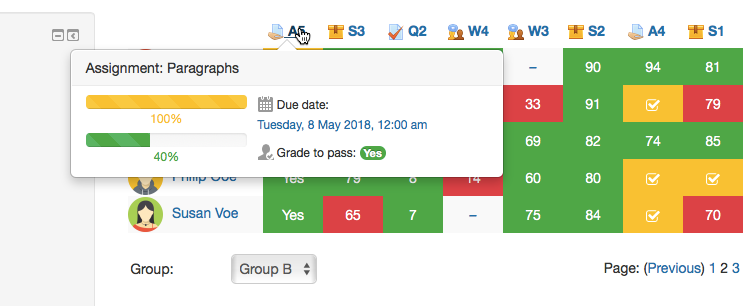
Activity popover
Shows activity popover with due date (expected completion date if due date is missing), grade to pass and optionally calculated completed and passed progress charts (see course format settings for eTask progress charts).
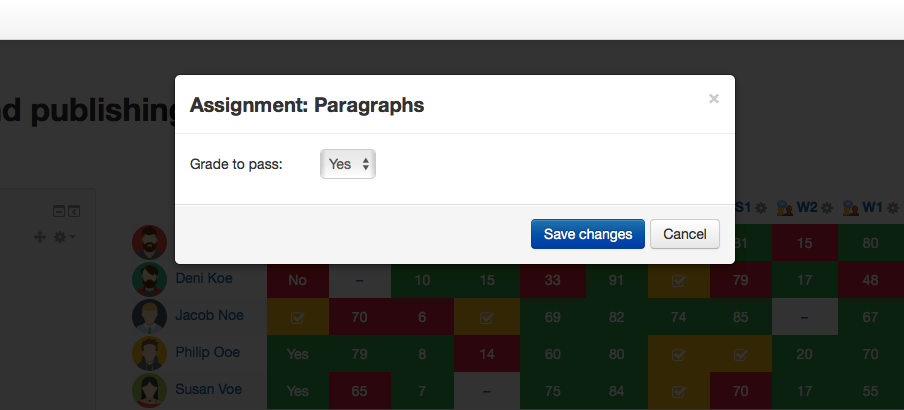
Grade to pass settings
Allows set up grade to pass in a course editing mode. It includes scales as well!
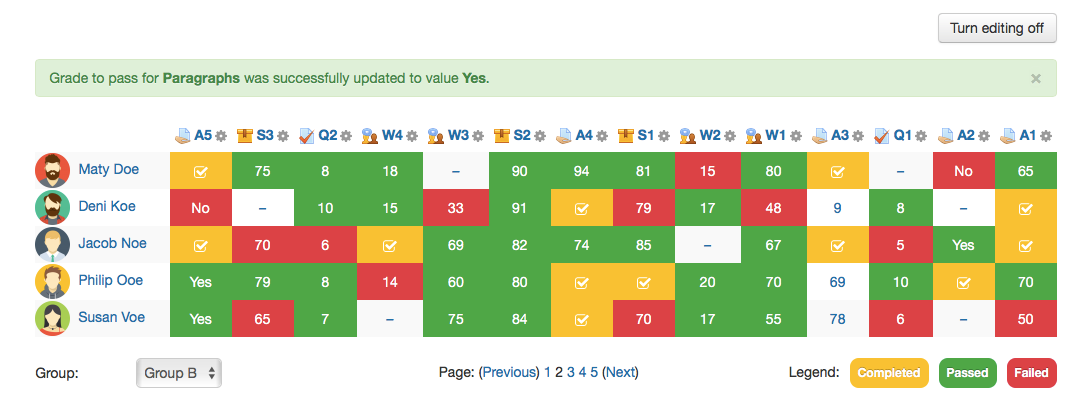
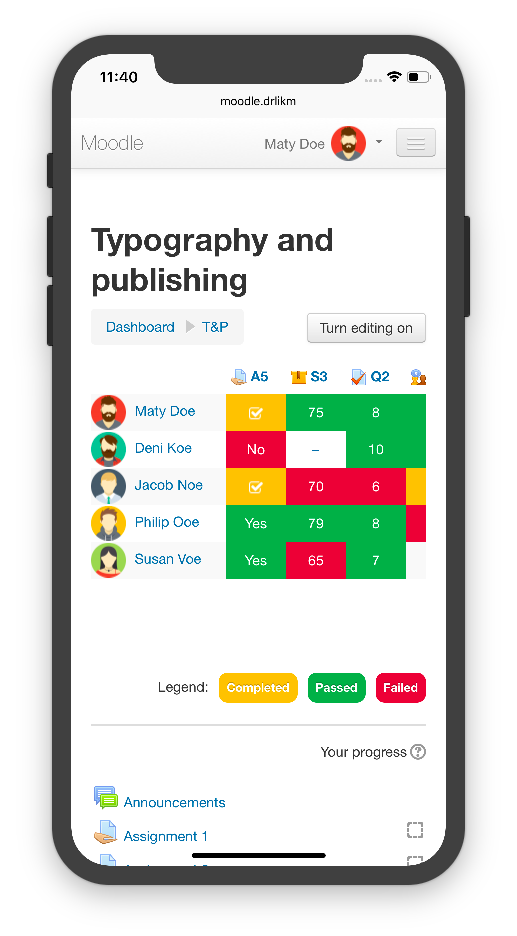
Highlighting of grading values
Highlights grading value by different statuses (completed, passed, failed or without highlighting if grade to pass is not defined). Completed status is applied through the activity completion in the activity settings. The status completed is displayed until a grade is entered, then 'passed' or 'failed' status is shown according to the grade to pass. Otherwise no status if grade to pass is not set.
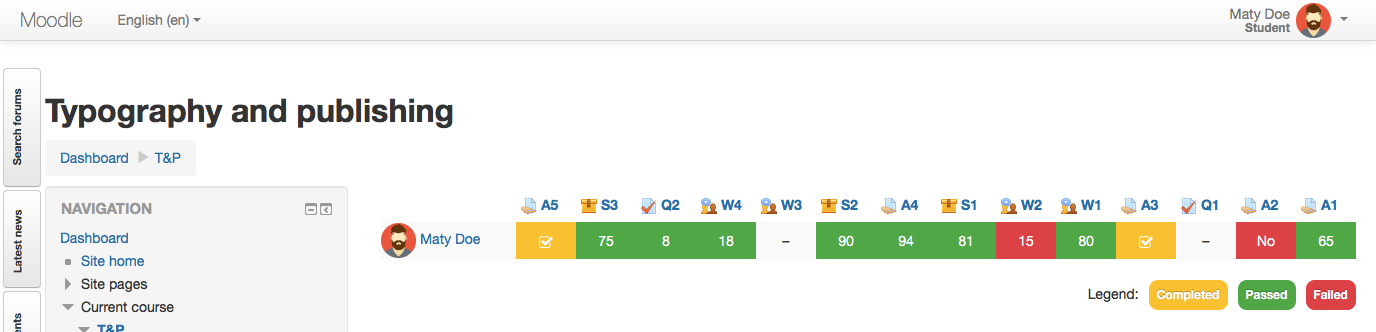
Private view
Private view allows students to see only own grades (see course format settings for eTask private view).
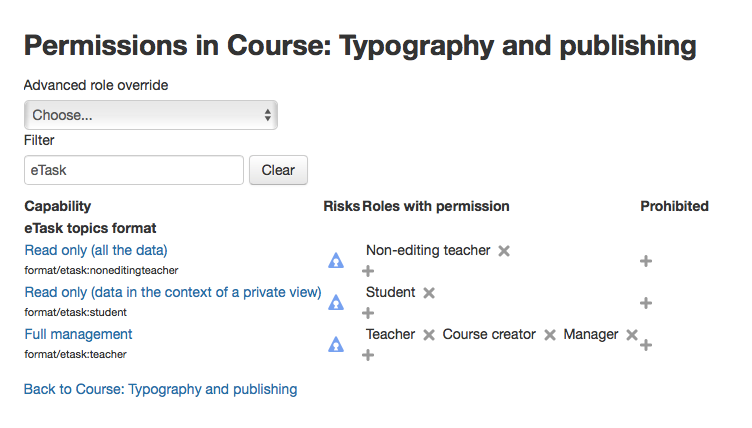
Permissions
Strictly defined access permissions for all versions of eTask. GDPR ready plugin. It is possible to manage permissions in course. There are three access levels:
- teacher (full management; includes manager, course creator and teacher roles),
- non-editing teacher (read only for all the data) and
- student (read only for the data in the context of a private view).
Switching the user roles provide real view on grading table in permissions context.
Scales
It is possible to use user defined scales in the grading activities. It is necessary to define scales ascending (from the worst to the best value), e.g. No, Yes or F, D, C, B, A!
Other features
- Support for groups mode in a course, it means student can see only students from the same group and teacher can filter eTask by all groups,
- table pagination; eTask students per page can be defined in the eTask course format settings,
- all activities in an eTask grading table are sorted from the newest by default because of the information value of the latest activities -- you can change it by your preferences in the course format settings and sort activities by the latest, by the oldest or as they are in the course, see eTask activities sorting,
- you can change grading table placement -- above or below the course topics, see eTask placement,
- logged in student is always at the first row of the grading table,
- activity completion support (completed status in the table, completed progress chart, expected completion date as due date if due date is not set),
- there three types of access permissions:
- teacher can edit activities by clicking on activity headers; grade to pass setting is available; links from activity headers goes to activity editation; links from grade table cells goes to activity grading; filtering by groups is available as well as pagination,
- non-editing teacher can click only on activity header; links goes to activity detail; filtering by groups is available as well as pagination and
- student can click only on activity headers; links goes to activity detail; pagination is available; if student is part of defined group, only students from the same group are shown in the eTask table.
Mobile ready
One more thing. We are mobile ready! You can simply swipe the eTask grading table or set up grade to pass.
1.1 (2020082707)
1.1
Plugin type: Course formats
Frankenstyle component name: format_etask
Version build number: 2020082707
Version release name: 1.1
Maturity: Stable
Supported Moodle versions: 3.0
Repository URL (Git): https://gitlab.com/drlikm/format_etask
Repository branch: https://gitlab.com/drlikm/format_etask/-/tree/FORMAT_ETASK_11_STABLE
Repository tag: https://gitlab.com/drlikm/format_etask/-/tags/v1.1
Issue/bug tracker URL: https://gitlab.com/drlikm/format_etask/-/issues
eTask topics format 1.1
eTask topics format is based on the topics format and includes grading table (above or below the course sections) with aditional functionality such as a highlighting of grading values, grade to pass settings, motivational progress charts and much more.
Changelog
- Old configuration compatibility removed (no longer needed).
Installation
- Download files as a ZIP archive,
- extract files to the folder named
etask, - copy the
etaskfolder tocourse/format/in your Moodle installation, - login to the administration and run the installation,
- optionally update the settings of this module,
- set course format to
eTask topics format.
Settings
Activity completion
Activity completion is disabled by default in Moodle 3.0. If you want to enable activity completion and use Completed activity status in eTask topics format, go to Site administration -> Advanced features and enable Enable completion tracking. Then Completion tracking is disabled by default in each of the course, so enable Enable completion tracking in Course setting as well. Now you can manage Activity completion in each of the course activity.
Plugin settings
You can edit plugin setting by visiting Site administration -> Plugins -> Course formats -> eTask topics format. There is one configurable field.
Registered due date modules
Registered due date modules provide a list of activity modules and specifies in which module's database field is the due date value stored. It helps you to menage modules with due date information used in activity popover.
Course format settings
You can edit course format settings by Edit settings in the course. There are five configurable fields.
eTask private view
By default, private view is active -- students can see only their own grades. Othervise they see grades of all the students.
eTask progress charts
Motivates your students even more with progress charts Completed and Passed placed in the activity popover. Students can see progress of completed activities as well as passed activities. Private view is back in a play! No private data like grades of the other students -- motivational progress charts only. Progress charts are calculated by default. Because of the activity popover consistency, progress charts are visible all the time -- if progress charts are not allowed, they are not calculated but still visible with zero values.
eTask students per page
Number of students per page allows to change the number of students visible on each page of eTask grading table (default value is 10). Pagination is displayed below the eTask grading table.
eTask activities sorting
Customize the course settings by your preferences and sort activities by the latest, by the oldest or as they are in the course.
eTask placement
Above or below the course sections? Choose your ideal grading table placement.
Features
Grading table of many activities
Provides grading table of many activity types such as assign, quiz, scorm, worksop etc.
Activity popover
Shows activity popover with due date (expected completion date if due date is missing), grade to pass and optionally calculated completed and passed progress charts (see course format settings for eTask progress charts).
Grade to pass settings
Allows set up grade to pass in a course editing mode. It includes scales as well!
Highlighting of grading values
Highlights grading value by different statuses (completed, passed, failed or without highlighting if grade to pass is not defined). Completed status is applied through the activity completion in the activity settings. The status completed is displayed until a grade is entered, then 'passed' or 'failed' status is shown according to the grade to pass. Otherwise no status if grade to pass is not set.
Private view
Private view allows students to see only own grades (see course format settings for eTask private view).
Permissions
Strictly defined access permissions for all versions of eTask. GDPR ready plugin. It is possible to manage permissions in course. There are three access levels:
- teacher (full management; includes manager, course creator and teacher roles),
- non-editing teacher (read only for all the data) and
- student (read only for the data in the context of a private view).
Switching the user roles provide real view on grading table in permissions context.
Scales
It is possible to use user defined scales in the grading activities. It is necessary to define scales ascending (from the worst to the best value), e.g. No, Yes or F, D, C, B, A!
Other features
- Support for groups mode in a course, it means student can see only students from the same group and teacher can filter eTask by all groups,
- table pagination; eTask students per page can be defined in the eTask course format settings,
- all activities in an eTask grading table are sorted from the newest by default because of the information value of the latest activities -- you can change it by your preferences in the course format settings and sort activities by the latest, by the oldest or as they are in the course, see eTask activities sorting,
- you can change grading table placement -- above or below the course topics, see eTask placement,
- logged in student is always at the first row of the grading table,
- activity completion support (completed status in the table, completed progress chart, expected completion date as due date if due date is not set),
- there three types of access permissions:
- teacher can edit activities by clicking on activity headers; grade to pass setting is available; links from activity headers goes to activity editation; links from grade table cells goes to activity grading; filtering by groups is available as well as pagination,
- non-editing teacher can click only on activity header; links goes to activity detail; filtering by groups is available as well as pagination and
- student can click only on activity headers; links goes to activity detail; pagination is available; if student is part of defined group, only students from the same group are shown in the eTask table.
Mobile ready
One more thing. We are mobile ready! You can simply swipe the eTask grading table or set up grade to pass.
1.0 (2020082706)
1.0
Plugin type: Course formats
Frankenstyle component name: format_etask
Version build number: 2020082706
Version release name: 1.0
Maturity: Stable
Supported Moodle versions: 2.9
Repository URL (Git): https://gitlab.com/drlikm/format_etask
Repository branch: https://gitlab.com/drlikm/format_etask/-/tree/FORMAT_ETASK_10_STABLE
Repository tag: https://gitlab.com/drlikm/format_etask/-/tags/v1.0
Issue/bug tracker URL: https://gitlab.com/drlikm/format_etask/-/issues
eTask topics format 1.0
eTask topics format is based on the topics format and includes grading table (above or below the course sections) with aditional functionality such as a highlighting of grading values, grade to pass settings, motivational progress charts and much more.
Changelog
- Old configuration compatibility removed (no longer needed).
Installation
- Download files as a ZIP archive,
- extract files to the folder named
etask, - copy the
etaskfolder tocourse/format/in your Moodle installation, - login to the administration and run the installation,
- optionally update the settings of this module,
- set course format to
eTask topics format.
Settings
Activity completion
Activity completion is disabled by default in Moodle 2.9. If you want to enable activity completion and use Completed activity status in eTask topics format, go to Site administration -> Advanced features and enable Enable completion tracking. Then Completion tracking is disabled by default in each of the course, so enable Enable completion tracking in Course setting as well. Now you can manage Activity completion in each of the course activity.
Plugin settings
You can edit plugin setting by visiting Site administration -> Plugins -> Course formats -> eTask topics format. There is one configurable field.
Registered due date modules
Registered due date modules provide a list of activity modules and specifies in which module's database field is the due date value stored. It helps you to menage modules with due date information used in activity popover.
Course format settings
You can edit course format settings by Edit settings in the course. There are five configurable fields.
eTask private view
By default, private view is active -- students can see only their own grades. Othervise they see grades of all the students.
eTask progress charts
Motivates your students even more with progress charts Completed and Passed placed in the activity popover. Students can see progress of completed activities as well as passed activities. Private view is back in a play! No private data like grades of the other students -- motivational progress charts only. Progress charts are calculated by default. Because of the activity popover consistency, progress charts are visible all the time -- if progress charts are not allowed, they are not calculated but still visible with zero values.
eTask students per page
Number of students per page allows to change the number of students visible on each page of eTask grading table (default value is 10). Pagination is displayed below the eTask grading table.
eTask activities sorting
Customize the course settings by your preferences and sort activities by the latest, by the oldest or as they are in the course.
eTask placement
Above or below the course sections? Choose your ideal grading table placement.
Features
Grading table of many activities
Provides grading table of many activity types such as assign, quiz, scorm, worksop etc.
Activity popover
Shows activity popover with due date (expected completion date if due date is missing), grade to pass and optionally calculated completed and passed progress charts (see course format settings for eTask progress charts).
Grade to pass settings
Allows set up grade to pass in a course editing mode. It includes scales as well!
Highlighting of grading values
Highlights grading value by different statuses (completed, passed, failed or without highlighting if grade to pass is not defined). Completed status is applied through the activity completion in the activity settings. The status completed is displayed until a grade is entered, then 'passed' or 'failed' status is shown according to the grade to pass. Otherwise no status if grade to pass is not set.
Private view
Private view allows students to see only own grades (see course format settings for eTask private view).
Permissions
Strictly defined access permissions for all versions of eTask. GDPR ready plugin. It is possible to manage permissions in course. There are three access levels:
- teacher (full management; includes manager, course creator and teacher roles),
- non-editing teacher (read only for all the data) and
- student (read only for the data in the context of a private view).
Switching the user roles provide real view on grading table in permissions context.
Scales
It is possible to use user defined scales in the grading activities. It is necessary to define scales ascending (from the worst to the best value), e.g. No, Yes or F, D, C, B, A!
Other features
- Support for groups mode in a course, it means student can see only students from the same group and teacher can filter eTask by all groups,
- table pagination; eTask students per page can be defined in the eTask course format settings,
- all activities in an eTask grading table are sorted from the newest by default because of the information value of the latest activities -- you can change it by your preferences in the course format settings and sort activities by the latest, by the oldest or as they are in the course, see eTask activities sorting,
- you can change grading table placement -- above or below the course topics, see eTask placement,
- logged in student is always at the first row of the grading table,
- activity completion support (completed status in the table, completed progress chart, expected completion date as due date if due date is not set),
- there three types of access permissions:
- teacher can edit activities by clicking on activity headers; grade to pass setting is available; links from activity headers goes to activity editation; links from grade table cells goes to activity grading; filtering by groups is available as well as pagination,
- non-editing teacher can click only on activity header; links goes to activity detail; filtering by groups is available as well as pagination and
- student can click only on activity headers; links goes to activity detail; pagination is available; if student is part of defined group, only students from the same group are shown in the eTask table.
Mobile ready
One more thing. We are mobile ready! You can simply swipe the eTask grading table or set up grade to pass.
0.5 (2020082705)
0.5
Plugin type: Course formats
Frankenstyle component name: format_etask
Version build number: 2020082705
Version release name: 0.5
Maturity: Stable
Supported Moodle versions: 2.8
Repository URL (Git): https://gitlab.com/drlikm/format_etask
Repository branch: https://gitlab.com/drlikm/format_etask/-/tree/FORMAT_ETASK_05_STABLE
Repository tag: https://gitlab.com/drlikm/format_etask/-/tags/v0.5
Issue/bug tracker URL: https://gitlab.com/drlikm/format_etask/-/issues
Module: eTask
Author: Martin Drlik
Licence: (c) 2013 Univerzity of South Bohemia
Since: Moodle 2.4
Installation of module
1/ Download files as a ZIP archive
2/ Extract files to the folder named etask
3/ Copy the etask folder to course/format/
4/ Login to administration and run the installation
5/ Set course format to eTask
0.4 (2020082704)
0.4
Plugin type: Course formats
Frankenstyle component name: format_etask
Version build number: 2020082704
Version release name: 0.4
Maturity: Stable
Supported Moodle versions: 2.7
Repository URL (Git): https://gitlab.com/drlikm/format_etask
Repository branch: https://gitlab.com/drlikm/format_etask/-/tree/FORMAT_ETASK_04_STABLE
Repository tag: https://gitlab.com/drlikm/format_etask/-/tags/v0.4
Issue/bug tracker URL: https://gitlab.com/drlikm/format_etask/-/issues
Module: eTask
Author: Martin Drlik
Licence: (c) 2013 Univerzity of South Bohemia
Since: Moodle 2.4
Installation of module
1/ Download files as a ZIP archive
2/ Extract files to the folder named etask
3/ Copy the etask folder to course/format/
4/ Login to administration and run the installation
5/ Set course format to eTask
0.3 (2020082703)
0.3
Plugin type: Course formats
Frankenstyle component name: format_etask
Version build number: 2020082703
Version release name: 0.3
Maturity: Stable
Supported Moodle versions: 2.6
Repository URL (Git): https://gitlab.com/drlikm/format_etask
Repository branch: https://gitlab.com/drlikm/format_etask/-/tree/FORMAT_ETASK_03_STABLE
Repository tag: https://gitlab.com/drlikm/format_etask/-/tags/v0.3
Issue/bug tracker URL: https://gitlab.com/drlikm/format_etask/-/issues
Module: eTask
Author: Martin Drlik
Licence: (c) 2013 Univerzity of South Bohemia
Since: Moodle 2.4
Installation of module
1/ Download files as a ZIP archive
2/ Extract files to the folder named etask
3/ Copy the etask folder to course/format/
4/ Login to administration and run the installation
5/ Set course format to eTask
0.2 (2020082702)
0.2
Plugin type: Course formats
Frankenstyle component name: format_etask
Version build number: 2020082702
Version release name: 0.2
Maturity: Stable
Supported Moodle versions: 2.5
Repository URL (Git): https://gitlab.com/drlikm/format_etask
Repository branch: https://gitlab.com/drlikm/format_etask/-/tree/FORMAT_ETASK_02_STABLE
Repository tag: https://gitlab.com/drlikm/format_etask/-/tags/v0.2
Issue/bug tracker URL: https://gitlab.com/drlikm/format_etask/-/issues
Module: eTask
Author: Martin Drlik
Licence: (c) 2013 Univerzity of South Bohemia
Since: Moodle 2.4
Installation of module
1/ Download files as a ZIP archive
2/ Extract files to the folder named etask
3/ Copy the etask folder to course/format/
4/ Login to administration and run the installation
5/ Set course format to eTask
0.1 (2020082701)
0.1
Plugin type: Course formats
Frankenstyle component name: format_etask
Version build number: 2020082701
Version release name: 0.1
Maturity: Stable
Supported Moodle versions: 2.4
Repository URL (Git): https://gitlab.com/drlikm/format_etask
Repository branch: https://gitlab.com/drlikm/format_etask/-/tree/FORMAT_ETASK_01_STABLE
Repository tag: https://gitlab.com/drlikm/format_etask/-/tags/v0.1
Issue/bug tracker URL: https://gitlab.com/drlikm/format_etask/-/issues
Module: eTask
Author: Martin Drlik
Licence: (c) 2013 Univerzity of South Bohemia
Since: Moodle 2.4
Installation of module
1/ Download files as a ZIP archive
2/ Extract files to the folder named etask
3/ Copy the etask folder to course/format/
4/ Login to administration and run the installation
5/ Set course format to eTask