Olumuyiwa Taiwo
Lead maintainer
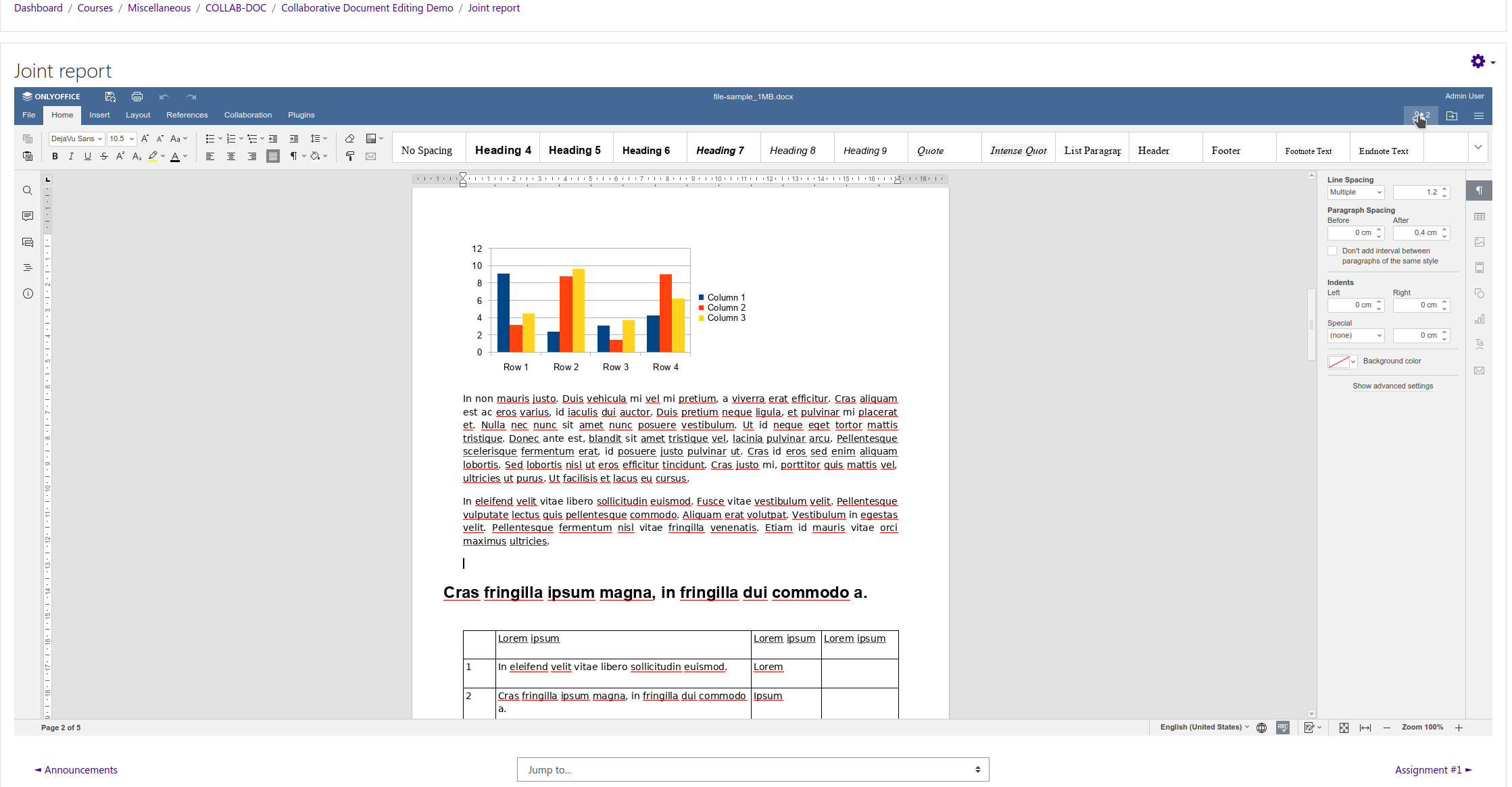
This plugin enables multiple users to collaboratively edit office documents from Moodle in real time using ONLYOFFICE Document Server online editor, and to save back those changes back to Moodle.
Currently the following document formats can be edited with this plugin: DOCX, XLSX, PPTX, TXT, CSV.
The above mentioned formats are also available for viewing, as well as PDF.
The edited files of the corresponding type can be converted into the Office Open XML formats: ODT, ODS, ODP, DOC, XLS, PPT, PPS, EPUB, RTF, HTML, HTM.
You will need an instance of ONLYOFFICE Document Server that is resolvable and connectable both from your Moodle server. ONLYOFFICE version 4.2.7 and later are supported for use with the plugin. The ONLYOFFICE Document Server must also be able to POST to your Moodle server directly. That generally means opening port 80 or 443 on your firewall to allow inbound connections.
The easiest way to start an instance of ONLYOFFICE Document Server is to use Docker. Further information on ONLYOFFICE Document Server packages for various platforms is available at https://helpcenter.onlyoffice.com/server/document.aspx
This plugin is an activity module.
Follow the usual Moodle plugin installation steps to install this plugin into your mod/onlyoffice directory.
Once the plugin is installed, you will need to tell it your ONLYOFFICE Document Server address (URL).
You can set a secret to be used for generating a token that the Document Server will use to verify commands from the client/editor. Refer to https://api.onlyoffice.com/editors/signature/ if you decide to use a secret.
The secret is not required in order for the plugin to work. If you are not using a secret, the values of services.CoAuthoring.secret.inbox.string and services.CoAuthoring.secret.outbox.string in the Document server configuration should be set to empty strings, and the token.enable.* should be set to false. Refer to Refer to this page - https://api.onlyoffice.com/editors/signature/ for instructions on how to set those values.
If your ONLYOFFICE Document Server is configured to use a token, then you must set a value for Document Server Secret in the plugin's configuration, and the secret must match the secret configured on the ONLYOFFICE Document Server. Also check and ensure that the token.enable.* values in the document server configuration are set to true.Once installed, you can add instances of ONLYOFFICE activity to your course pages as per usual Moodle practice.
Admins/Teachers can choose whether or not documents can be downloaded or printed from inside the ONLYOFFICE editor.
Clicking the activity name/link in the course page opens the ONLYOFFICE editor in the user's browser, ready for collaborative editing.

