Stefan-Alexander Scholz
Lead maintainer


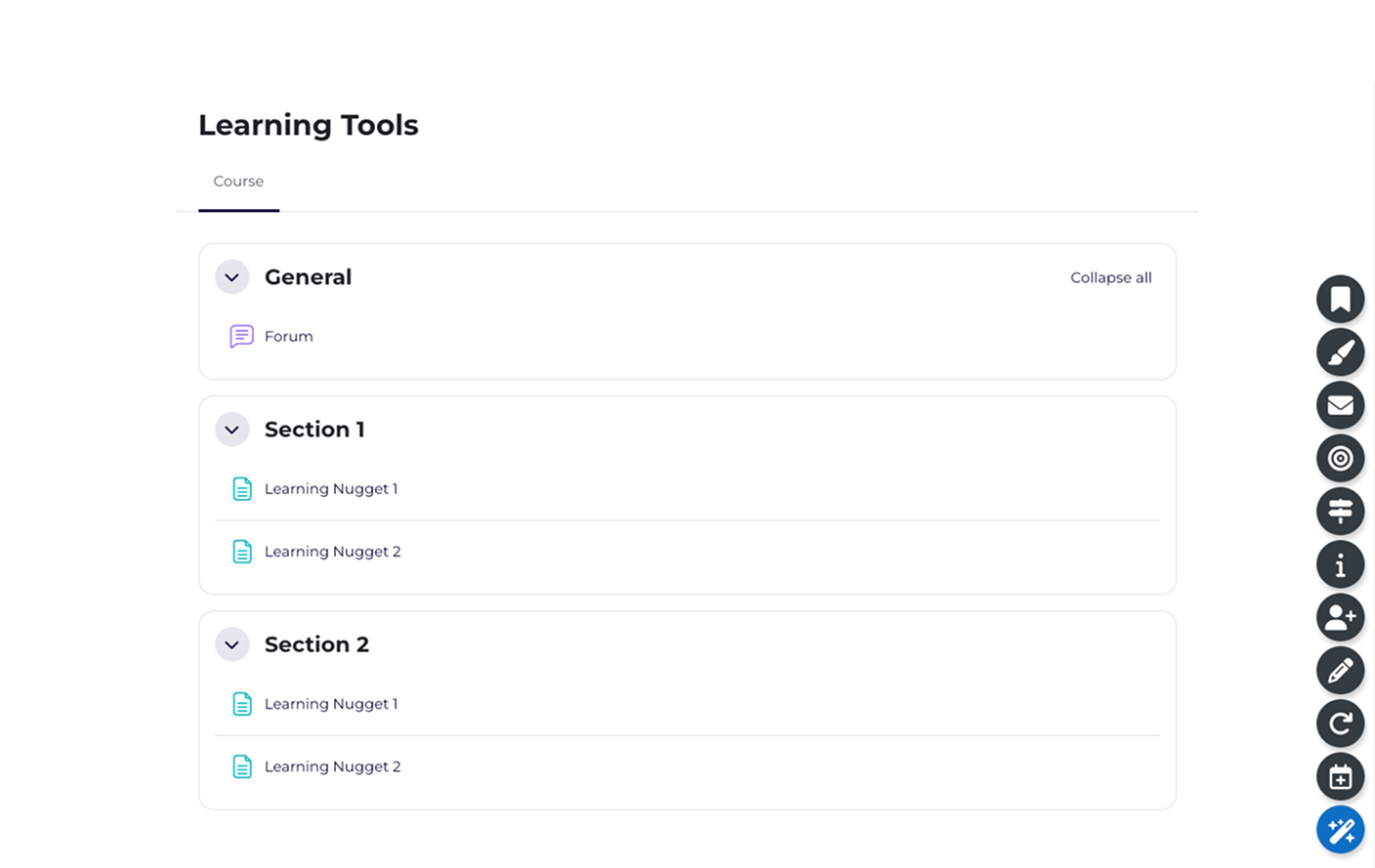

Learning Tools is a Moodle plugin that offers a suite of micro-tools to enhance the learning and teaching experience. These tools are conveniently accessed via an intuitive floating action button (FAB) located at the bottom right of every course page.
Each tool is designed to address specific, common needs — such as taking contextual notes, scheduling time to study, or resuming a course from where you left off (Pro feature). The goal is to support learners and educators with small but effective functionalities that complement existing Moodle features.
Use cases
Learning Tools provides great features that are completely free. For more functionality, we offer a Pro plan.
These tools are intended to support students, employees, and lifelong learners as they navigate courses and training materials. They provide quick access to functions that help manage tasks, revisit resources, and maintain focus — all from within the course environment.
Note: All learner tools are also accessible to teachers, though primarily designed for student use.

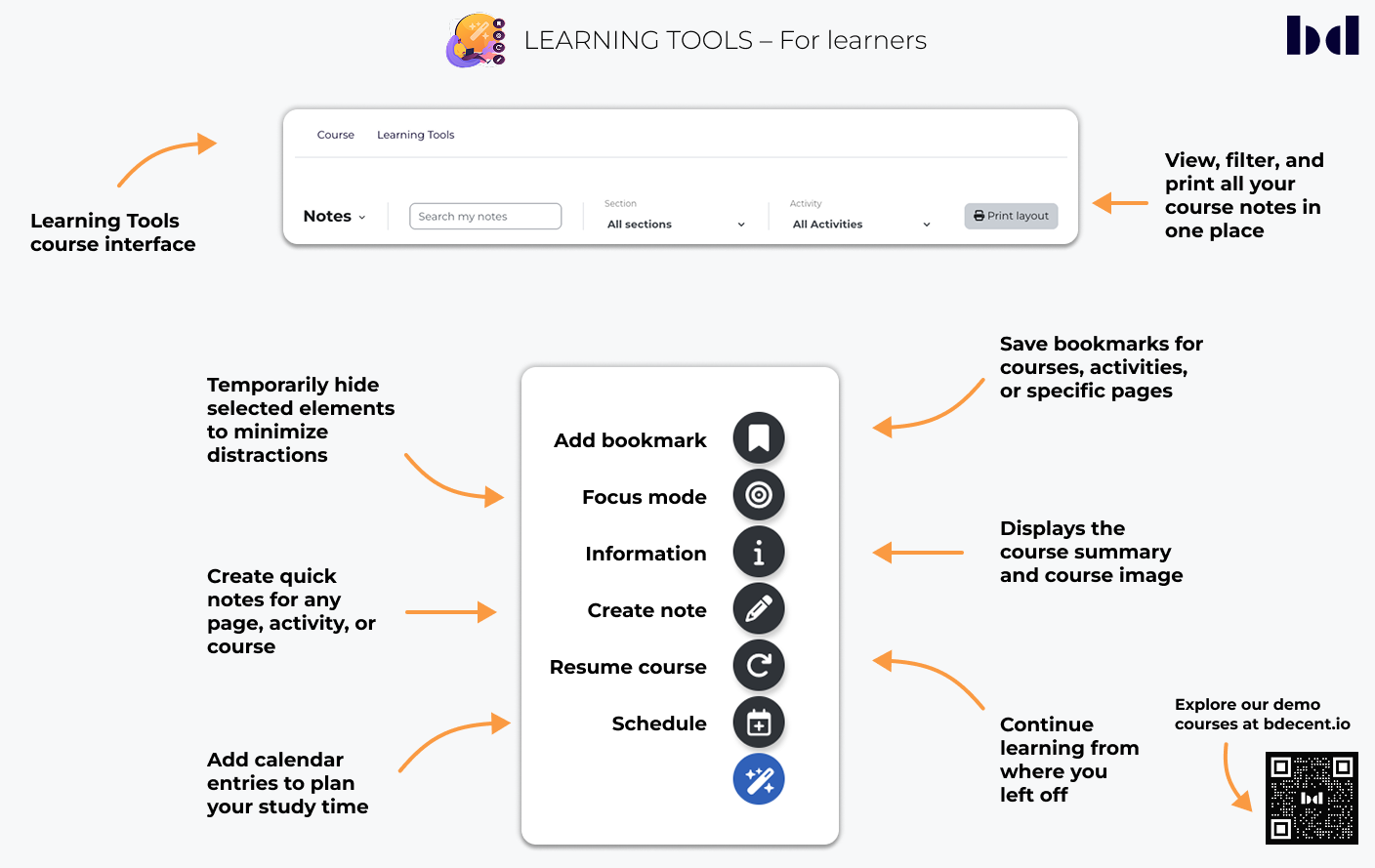
A central overview for all notes created with Learning Tools. Accessible via the secondary course navigation, this interface allows learners to view, organize, search, print, and manage their notes by section or activity.
Displays the course summary and image in the floating menu for quick orientation.
Allows users to create calendar entries — either in the Moodle calendar or external calendars — to plan when they want to work on specific activities or the course in general.
Temporarily hides blocks, headers, and navigation to minimize distractions and allow focused reading. Focus mode can be styled via CSS in the admin settings.
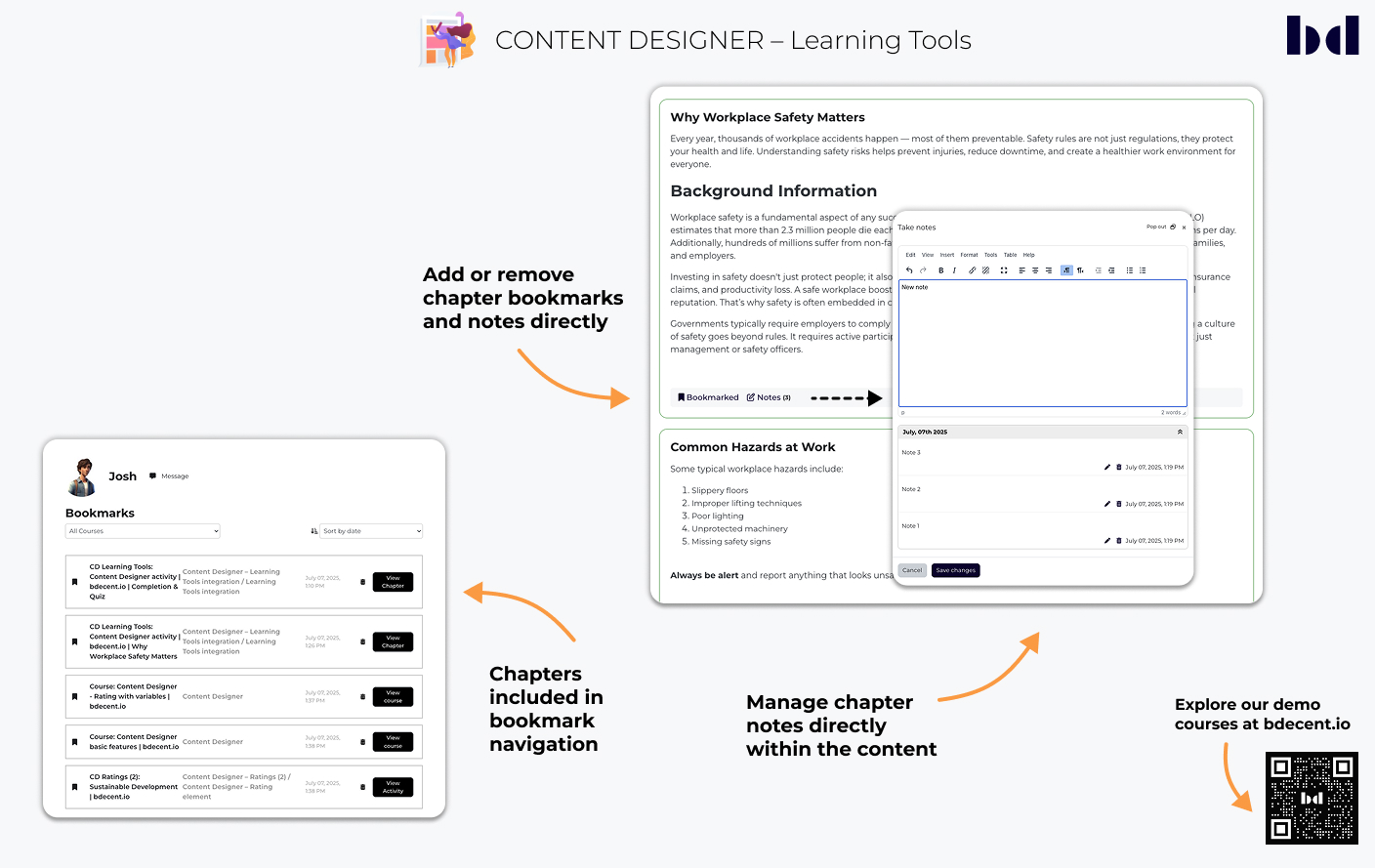
Create quick notes on any page, activity, or course. Notes are saved per user and context, and can be reviewed or exported at any time. The note modal can be expanded, allowing you to write side-by-side with the course content. All notes are centrally listed under My profile > Notes, including references to the corresponding course, activity, or Content Designer chapter (if applicable).
Save bookmarks for courses, activities, or individual pages. All bookmarks are centrally listed under My profile > Bookmarks, with links to the corresponding course, activity, or Content Designer chapter (if applicable).
Automatically return to the exact location last visited in a course — whether it's a forum post, lesson page, or resource — helping users pick up where they left off.
These tools support course creators, trainers, and educators by simplifying common tasks — such as onboarding learners, guiding progression, or managing communication. Instead of configuring multiple Moodle settings, teachers gain quick access to specific actions directly from the course view.
Teachers can also use learner-focused tools, such as creating notes or enabling focus mode, in their own workflow.

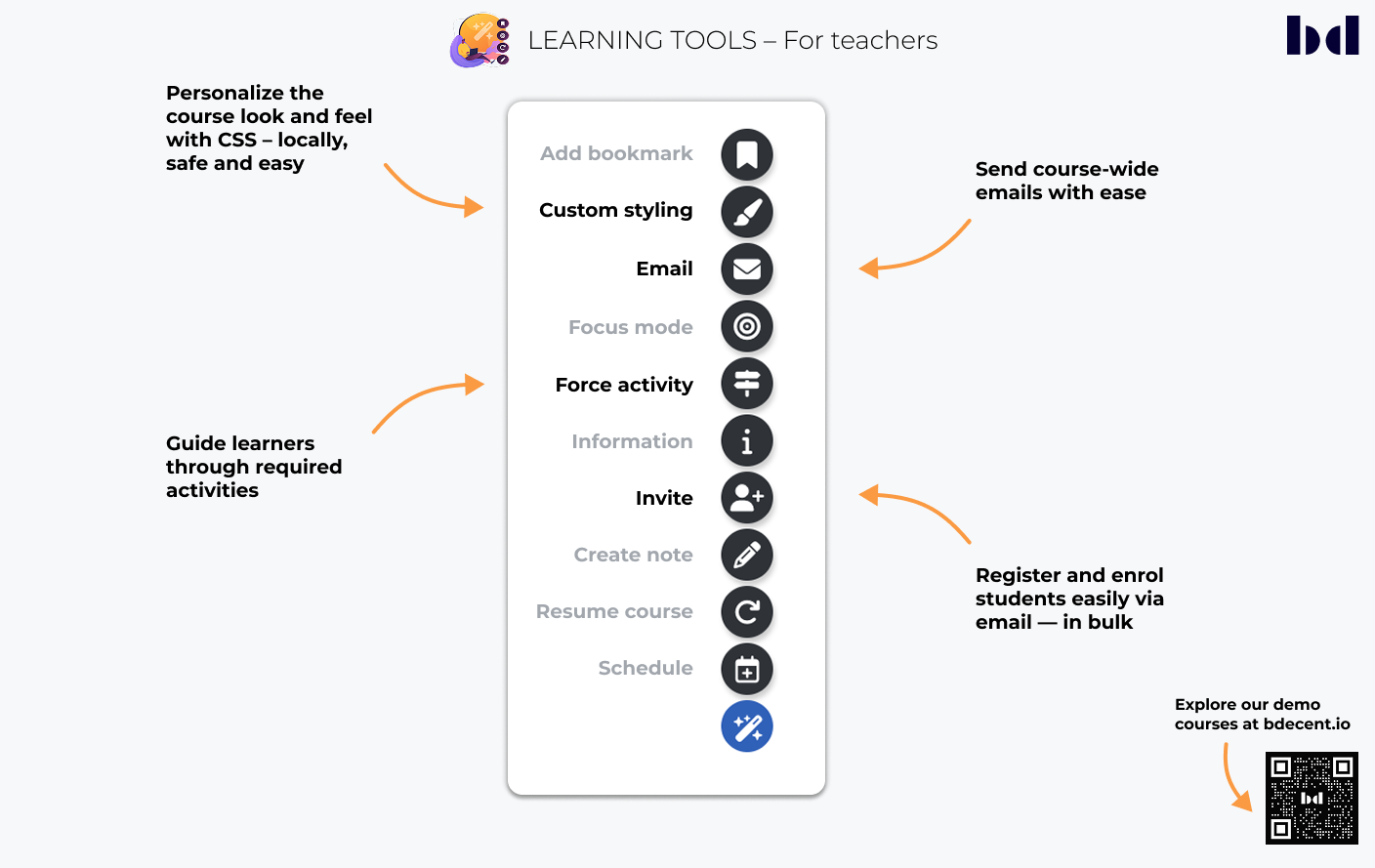
Quickly enrol users by entering email addresses. If users already exist, they are enrolled immediately. If not, and automatic account creation is allowed, accounts are created and enrolled automatically. A summary shows the result of each invitation.
Redirect learners to a required activity before they can continue with the course. Teachers can define a custom message explaining why the step is necessary.
Send messages to enrolled users in a course. Messages can include attachments and be filtered by role. All sent emails are logged for reference.
Add course-specific CSS directly in the settings to adjust layout, appearance, or visibility — without needing to modify the global theme.
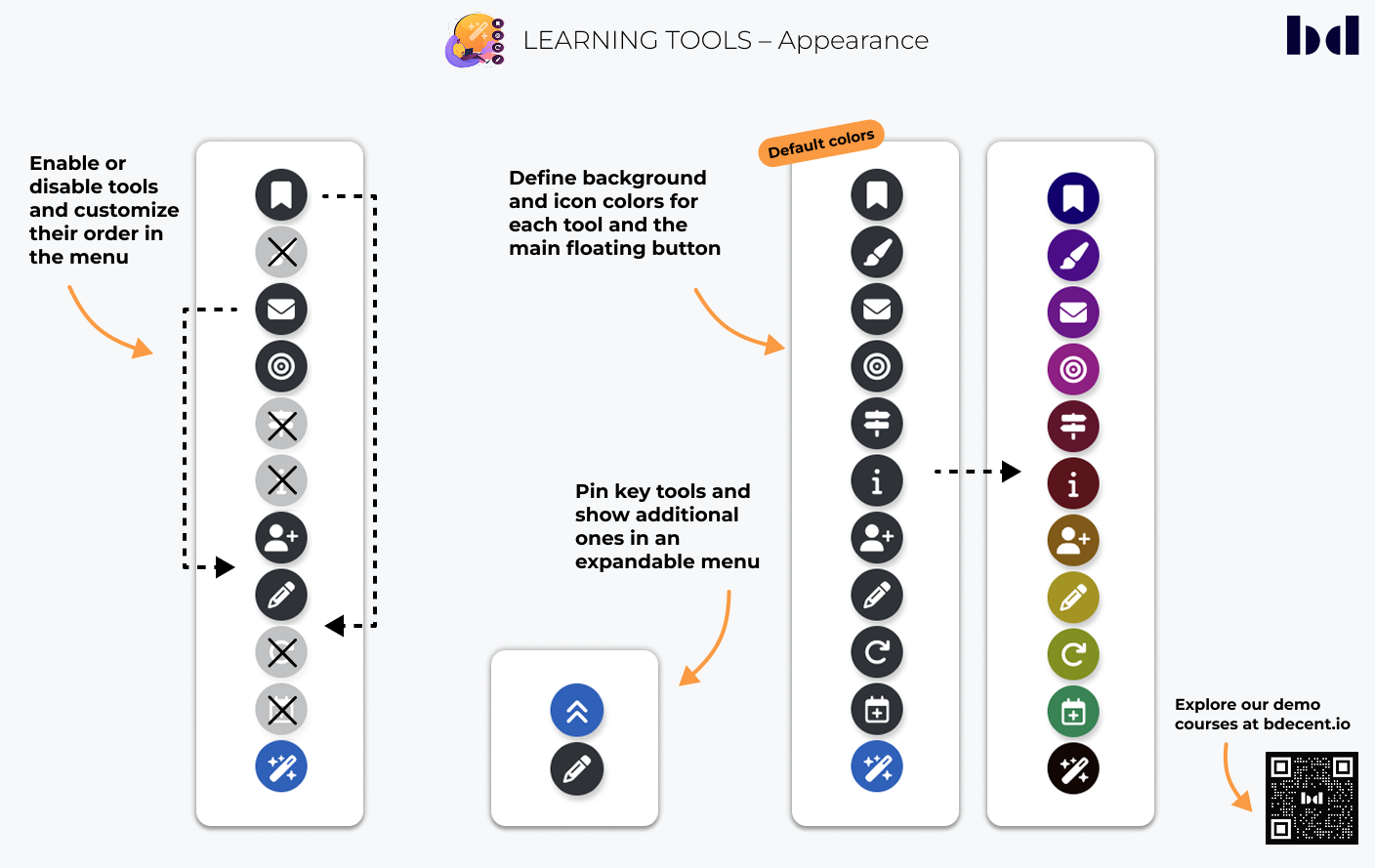
Admins can tailor the floating menu to fit the platform’s design and functional needs. They can define which tools are visible, adjust their order, keep key tools permanently accessible, and apply custom colors to match the brand.

Admins can decide which tools are enabled or hidden and arrange their order in the floating menu.
Visibility can be scoped to specific course categories, course pages only, or platform-wide. Tools can also be disabled for certain activity types — for example, hiding the menu during quizzes.
Admins can mark key tools as sticky, making them permanently visible as standalone icons. This gives users instant access without opening the main menu. Once at least one tool is sticky, the menu button changes to an expandable icon, allowing access to additional tools while keeping the interface clean and focused.
Admins can define background and icon colors for each tool and for the main floating button. This enables color theming, visual grouping, or emphasizing specific tools based on their function.


