![Nolej logo]() Nolej AI for Moodle LMS
Nolej AI for Moodle LMS
Moodle integration plugin for Nolej AI.
Introduction
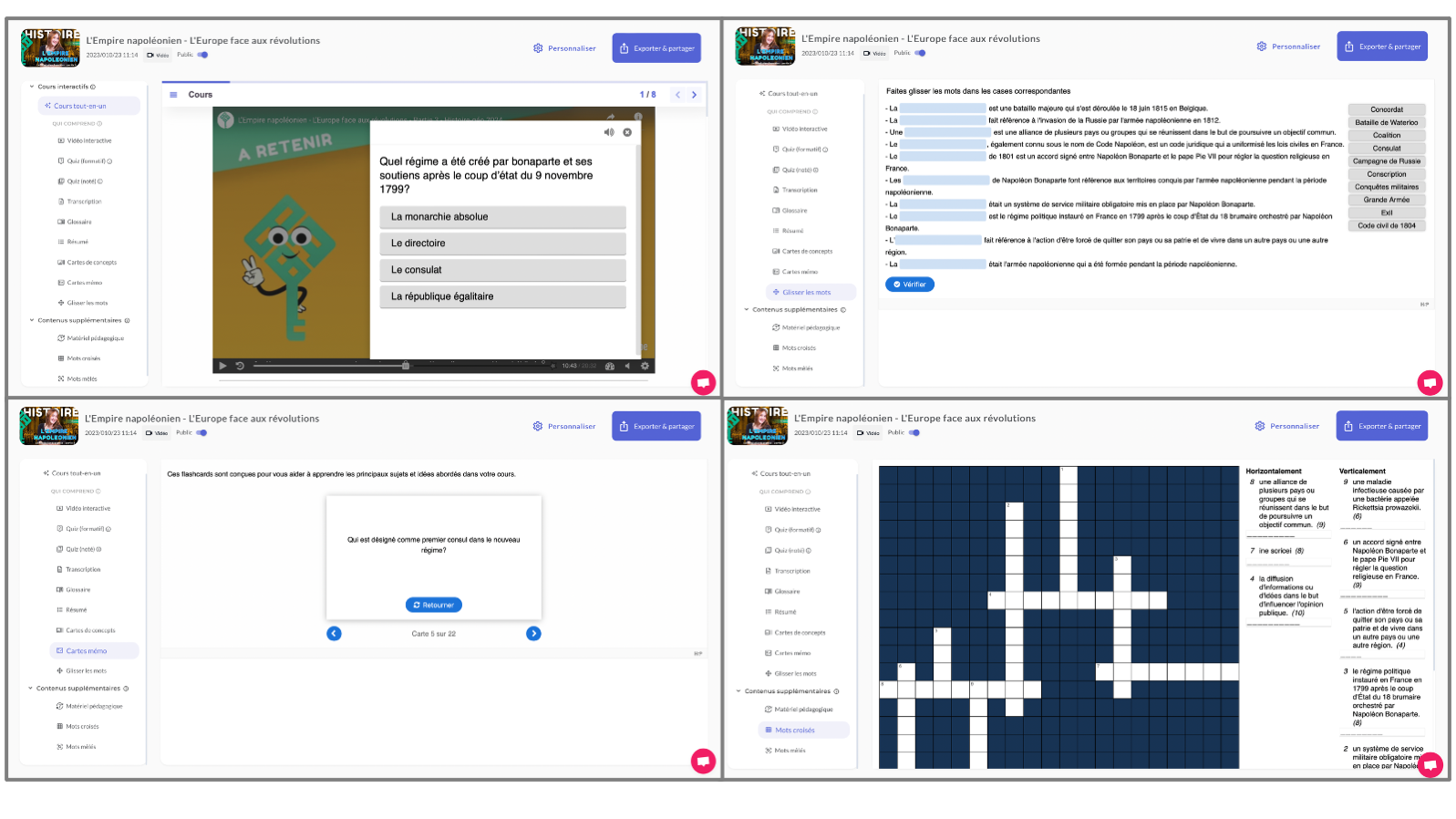
Nolej AI, developed by Neuronys, offers several advantages, including AI-driven
courseware that can quickly convert documents, videos, and audio into dynamic
active learning content. It facilitates skill development and personalized
learning paths, saving educators significant time and enhancing engagement through
interactive content creation tools, gamification, and social learning.
To use the plugin, start by registering on Nolej AI website.
Upon registration, you'll receive an API key. Simply insert this key into the plugin to
enable its features. It's a quick step to enhance your experience. Let's get started! :rocket:
Please note that while the plugin itself is free, registration on Nolej website for
an API key is a separate process. Your support is appreciated!
:globe_with_meridians: Supported languages
Help us expand language support! If your favorite language isn't here, contribute and make this project truly global.
Your input is not just welcome - it's essential! :rocket:
This plugin currently supports the following languages:
- :uk: English
- :fr: French
- :it: Italian
- :de: German
- :es: Spanish
- :portugal: Portuguese
- :netherlands: Dutch
Requirements
- Moodle 4.1+ (tested with version
20221128)
Installation
Installing via uploaded ZIP file
- Log in to your Moodle site as an admin and go to Site administration >
Plugins > Install plugins.
- Upload the ZIP file with the plugin code. You should only be prompted to add
extra details if your plugin type is not automatically detected.
- Check the plugin validation report and finish the installation.
Installing manually
The plugin can be also installed by putting the contents of this directory to
```

{your/moodle/dirroot}/local/nolej

```
Afterwards, log in to your Moodle site as an admin and go to Site administration >
Notifications to complete the installation.
Alternatively, you can run
```sh

$ php admin/cli/upgrade.php

```
to complete the installation from the command line.
After the installation, Moodle will redirect you to the plugin setting page,
where you have to put the API Key.
After installation
How to use the plugin?
You can read here the documentation on how to use the plugin.
Where is the library page?
Depending on the theme installed on your platform, the navigation menu to the libray of Nolej may not appear.
If that's your case, here's a guide on how to create a link to the library, using Moodle blocks.