Moodle ImagePlus Plugin
A powerful Moodle plugin that allows site administrators to search and replace files (images, PDFs, documents, videos, audio, archives) across their Moodle installation based on filename patterns. Features a user-friendly multi-step wizard interface with comprehensive security controls.
Developed by: G Wiz IT Solutions
Plugin Type: Local
Version: v3.1.0
Compatibility: Moodle 4.5 to 5.2+
License: GNU GPL v3 or later
Source Code: https://github.com/gwizit/moodle-local_imageplus
Bug Tracker: https://github.com/gwizit/moodle-local_imageplus/issues
Support / Issues: https://github.com/gwizit/moodle-local_imageplus/issues
Documentation: README.md
What's New in Version 3.1.0
🔄 Moodle 5.2 Compatibility (February 28, 2026)
- Bootstrap 5 Migration - Replaced all Bootstrap 4 CSS utility classes with Bootstrap 5 equivalents:
mr-2 ' me-2 (margin-right to margin-end)
ml-2 ' ms-2 (margin-left to margin-start)
badge-primary ' bg-primary (badge background utilities)
badge-success ' bg-success
badge-secondary ' bg-secondary
- Minimum Moodle Version: Now requires Moodle 4.5 or later
- No External API migration needed - Plugin does not use external services
- Full audit completed - Verified no usage of deprecated
data-toggle, btn-block, form-row, custom-control, font-weight-bold, text-left/text-right, or float-left/float-right Bootstrap 4 classes
What's New in Version 3.0.7
This update introduces critical caching improvements and new user options:
- Automatic Cache Purging: New option to automatically purge Moodle caches after file replacement (enabled by default).
- Image Resizing Control: New option to choose whether to resize the replacement image to match the target dimensions or keep its original size.
- Browser Cache Warnings: Prominent warnings advising users to clear browser caches when filesystem files are replaced.
- File Replacement Fix: Improved handling of file paths on Linux systems to ensure reliable replacements.
- UI Improvements: Enhanced completion messages and direct links to Moodle's cache purge page.
What's New in Version 3.0.6
This update includes security hardening and support-link improvements:
- CSRF hardening for "Start over" action (requires
sesskey)
- Reverse-tabnabbing mitigation (
rel="noopener noreferrer" on target="_blank" links)
- Added GitHub Issues support link in the UI and documentation
- Donation link updated
What's New in Version 3.0.5
This update modernizes the ImagePlus plugin with Moodle best practices:
-️ Modern Architecture (v3.0.5)
- Mustache Templates - Clean separation of HTML from PHP logic
- Moodle Output API - Proper use of renderable/templatable interfaces
- ES6 JavaScript Modules - AMD/RequireJS compliant, modular code
- Namespaced CSS - All styles properly scoped with
.local-imageplus- prefix
- Fully Translatable - All user-facing strings use language string system
- Code Quality - 84% reduction in renderer.php, 40% reduction in index.php
- Bug Fixes - Fixed duplicate statistics display issue
🎯 Multi-Step Wizard Interface (v3.0.0)
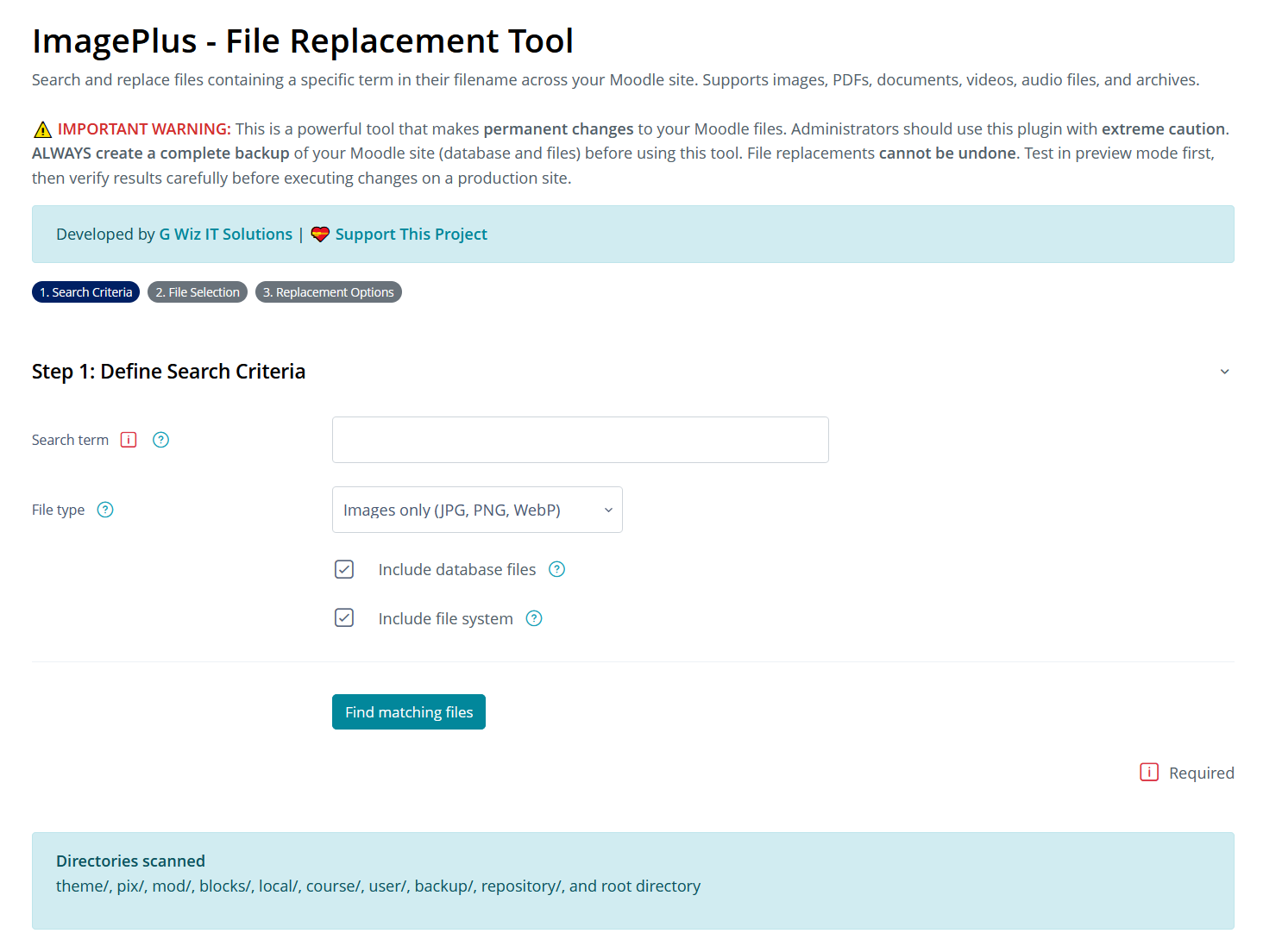
- Step 1: Search Criteria - Define what files to find
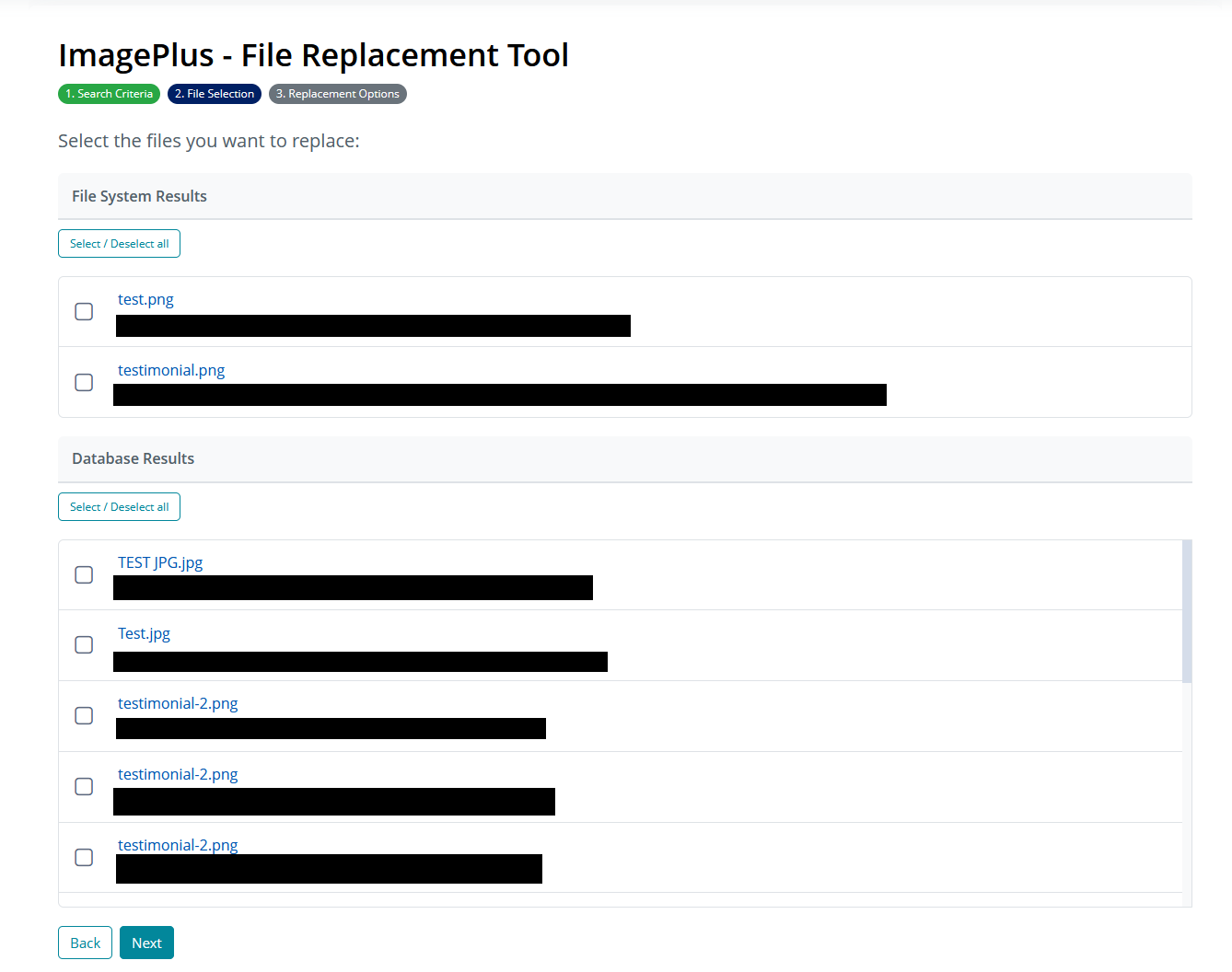
- Step 2: File Selection - Review and select specific files with checkboxes
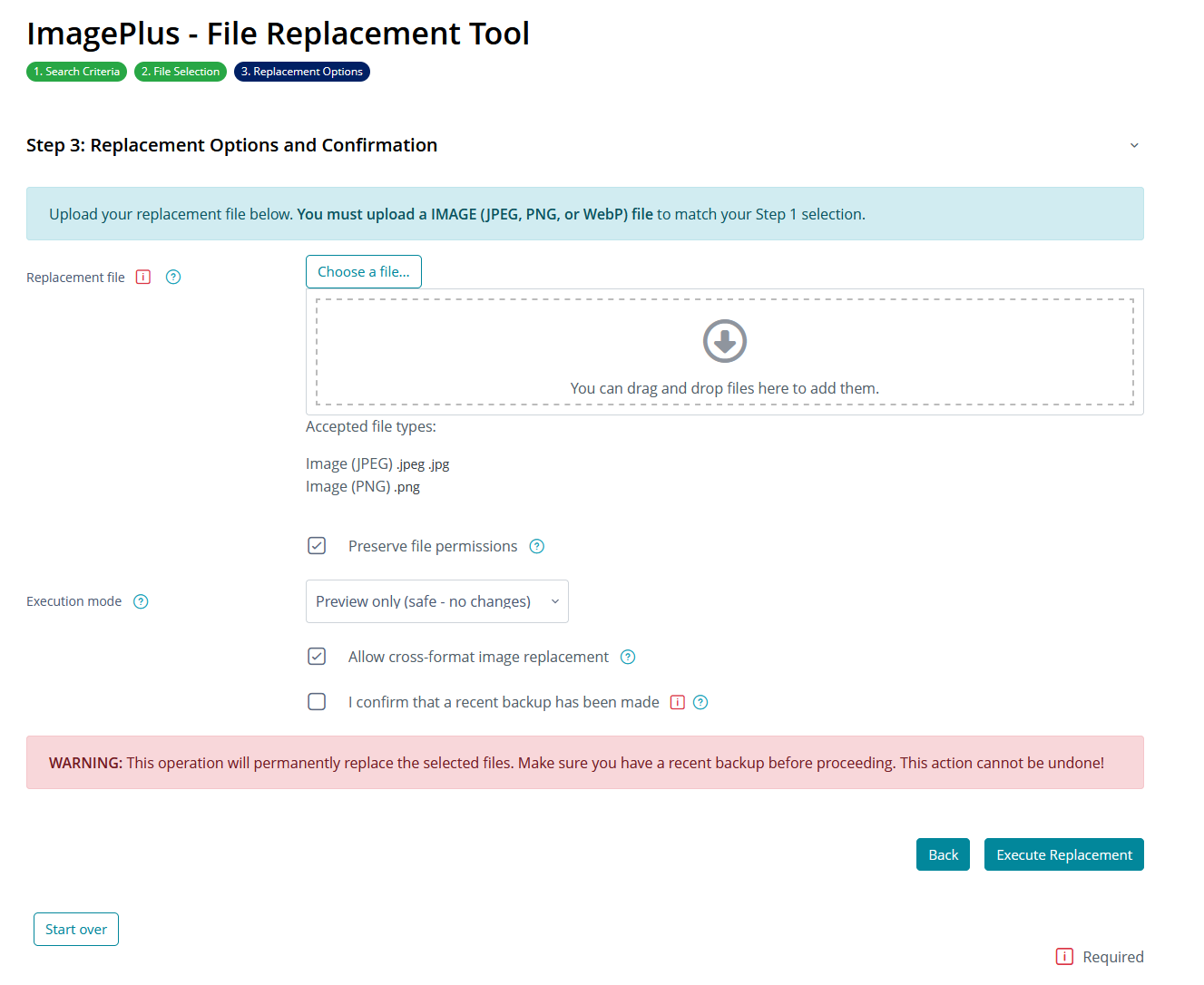
- Step 3: Replacement Options - Configure replacement settings with mandatory backup confirmation
- Visual step indicator showing progress
- Back/Next navigation between steps
- Session-based state management for seamless navigation
🔐 Enhanced Security
- Site Administrator Only Access - Restricted to users with
moodle/site:config capability
- Comprehensive XSS Protection - All user input and output properly sanitized
- Input Validation - Directory traversal prevention and strict file path validation
- Enhanced File Type Validation - Comprehensive mimetype checking for all file types
- Session Key Verification - Multiple checkpoints throughout the workflow
- Backup Confirmation - Mandatory checkbox before executing replacements
" Improved User Experience
- Progressive disclosure - only relevant options shown at each step
- Interactive file selection with "Select All/Deselect All" functionality
- Clear error messages and user guidance
- Final warning before executing destructive operations
- Better visual feedback at each step
Features
Core Features
- 🔍 Smart Search with Wildcards: Find files by pattern with
* and ? wildcard support (e.g., logo*, banner?.png)
- -️ Database Integration: Search both file system and Moodle's database file storage
- 🎨 Format Conversion: Automatically converts replacement images to match target format (JPEG, PNG, WebP)
- 📐 Auto-Resizing: Intelligently resizes images to match target dimensions
- ' Safe Preview Mode: Test replacements without making any changes
- 📊 Detailed Replacement Log: See success/failure status for every file replaced
- 🔐 Permission Control: File permissions are preserved during replacement
- 🌍 Transparency Support: Maintains transparency for PNG and WebP images
- " Operation History: Database logging of all replacement operations
- ⚡ Batch Processing: Replace multiple files in a single operation
Multi-File Type Support
- " Images: JPG, PNG, WebP with optional cross-format conversion
- " Documents: PDF, DOC, DOCX, ODT, TXT
- " Archives: ZIP, TAR, RAR, 7Z
- " Videos: MP4, AVI, MOV, WebM
- " Audio: MP3, WAV, OGG, M4A
Installation
Method 1: Via Moodle Plugin Installer (Recommended)
- Download the plugin ZIP file
- Log in to your Moodle site as an administrator
- Go to Site administration ' Plugins ' Install plugins
- Upload the ZIP file
- If prompted with "Unable to detect the plugin type":
- Select "Local plugin (local)" from the "Plugin type" dropdown
- Confirm the plugin folder name shows as "imageplus"
- Click "Install plugin from the ZIP file"
- Follow the on-screen instructions to complete the installation
Note: Some Moodle installations require manual plugin type selection for security. This is normal behavior.
Method 2: Manual Installation (If ZIP upload fails)
Recommended if you get "corrupted_archive_structure" error:
- Extract the plugin ZIP file
- Copy the
imageplus folder to [moodle-root]/local/
- Log in to your Moodle site as an administrator
- Navigate to Site administration ' Notifications
- Click "Upgrade Moodle database now"
- Follow the on-screen instructions to complete the installation
Tip: On Windows, you can use the included manual_install.ps1 helper script.
Method 3: Via Command Line
cd [moodle-root]/local/

git clone [repository-url] imageplus

cd [moodle-root]

php admin/cli/upgrade.php
Post-Installation: Clear Caches
IMPORTANT: After installing or updating the plugin, always clear Moodle's caches:
Method 1: Via Web Interface
- Go to Site administration ' Development ' Purge all caches
- Click "Purge all caches" button
Method 2: Via Command Line (Faster)
php admin/cli/purge_caches.php
Why? Moodle caches language strings. If you don't clear caches, you might see text displayed as [[stringname]] instead of the actual text. This is normal Moodle behavior for all plugins.
Configuration
After installation, configure the plugin defaults:
- Go to Site administration ' Plugins ' Local plugins ' ImagePlus
- Configure the following settings:
- Default search term: Default term to search for in filenames
- Default execution mode: Preview or Execute (Preview recommended for safety)
- Preserve permissions by default: Keep original file permissions
- Search database by default: Include Moodle's file storage
- Search file system by default: Include file system directories
Usage
Accessing the Tool
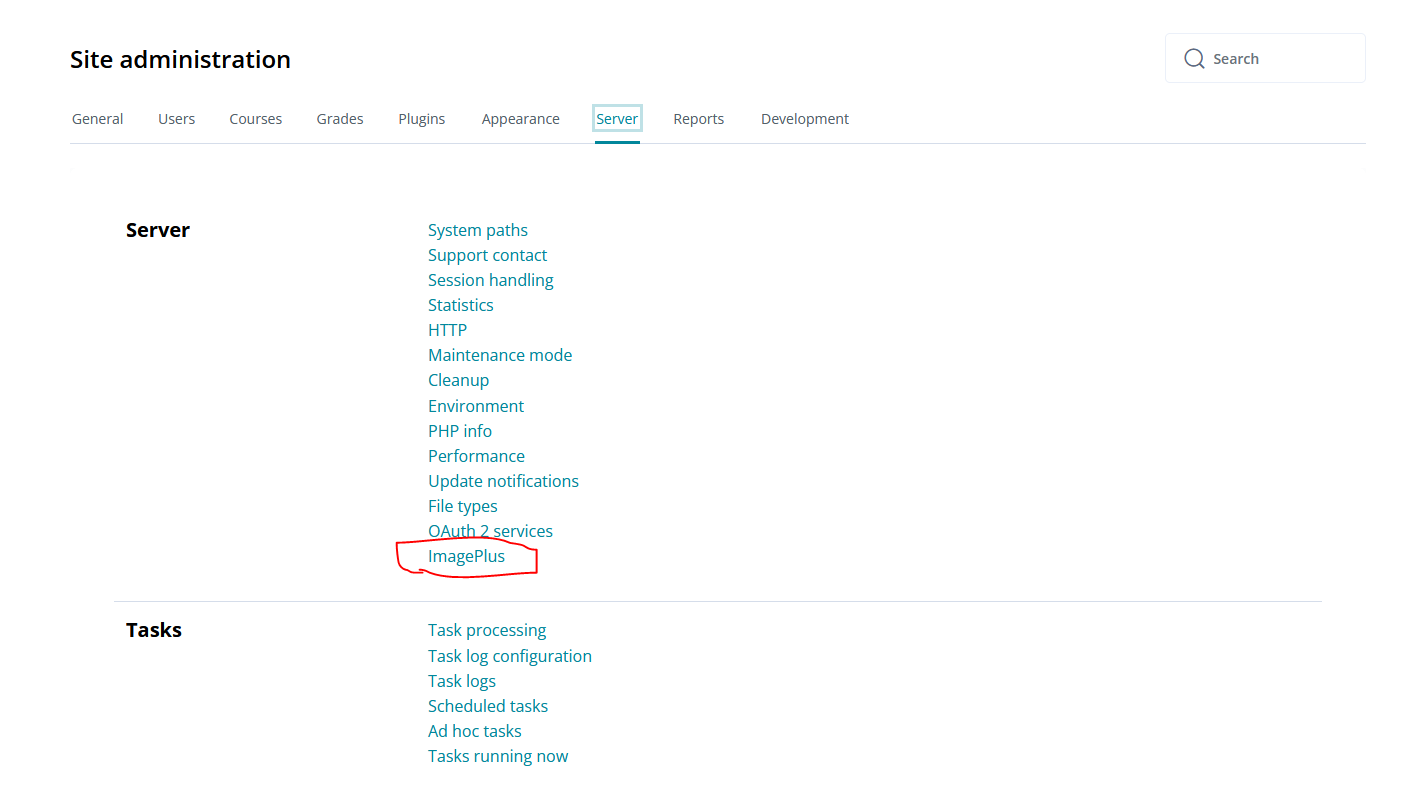
- Log in as a site administrator (requires
moodle/site:config capability)
- Go to Site administration ' Server ' ImagePlus
Note: Non-administrators will see an access denied error. This is intentional for security.
Using the Multi-Step Wizard
Step 1: Define Search Criteria
Enter Search Term: Type the text pattern to search for in filenames
- Simple text:
logo, banner, icon
- Wildcards:
logo* (finds logo.png, logo-2024.jpg), banner?.png (finds banner1.png, banner2.png)
Select File Type: Choose what type of files to search for
- Images (JPG, PNG, WebP)
- PDF documents
- ZIP archives
- Documents (DOC, DOCX, ODT, TXT)
- Videos (MP4, AVI, MOV, WebM)
- Audio (MP3, WAV, OGG, M4A)
Choose Search Locations:
- '️ Include database files: Search Moodle's file storage system
- '️ Include file system: Search Moodle installation directories
Click Find matching files to proceed to Step 2
Step 2: Select Files to Replace
Review Found Files: See all files matching your search criteria
- Filesystem files show full path and filename
- Database files show filename, ID, size, and context
Select Files:
- Use checkboxes to select specific files to replace
- Use Select All/Deselect All buttons for bulk selection
- You can select from both filesystem and database results
Navigation:
- Click Back to modify search criteria
- Click Next to proceed to replacement options
Note: At least one file must be selected to proceed.
Step 3: Replacement Options and Confirmation
Upload Replacement File:
- Select the file that will replace all selected files
- Maximum file size: 50MB
- Important: File extension must match target files (unless cross-format is enabled for images)
Configure Options:
- '️ Preserve file permissions: Keep original file permissions when replacing
- Execution mode:
- Preview only: See what would be changed without modifying files (safe - recommended first)
- Execute changes: Actually perform the replacements
Image-Specific Options (only shown for images when GD library is available):
- '️ Allow cross-format image replacement: Enable JPG↔PNG↔WebP conversion
Backup Confirmation ⚠️:
- '️ I confirm that a recent backup has been made (REQUIRED)
- This checkbox must be checked before proceeding
- Replacement operations cannot be undone
Final Warning: Read the warning about irreversible changes
Click Execute Replacement to complete the operation
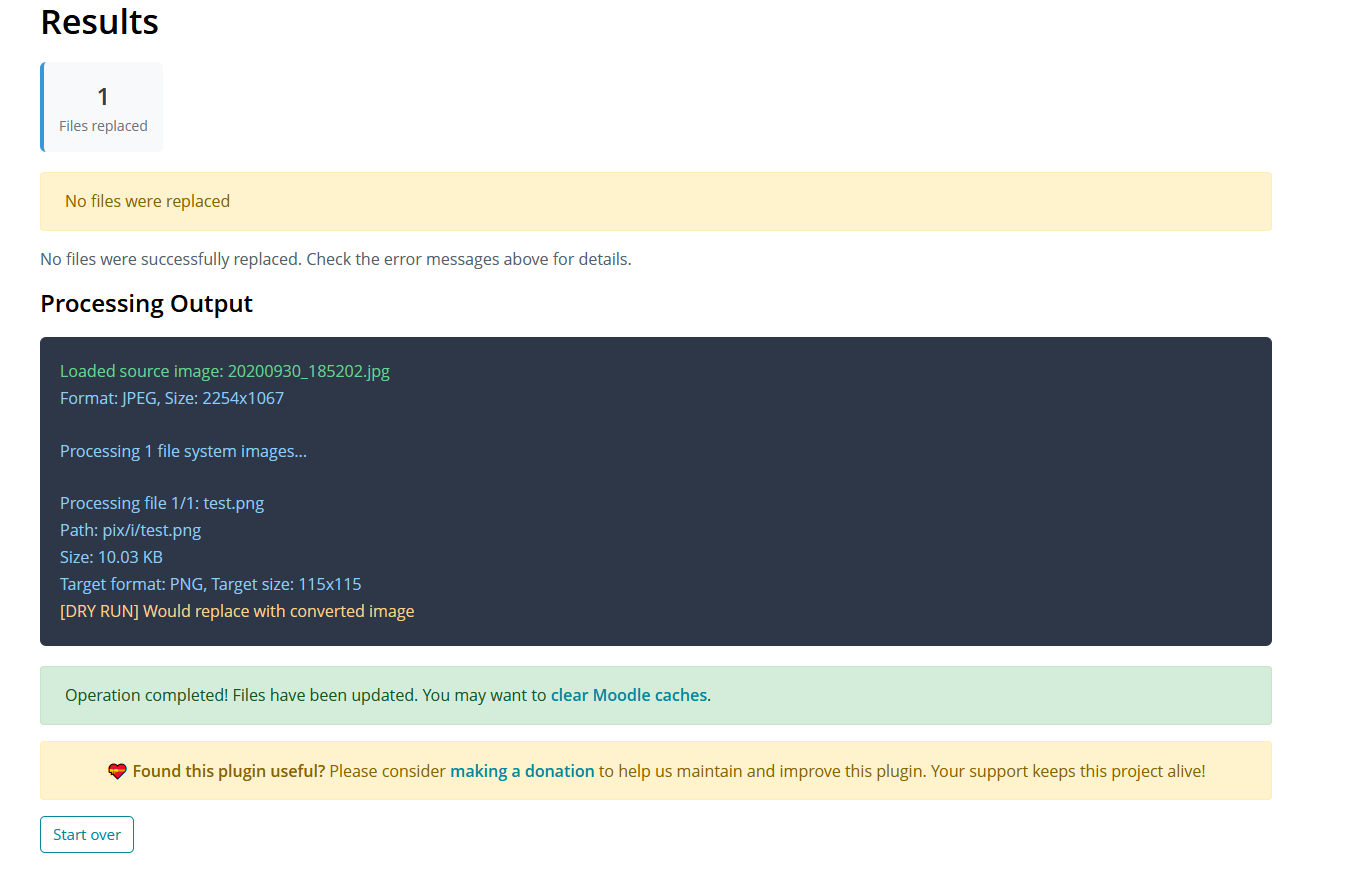
After Execution
- View detailed results showing success/failure for each file
- Review replacement log with statistics
- Click Start Over to begin a new replacement operation
- Consider clearing Moodle caches after replacements
Directories Scanned
The plugin searches the following Moodle directories:
theme/ - Theme images
pix/ - Moodle icons and graphics
mod/ - Module images
blocks/ - Block images
local/ - Local customizations
course/ - Course images
user/ - User images
backup/ - Backup files
repository/ - Repository files
- Root directory (non-recursive)
How It Works
- Search Phase: The plugin scans selected locations for images containing your search term
- Analysis: For each matching image, it determines:
- Current format (JPEG, PNG, WebP)
- Current dimensions (width - height)
- File location (file system or database)
- Replacement: The source image is:
- Resized to match the target dimensions
- Converted to match the target format
- Saved with preserved permissions (if enabled)
- Database Updates: For database files:
- New content hash is calculated
- File records are updated in Moodle's files table
- File storage structure is maintained
- Logging: All operations are logged for audit purposes
Permissions
The plugin defines two capabilities and requires site administrator access:
moodle/site:config: REQUIRED - Site administrator permission (checked before any access)
local/imageplus:view: View the ImagePlus tool
local/imageplus:manage: Perform file replacement operations
Security Note: Only users with site administrator permissions can access this plugin. Non-administrators will see an error message directing them to contact their site administrator.
Security Features
Access Control
- Site administrator-only access (
moodle/site:config capability required)
- Multiple permission checks throughout the workflow
- Session key verification on all form submissions
- Confirm session key on destructive operations (Step 3)
Input Validation & Sanitization
- All user input validated and sanitized by Moodle form API
- File paths validated with
PARAM_PATH to prevent directory traversal
- Database file IDs validated as integers with
PARAM_INT
- File existence and location verification before processing
- Filenames sanitized with
clean_filename() function
Output Protection
- All displayed content escaped with
s() function to prevent XSS
- JavaScript strings escaped with
addslashes_js()
- HTML output uses Moodle's
html_writer class
- File paths and names sanitized before display
File Type Validation
- Comprehensive mimetype checking for all file types:
- Images:
image/jpeg, image/png, image/webp
- PDFs:
application/pdf
- Archives:
application/zip, application/x-zip-compressed
- Documents:
application/msword, application/vnd.openxmlformats-officedocument.wordprocessingml.document, etc.
- Videos:
video/mp4, video/avi, video/quicktime, video/webm
- Audio:
audio/mpeg, audio/wav, audio/ogg, audio/mp4
- Upload validation ensures file type matches selected category
Directory Traversal Prevention
- Filesystem paths validated with
realpath() and strpos() checks
- Files must be within Moodle's
$CFG->dirroot
- File existence verified before processing
- Invalid paths are rejected
Mandatory Backup Confirmation
- Checkbox confirmation required before executing replacements
- Warning message displayed about irreversible operations
- User must acknowledge backup has been made
Best Practices
Safety First
- " Always run in Preview mode first to see what will be changed
- " BACKUP YOUR MOODLE DATA before running replacements
- " Use the backup confirmation checkbox consciously - it's there for a reason
- " Test with a specific search term on a small set of files first
- " Review the file selection list carefully in Step 2 before proceeding
- " Consider running a test on a staging/dev