AI Resource Guide
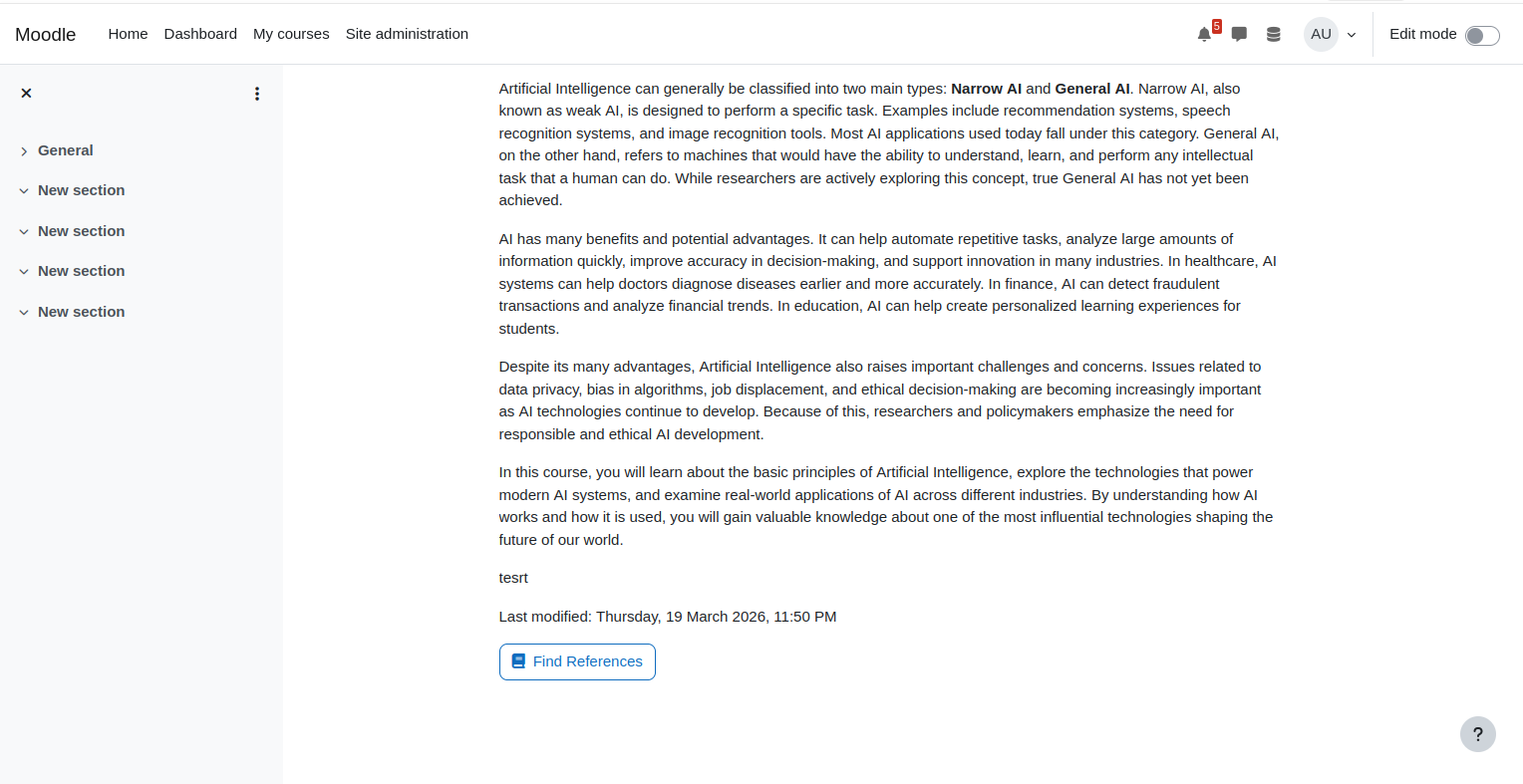
A Moodle AI placement plugin that adds a "Find References" button to Page activities. Students can discover relevant external learning resources powered by the site's configured AI provider.
Features
- Adds a Find References button to every Page activity students have access to
- Works with any AI provider configured in Moodle (OpenAI, Azure AI, Ollama, etc.)
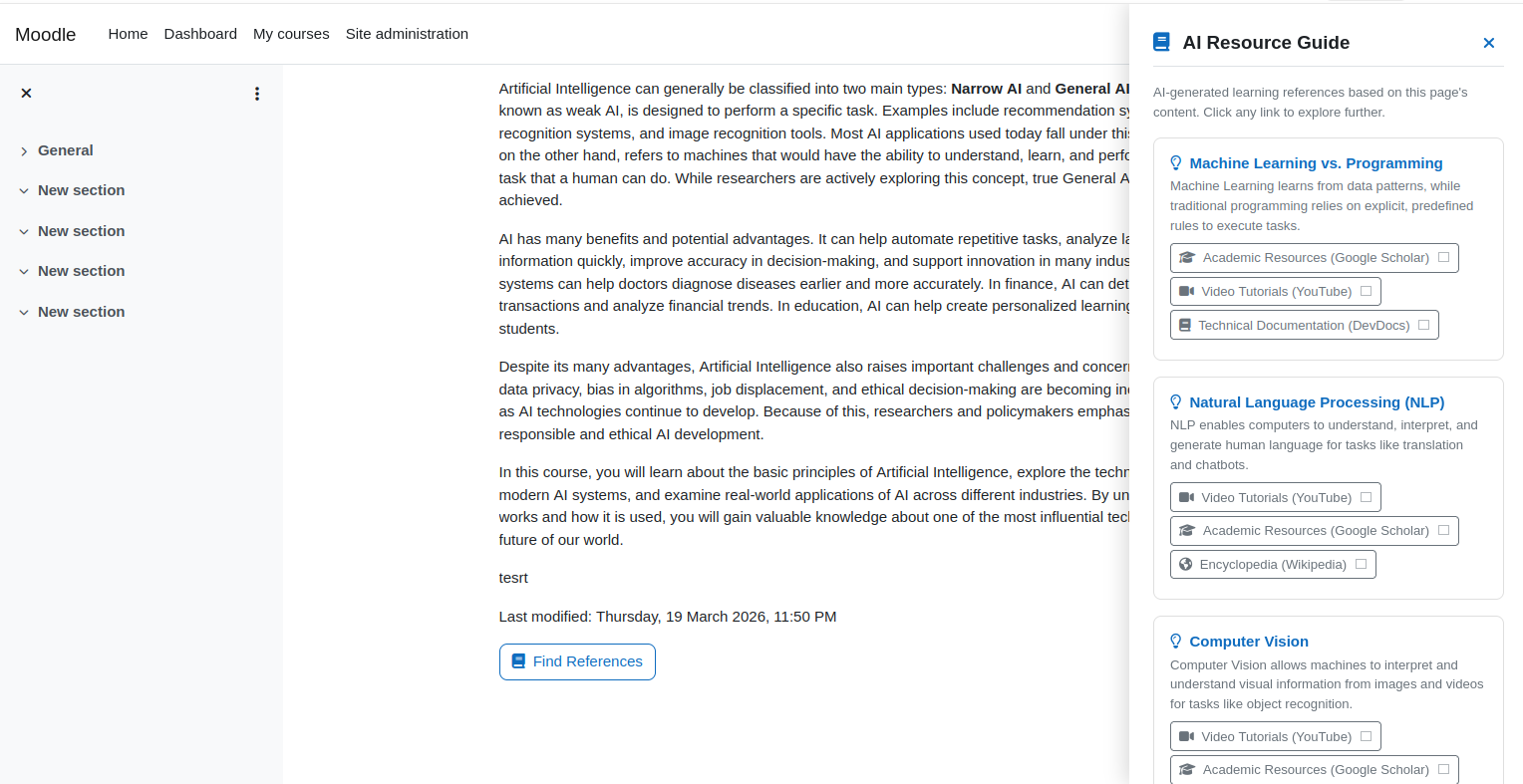
- Identifies 3–5 key concepts from the page content and returns curated reference links
- Configurable reference sources: Google Scholar, YouTube, Wikipedia, DevDocs, Google Books, Google News
- Results cached for 24 hours to minimise AI API usage and cost
- Automatically refreshes cached references when a teacher updates the page content
- AI policy compliance built in — students are prompted to accept the AI usage policy on first use
- GDPR compliant — no personal data stored
Requirements
- Moodle 4.5 or later
- PHP 8.1 or later
- At least one AI provider configured in Site Administration ' AI with the
generate_text action enabled
Installation
- Copy the
airesourceguide folder into ai/placement/ in your Moodle root directory.
- Visit Site Administration ' Notifications to run the plugin installation.
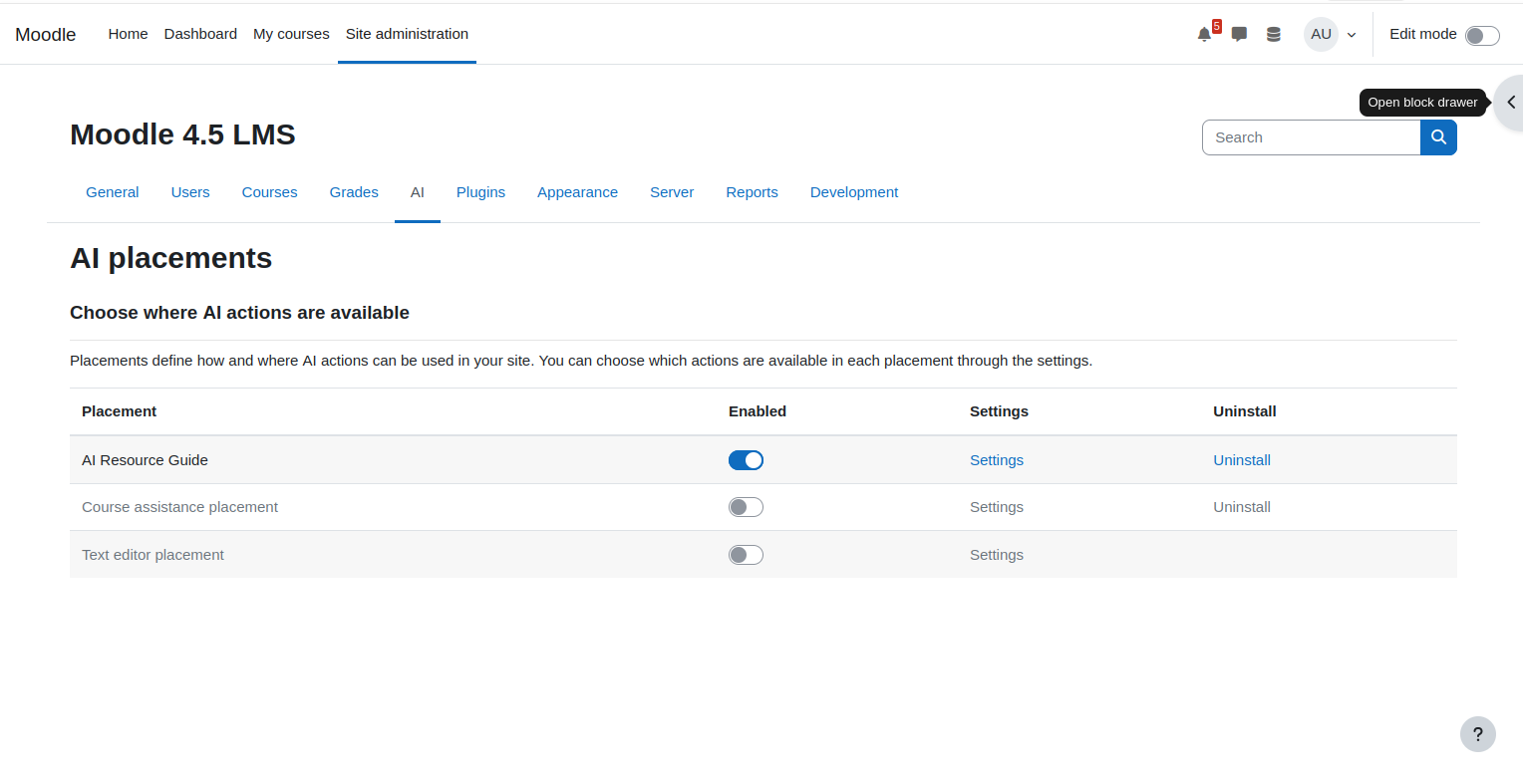
- Go to Site Administration ' AI to confirm the plugin appears in the placements list.
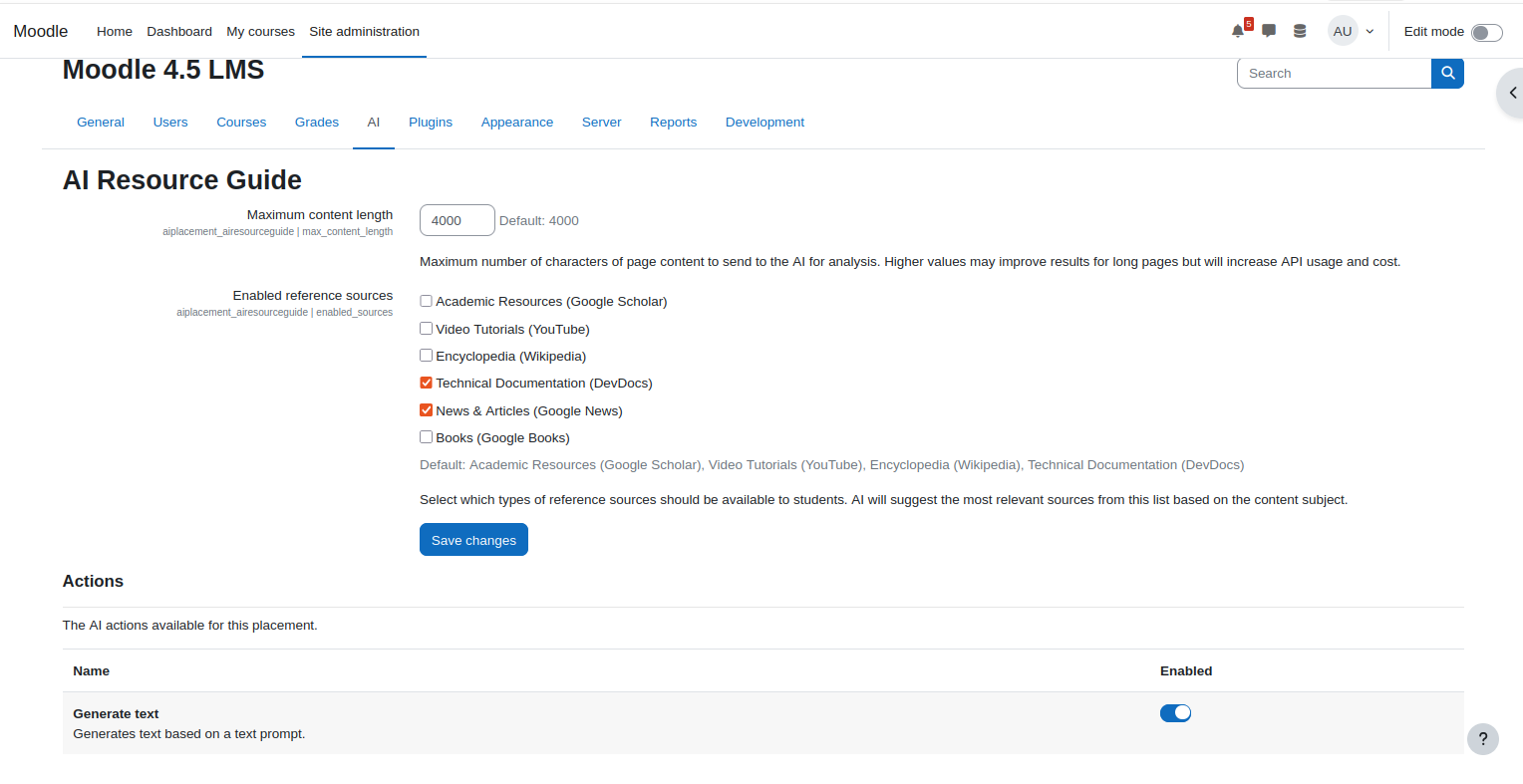
- Configure your preferred reference sources under Site Administration ' AI ' AI Resource Guide.
Configuration
Settings are located at Site Administration ' AI ' AI Resource Guide.
Enabled reference sources
Choose which source types are available to students. Options are: Academic Resources (Google Scholar), Video Tutorials (YouTube), Encyclopedia (Wikipedia), Technical Documentation (DevDocs), News & Articles (Google News), and Books (Google Books). All sources are enabled by default.
Maximum content length
Controls how many characters of page content are sent to the AI for analysis. The default is 4000 characters. Increase this for longer pages if you find the AI is missing important context, keeping in mind that higher values may increase API usage costs.
Usage
For administrators
- Ensure at least one AI provider is configured and active in Site Administration ' AI.
- Install the plugin and visit Site Administration ' AI ' AI Resource Guide to configure enabled sources.
- The Find References button will automatically appear on all Page activities for users with the
aiplacement/airesourceguide:viewreferences capability (granted to students, teachers, and managers by default).
For students
- Open any Page activity in a course.
- Click the Find References button at the bottom of the page content.
- If this is your first time using an AI feature on the site, you will be shown an AI usage policy — click Accept to proceed.
- A panel slides in from the right showing key concepts identified in the page, each with links to relevant external resources (e.g. YouTube search, Wikipedia, Google Scholar).
- Click any link to open the search results in a new tab.
How it works
When a student clicks Find References, the plugin reads the text content of the Page activity and sends it to Moodle's AI subsystem. The configured AI provider identifies 3–5 key concepts a student might need help understanding and returns them in a structured format. The plugin then constructs real search URLs from those concept names using trusted search engine patterns — no AI-generated URLs are used, eliminating the risk of broken or hallucinated links. Results are cached per page for 24 hours and automatically invalidated if the teacher edits the page.
Privacy
This plugin uses an application-level cache keyed by course module ID. No user-specific or personal data is stored at any point. The plugin implements Moodle's null privacy provider.
Bug tracker
Please report issues at: https://github.com/tanmaytdwork/moodle-aiplacement_airesourceguide/issues
License
GNU GPL v3 or later — http://www.gnu.org/copyleft/gpl.html
Author
Tanmay Deshmukh