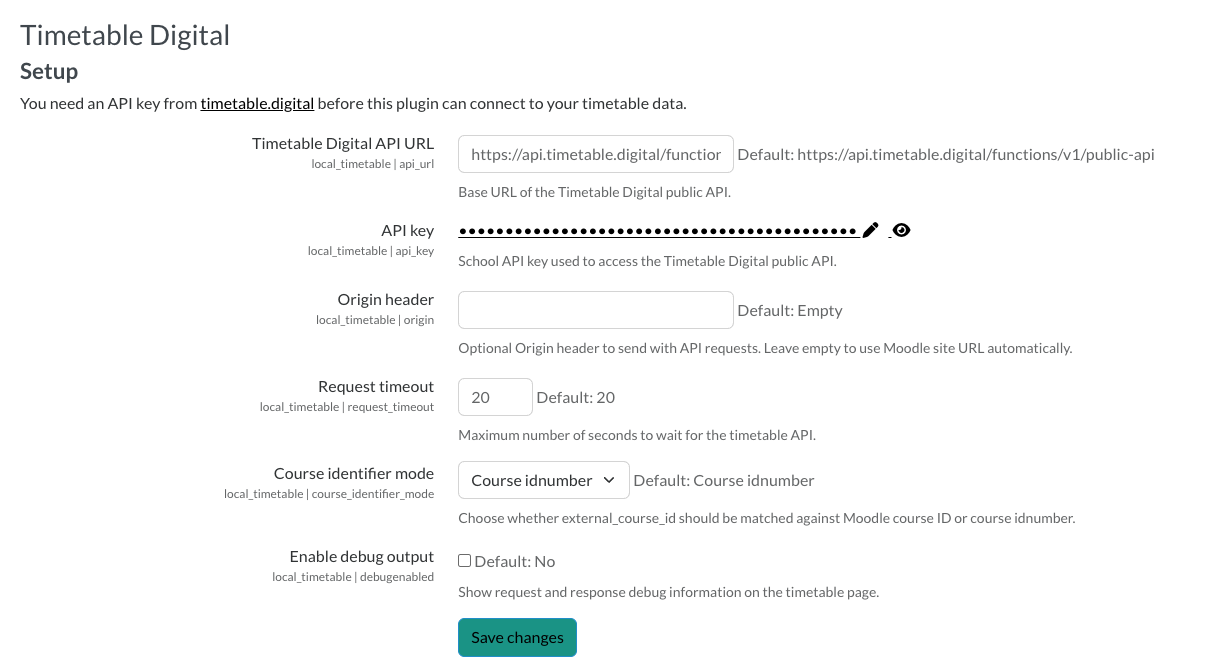
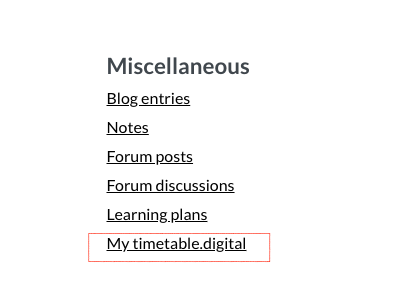
TimeTable Digital (Moodle Plugin) Integration Guide
What is TimeTable Digital?
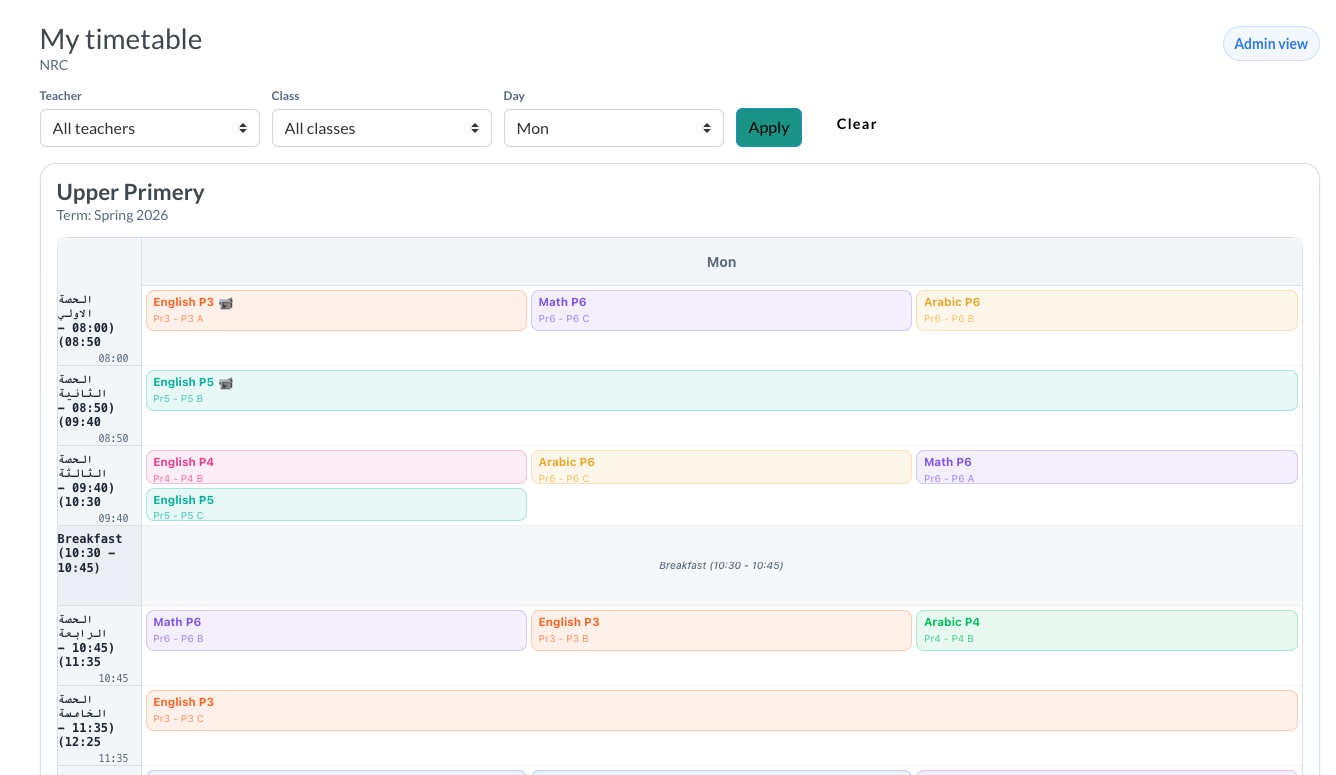
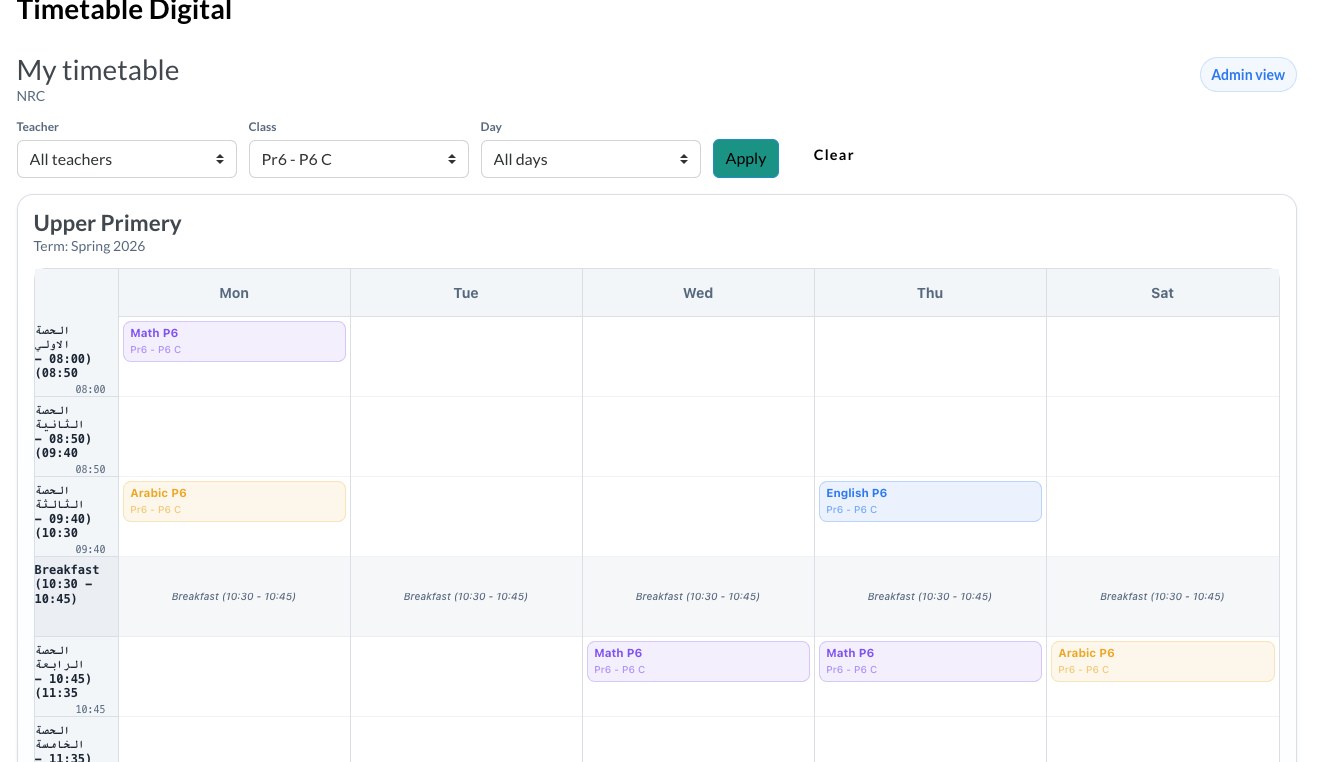
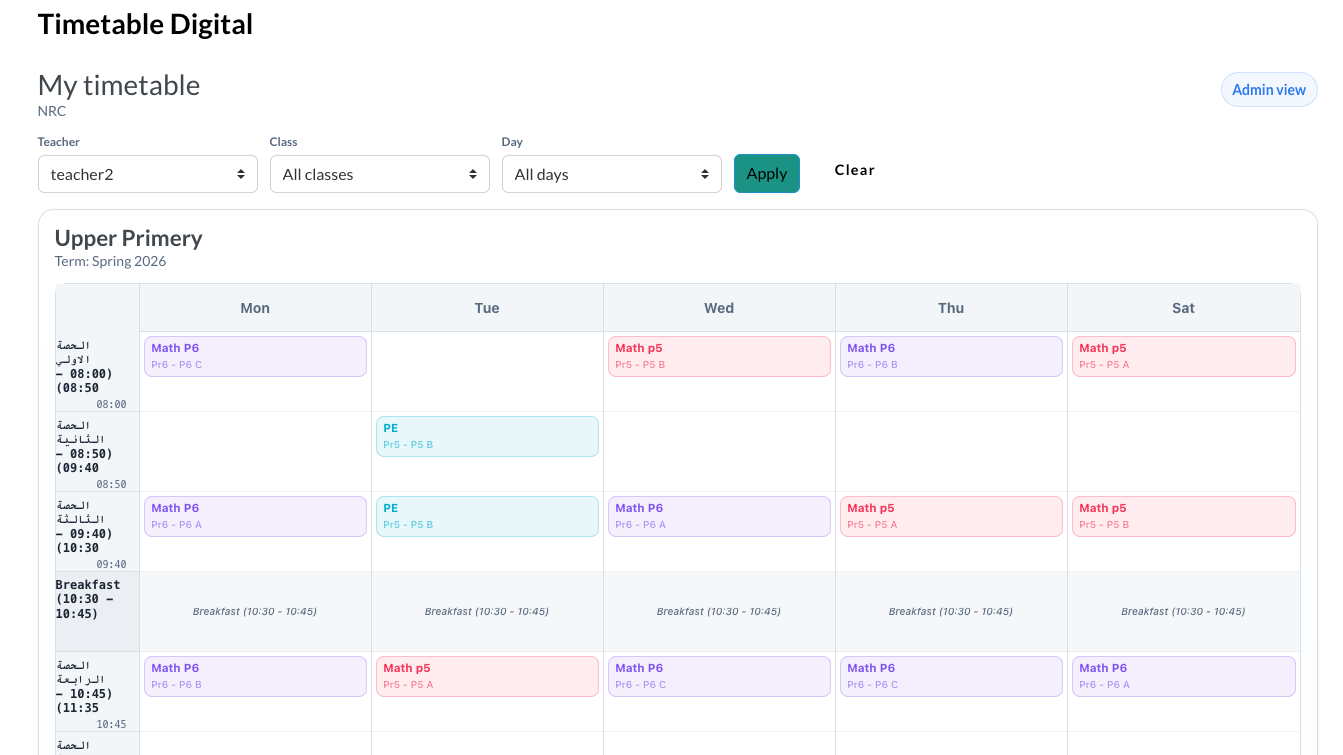
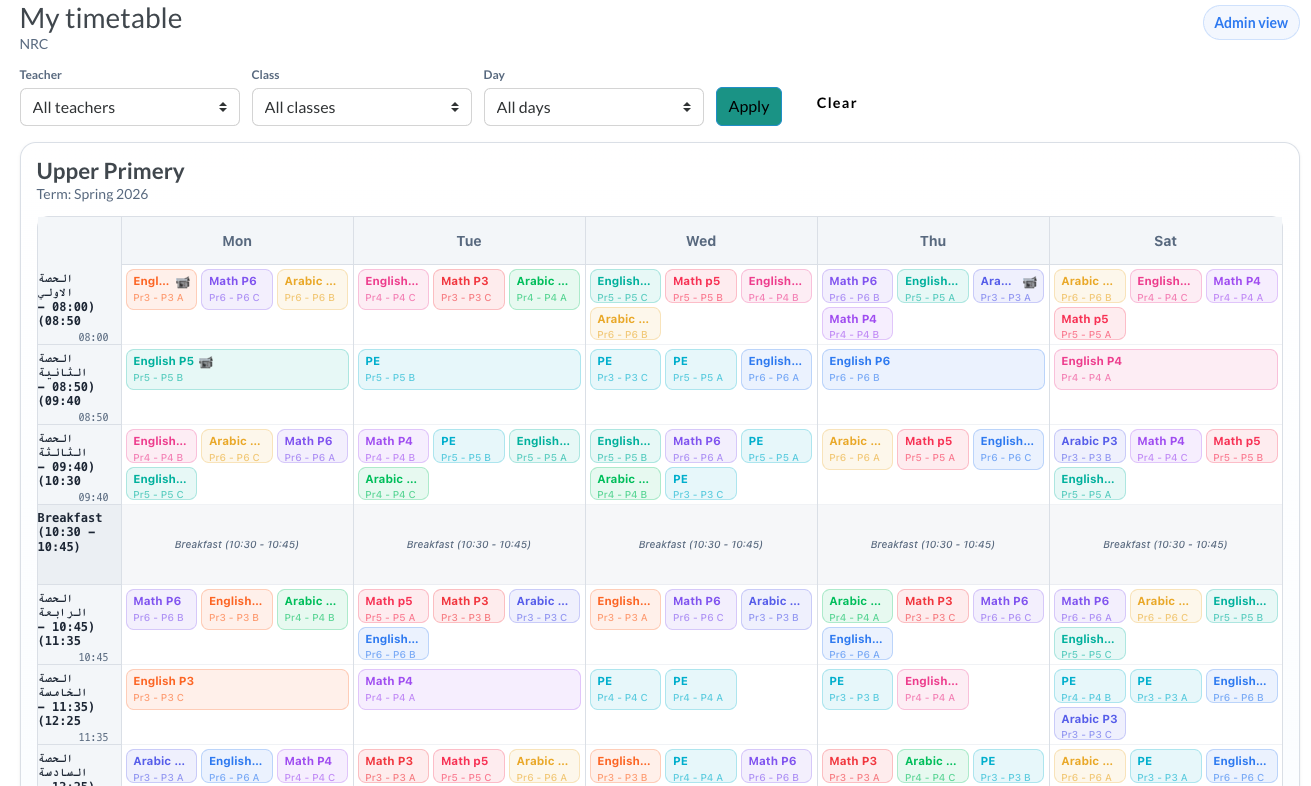
TimeTable Digital is a free school timetable management platform that lets you create, manage, and share timetables with teachers and integrate with Moodle LMS via the TimeTable Digital plugin.
Getting Started (Free)
Step 1: Create an Account
- Visit TimeTable Digital
- Click Sign Up and enter your name, email, and password
- Confirm your email address via the link sent to your inbox
- Complete the onboarding wizard:
- Create a new school — enter your school name and basic details
- You will be assigned the School Admin role automatically
Step 2: Set Up Your School
Once logged in, go to Settings and configure:
- School Info — name, principal, contact details, logo
- Working Days — select which days your school operates (e.g., Sun–Thu or Mon–Fri)
- Period Schedule — define the number of periods per day, start/end times, and break slots
- Academic Terms — create terms with start and end dates
Step 3: Add Your Data
Navigate to the sidebar to add:
| Section | What to add |
|---------------|-------------------------------------------------------|
| Subjects | Math, English, Science, etc. |
| Teachers | Staff names and emails |
| Classes | Class sections (e.g., 1A, 2B) grouped by grade |
| Classrooms| Rooms and labs (optional) |
Step 4: Assign Subjects to Classes
In the Subjects page, assign each subject to a class with:
- The teacher responsible
- Sessions per week (e.g., Math ' Class 1A ' 5 sessions/week)
- Optional: External Course ID — use your Moodle course ID here for easy mapping
Step 5: Generate a Timetable
- Go to Timetables ' click New Timetable
- Select the term, working days, and periods per day
- Click Generate Draft to auto-generate a timetable
About Auto Draft Generation
The Generate Draft feature uses a smart constraint-based algorithm to automatically place all sessions into available slots. It considers:
- Spread Sessions — avoids clustering the same subject on consecutive days (1–3 day gap)
- Teacher Rest Gap — minimizes back-to-back sessions for teachers
- Balanced Load — distributes sessions evenly across the week
- Double Sessions — places consecutive periods for subjects that need them (e.g., labs)
After generation, a Generation Report shows exactly how each session was placed, including any that couldn't be scheduled due to conflicts. You can manually adjust entries by drag-and-drop or direct editing.
' Free plan includes auto draft generation. An optional AI Solver (powered by OR-Tools) is available on higher tiers for more advanced constraint optimization.
API Key Setup for Moodle Integration
Step 6: Create an API Key
- Go to Settings ' API Keys tab
- Click Create API Key
- Configure the key:
- Name — e.g., "Moodle Integration"
- Scopes — select which data Moodle can access:
timetable — timetable entries with full schedule data
teachers — teacher names and emails
classes — class sections with external IDs
subjects — subject list with colors
- Allowed Domain (optional) — restrict access to your Moodle server's domain
- Click Create — the API key will be shown once. Copy it immediately.
⚠️ Important: The key starts with cf_ and cannot be retrieved after creation. Store it securely.
Step 7: Map External IDs
For seamless Moodle integration, set External IDs on your data:
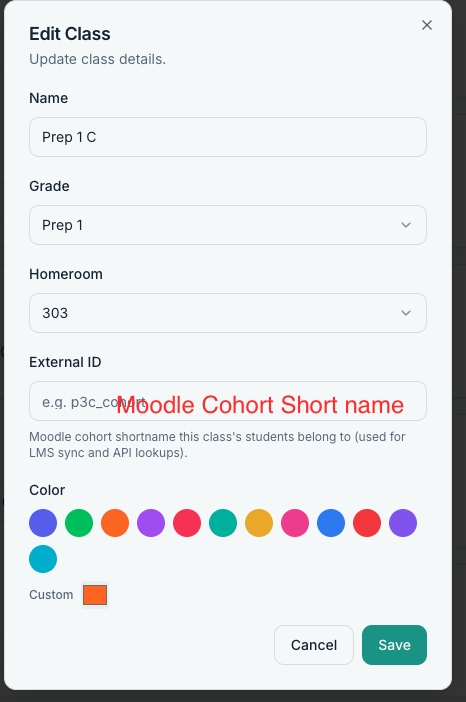
- Classes ' set
external_id to your Moodle Cohort ID (e.g., moodle_cohort_1a)
- Subject Assignments ' set
external_course_id to your Moodle Course ID (e.g., moodle_math_101)
These IDs allow the Moodle plugin to filter and match timetable data automatically.
Free Plan Includes
| Feature | Free Plan |
|----------------------------|-----------|
| Timetable creation | " |
| Auto draft generation | " |
| Manual editing & drag-drop | " |
| PDF / Excel / ICS export | " |
| API keys for Moodle | " (limited count) |
| Teacher feedback system | " |
| AI Solver (OR-Tools) | " (paid tiers) |
Support
For questions or integration help, use the Contact button inside the app or reach out to sameh@timetable.digital.