
Moodle eMail Test
Maintained by
Michael Milette
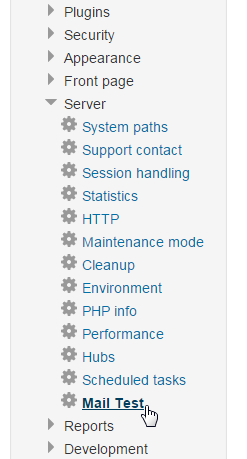
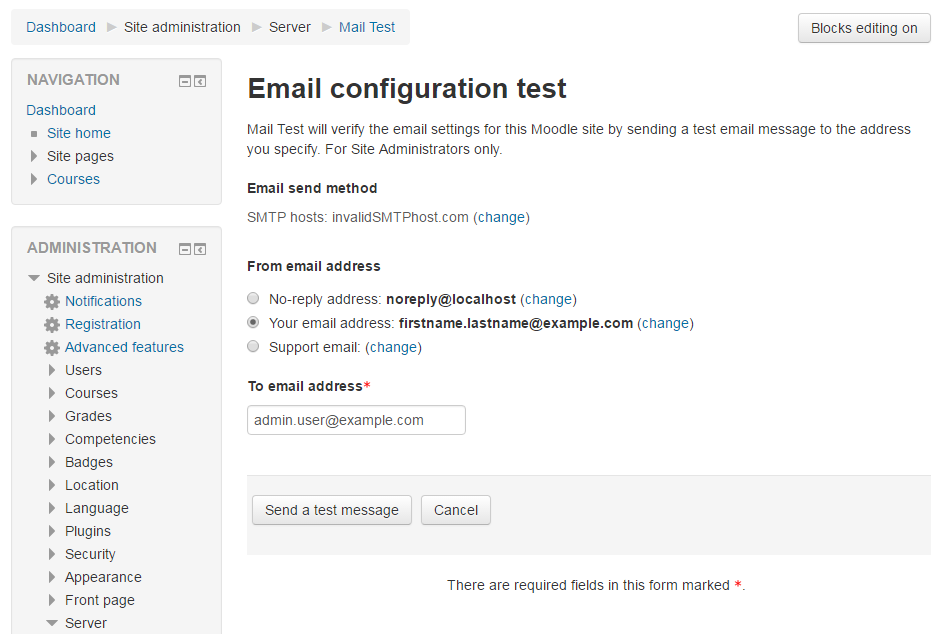
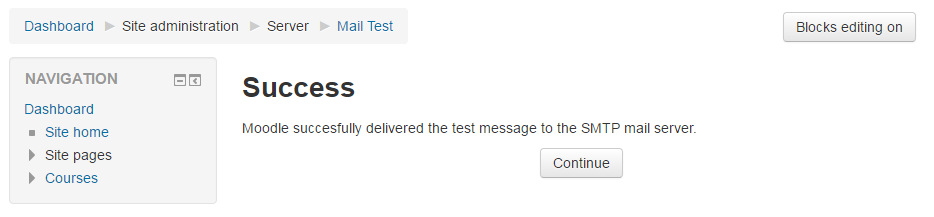
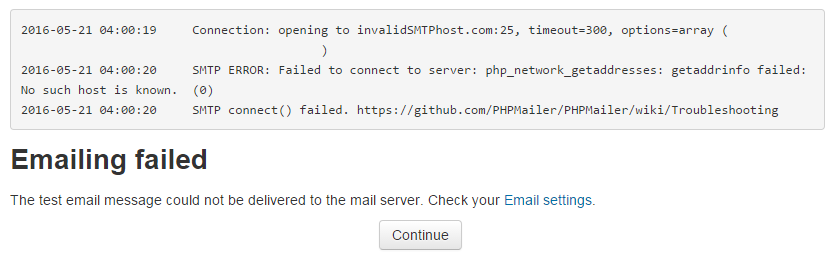
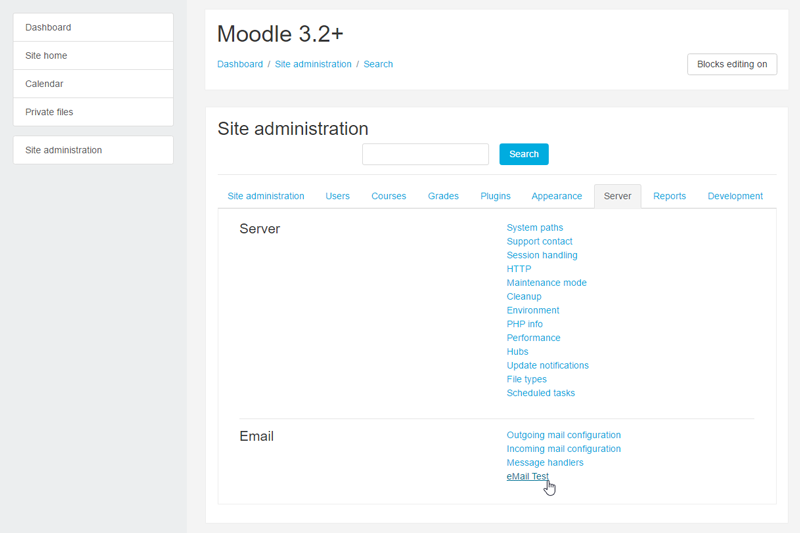
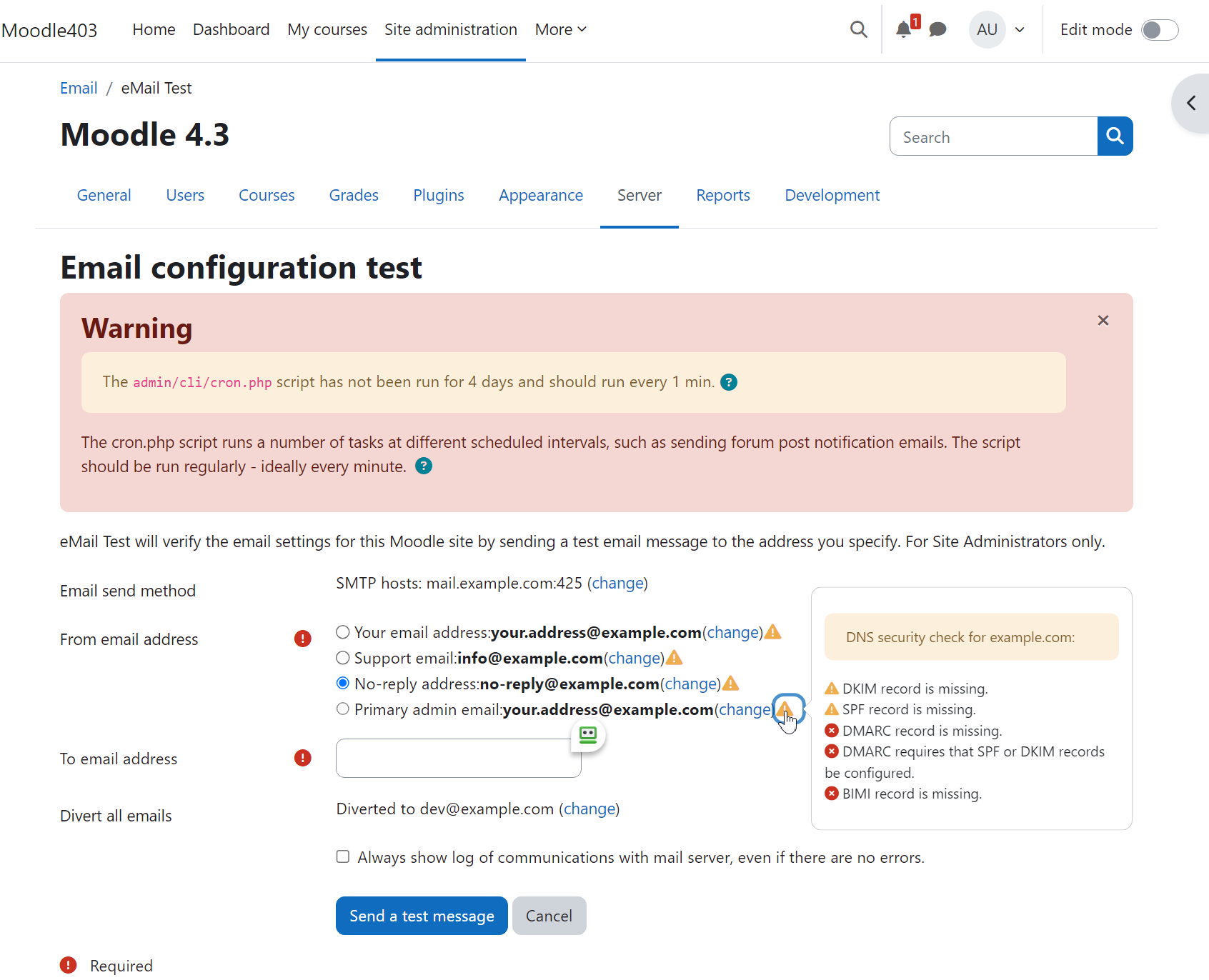
Moodle eMailTest is a powerful tool that enables administrators to test Moodle’s email system with ease. With this plugin, you can rest assured that your emails will be delivered without any hiccups. In case of any issues, a trace of the SMTP dialogue will be displayed. The plugin will also attempt to diagnose the issue and help you identify and resolve the problem quickly.
Comments
Comments are no longer open for new posts. Existing comments remain available to read.
This error message usually appears when you have too many email recipients or there is a limit on how many emails you can send through your mail server.
Since MailTest only sends messages to a single recipient at a time, it is probably more likely that your mail server provider has either placed a limit on how many emails you can send through it or that you have exceeded the storage quota of your email account or the physical drive.
This actually happened to me recently. My ISP created a mailbox for my account when I signed up. Each time a cron job would run, it would send an email to that account. Over the years it added up to over 500,000 emails. There were so many emails that they had to clear it from the command line as there was no email client that could handle this many emails. It really surprised me as I was not even aware that the email address even existed.
As for your situation, the next step would be to contact your service provider and get them involved in troubleshooting the mail server.
Hope you find this useful. Best regards,
Michael
Do you have any idea for the following error:
2017-10-04 09:29:37 SERVER -> CLIENT: 250 Recipient accepted
2017-10-04 09:29:37 CLIENT -> SERVER: DATA
2017-10-04 09:29:37 SMTP -> get_lines(): $data is ""
2017-10-04 09:29:37 SMTP -> get_lines(): $str is "452 Sent messages limits exceeded
"
2017-10-04 09:29:37 SERVER -> CLIENT: 452 Sent messages limits exceeded
2017-10-04 09:29:37 SMTP ERROR: DATA command failed: 452 Sent messages limits exceeded
2017-10-04 09:29:37 SMTP Error: data not accepted.
The test email message could not be delivered to the mail server.
The email test OK and it was working perfectly.
As a Moodle Administrator, you can check if Cron is running regularly by going to the Site Administration > Notifications.
If cron hasn't run in the last 24 hours, you will see something like:
"The cron.php maintenance script has not been run for at least 24 hours.
If you don't see anything about it, chances are that Cron is running automatically at least once a day.
There is also the possibility that an error is preventing Cron from working properly. The likelihood of this happening is much lower since Moodle 2.7. You should be able to manually run Cron and see the results by logging in as a Moodle Administrator and going to:
http://example.com/admin/cron.php
Just replace "http://example.com/" with the URL to the root of your Moodle site.
There are some settings in Moodle which can prevent this URL from working so, if it doesn't seem to work, don't assume that Cron doesn't work. It might just be some Moodle settings. If Cron is running regularly, the displayed log might be pretty short as there are items which are only run once a day which may not appear in the list. This is especially noticeable if you run Cron manually twice in a row.
Thanks again for asking. I will add a check for cron similar to the one on the Notifications page to let you know if there is a problem with the scheduling of the cron script in the next version of the mailtest plugin as this could be a potential reason why emails don't seem to be delivered.
By the way, it's never too late to setup Cron. Not only will you find that your Moodle site works better, it may actually work faster too. If you are running Moodle on a Unix/Linux based server, documentation on how to set it up can be found at https://docs.moodle.org/31/en/Cron. If you are running Moodle on Windows, you may have noticed that "cron" doesn't exist. However Windows does also include a Scheduler. You will find details on how to set that up by going to https://docs.moodle.org/31/en/Cron_with_Windows_OS.
Best regards,
Michael Milette
The plugin is likely working as it was made to. It simply tests whether Moodle was able to successfully deliver an email to the SMTP server. It cannot determine what happens to that email message after the server accepts it. For example, the server could reject it if it considers it to be SPAM or there could be a problem with the SMTP server's ability to forward the message. Your next step would be to check the SMTP server logs to see what it did with your message which is not part of the plugin's functionality since this isn't part of Moodle.
If you want to double check the SMTP dialogue between Moodle and the SMTP server, just click Home > Site Administration > Development > Debugging and check the box for "Debug email sending". Then go back and repeat the test. The results should be display, even if the plugin doesn't detect a problem.
Hope this helps.
Best regards,
Michael
Thanks Michael for sharing this simple yet useful plugin with the Moodle community. Please see your issues tracker where several improvements suggestions have been reported while they were detected during the review. With the hope the issues will be addressed in a future update of the plugin, I am going to approve the plugin now. You are cleared to land, welcome to the Plugins directory!
http://integration.moodle.org/job/Precheck%20remote%20branch/18173/artifact/work/smurf.html