Course Calendar (local_coursecalendar)

A Moodle local plugin that lets teachers define reusable course content once, build semester calendars from that content, and publish a student-facing calendar view inside Moodle.
| | |
|---|---|
| Plugin type | Local (local_coursecalendar) |
| Requires | Moodle 4.2+ (2023042400) |
| Tested on | Moodle 5.0 (MOODLE_501_STABLE) |
| Maturity | Beta |
| License | GPL v3 or later |
Table of Contents
- Installation
- Getting Started
- Capabilities and Roles
- Plugin Settings
- Feature Guide
- Page Reference
- Database Tables
- Upgrading
- Troubleshooting
- Reporting Issues
- License
Installation
The repository root is the plugin directory itself, so the contents clone or extract directly into your Moodle's local/coursecalendar/ folder.
Option A: Git clone (recommended)
From the root of your Moodle installation:
git clone https://github.com/GitHubGreg/moodle-local_coursecalendar.git local/coursecalendar
Option B: Download a release zip
- Download the latest release zip from the Releases page.
- Extract it so the plugin files (
version.php, db/, lang/, amd/, etc.) live directly at <moodle>/local/coursecalendar/.
Finish the install
- Log in to Moodle as a site administrator.
- Navigate to Site administration > Notifications to trigger the database install.
- Confirm the plugin appears under Site administration > Plugins > Local plugins.
After installation, two course navigation links appear automatically for every course:
- Course calendar builder (visible to editing teachers and managers)
- Course calendar (visible to all enrolled users, including students)
Getting Started
The typical workflow for a new teacher is:
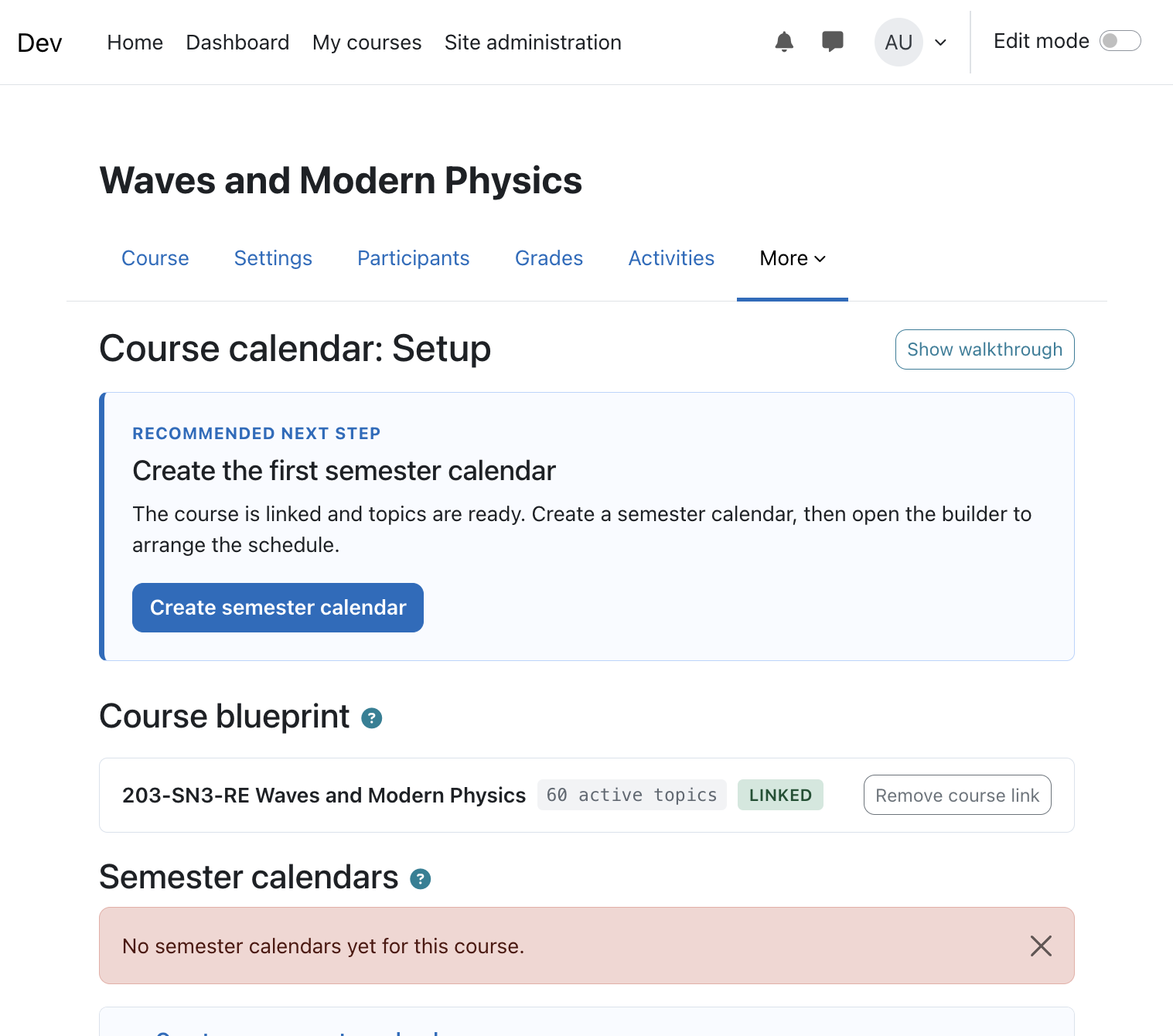
- Create a blueprint -- Go to any course > Course calendar builder > create a blueprint with a name (e.g. "Intro to CS").
- Add topics -- Add your lecture topics, labs, eLessons, tests, and homework assignments to the blueprint.
- Link the course -- Link the current course to the blueprint (manual or auto-link).
- Create a semester calendar -- Specify the year and semester (Fall/Winter/Summer).
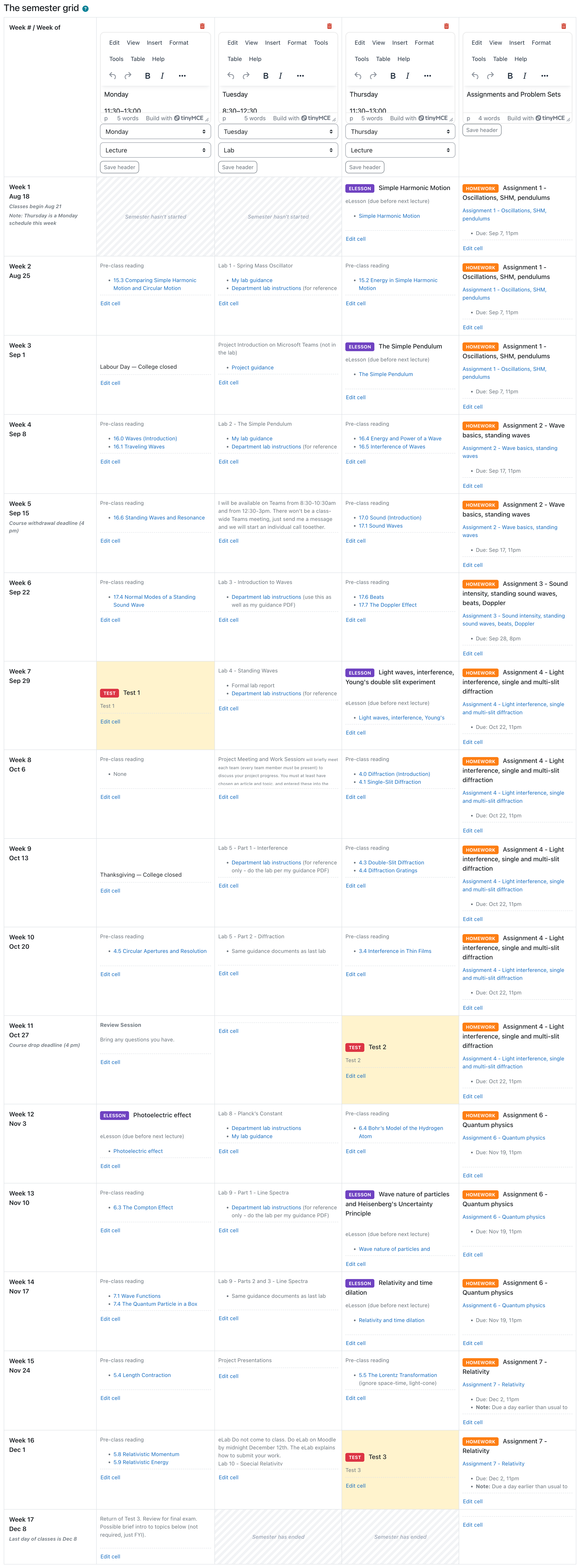
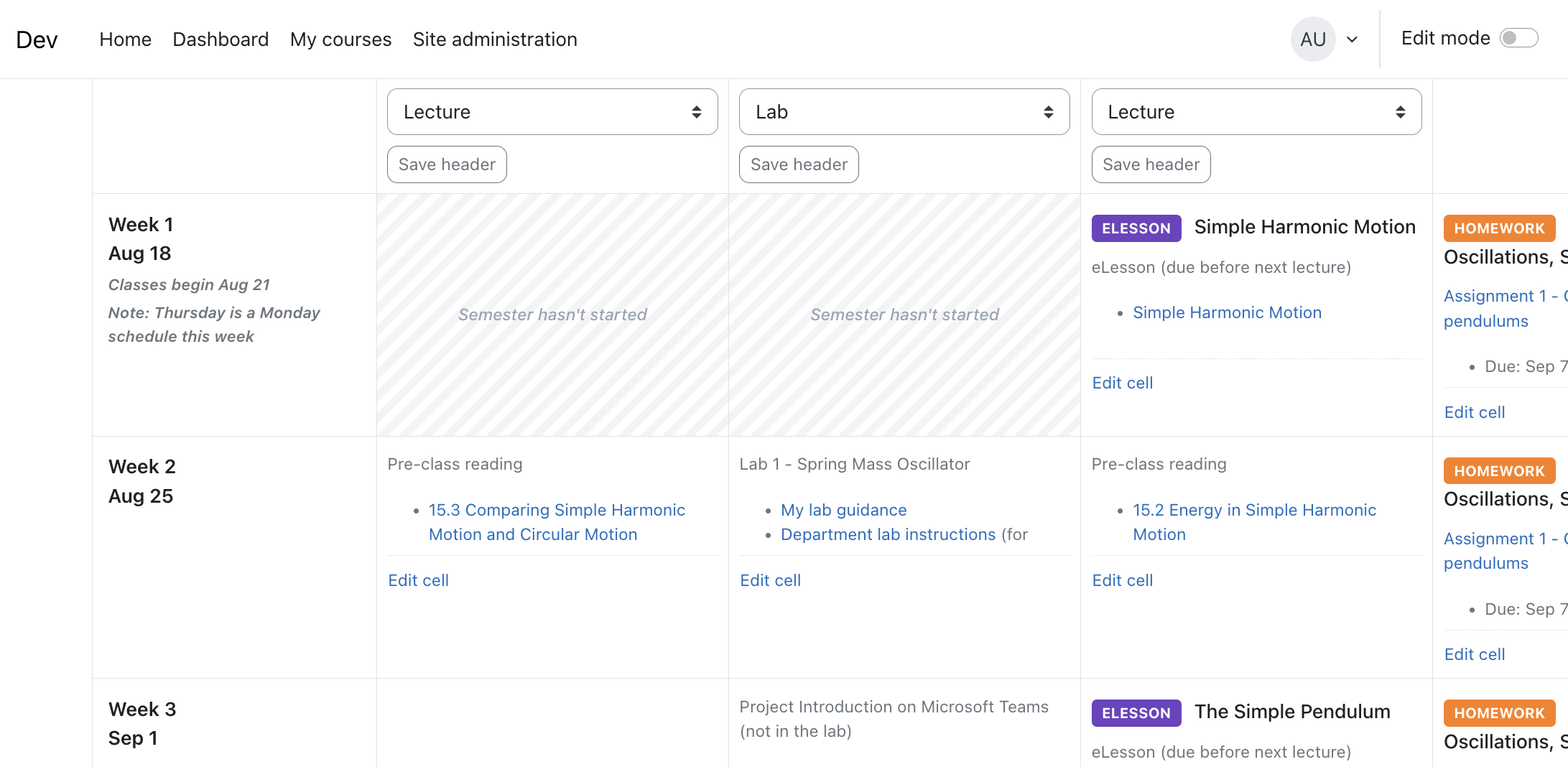
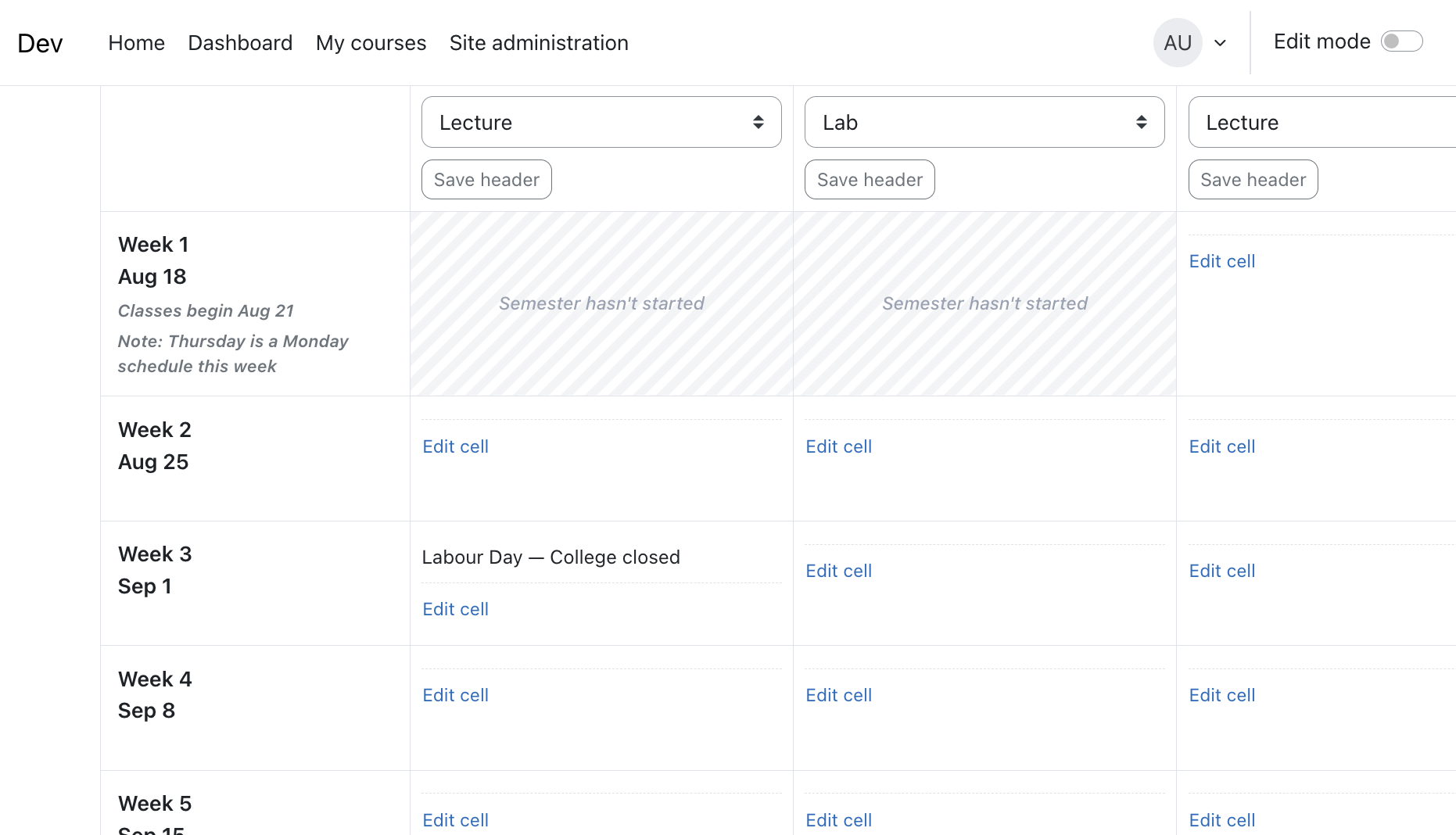
- Set up the grid -- Open the builder, configure header columns (day-of-week and Lecture/Lab mode), add week rows.
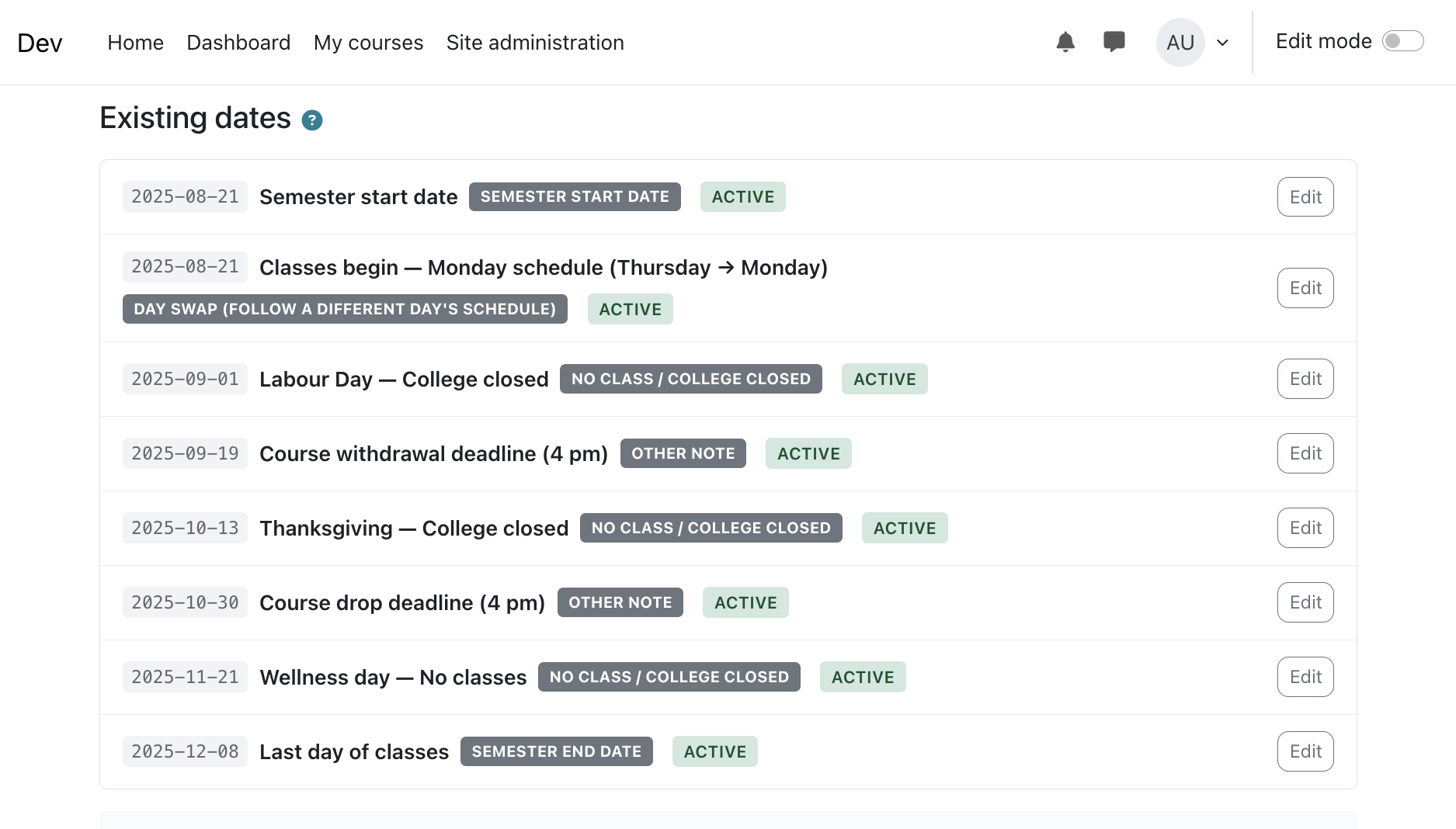
- Define academic timeline -- Go to Manage Rules, add semester start/end dates and exceptions (holidays, day swaps), then apply rules to generate week labels.
- Place topics -- Use Auto-populate to place topics in the grid automatically, or place them manually via cell editors.
- Fill gaps -- Use Fill Problem Sessions to populate empty lab cells, check coverage for missing topics.
- Publish -- Students see the calendar via the Course calendar navigation link. Add Welcome/Links info via Course Info.
Capabilities and Roles
| Capability | Default roles | Purpose |
|---|---|---|
| local/coursecalendar:managesettings | Manager | Access plugin admin settings (e.g. API keys) |
| local/coursecalendar:managecalendar | Editing teacher, Manager | Full access to builder, topics, rules, automation, and course info |
| local/coursecalendar:viewcalendar | Guest, Student, Teacher, Editing teacher, Manager | Read-only access to the student calendar view |
Teachers can only see and edit blueprints they own. All builder pages enforce require_login() and require_capability() in the course context.
Plugin Settings
Navigate to Site administration > Plugins > Local plugins > Course Calendar.
| Setting | Description |
|---|---|
| Gemini API Key | Google Gemini API key for the AI-assisted academic calendar import feature. Leave blank to disable AI import. |
Feature Guide
Blueprints
A blueprint is a reusable topic library owned by a teacher. It represents a subject stream (e.g. "Mechanics", "Intro to CS") and stores the canonical set of topics used across semesters.
Where: Course calendar builder (manage.php) > Blueprint library section.
Actions:
- Create blueprint -- Name, optional shortcode, and description.
- Edit blueprint -- Update name, shortcode, or description.
- Archive/unarchive -- Archiving hides a blueprint from the active list but preserves it.
Blueprints are per-teacher. Each teacher sees only their own blueprints.
Topics
Topics are the individual content items within a blueprint. Each topic has a type that determines how it is placed and styled in the calendar.
Where: Course calendar builder (manage.php) > Blueprint topics section.
Topic types:
| Type | Color | Auto-placement column | Description |
|---|---|---|---|
| LECTURE | Blue | Columns 1-3 (Lecture mode) | Standard lecture topics |
| LAB | Green | Columns 1-3 (Lab mode) | Laboratory sessions, placed after prerequisite lectures |
| ELESSON | Purple | Columns 1-3 (Lecture mode) | Online lessons students complete instead of attending class |
| TEST | Red | Columns 1-3 (Lecture mode) | Exams/tests, displayed with highlighted yellow styling |
| HOMEWORK | Orange | Column 4 | Assignments and problem sets |
Actions:
- Create topic -- Title, type, and HTML content.
- Edit topic -- Update any field.
- Reorder -- Move up/down to change placement order (affects auto-populate).
- Toggle active -- Deactivated topics are hidden from the topic picker and auto-populate but remain in existing calendar placements.
- Delete topic -- Blocked if the topic is referenced by any calendar block.
Live reference model: Calendar blocks that reference a topic always render the current content from the blueprint. Editing a topic's content immediately updates every calendar that uses it.
Course Linking
Each Moodle course links to exactly one blueprint to access its topic library.
Where: Course calendar builder (manage.php) > Course to blueprint link section.
Linking methods:
- Manual link -- Select a blueprint from the dropdown and save.
- Auto-link suggestion -- The plugin can suggest a match based on course metadata. Click "Apply auto-link suggestion" to accept.
Semester Calendars
A semester calendar is the per-course, per-semester container that holds the builder grid state.
Where: Course calendar builder (manage.php) > Semester calendars section.
Actions:
- Create -- Specify year, semester (Fall/Winter/Summer), and optional display title.
- Edit title -- Update the display title.
- Open builder -- Navigate to the full grid builder page.
- Toggle active -- Deactivate calendars no longer in use.
- Delete -- Permanently remove a calendar and all its blocks.
The Builder
The builder is the main grid editing interface where teachers assemble the semester calendar.
Where: calendar.php (accessed via "Open builder" from manage page).
Grid structure:
| Column | Purpose | Header config |
|---|---|---|
| 0 | Week labels | Read-only, generated by rules |
| 1-3 | Teaching days | Day-of-week + Lecture/Lab mode |
| 4 | Assignments | Fixed-purpose for homework |
Header row (row 0):
- Columns 1-3 each have: display name, day-of-week selector, Lecture/Lab mode selector.
- Column 0 shows "Week # / Week of", column 4 shows a static label.
- Click "Save header" to persist changes.
Week rows:
- Add week row -- Appends a new row at the bottom.
- Remove last week row -- Removes the bottom row (if it has no content).
Cell editing:
- Click "Edit cell" to expand the inline editor for any content cell (rows 1+, columns 1-4).
- Choose block type:
- TEXT -- Free-form HTML content.
- TOPIC -- Select a topic from the linked blueprint.
- Optional settings per cell:
- Cell heading -- HTML annotation displayed above the cell content.
- Highlighted -- Yellow background with left border.
- Vertically centred -- Middle-aligns cell content.
- Empty TEXT submissions clear the cell.
Toolbar:
- Save All -- Batch-saves all pending changes via AJAX (Ctrl+S).
- Undo/Redo -- In-memory undo stack (Ctrl+Z / Ctrl+Shift+Z).
- Unsaved changes badge appears when local edits have not been saved.
Drag and drop:
- Drag any editable cell to swap it with another editable cell.
Page-level links:
- Manage Content -- Back to topic management.
- Manage Rules -- Academic timeline rules page.
- Open Semester Preview -- Student view in a new tab.
- Copy Iframe Code -- Copies an embeddable iframe URL to clipboard.
- Coverage Check -- Topic coverage report.
Academic Timeline Rules
Rules define the academic calendar structure: when the semester starts and ends, holidays, day swaps, and other annotations.
Where: rules.php (accessed via "Manage Rules" from builder).
Rule types:
| Type | Purpose | Fields used |
|---|---|---|
| SEMESTER_START | First day of classes | Date, label |
| SEMESTER_END | Last day of classes | Date, label |
| NO_CLASS | Holiday or break (no classes on this date) | Date, label, description |
| DAY_SWAP | Classes follow a different day's schedule | Date, label, from-day, to-day |
| OTHER | General annotation | Date, label, description |
Actions:
- Create rule -- Select type, date, label, and optional description/day fields.
- Toggle active/inactive -- Deactivated rules are excluded from apply.
- Delete rule -- Permanently remove a rule.
- Apply Rules to Calendar -- Runs the rule engine:
- Generates week labels from SEMESTER_START to SEMESTER_END.
- Adds "Classes begin" and "Last day of classes" annotations.
- Places NO_CLASS markers at the correct row/column based on the date and header day-of-week.
- Appends DAY_SWAP and OTHER annotations to week labels.
- Idempotent: previous rule-generated blocks are replaced; manual edits are preserved.
Auto-populate and Automation
Automation buttons on the builder page handle bulk topic placement.
Auto-populate (green button):
- Places LECTURE, ELESSON, and TEST topics into Lecture-mode columns (1-3) in blueprint sortorder, skipping occupied cells.
- Places LAB topics into Lab-mode columns, positioned after their prerequisite lecture's row.
- Places HOMEWORK topics sequentially into column 4.
- TEST blocks get highlighted (yellow) and vertically-centred styling.
- Existing content is never overwritten.
Fill Problem Sessions (green outline button):
- Scans all Lab-mode columns and inserts "Problem Session" TEXT blocks into empty cells with vertically-centred styling.
Both actions show a confirmation dialog before executing.
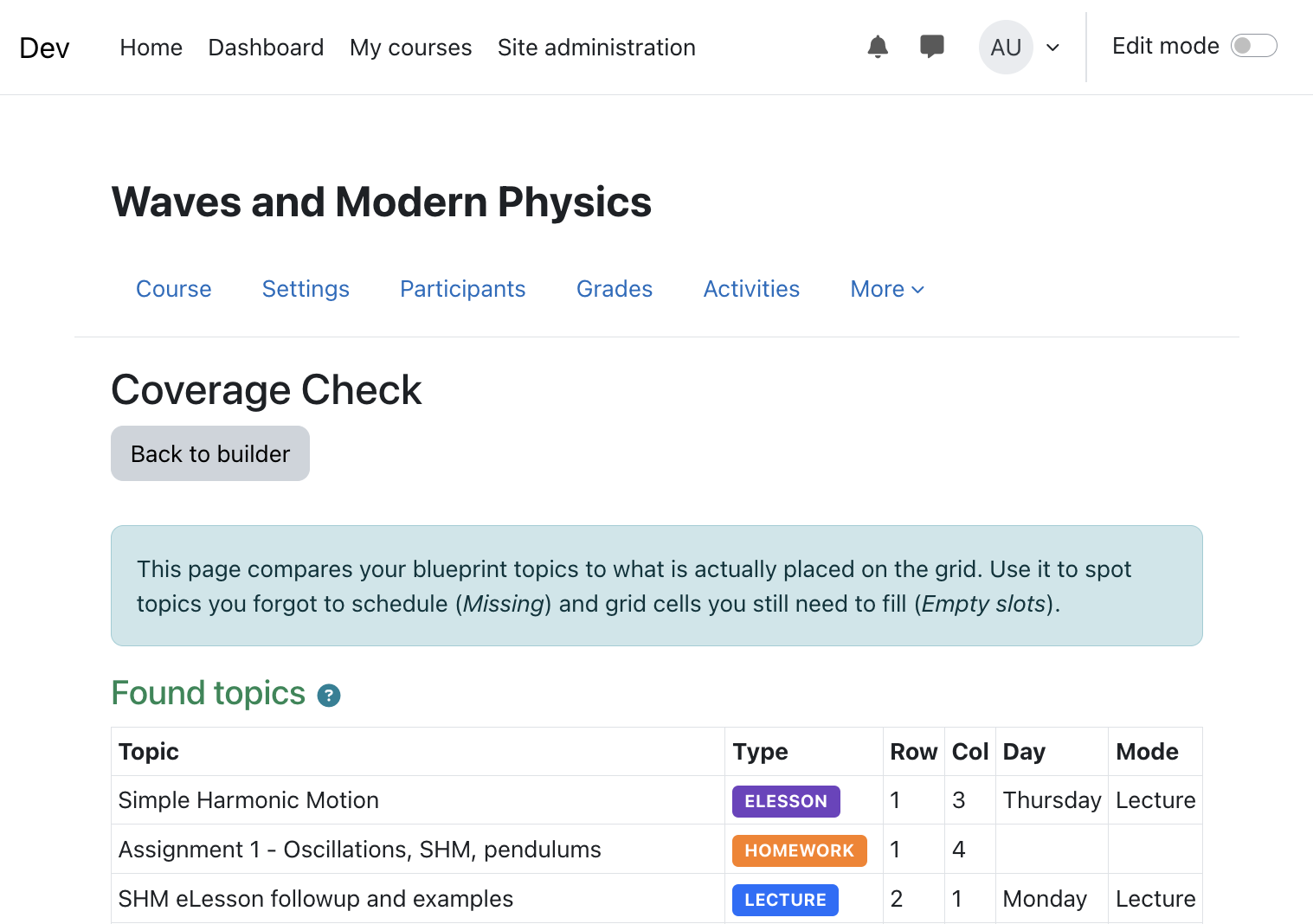
Coverage Check
A report page showing topic placement completeness.
Where: coverage.php (accessed via "Coverage Check" from builder).
Three sections:
- Found topics (green) -- Topics placed in the grid with their position, day, and mode.
- Missing topics (red) -- Active topics that have no TOPIC block in the calendar.
- Empty slots (gray) -- Content cells (cols 1-3) with no block assigned.
Cleanup Actions
Two destructive actions on the builder page, each with a confirmation dialog:
- Delete Non-Header Blocks (red outline) -- Removes all blocks below the header row, including week labels, text content, and topic placements. Use to completely reset the grid.
- Delete Topics & Problem Sessions (red outline) -- Removes TOPIC blocks and "Problem Session" TEXT blocks only, preserving week labels and other manually-entered text content. Useful for re-running auto-populate without losing timeline structure.
Student View
The student-facing calendar shows the full grid with live topic content.
Where: view.php (accessed via the "Course calendar" navigation link).
Features:
- Intro texts -- optional left/right intro areas displayed above the calendar (if configured in the builder).
- Today highlighting -- The cell matching today's date (Eastern Time) is highlighted with a blue border.
- Nearest-row highlighting -- If today doesn't match a specific cell, the nearest week row is highlighted.
- Auto-scroll -- On page load, the browser scrolls to bring the current/nearest row into view.
- Live content -- TOPIC blocks render the latest
contenthtml from the blueprint (not a snapshot).
- External links -- All links inside topic content and course info open in new tabs (
target="_blank").
- Type badges -- Color-coded badges indicate topic type (LECTURE, LAB, ELESSON, TEST, HOMEWORK).
Intro Texts
Supplementary content displayed above the student calendar.
Where: calendar.php, in the "Intro texts (optional)" section of the builder.
Fields:
- Intro text (left) -- left-side introductory text.
- Intro text (right) -- right-side introductory text. Links automatically open in new tabs in the student view.
Embedded View
A minimal-chrome version of the student calendar, designed for embedding in iframes.
Where: embed.php (URL copied via "Copy Iframe Code" on the builder).
Differences from student view:
- Uses Moodle's
embedded page layout (no site navigation, header, or footer).
- Includes today-highlighting and auto-scroll.
- Ideal for embedding in external LMS pages or course homepages.
Migration Helpers
Tools for importing existing calendar content into the plugin.
Where: import_topics.php (accessed via "Import Topics" on the manage page).
Seed topics from HTML table:
- Paste an HTML table from an existing calendar (e.g. copied from a spreadsheet or web page).
- Select the column layout: LLL (three Lecture columns), LLB (two Lecture + one Lab), LBL, or BLL.
- Click "Import topics" -- the parser:
- Detects topic types from content patterns (e.g. "Test" prefix = TEST, "Lab" prefix = LAB, "eLesson" = ELESSON).
- Filters out non-topic content (Problem Session, College Closed, holidays).
- Creates blueprint topics in order with full HTML content preserved.
Bulk eLesson link updater:
- Paste HTML containing eLesson links (e.g. from a course page).
- Click "Update eLesson links" -- the matcher:
- Compares link text to the first bullet point in each ELESSON topic's content.
- Updates the
href in matched topics.
- Reports how many were updated and how many were not matched.
Delete all topics:
- Red "Delete All Topics" button with confirmation dialog.
- Permanently removes all topics from the current blueprint.
AI Calendar Import
AI-assisted extraction of academic calendar dates into timeline rules.
Where: ai_import.php (accessed via "AI Calendar Import" on the rules page).
Prerequisites: A Gemini API key must be configured in plugin settings.