Justin Hunt
Lead maintainer

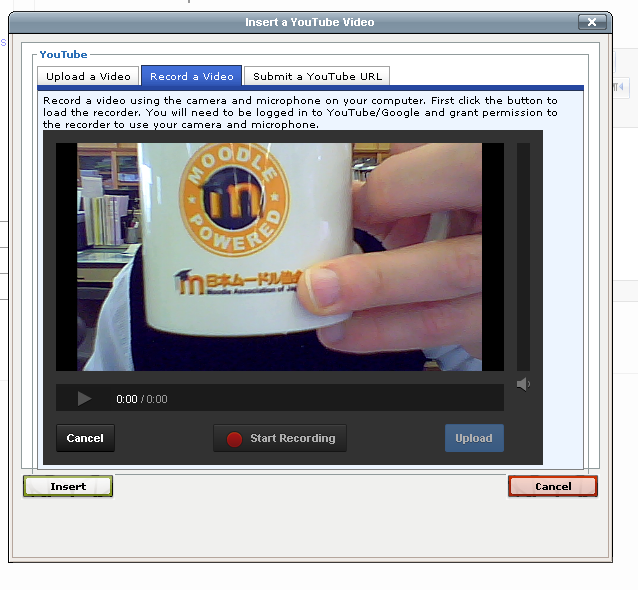
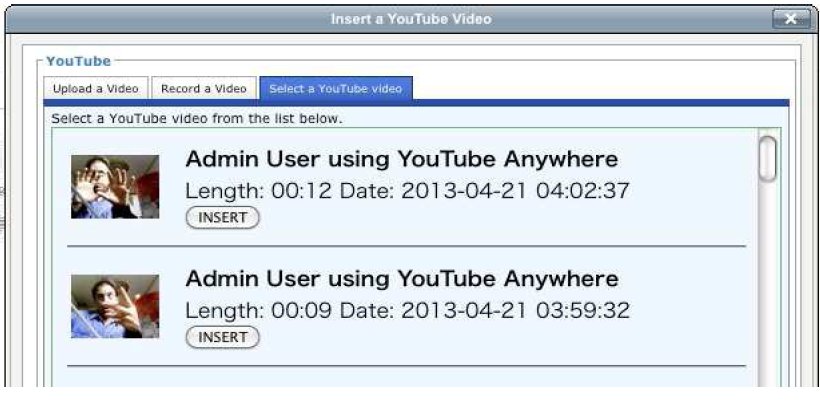
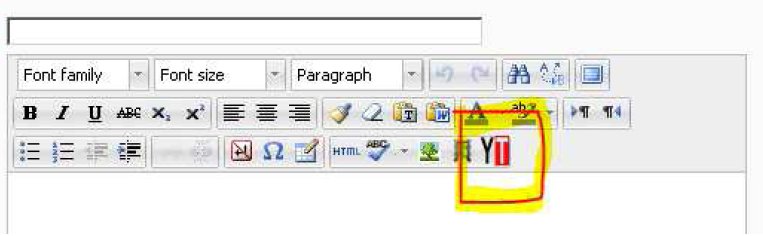
YouTube Anywhere allows students and teachers to record directly from webcams and mobile devices, or to upload video files, into YouTube.
YouTube takes care of the storage of the videos and handles all the pesky file conversions and playback stuff.
Care has been taken to give the Moodle administrator control over who can access YouTube Anywhere. Authentication with YouTube can be done using the same Google keys as used in the Google Docs repository.
Requirements
* Moodle 2.4 or greater
* Internet access
* Multimedia plugins filter enabled (to turn YouTube links into YouTube players)
* YouTube API keys (Public API Key, OAUTH2 client id, OAUTH2 client secret).
These are available free of charge from YouTube/Google.
Installation
The YouTube Anywhere plugin is contained in the youtube folder. That folder should be placed in the following directory of a Moodle installation: [PATH TO MOODLE]/lib/editor/tinymce/plugins
Other folders in that directory will include, spellchecker and moodlemedia.
Once the folder is in place Moodle will be able to install the plugin. Login as the site administrator. Moodle should detect the YouTube Anywhere plugin and present a page with plugin information and the option to proceed to install a new plugin. If Moodle does not automatically direct you to this page, you can go there from the Moodle menu:
Site Administration -> Notifications
Follow the prompts to install the plugin. On the last step Moodle will show the settings page for YouTube Anywhere. The settings can be accessed by the administrator at any time from the Moodle menu:
Site Administration -> Plugins -> Text Editors->TinyMCE HTML Editor -> YouTube Anywhere
Post Installation Settings
You will need several keys to authorize access to the YouTube API.
To get this go to:
https://console.developers.google.com
You will need to create a project for your website. Only one is necessary for your Moodle site, and you can use the same keys for Google Docs or Picasa. If you are running either of those with Moodle, you can use the keys you already have. You will need to create and get:
i) a public api key
ii) an oauth2 client id
iii) an oauth2 client secret
This screenshot indicates how your API project on Google might look.
More information on getting Google OAuth2 set up for Moodle is here: https://docs.moodle.org/27/en/Google_OAuth_2.0_setup
There are two authentication methods possible, "master account" and "student account."
If using master account authentication, you will need to enter a valid YouTube username and password.
More detailed documentation can be found in a PDF file, that should accompany this plugin.