Eoin Campbell
Lead maintainer

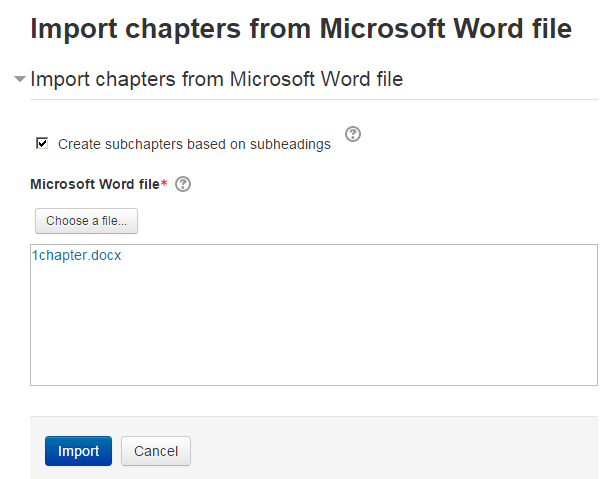
This plugin supports importing a Microsoft Word docx-formatted file as chapters to a book. The file is split into chapters and subchapters based on the built-in heading styles "Heading 1" and "Heading 2" in Word. Embedded images are also imported if they are in web-compatible format (GIF, PNG, JPEG).
It imports .docx files only, not the older .doc format. Note that files in.docm format (i.e. including macros) are not supported.
Both GoogleDocs and LibreOffice 5.x can also save files in .docx format, and they will import too, but generally the quality is not as good as those files saved from the native Word editor, even if the document uses the same built-in "Heading 1" and "Heading 2" styles well. Your mileage may vary.
Note also that the PHP XSL extension must be enabled on your webserver, and the plugin requires Moodle 2.7 or higher.
After installation, the Book administration menu should have a new item added, similar to the screenshot below. You must create a new book, or turn on editing in an existing book, to see this menu.
The plugin can also be used to export books, or chapters from books, back into Word .doc format. In general heading elements in HTML are converted back into corresponding heading styles in Word, and so on with other styles. The exported file must be opened first using Microsoft Word. You can then save it to .docx format and edit it in LibreOffice or GoogleDocs. If the exported file contains images, then you must use Word 2019 or higher, or Word 365 (web version) , in order for images to be opened correctly.

