
AutoEnrol
Maintained by
Roberto Pinna, Mark Ward
Adds functionality to automatically enrol users onto a course, either as they log in to your Moodle site or as they access a course.
This plugin was at first intended for use on courses which you want all users to be able to access but can also be configured for more advanced purposes as reserved access courses.
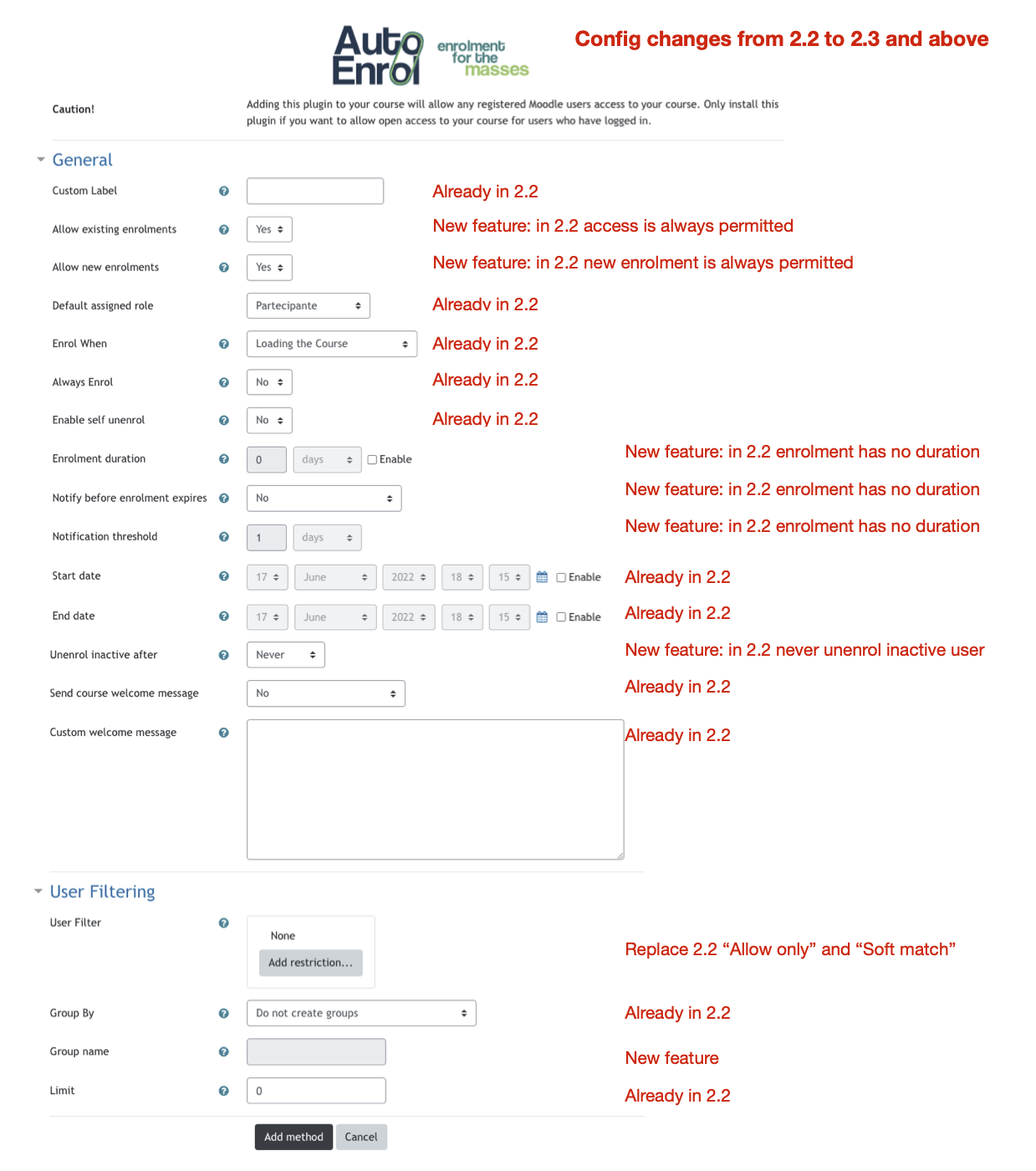
Using the new user filtering you can think at Autoenrol as a Swiss Army knife for Moodle enrolments.

Comments
Product ratings and reviews are coming to Moodle Marketplace. Until then, existing comments remain available to read, but new posts have been disabled.
I'm sorry but I didn't find any reference to a "position" field in Moodle.
The user database table does not include it, and if you don't have a user profile custom field called position I don't think you can manage it without an additional availability plugin.
I suggest to you to search for an availability plugin that check the "position" field in order to use it with autoenrol.
HTH,
Roberto
Thanks for such a cool plugin.
Tell me, please, how can I add the "position" field in the application, because when choosing fields, it is not there and is most likely not available on the platform either.
It turns out that you first need to add this field through the administration panel so that timing data is recorded there? And then it is already expected in the course auto-assignment add-on?
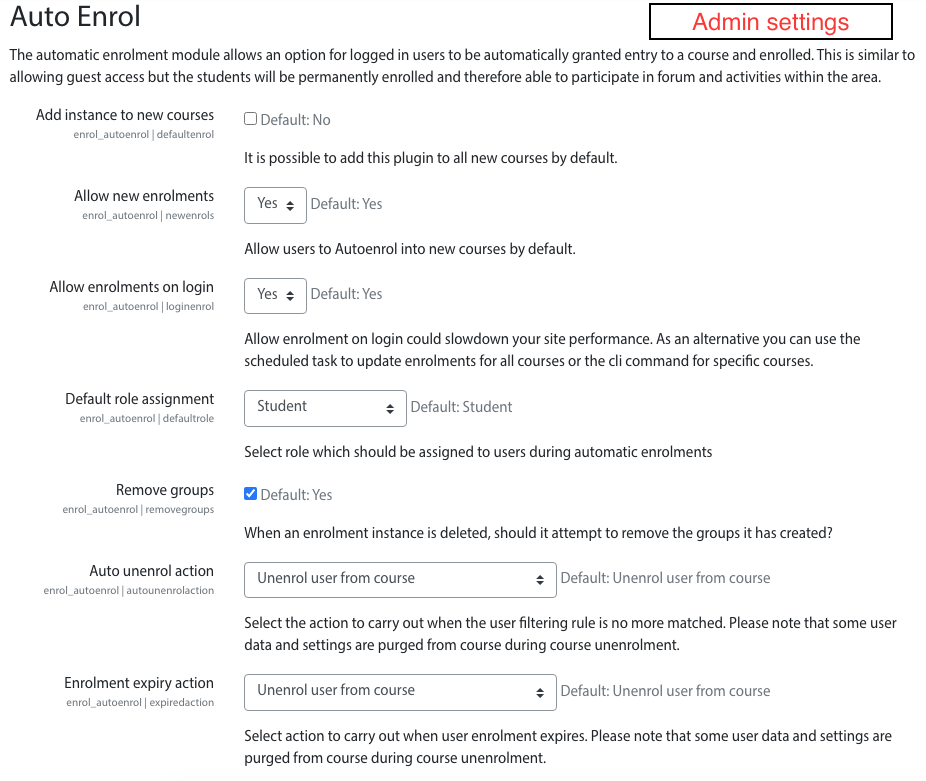
The Auto Enrol plugin must be enabled after installation.
Go to
Site administration -> Plugins -> Plugins overview
The plugins are grouped under various headings/types.
Find the Enrolment methods heading.
Next to that heading will be a gear icon.
Click the gear icon.
You will see a list of Available course enrolment plugins.
The Auto Enrol row will be greyed out.
Click the "eye" icon to Enable the plugin.
Now, go to your Course.
Click the gear icon dropdown. (In 3.9 it is above the "Turn editing on" button.
Choose "More ..."
Choose the "Users" tab.
Click "Enrolment methods" (the heading in the left column).
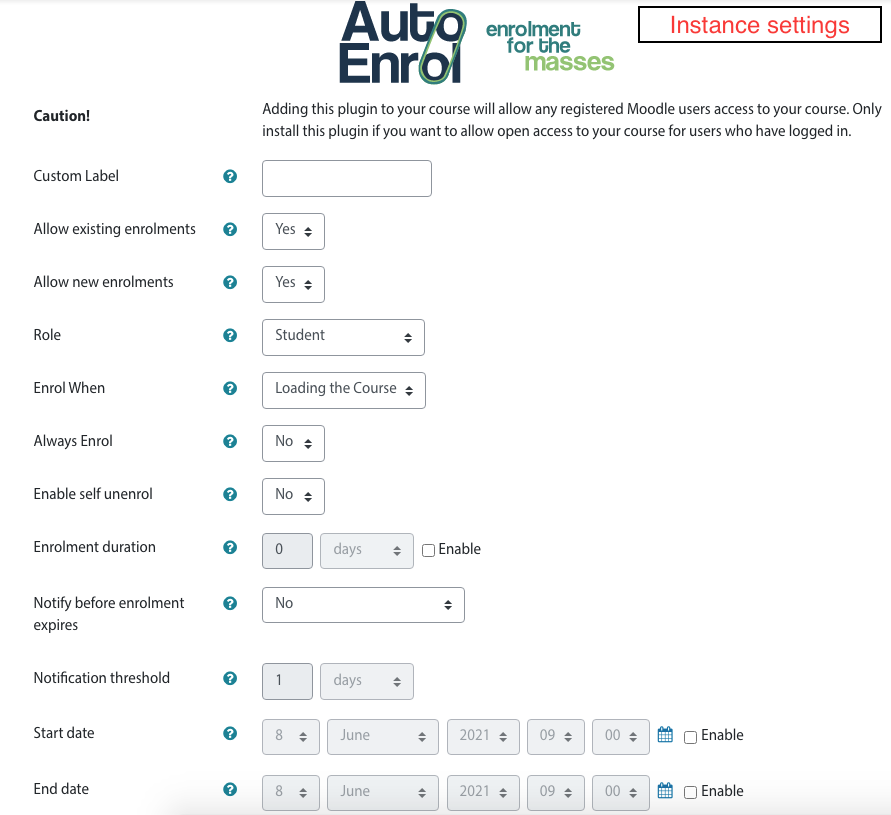
In the dropdown next to "Add" select Auto Enrol.
I have 5 different Courses. and after completing all of them "Course Complete" should get a check.
And it was working fine but since last few days its not working.
Earlier it was set that students will get access to 3-4-5 only when they complete 1 and 2. Auto access to 3-4-5 was not allowed. But then recently that was changed and set to all courses will be given to student at once.
Now the issue I am facing is, student have completed 1-2-3-4 yet there are no check box checked in front of their names in Course 5, being more specific, sometimes, some of them are checked and sometimes none of them. Check box are checked in each Courses (Lets say, a student enrolled for all, and have completed 1 to 4 and in each course report it is showing that they have completed this course and shows checked box but in 5th course it doesn't show check box checked.) Because of this no student is able to get a certificate. Can you help?
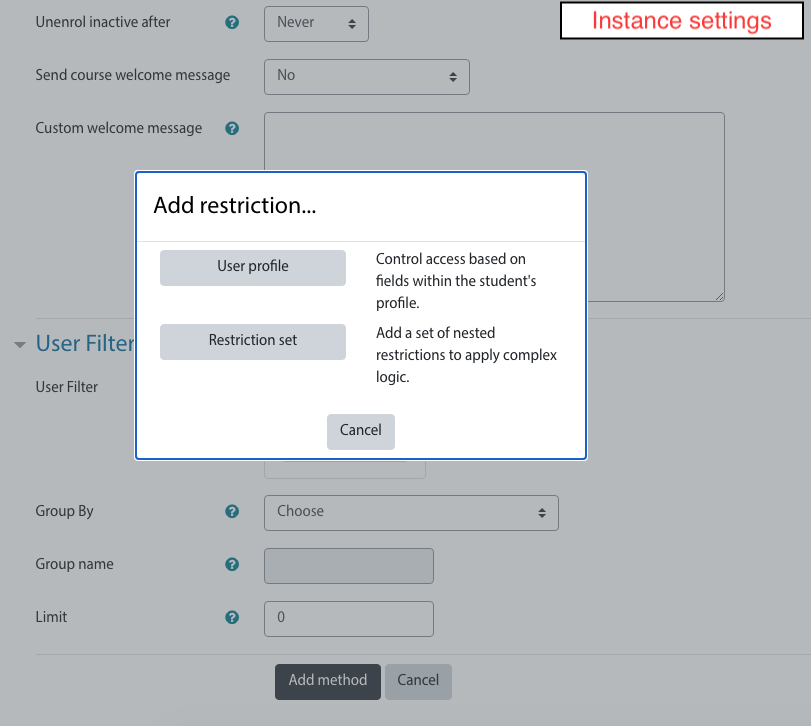
you can set AutoEnrol to enrol users on login or when they click on each course, availability plugins are used to check if they can be enrolled .
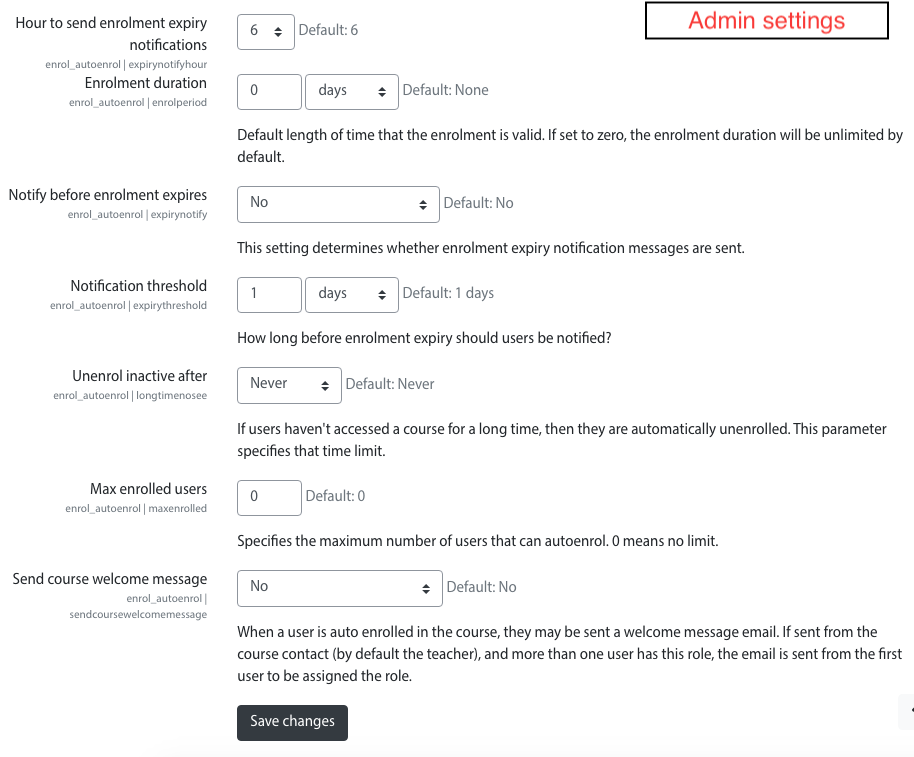
Please be aware if you set autoenrol on login in several courses and your site has a lot of logins each day. This could slowdown your site performances.
If you use username as profile field in Esse3enrols and your user language is english, you can write something like this in your Excel file:
username
20woodr
20rushh
20soong
20smithj
The column header is the translation in the uploader user language of the field name.
HTH,
Roberto
Thanks so much.
The esse3enrols availability plugin looks interesting.
1. When combined with 'AutoEnrol' can it auto-enrol users to every course that uses it as soon as they login to Moodle? Or do they need to click on each course to enrol?
2. Could you provide an example of the Excel format? I have seen the instruction 'a custom Excel file with a column header that match with the Moodle admin selected field name.' but I'm not sure what that means.
Thanks,
Nick
the AutoEnrol filter use Moodle availability plugins, the same you can use to limit access to activities so your answer is: yes, you can do.
1. If you want, you can add one by one rules for all the usernames;
2. more easely you can add a filter rule that check profile field username that start with "20" to match 20smithj and any other student that has joined in 2020).
1bis. You can also add availability plugins that match your needs.
I developed an availability plugin that get an excel file with the list of users that could be allowed or denied (https://github.com/bobopinna/moodle-availability_esse3enrols).
HTH,
Roberto
1. Can it filter against a list of expected students and allow/deny access based on that list?
2. If not the above, can it filter on the prefix of a username? For instance our student usernames are based on their year of entry e.g. 20smithj (John Smith who joined us in 2020).
you can set your course to Autoenrol users when they on login to your moodle site.
When the user registration is completed the user is enrolled in your course.
If the administrator create the user account you need to wait the first login or enable the autoenrol sync scheduled task please use this option only as the last resource because it could lower down your moodle site performances.
HTH,
Roberto.
For me I went to the specific Course I want to add this method too and then choose Participants tab then changed the dropdown from Enrolled Users to Enrolment Methods and was
It is unclear to me how I can assign this auto-enrol to one specific course. I installed the plugin and enabled it, but I do not know what to do now. Thanks
you can add AutoEnrol Instances to your courses in the Enrolment methods page of each course. The single steps to do depends on Moodle version and theme plugin, generally you find a link or a menu item in course participant page.
You can find the procedure in Moodle Docs (https://docs.moodle.org/401/en/Enrolment_methods#Managing_enrolment_methods).
HTH,
Roberto