
Microsoft Word File Import/Export (Book)
Maintained by
Eoin Campbell
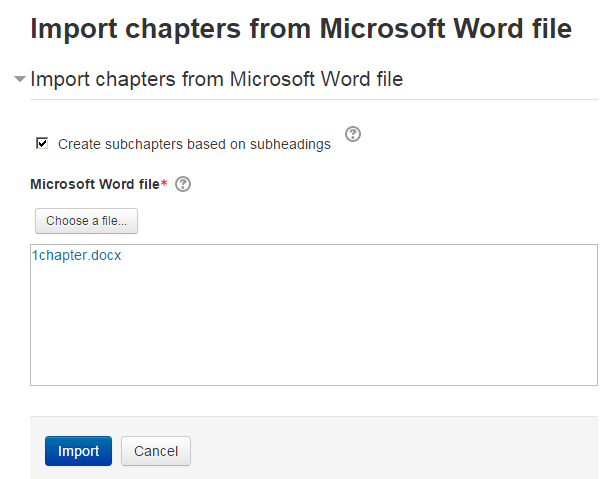
Import the contents of a Microsoft Word file into a book, splitting it into chapters and (optionally) subchapters, based on the heading styles. The file can be saved from Microsoft Word, Google Docs or LibreOffice, as long as it has a '.docx' suffix. Also supports exporting books to Word format, for round-trip editing.
Comments
Comments are no longer open for new posts. Existing comments remain available to read.
---
**Subject: Issue with XSLT Transformation Error When Importing Word Document into Moodle**
**Dear [Plugin Developer's Name],**
I hope this message finds you well. I am writing to seek your assistance regarding an issue I encountered while trying to import a Word document into Moodle. The import process fails with the following error message:
```
XSLT transformation failed ({$a})
```
**Context:**
- I am using a Python script to generate a Word document (`output.docx`) from an Excel file. Each page of the Word document contains an image and several lines of text.
- The generated Word document opens without any issues in Microsoft Word and seems to be properly formatted.
- However, when attempting to import this document into Moodle, the aforementioned error occurs.
**Details of the Process:**
1. **Excel Data:**
- The Excel file (`datenquelle.xlsx`) contains the following columns: `Bildpfad` (Image Path), `Textzeile_1` (Text Line 1), `Textzeile_2` (Text Line 2), `Textzeile_3` (Text Line 3), `Textzeile_4` (Text Line 4), and `Textzeile_5` (Text Line 5).
2. **Python Script:**
- The script reads the Excel file and creates a Word document where each page includes:
- `Textzeile_1` (formatted as bold)
- An image from the `Bildpfad`
- `Textzeile_2` to `Textzeile_5` (formatted as italic if `Textzeile_2`, normal otherwise)
Here is the Python script I am using:
```python
import pandas as pd
from docx import Document
from docx.shared import Inches
import os
# Reading the Excel file
excel_file = 'datenquelle.xlsx'
df = pd.read_excel(excel_file)
# Creating a new Word document
doc = Document()
# Function to add formatted paragraph
def add_formatted_paragraph(document, text, bold=False, italic=False):
paragraph = document.add_paragraph()
run = paragraph.add_run(text)
run.bold = bold
run.italic = italic
# Iterating through the data and adding to the Word document
for index, row in df.iterrows():
# Adding Textzeile_1
if pd.notna(row['Textzeile_1']):
add_formatted_paragraph(doc, row['Textzeile_1'], bold=True)
# Adding the image if the path is valid
bildpfad = row['Bildpfad']
if pd.notna(bildpfad) and isinstance(bildpfad, str) and os.path.exists(bildpfad):
doc.add_picture(bildpfad, width=Inches(4.0))
# Adding the remaining text lines
for i in range(2, 6):
text_key = f'Textzeile_{i}'
if pd.notna(row[text_key]):
if text_key == 'Textzeile_2':
add_formatted_paragraph(doc, row[text_key], italic=True)
else:
add_formatted_paragraph(doc, row[text_key])
# Adding a page break
doc.add_page_break()
# Saving the Word document
doc.save('output.docx')
```
**Issue:**
Despite the document appearing to be correctly formatted in Microsoft Word, Moodle throws an XSLT transformation error during the import process. We suspect that there might be some incompatibilities or non-standard formatting elements in the generated `.docx` file that Moodle's import process cannot handle.
**Request:**
Could you please provide guidance on how to troubleshoot and resolve this XSLT transformation error? Are there specific requirements or limitations for Word documents to be successfully imported into Moodle that we might be overlooking?
Any help or suggestions you could provide would be greatly appreciated.
Thank you for your time and assistance.
Best regards,
[Your Name]
---
You can send this message to the plugin developer to explain the issue you are encountering. If you need further assistance or modifications to the message, please let me know!
I did investigate allowing students to download as Word a while ago, but it required a bit more work than I thought, so I put it aside. I might take another look.
I posted a comment to https://github.com/ecampbell/moodle-booktool_wordimport/issues/8 about a potential continuation of the same problem in v1.4.11 (2021083100) of this plugin. The exported file is showing broken images when exporting and opening in current (2022) desktop versions in Windows and Mac. The issue isn't occurring 100% of the time, but reliably enough for majority of embedded images in Book chapters. Any tips for troubleshooting this at all?
Thanks,
Alex
1) The alt-text gets put in the longdesc attribute (which is depreciated) rather than alt. This has a few issues: users can't edit alt-text through the Atto editor (but must edit the html instead), accessibility checkers like Brickfield won't see this and some screenreaders (e.g. Chromevox) don't handle longdesc well.
2) Tables: these get imported without header row tags (even if this is set in the Word document originally).
3) tags everywhere! In Word, I use a 14pt font as my normal style (the default 11pt in Word is smaller than recommended for print accessibility) - this formatting gets applied to each paragraph in a tag, but sometimes for no discernible reason each word in a sentence gets it's own tag. This has a few potential issues:
a) with a per word it can make screenreader navigation cumbersome.
b) Sometimes my screenreader skips the image (potentially because there is so much nested formatting instructions centre, font size etc). I'm not really sure why this happens, but it is not an issue content authored directly with the Book Activity.
c) it makes the html very long and difficult to edit.
4) Bulleted/Numbered lists get removed. At least this issue is apparent to the author, but bulleted/numbered lists are important in supporting accessibility.