
Microsoft Word File Import/Export (Book) icon

Microsoft Word File Import/Export (Book)

Maintained by Eoin Campbell
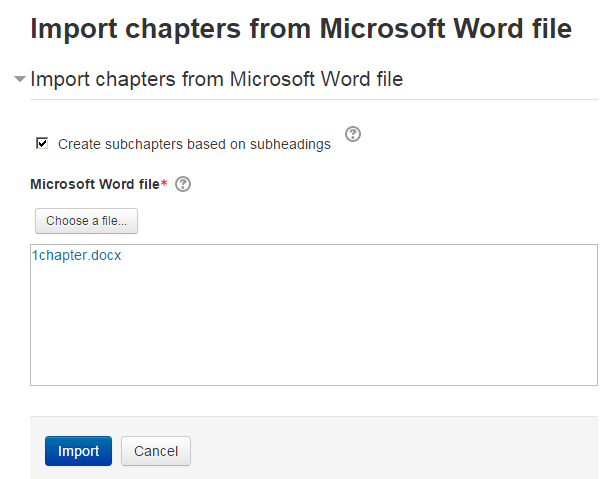
Import the contents of a Microsoft Word file into a book, splitting it into chapters and (optionally) subchapters, based on the heading styles. The file can be saved from Microsoft Word, Google Docs or LibreOffice, as long as it has a '.docx' suffix. Also supports exporting books to Word format, for round-trip editing.
Price option: Free

Supports Moodle 2.3-5.0 See all versions
Latest release: 1 year ago
Installations: 8399
Downloads (last 90 days): 1223

Frankenstyle name: booktool_wordimport
Book tools

Comments

Comments are no longer open for new posts. Existing comments remain available to read.

See also https://moodle.org/mod/forum/discuss.php?d=386332#p1557041 regarding Word templates and keyboard shortcuts
I recommend using the moodleBook.dotm Word template I created that has a set of keyboard macros defined to speed up editing (cf. http://www.moodle2word.net/mod/resource/view.php?id=44). You need to install it in your Word Startup folder.
Greetings,
Is there any easy/quick solution for editing bullets and numbers to ++L and ++S, as it is taking long time for 50+ pages word files.
Thanks.
Hi everyone. Thank you all for the information.
The default publicly available Word template on www.Moodle2Word.net has this function disabled, because various virus checkers believe it contains malicious code. If you register on the www.Moodle2Word.net site and create your own account, you can download an older version that still contains this function, in the WordTable Question conversion course at http://www.moodle2word.net/mod/resource/view.php?id=48. Unfortunately the digital signature on both these template files has just expired, and it will take me a few weeks to get a new signature, so I think you will have to allow untrusted VBA macros to run to get it to work for the moment.
Hi Eoin,
I've been trying to get the Image Converter to work on Windows 7 with Office 2016. When I run the Image converter, it appears to run for about 30-60s and ends with a notification that it's been disabled to avoid issues with Windows Defender. Windows Defender is disabled, but we are using Microsoft Security Essentials, which I did have an exception in to allow the file.
Would you have any suggestions?
Thanks,
John
Thanks Eoin! That did the trick!
The "Macro Text" style is not available directly in the MoodleBook Ribbon. To get it, type <Ctrl>+<Shift>+S to open the "Apply Styles" dialog box, then type in "Macro Text in the "Style Name:" field. You can probably add this style to your Styles area if you use it a lot, or else create a shortcut key for it.
"hard return using the + key" should be "hard return using the <Shift>+<Return> key" above
Hi Eoin,
I have the MoodleBook Word plugin. I'm not sure where the "Macro Text" style is on that. Is this "HTML Text"?
Use the “Macro Text” style in Word to create pre-formatted text in HTML. Use spaces, not tabs, for indentation, because tab spacing is lost in HTML. It might also be better to separate each line with a hard return using the + key, as paragraph spacing might be too large.
I understand that the import process will convert everything to the same font. Is there anyway of getting the importer to recognize some parts should be PREFORMATTED? That would be awesome since my books have many snippets of code that should be in a monospaced font.
Hi Tamar,
An exported book opened in Word will never look like the original Moodle Book. All Moodle books have the look of the theme applied to your course or site, applied via CSS styles. The Word files don't have access to these styles, so they look like ordinary Word documents. However, if you re-import the Word file back in to a Moodle Book, then the content will look as you expect again.
If your Book has images, then you need to download a special Word template to convert the images into Word format. The template is available online at http://www.moodle2word.net/mod/resource/view.php?id=48. Unfortunately, this template contains VBA macros, and these macros trigger warnings on some virus-checking applications, and also on Windows Defender on Windows 10. To download and use it, you will have to turn off Windows Defender, and ignore any warnings.
Hello, when I try to export the book as word document the styles are always differently and accordingly it does not look appropriate. The exported document also does not include any images I have use in the moodle book. Is there some ways to export word document exactly like it looks in moodle?